To open a USB drive on an iPad, connect it to the charging port, open Files, and select the drive under Locations in Browse or the sidebar. Open a folder and tap a file to read it. The plug has to fit your iPad’s port, or you need an adapter, and the drive must use a format the iPad can read.
This guide covers USB flash drives, portable SSDs, external hard drives and SD card readers in the Files app on current iPadOS, including iPadOS 27, for both USB-C and Lightning iPads. The same steps work on an iPhone. To export pictures from the Photos library, use the iPad photos-to-flash-drive steps.
Check Your iPad’s Port
Look at the port on the edge of the iPad. A USB-C port is a small oval. A Lightning port is a thinner slot with a flat tab inside. Most iPads sold in the last few years use USB-C, while older models use Lightning. If you are not sure, go to Settings > General > About and look up the Model Name shown there.
| Your drive | USB-C iPad | Lightning iPad |
|---|---|---|
| USB-C flash drive or SSD | Plugs straight in | Needs a camera adapter plus a USB-C to USB-A adapter |
| USB-A flash drive | USB-C to USB-A adapter or a USB-C hub | Lightning to USB Camera Adapter or Lightning to USB 3 Camera Adapter |
| SD or microSD card | USB-C card reader | Lightning card reader or a camera adapter with a USB card reader |
| External hard drive | Powered USB-C hub | Lightning to USB 3 Camera Adapter connected to power |
iPad models don’t have an SD card slot, so a memory card always goes through a reader in the charging port. A cheap cable or hub that only charges won’t show a drive, so use one that carries data.
Make Sure the Drive Will Work
Apple’s external-storage requirements say the drive needs a single partition formatted as APFS, encrypted APFS, macOS Extended (HFS+), exFAT, FAT32 or FAT. Most new flash drives come formatted as exFAT and work right away. NTFS, a common Windows format, isn’t on Apple’s list.
If you plan to move files larger than 4 GB, such as long videos, use exFAT or APFS. FAT32 can’t store a single file bigger than 4 GB.
Some external hard drives also need power. Apple suggests a powered hub for Thunderbolt or USB4 iPads, or a Lightning to USB 3 Camera Adapter connected to a power adapter on Lightning iPads. Flash drives and most portable SSDs run on the iPad’s power.
Find the USB Drive in Files
- Plug the drive into the iPad’s charging port. Push the plug and any adapter all the way in, and unlock the iPad.
- Open Files. It’s the app with the blue folder icon. If it’s not on your Home Screen, swipe down and search for Files.
- Tap Browse, or open the sidebar. On a larger screen, the sidebar shows on the left. If you only see a folder, tap the back arrow or Browse until the list of locations appears.
- Tap the drive under Locations. It may show its brand name, Untitled or NO NAME. The drive is listed separately from On My iPad and iCloud Drive. If the Locations list is collapsed, tap Locations to expand it.
- Open a folder, then tap a file to view it.
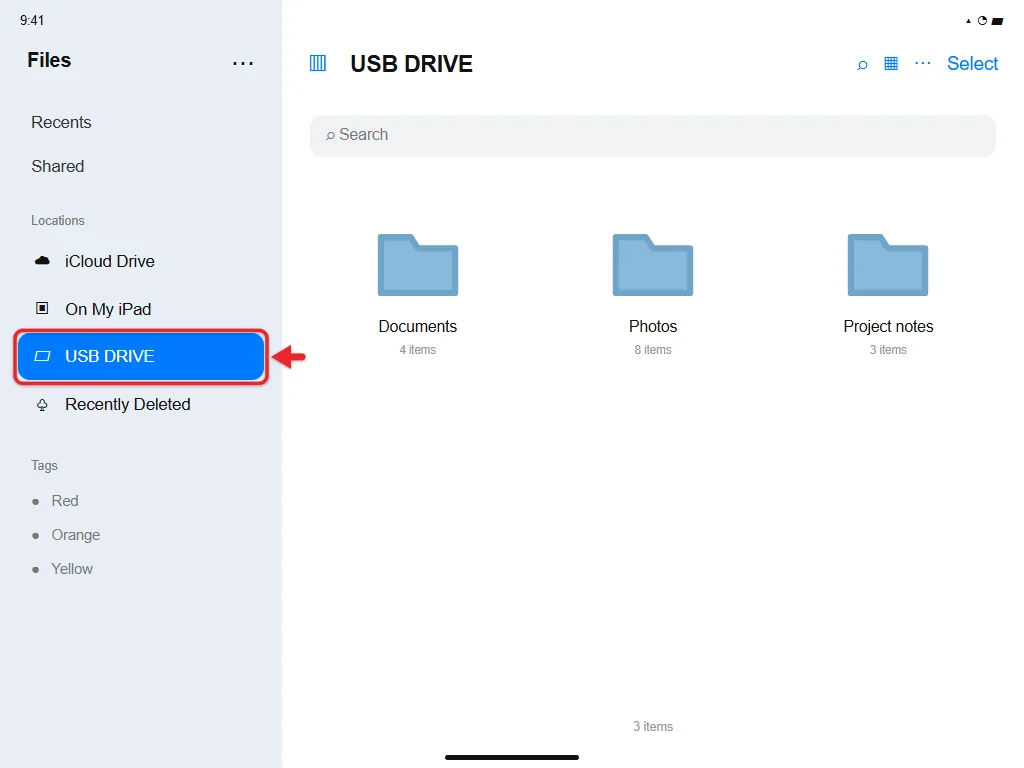
If you are hunting for a file you downloaded earlier, first check where iPad downloads are stored. A file saved to Downloads does not automatically appear on a connected USB drive. For the other places a file can hide, read finding your files on iPhone or iPad.
Preview a File or Choose an App
Files can preview common documents, images, PDFs and many videos. If the drive shows up but one file won’t open, the iPad probably needs an app that supports that file type. You don’t need to reformat the drive.
A ZIP archive on the drive won’t preview this way, but you can extract ZIP files on iPad in Files.
To pick an app, touch and hold the file and choose Open With, as Apple’s file-viewing guide shows. Choose Quick Look for a fast preview, or an editing app if you need to make changes.
Other apps can reach the drive too. In an app’s open or import screen, choose Browse and pick the drive under Locations, the same way you would in Files.
Copy Files Between the Drive and iPad
For a first transfer, copy one small file instead of moving your only copy. Then open the copy on the other side to make sure it worked.
If the files are still on a Windows computer, you can also transfer files from a PC to an iPad with a cable or iCloud Drive.
- Open the folder you’re copying from. That’s the USB drive, or a folder on the iPad.
- Touch and hold the file and choose Copy. For several files, tap Select first, pick the files, then copy them.
- Open the folder you’re copying to. Check its name so you don’t paste back into the same drive.
- Touch and hold an empty space and choose Paste. When the copy finishes, open the file to check it.
On an iPad with the sidebar showing, you can also drag a file from the drive and drop it on On My iPad or iCloud Drive in the sidebar. Wait for the progress indicator to finish before you open the copy.
Use Copy to keep the original. Use Move only when you want the file to leave its old location. Apple’s file-organization guide lists all the file actions, including New Folder, Rename and Delete, which also work on the drive. Deleting a file on the drive removes it from the drive, so copy anything you need first.
To add pictures from a computer to the Photos app instead, follow transferring photos from a computer to an iPad.
Save Photos and Videos From the Drive to Photos
Pictures and videos on a drive stay in Files until you add them to your photo library.
- Open the folder on the drive that holds the pictures or videos.
- Tap Select and pick the items.
- Tap the Share button and choose the save option, such as Save Image or Save [number] Items. The wording changes with what you selected.
- Open Photos and check that the items appear in your library.
For a memory card from a camera, the Photos app may also offer an Import option when the card reader is connected.
Check Space and Device Information
To see how much free space the drive has, touch and hold it under Locations and choose Get Info. This shows the drive’s space, not your iPad’s. Apple’s storage-device guide covers this.
If a large batch fails partway, check the free space on the destination and copy fewer files at a time.
If the Drive Does Not Appear
- Reconnect it. Unplug the drive and adapter, plug them back in, unlock the iPad, and check Locations again.
- Try another cable, adapter or hub port. A charge-only cable or a loose adapter is a common cause.
- Test the drive elsewhere. Try it on a computer, and try a different drive on the iPad. That tells you whether the drive, adapter or iPad is the problem.
- Check the format and partitions. The drive needs one partition and a format from the list above.
- Give it power. An external hard drive that spins up but never appears often needs a powered hub.
- Restart and update the iPad. Turn the iPad off and on, then check for an update. Finding a software update on iPad shows where to look.
Don’t erase the drive to test it if it holds the only copy of important files.
Formatting erases the drive. Back up anything you need first. On USB-C iPads, Erase in Files can change an external drive’s format; Lightning models may not offer it. On a computer, find the file format of a USB flash drive before changing it. A drive that plugs in can still use a format the iPad doesn’t support.
To do it on a computer instead, follow our steps to erase everything on a flash drive in Windows or on a Mac.
Disconnect After Work Finishes
Files doesn’t need an eject step. Wait until any copy or save finishes, close any file you opened from the drive, then unplug the drive from the iPad.
Common Questions
Do I need Wi-Fi?
No. Opening and copying files on a USB drive works offline. Files stored only in iCloud Drive need to download first, though.
Does viewing the drive copy everything to my iPad?
No. Opening a location only lets you browse it. Choose the files you want to copy and check them; seeing the drive’s folders in Files doesn’t mean anything has been backed up.
Can I put photos from Photos onto the drive?
Yes, that uses the Photos app’s export or share workflow rather than copying a normal Files document. Follow the iPad photo-export guide for choosing photos, saving copies, and checking the result.
Can I install apps on a USB drive?
No. Apps stay on the iPad’s own storage. You can keep documents, photos and videos on the drive to save space on the iPad.
Is a USB drive a backup of my iPad?
No. It holds only the files you copy to it. For a full backup of settings and apps, use iCloud or a computer.

Matthew Burleigh is the founder, head writer, and editor of Solve Your Tech, which he launched in 2012. He has written technology tutorials since 2008 and worked in IT since 2003, including small-business support, IT management, and consulting. He holds Bachelor’s and Master’s degrees in Computer Science from Arizona State University.
Matthew writes practical guides for Windows, iPhone and iPad, Microsoft Office, Outlook, Google apps, and Android. Solve Your Tech’s guides are checked step by step against the device or app maker’s own documentation and tested on his own devices whenever he has the hardware or software, with clear steps, sources, and update dates.
Read more about Matthew and how Solve Your Tech writes and updates its guides, or report a correction.