Open Settings > General > Date & Time to change your iPhone’s clock. On the current layout, turn off Set Time Automatically to edit the date and time, or turn off Set Time Zone Automatically to choose a time zone. Older versions combine these controls under one Set Automatically switch.
These steps cover iOS 27, the current version, and recent earlier versions. An iPad uses the same Date & Time screen in iPadOS.
Automatic time is the best choice for everyday use and travel. Switch to manual only to fix a problem or to pick a different time zone on purpose, then check the time before you rely on alarms or appointments.
Why the Clock Needs to Be Right
Your iPhone uses its clock for more than the number on the Lock Screen. Alarms, reminders, and calendar alerts fire based on it, and secure websites, app sign-ins, and messaging services can depend on an accurate device time. A clock that is far off can cause sign-in errors or failed connections, which is one reason Apple recommends the automatic setting.
Check Which Settings Layout You Have
Apple’s current iPhone date-and-time guide uses separate controls for automatic time and automatic time zone. You may also see Time Zone City and an option to choose a time-zone offset.
If your phone instead shows one Set Automatically switch and Time Zone, use the older-layout instructions below. To check your software version, open Settings > General > About and read the iOS version.
Set the Date and Time Manually
- Open Settings.
- Tap General, then Date & Time.
- Turn off Set Time Automatically. The date and time appear as editable controls below the switch.
- Tap the date or time control that appears.
- Choose the correct date and time using the onscreen calendar and time wheels.
- Leave the screen and check the time shown at the top of the iPhone.
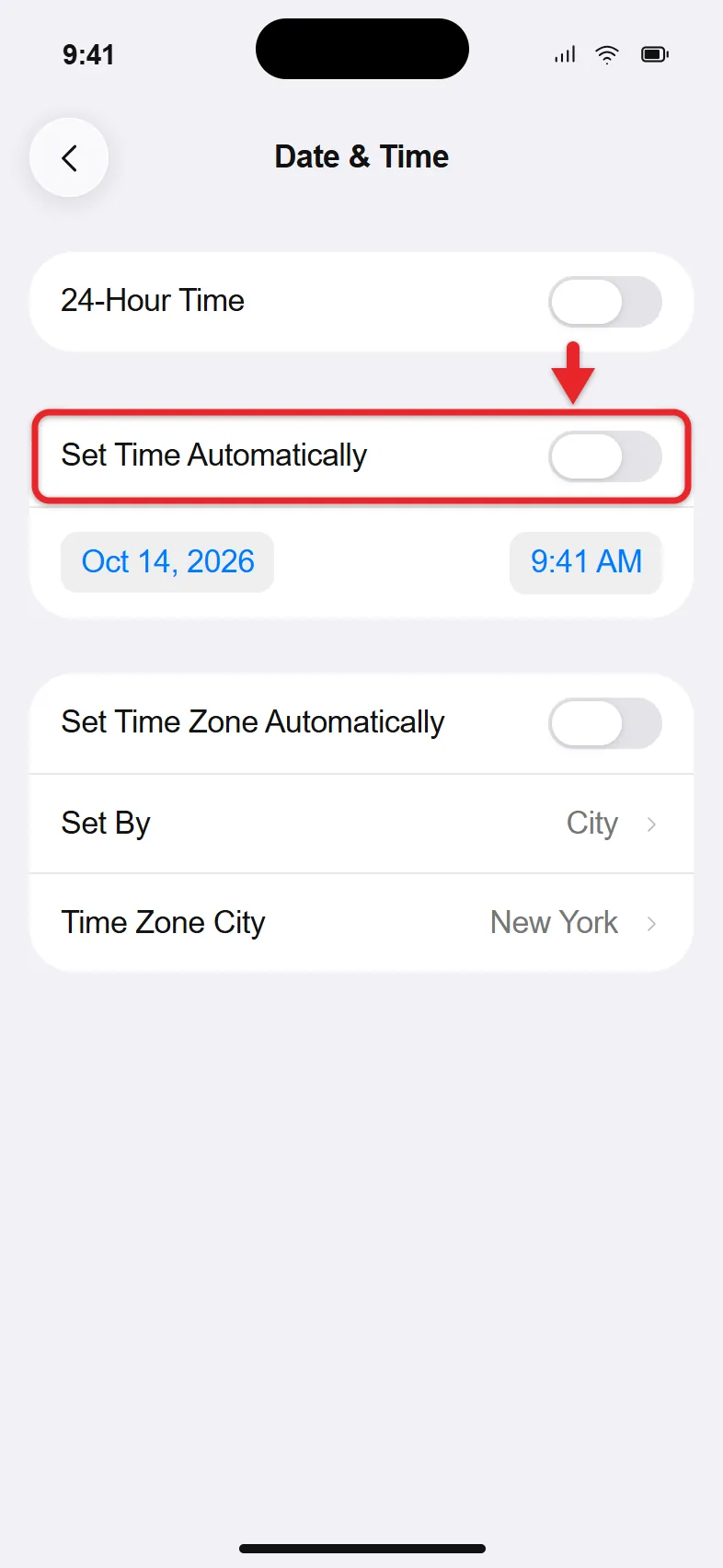
Check the date as well as the hour, and on a 12-hour clock, check AM or PM.
A manual time doesn’t stay in sync, so it can drift over weeks. Turn automatic time back on when you no longer need the manual setting. Apple also advises against changing the clock to get around game timers or app limits.
Change the Time Zone on the Current Layout
- Open Settings > General > Date & Time.
- Turn off Set Time Zone Automatically.
- Tap Time Zone City.
- Search for a city in the time zone you want.
- Select the matching city. You return to Date & Time, and the clock shows that zone’s time.
You do not have to find your exact town if another city uses the same zone. Be careful with cities that share a name: choose the correct country or region, and confirm the resulting time.
Apple also documents choosing an offset: tap Set By, select Time Zone Offset, then use + or – to adjust it. A city-based zone is often easier to understand because a fixed offset and a geographic time zone are not the same thing. A city follows its local daylight saving time rules, while a fixed offset does not change with the seasons.
To see another city’s time without changing your iPhone’s clock, add it in the Clock app’s World Clock tab instead.
On an Older iOS Layout
- Open Settings > General > Date & Time.
- Turn off Set Automatically.
- Tap Time Zone to search for and select a city.
- Tap the date and time controls to adjust them manually if necessary.
- Check the finished date, hour, and time zone.
On this layout, one switch controls the date, time, and time zone together. You won’t see separate Set Time Automatically and Set Time Zone Automatically switches.
Restore Automatic Time and Time Zone
Return to Date & Time and turn on Set Time Automatically and Set Time Zone Automatically, if both are present. On an older layout, turn on Set Automatically.
For location-based time-zone updates, there is one more control:
- Open Settings > Privacy & Security > Location Services.
- Make sure Location Services is turned on. Turning Location Services on or off on iPhone shows this screen in more detail.
- Scroll down and tap System Services.
- Turn on Setting Time Zone.
Connect to Wi-Fi or cellular data and check the time and time zone. Automatic time can’t update while the iPhone has no connection, such as in Airplane Mode with Wi-Fi off. If your iPhone says updated time zone information is available, restart it and any paired Apple Watch. The watch has its own clock-format switch, so turn on 24-hour time on Apple Watch too if you want it to match.

Change Between 12-Hour and 24-Hour Time
In Settings > General > Date & Time, turn 24-Hour Time on or off. For example, 2:30 PM becomes 14:30 when using a 24-hour display.
This changes the clock format; it does not move you into a different time zone or shift the time. If the hour is wrong, check the time and zone settings instead.
On an iPad you can also remove AM/PM next to the time in the status bar while keeping a 12-hour clock.
The appearance of dates is another separate preference. To change the order of month, day, and year or related regional formats, follow the steps to change the date format on iPhone.
If Automatic Settings Are Grayed Out
The automatic-setting control may be unavailable with some carriers or in some countries and regions. A Screen Time passcode or a corporate profile with device restrictions can also make it unavailable.
If you set up Screen Time on your own iPhone, open Settings > Screen Time and review the restrictions you turned on. iPhone restrictions and Screen Time explains where those controls live. If a parent, school, or employer manages the phone, ask that person or organization about the restriction. Don’t remove management profiles, take out the SIM card, or use other carrier workarounds to unlock the clock setting.
For the complete list of checks, read Apple’s help for incorrect time or time-zone settings. It recommends internet connectivity, current software, the automatic settings, and the Setting Time Zone location service.
If the Time Is Still Wrong
The clock is an hour off: Check the chosen time zone and whether a daylight saving change applies. Restore automatic settings when possible, and follow any time-zone update prompt.
The time changes back after you edit it: Check whether the automatic setting is still on. On the newer layout, time and time-zone automation are separate controls.
The automatic time is wrong: Install any update in Settings > General > Software Update, since keeping software current is one of the fixes for a wrong time. Then turn the automatic switches off and back on, and restart your iPhone.
Your Apple Watch shows a different time: The watch takes its time and zone from the paired iPhone. Fix the iPhone first, then restart the watch, which is the recommended step when updated time-zone information is available.
The time became wrong after syncing with a Mac: Check the Date & Time settings on the Mac too, and fix the time there.
Verify Alarms and Appointments
After changing the clock, confirm the date, time, AM/PM, and selected zone. Review upcoming alarms in the Clock app and important appointments in your calendar. Apps can have their own time-zone display behavior, so compare the details shown for a specific event.
The steps for changing or deleting iPhone alarms can help you check your alarms after changing the time. When the manual setting is no longer needed, restore automatic time and zone and check again.
Common Questions
Does the iPhone change time zones when I travel?
It can when automatic time-zone selection, a network connection, and the Setting Time Zone location service are all available. If it does not, use Apple’s connection and location-service checks before selecting a city manually.
Can I set my iPhone clock a few minutes fast?
Only by setting the time manually, which then stops syncing and won’t adjust for daylight saving time. If you want a clock that runs ahead, Apple Watch has a separate option to show a time ahead on the watch face while alerts still use the real time.
Is changing the Lock Screen clock style the same thing?
No. Changing the font, color, or style changes its appearance. Date & Time settings control the time it displays.
Should I leave a manually selected time indefinitely?
No. A manual time doesn’t adjust for daylight saving time or travel. Turn automatic time back on when you no longer need it.

Matthew Burleigh is the founder, head writer, and editor of Solve Your Tech, which he launched in 2012. He has written technology tutorials since 2008 and worked in IT since 2003, including small-business support, IT management, and consulting. He holds Bachelor’s and Master’s degrees in Computer Science from Arizona State University.
Matthew writes practical guides for Windows, iPhone and iPad, Microsoft Office, Outlook, Google apps, and Android. Solve Your Tech’s guides are checked step by step against the device or app maker’s own documentation and tested on his own devices whenever he has the hardware or software, with clear steps, sources, and update dates.
Read more about Matthew and how Solve Your Tech writes and updates its guides, or report a correction.