The five most common phone threats today are fake or trojan apps, spyware and stalkerware, adware, phishing links sent by text or email, and fake virus warnings. You may have one if your phone suddenly shows pop-up ads outside of apps, has apps you didn’t install, sends messages you didn’t write, drains its battery or data much faster than usual, or shows charges you don’t recognize.
This guide covers iPhones running iOS 26 or iOS 27 and Android phones with Google Play, with Android menu paths taken from a Google Pixel on Android 16. Samsung and other Android brands use slightly different Settings menus, but the Google Play steps are the same on every Android phone that has the Play Store.
Why “Phone Virus” Usually Means Something Else
A computer virus, strictly speaking, is code that copies itself into other files. That kind of self-spreading infection is rare on modern phones, because iPhone and Android run each app in its own walled-off space. What people call a phone virus is almost always one of two things: a harmful app that you (or someone else) installed, or a scam that tricks you into handing over a password, a code, or money.
That matters for how you fix it. You usually don’t need a special cleaning tool. You need to find and remove the bad app or profile, update the phone, and secure any accounts the scam may have reached.
The 5 Most Common Types of Phone Malware and Scams
1. Fake and Trojan Apps
A trojan is an app that looks useful, such as a flashlight, PDF reader, game, or “phone cleaner,” but carries hidden code. Once installed, it may steal banking logins, read your text messages to grab one-time codes, sign you up for paid services, or load more malware later.
On Android, you can also require authentication for Google Play purchases so a paid app or in-app purchase can’t go through without your approval.
Most of these come from outside the official app stores: a link in a text message, a website offering a free version of a paid app, or a file someone sends you. On Android this is called sideloading. Google’s Play Protect help page explains that Play Protect checks apps from other sources too, and it can disable or remove an app it finds harmful.
2. Spyware and Stalkerware
Spyware quietly collects your location, messages, photos, call history, or browsing activity and sends it to someone else. Stalkerware is spyware installed by a person you know, often a partner or family member who had your unlocked phone for a few minutes. The FTC’s stalkerware guide notes that it can hide under a bland name like “System Service” and may turn off warning notifications.
A different and much rarer kind, called mercenary spyware, is aimed at specific people such as journalists, activists, and officials. Apple sends a threat notification to people it believes were targeted this way.
3. Adware
Adware fills your screen with ads to earn money for whoever made it. Signs include full-screen ads that appear when you unlock the phone or while you’re on the Home Screen, ads in your notification shade from an app you don’t remember, and browser tabs that open on their own. Adware usually arrives inside a free app, and on Android it sometimes hides its icon so it’s harder to find.
4. Phishing and Smishing
Phishing is a fake message or website built to steal your sign-in details. When it arrives by text, it’s often called smishing. Common examples include a missed package delivery, an unpaid toll, a locked bank account, a problem with a payment, or a prize. The link opens a page that looks like the real company’s sign-in screen, and anything you type goes to the scammer.
Phishing isn’t malware on the phone, but it’s the most common way phone owners lose accounts and money. Some phishing links also try to get you to install an app or a configuration profile, which turns a scam into an infection. The FTC’s guide on how to recognize and avoid phishing scams lists the warning signs.
5. Fake Virus Warnings and Tech Support Scams
A pop-up says “Your iPhone has 5 viruses” or “Your Android is severely damaged,” vibrates the phone, and tells you to tap a button or call a number. These are ads, not real system alerts. Apple’s guidance on recognizing scams says pop-ups warning of viruses or security problems are usually fraudulent, and you should close the tab rather than call or tap. The goal is to get you to install a fake security app, pay for a subscription, or give a “technician” remote access.
Ransomware and Worms
Ransomware locks your phone and demands payment. Worms spread on their own from phone to phone. Both are rare on updated iPhones and on Android phones with Play Protect on. If you see a ransom demand, don’t pay. On Android, restart in safe mode and remove the newest app. If that doesn’t work, use the reset steps below.
Signs Your Phone Might Be Infected
No single sign proves your phone has malware. Batteries wear out, and big updates can make a phone feel slow for a day or two. Look for a combination of these, especially if they started suddenly:
- Pop-up ads appear outside of apps, or your browser keeps opening pages you didn’t choose.
- An app you don’t remember installing shows up, or an app’s icon disappears right after you install it.
- Friends get texts, emails, or social posts from you that you didn’t send.
- Battery life or mobile data use jumps without a change in how you use the phone.
- The phone runs hot while it’s sitting idle, or restarts on its own.
- Your phone bill shows premium text messages or subscriptions you didn’t sign up for.
- You get sign-in alerts or password reset codes you didn’t request.
- Someone seems to know where you’ve been or what you’ve said in private messages.
If that last point applies, read the safety note in the next section before you remove anything.
How to Check an iPhone for Malware
The iPhone doesn’t have a built-in virus scan, and apps from the App Store can’t look inside other apps. Instead, work through these checks.
- Open Settings > General > Software Update and install any update shown. Updates close the security holes that malware relies on, and a restart clears many problems that live only in memory.
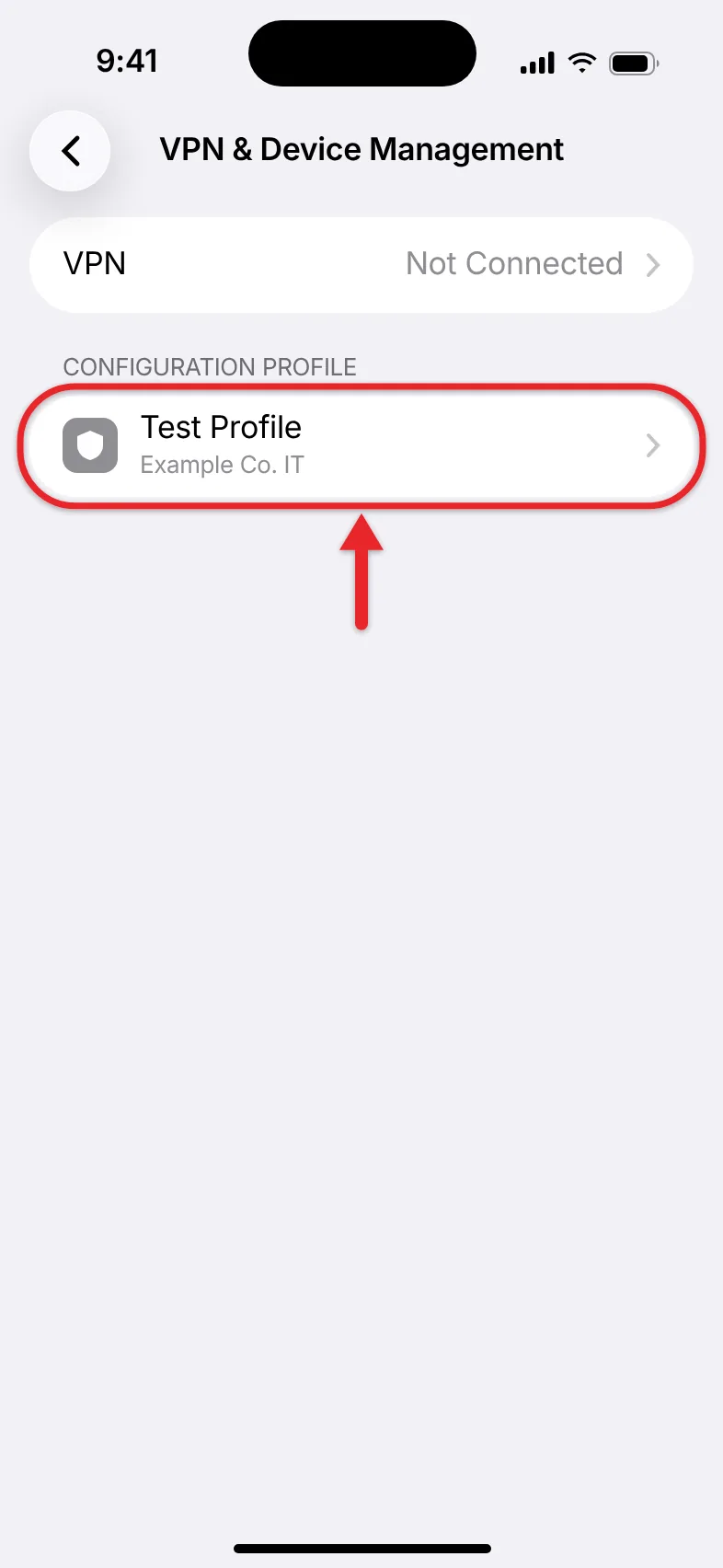
- Go to Settings > General > VPN & Device Management. If this section isn’t there or shows no profiles, nothing is installed. If you see a profile you don’t recognize, tap it, tap Remove Profile, and enter your passcode. Apple’s personal safety guide notes that removing a profile also removes its settings and apps, so leave work or school profiles alone and ask your IT department first.
- Swipe left past your last Home Screen page to open the App Library and look through it for apps you don’t recognize. Press and hold an unfamiliar app, then tap Delete App. Our guide on how to delete apps on iPhone covers the other ways to remove them.
- If fake virus pop-ups keep appearing in Safari, go to Settings > Apps > Safari and tap Clear History and Website Data. This removes the website data that keeps reopening the scam page.
- Open Settings, tap your name at the top, and scroll to the list of devices signed in to your Apple Account. Tap any device you don’t own and choose Remove from Account. Then change your Apple Account password.
- If you think someone you know has access to your phone or account, open Settings > Privacy & Security > Safety Check. It shows which people and apps you share data with and lets you stop sharing.
How to Check an Android Phone for Malware
- Open the Play Store, tap your profile icon in the top-right corner, and tap Play Protect. The screen shows the date of the last scan and any harmful apps found. Tap Scan to run a new check, and follow any prompt to remove a flagged app.
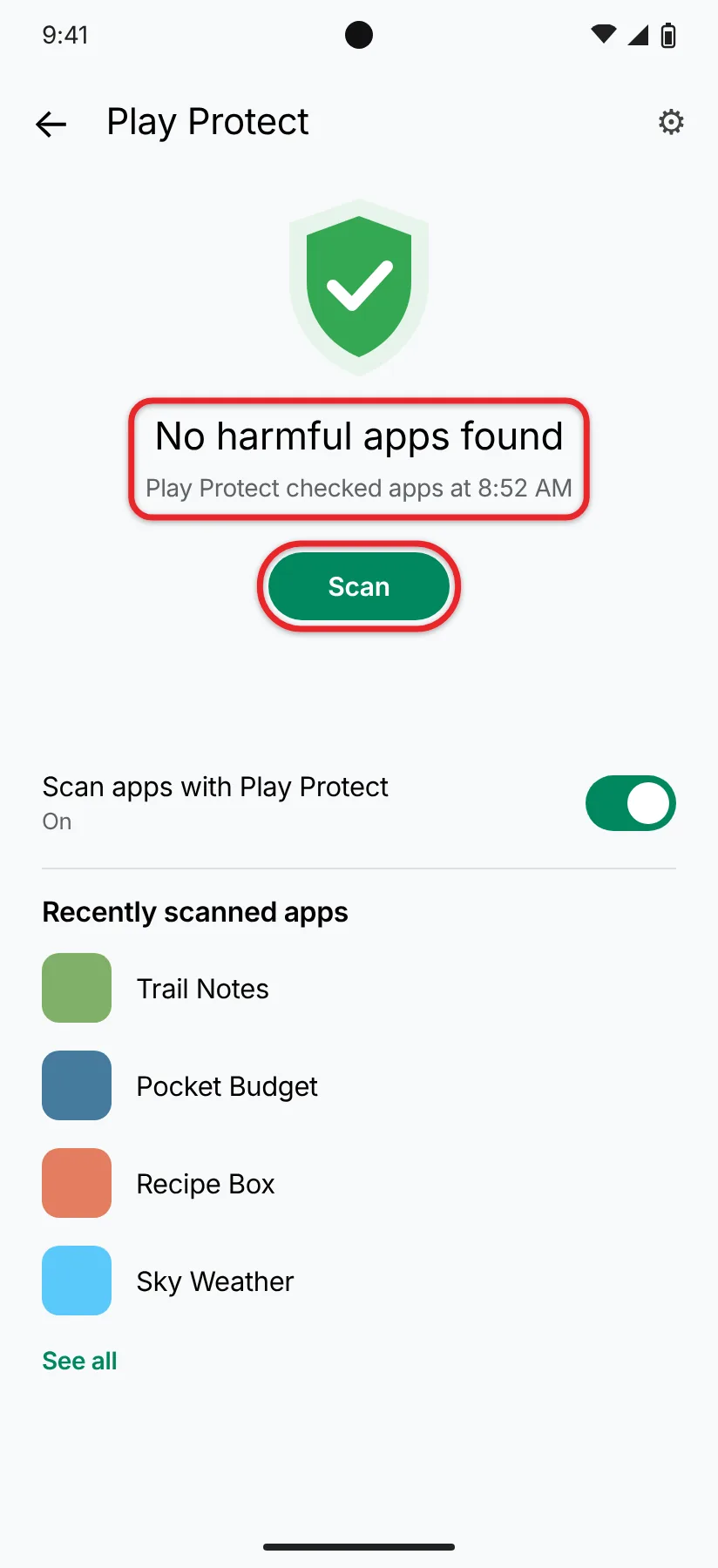
- On the same screen, tap the gear icon in the top-right corner and make sure Scan apps with Play Protect is turned on. Google turns it on by default, but some malware tries to get you to switch it off.
- Open Settings > Apps > See all apps and scroll through the list. Uninstall anything you didn’t install or that has a vague name. See our steps for uninstalling apps on Android if an app’s Uninstall button is missing.
- If an app won’t uninstall, it may have made itself a device admin app. Open Settings, search for device admin, open Device admin apps, turn off the suspicious app, and then uninstall it.
- Search Settings for Install unknown apps and turn the permission off for your browser, messaging app, and file manager unless you have a reason to keep it on.
- Go to Settings > System > Software updates and install any system update and Google Play system update shown.
Use Safe Mode if Ads or Crashes Won’t Stop
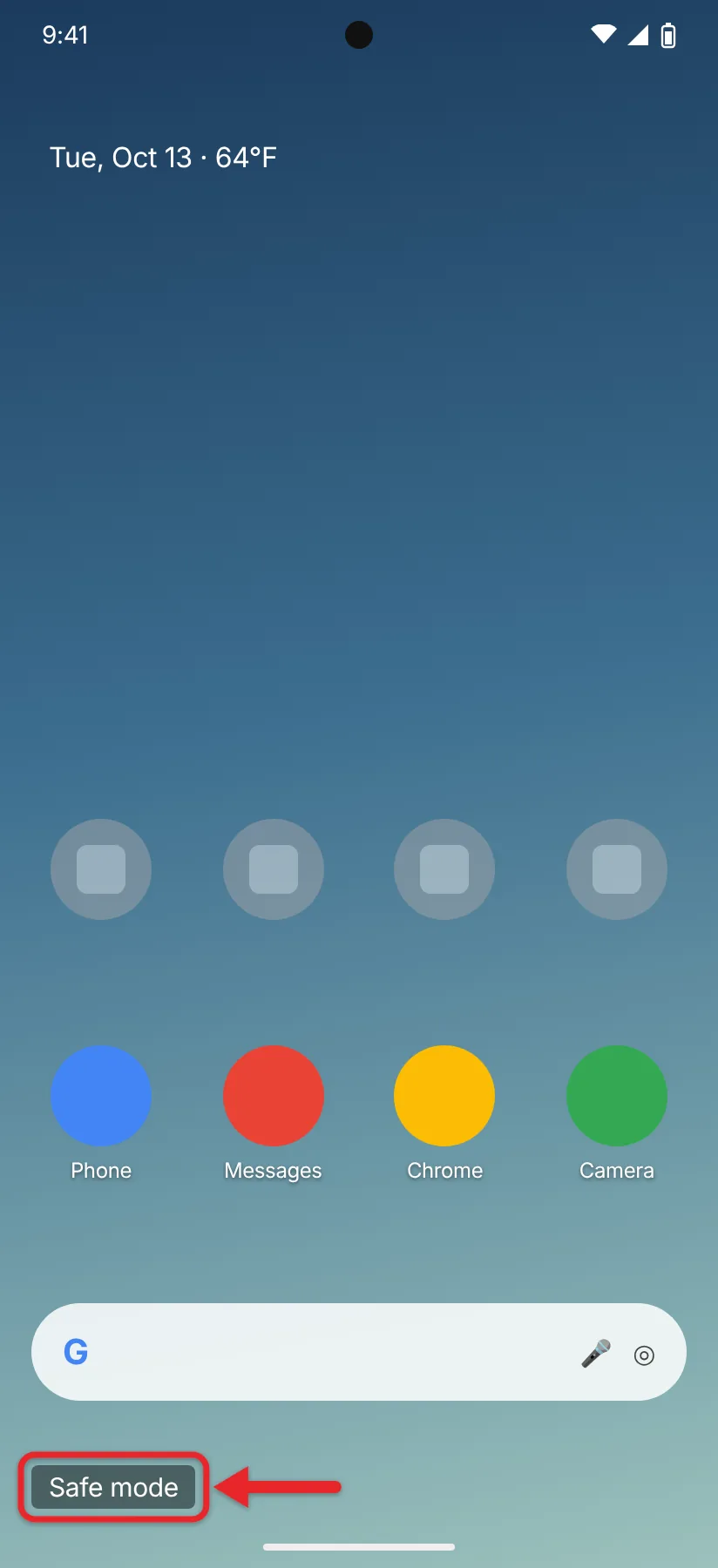
Safe mode starts Android with only its built-in apps, which makes it easier to remove a downloaded app that’s causing problems. On a Pixel 6 or newer, press and hold the power and volume up buttons together, touch and hold Power off until the safe mode prompt appears, and tap OK. The words Safe mode appear at the bottom of the screen once it restarts. Airplane mode turns on automatically, so turn it off if you need Wi-Fi. Other brands use different button presses. If the problem stops in safe mode, a downloaded app is the cause. To leave safe mode, open the power menu again and tap Restart. Google’s safe mode help page suggests removing your newest apps one at a time, restarting normally after each one, until the problem goes away.
If the Problem Won’t Go Away
- Change passwords from a different device. If malware may be reading your screen, change your email, bank, and Apple or Google account passwords on a computer or another phone, and turn on two-factor authentication.
- Add a carrier PIN. Ask your carrier for an account PIN or port-out PIN. This makes it harder for someone to move your number to their SIM card and receive your security codes.
- Factory reset as the last step. A reset erases everything, including hidden apps. Back up your photos first, and reinstall apps from the App Store or Play Store rather than restoring them from an old backup that could bring the problem back. See our guide to factory resetting an Android phone.
- Stalkerware needs a safety plan first. Removing it can alert the person who installed it. The FTC recommends talking with a domestic violence advocate first, using a different phone to do it. The National Domestic Violence Hotline is 1-800-799-7233.
- Report the scam. Forward scam texts to 7726 (SPAM) so your carrier can block them, and report fraud to the FTC at ReportFraud.ftc.gov. Forward fake Apple emails to reportphishing@apple.com.
Frequently Asked Questions
Can an iPhone get a virus?
It’s rare. The main risks on an iPhone are phishing links, fake virus pop-ups in Safari, and configuration profiles you were tricked into installing. Jailbroken iPhones, which have Apple’s protections removed, are much easier to infect.
Do I need an antivirus app on my phone?
Most people don’t. Play Protect is built into Android phones with Google Play, and iPhone apps can’t scan each other. Keeping the phone updated, installing apps only from the official store, and not tapping links in unexpected texts protects you more than an extra app. Be especially wary of any app or pop-up that demands payment to remove viruses it claims to have found.
Can I get a virus by opening a text message?
Reading a text is very unlikely to infect an updated phone. The danger comes from tapping a link in it, downloading an attachment, or replying with a code. Rare attacks that need no tap at all are aimed at specific high-profile people, and Apple recommends Lockdown Mode (Settings > Privacy & Security > Lockdown Mode) for anyone who may be targeted that way.
What should I do if I tapped a phishing link?
Close the page. If you typed a password, change it right away on the real site or app and turn on two-factor authentication. If you entered card details, call your bank. If the page installed an app or profile, remove it using the steps above.
Does a factory reset remove all malware?
A reset removes apps, profiles, and settings, which clears nearly all phone malware. It doesn’t undo stolen passwords, so change those too, and avoid restoring a backup made after the problem started.

Matthew Burleigh is the founder, head writer, and editor of Solve Your Tech, which he launched in 2012. He has written technology tutorials since 2008 and worked in IT since 2003, including small-business support, IT management, and consulting. He holds Bachelor’s and Master’s degrees in Computer Science from Arizona State University.
Matthew writes practical guides for Windows, iPhone and iPad, Microsoft Office, Outlook, Google apps, and Android. Solve Your Tech’s guides are checked step by step against the device or app maker’s own documentation and tested on his own devices whenever he has the hardware or software, with clear steps, sources, and update dates.
Read more about Matthew and how Solve Your Tech writes and updates its guides, or report a correction.