To use passkeys in Windows 11, sign in to a supported website, add a passkey in its security settings, and choose where to save it. The next time you sign in, select the passkey option and approve the request with your PIN, fingerprint, face, phone, or security key.
Where you save it matters: a Windows Hello passkey stays on that PC, while one saved in a synced password manager can work on your other devices. This guide covers website and app sign-ins on an updated Windows 11 PC, not your lock-screen sign-in. Microsoft’s guide to passkeys explains how they work.
What you need before starting
A passkey replaces your password for one website or app. Your PC, phone or password manager stores a secret key, and the website stores a matching public key. When you sign in, you approve with your PIN, face or fingerprint, and the device proves it has the right key. There is nothing to type or remember.
Because each passkey only works on the real site it was made for, a fake login page can’t steal it. Your face or fingerprint never leaves your device; it only unlocks the passkey.
Before you start, check these items:
- Account support: the website or app must offer passkeys for your account. Windows cannot enable them for a service that does not support them.
- Current software: update Windows and your browser. Edge and Chrome are useful starting points; other browsers depend on the service and provider.
- A way to approve requests: configure Windows Hello for a local PC passkey, or have the phone, password manager, or physical security key you intend to use. A physical key must support the FIDO2 sign-in standard and be accepted by the service.
- Existing access: be ready to sign in and complete any identity check before adding a new method.
- Recovery: keep another working method, such as another registered passkey or the service’s supported recovery option.
Only save personal passkeys on your own PC and Windows account, not a shared one or someone else’s browser profile. For work or school accounts, follow your IT team’s rules. Press Windows + L to lock your PC when you walk away.
Set up Windows Hello
Windows Hello verifies you with a device PIN, compatible fingerprint reader, or compatible face-recognition camera. You do not need a fingerprint reader or special camera to use the PIN option.
- Open Settings. Press Windows + I. If you prefer using the mouse, follow the steps for opening Settings in Windows 11.
- Open the sign-in controls. Select Accounts > Sign-in options. Look under the available ways to sign in.
- Configure a PIN if needed. Expand PIN (Windows Hello) and select Set up. Complete the account verification and PIN prompts. An existing PIN does not need to be replaced just to create a passkey.
- Add biometrics if you want them. Choose the face or fingerprint option and follow its setup prompts. If the hardware is unavailable, continue with the PIN.
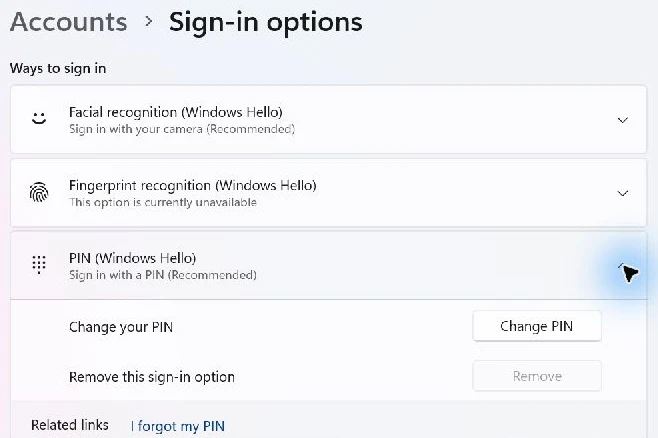
Your Windows Hello PIN and online account password are different. Enter the PIN in the Windows verification dialog when asked; do not enter it in the website’s password field. Microsoft provides the Windows Hello setup instructions.
If you want a new PIN for these prompts, you can change your PIN on Windows 11.
Choose where to save your passkey
Pick a place you’ll have with you when you sign in. If you use a desktop and a laptop, a synced password manager is usually easiest. If you want the passkey to stay on one PC, save it to Windows and keep another sign-in method as a backup.
| Location | How you use it | What to plan for |
|---|---|---|
| This Windows device or Windows Hello | Approve with this PC’s PIN or biometrics. | The local passkey does not sync or have a supported Windows Hello backup. Add another method before replacing or reinstalling the PC. |
| Synced password manager | Use the manager on supported devices signed in to the same provider account. | Keep access to the manager and its recovery process. Provider support and work policies vary. |
| Phone or tablet | Approve on that device, sometimes after scanning a QR code on the PC. | The phone must hold the matching passkey and be available for the request. |
| FIDO2 security key | Connect the physical key and complete its touch, PIN, or biometric prompt. | Keep a second account sign-in method in case the key is lost or reset. |
Google documents the lack of Windows Hello synchronization and backup in its Chrome passkey guide. A phone’s own credential manager may sync its passkeys; that is separate from using the phone to approve a nearby PC’s sign-in.
Microsoft Password Manager and other providers
Microsoft Password Manager supports synced passkeys, but it is still rolling out in Edge 142 and newer with a personal profile. An updated browser doesn’t mean every account has the feature yet. Microsoft’s passkey overview explains the current availability.
Google Password Manager can also sync passkeys through your Google account. It may ask you to create or enter a Google Password Manager PIN. That PIN protects credentials in the manager and is separate from your Windows Hello PIN. Read the prompt’s provider name so you know which PIN it expects.
Windows 11 24H2 and later support integration with compatible third-party passkey managers. Installations with this feature may show them under Settings > Accounts > Passkeys > Advanced options. A browser extension and a Windows-integrated provider are different ways of supplying credentials; follow your manager’s instructions for the one you use. The technical side is covered in Windows passkey manager integration.
How to create a passkey in Windows 11
Start with one account you can already access. Keep your existing recovery method while you add and check the new credential.
- Sign in to the service. Open its official website or app and use your existing sign-in method. Check that you are in the right account, especially if you use several email addresses.
- Find the account’s security settings. Look for a section named Security, Sign-in methods, or Passkeys. Select its option to create or add a passkey. Some services offer this during sign-in instead.
- Check the save dialog. Read the suggested provider or device name. Use Change, Save another way, or the alternative-device option if you want a different location.
- Select your storage location. Choose this Windows device, your supported manager, a phone, or a security key. A suggested password manager isn’t the same as local Windows storage.
- Approve the request. Use the verification method requested by that provider. A PC prompt may use Windows Hello; a phone or security key has its own approval process.
- Check the service’s confirmation. Wait for the passkey to appear in the account’s security settings. If naming is offered, choose a label that identifies its location, such as “Office PC local.”
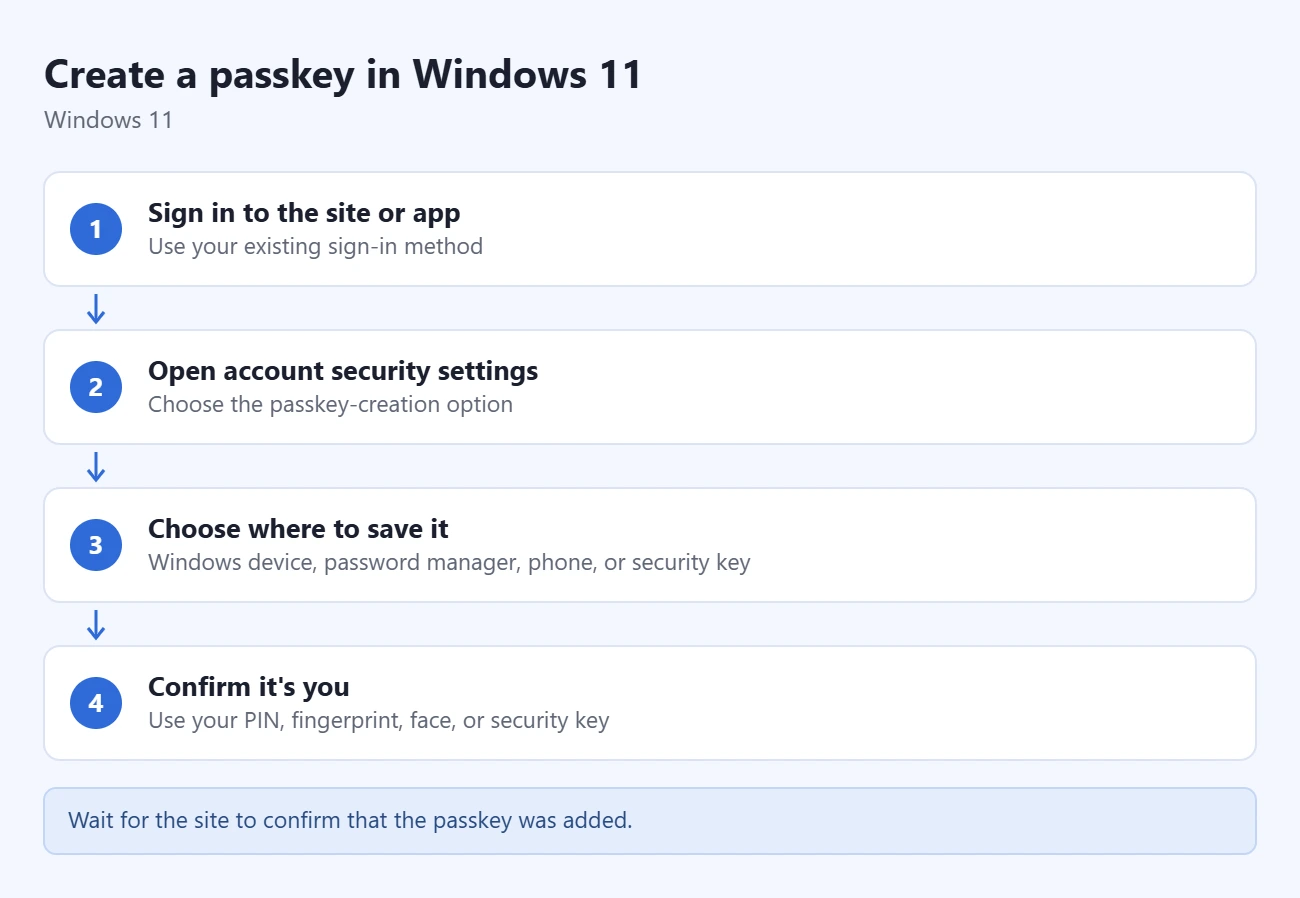
If you cancel before the service confirms completion, check the account’s passkey list before assuming the credential was added. Microsoft’s create and save a passkey instructions show the available saving routes.
Examples for Microsoft and Google accounts
Personal Microsoft account
- Open your Microsoft account Advanced security options and sign in.
- Select Add a new way to sign in or verify, then Face, Fingerprint, PIN, or Security Key.
- Review the suggested location, change it if necessary, and complete the device’s prompts.
- Return to the security dashboard to check the new method. Then perform the sign-in check below.
Microsoft work or school account
Open Security info, select Add sign-in method, and choose an available Passkey or Passkey in Microsoft Authenticator option. Complete the offered enrollment process. If those choices are missing, your organization may not permit that method or provider; ask IT which enrollment route applies.
Google account
Avoid creating a personal passkey on a shared device. Use a PC and profile you control.
- Open Google’s passkeys page and verify the correct account.
- Select Create a passkey and follow the offered confirmation or alternative-device prompts.
- Read the provider name before approving. A Google account passkey can be stored in a provider other than Google Password Manager.
- Check its entry and try signing in. Google’s passkey help notes that some new passkeys may take up to seven days to become available at sign-in.
How to sign in and check that it works
Adding a passkey and successfully using it are separate checks. Perform both before removing any older method.
- Open the service’s sign-in page. Sign out on your own PC when you are ready to test, keeping your alternative method available.
- Select the passkey route. Enter your username if required. Look for Use a passkey, Sign-in options, or Try another way. Some sites offer matching passkeys when you select the username field.
- Choose the correct credential. Select the account and provider you want, or switch to another device if needed.
- Approve the request. Complete the Windows Hello, manager, phone, or key prompt without typing your online password.
- Confirm the result. Check that the right account opens. A successful sign-in shows that the credential works for this service, provider, and device.
A password request does not necessarily mean setup failed. The service may offer a password first or require another check for a particular action. For Google, use Try another way when you need a different method.
Use a passkey from your phone or security key
Approve on a phone
For cross-device sign-in, keep the phone near the PC, enable Bluetooth on both, and connect both to the internet. They do not need the same Wi-Fi network. Have a screen lock enabled on the phone.
- On the PC’s passkey prompt, choose the phone or tablet option rather than creating a new local credential.
- Scan the QR code shown using the phone that holds the matching passkey.
- Open the passkey request and approve with the phone’s unlock method.
- Wait for the PC to finish signing in. If the request expires, start a fresh one.
This process uses the phone’s credential to sign in on the PC; it does not copy that passkey into Windows. A managed computer may block this route through Bluetooth or passkey policies.
For an example on a phone, read about using an Amazon passkey with Face ID on an iPhone.
Approve with a security key
Choose the security-key option, connect a compatible key, and follow its prompts. A key PIN belongs to the key and may differ from your Windows PIN. Touch the key when requested. You can use an existing registered key on a compatible PC without creating a Windows-local passkey there.
How to view or delete saved passkeys
Before deleting: verify another sign-in method. Deleting a credential does not provide a way to recover it from the Windows list.
- Press Windows + I and select Accounts > Passkeys. Older screenshots may call the entry Passkey settings.
- Find the site and account you want. Local passkeys are listed here; an empty list doesn’t mean a phone or password manager has no passkeys.
- To delete a local entry, open its three-dot menu and select Delete passkey, then confirm.
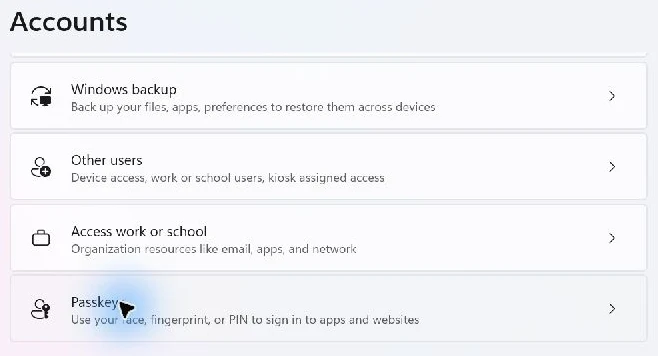
For synced credentials, open the manager that stores them. In Chrome, start at the three-dot menu > Passwords and autofill > Google Password Manager. In Edge, use Settings > Passwords and autofill > Microsoft Password Manager, when available. If the Edge menu looks different, check where to find Microsoft Password Manager.
Also review the website’s registered sign-in methods when retiring a credential. Removing a stored copy and removing the account’s registration are separate actions. Microsoft specifically directs work or school users to remove a retired passkey from both Security info and its storage location. See its saved passkey management guide.
If you were looking for a readable website password, follow the steps for finding saved passwords in Windows 11. A passkey is not a string you can reveal and paste into another browser.
Prepare for a new or lost PC
Before replacing or resetting a PC, identify which accounts rely on its local passkeys. For each account:
- Verify a second method while you still have access.
- On the replacement device, use that method to sign in. For a synced credential, first regain access to its manager.
- Create a replacement passkey if the old credential was local to the previous PC.
- Check the new sign-in, then retire obsolete entries from the account and old storage when appropriate.
If the device is already lost and you have no usable passkey, use the service’s official recovery process. Do not expect Windows to reveal or reconstruct the missing local credential. For a stolen device, review the account’s device access and revoke the affected credential from a device you still control.
Fix common passkey problems
The website has no passkey button
Check its security settings and alternative sign-in methods, then its help page for your account type. A missing pop-up alone doesn’t mean passkeys are unsupported. Update your browser and try a regular window if private browsing hides a required provider.
Windows does not offer local storage
Check Settings > Accounts > Passkeys > Advanced options, if present. The Save passkeys to this Windows device option controls the local service. Your organization can disable it. A service or manager may also limit duplicate registrations; check the existing credential before adding another.
An app cannot access passkeys
On Windows 11 24H2 and later, an app can fail if you previously declined passkey access. Open Settings > Privacy & security > Passkey access and review that app’s permission. Allow an app you intend to use; contact IT if policy prevents changes. It’s one of the Windows passkey privacy controls.
No matching passkey or the wrong provider appears
Check the account email, browser profile, and storage provider. A local passkey on your desktop will not become a local laptop credential just because both PCs use the same Microsoft account. Choose the original device or another method, then enroll the location you need.
A phone QR code or security key fails
Check proximity, Bluetooth, internet access, and the phone’s screen lock. Cancel an expired request and retry. For a USB security key, reconnect it and respond promptly. For an Android work account, ensure the authenticator or scanner uses the correct work profile.
The passkey is no longer valid
Use another sign-in method, add and check a replacement, and then remove the stale entry. Avoid deleting your PIN or resetting a security key as the first troubleshooting step. Microsoft’s passkey troubleshooting guide covers invalid-credential and connectivity errors.
Frequently asked questions
Is a passkey the same as my Windows PIN?
No. The PIN approves an operation on your PC. The passkey is a separate credential for a particular website or app account. One Windows Hello method can approve many different passkeys.
Do I need to buy anything?
A separate security key is optional when the service accepts an existing PC, phone, or manager. Check the choices offered for your account before purchasing hardware.
Does creating a passkey remove my password?
Not necessarily. For a Google account, adding a passkey keeps your existing authentication and recovery factors. Other services have their own account rules. Keep a working recovery method and check the service’s settings before changing them.
Why did my browser create one automatically?
Supported sites can offer automatic upgrades from saved passwords. Edge documents Automatically upgrade to passkeys under Microsoft Password Manager > More settings. Chrome offers Automatically create a passkey to sign in faster in Google Password Manager > Settings. Availability varies. Google’s password and passkey settings guide explains its control.
Can I sign in to Windows itself with these steps?
These steps register credentials for online services and apps. Your PC’s lock screen uses its Windows sign-in configuration. Adding a Google or Microsoft website passkey does not replace that configuration.
Try one account first
Create a passkey for one account, note where you saved it, and check a fresh sign-in. Once that works and you have another usable method, repeat the process for other supported services.

Matthew Burleigh is the founder, head writer, and editor of Solve Your Tech, which he launched in 2012. He has written technology tutorials since 2008 and worked in IT since 2003, including small-business support, IT management, and consulting. He holds Bachelor’s and Master’s degrees in Computer Science from Arizona State University.
Matthew writes practical guides for Windows, iPhone and iPad, Microsoft Office, Outlook, Google apps, and Android. Solve Your Tech’s guides are checked step by step against the device or app maker’s own documentation and tested on his own devices whenever he has the hardware or software, with clear steps, sources, and update dates.
Read more about Matthew and how Solve Your Tech writes and updates its guides, or report a correction.