To move files from an iPhone to a Windows PC, save them to iCloud Drive and open them on the PC with iCloud for Windows or iCloud.com. OneDrive and Google Drive work the same way. For photos and videos, a USB cable and the Windows Photos app is usually faster. For documents stored inside a specific iPhone app, use File Sharing in Apple’s Apple Devices app.
This guide covers Windows 11 and 10 PCs and current iPhones. It explains which method fits which kind of file, with steps for iCloud Drive, other cloud services, USB photo import and Apple Devices File Sharing, plus fixes when the iPhone doesn’t show up. Steps follow Apple Support, checked in October 2026. For texts, calls and notifications rather than files, see how to link your iPhone to Windows 11 with Phone Link.
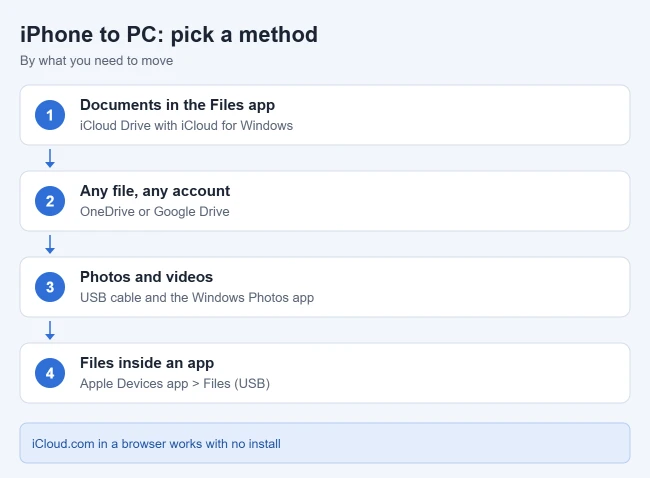
Which Method Should You Use?
Apple’s iPhone User Guide lists three broad options: send files wirelessly, connect with a cable, or keep them in sync with iCloud. Which works best depends on what you’re moving:
- Documents, PDFs and downloads in the Files app: iCloud Drive, OneDrive or Google Drive.
- Photos and videos from the Camera roll: a USB cable and the Photos app, or iCloud Photos.
- Files saved inside an app (for example, a PDF reader or a video editor): Apple Devices File Sharing over USB.
- One or two small files: email or message them to yourself.
Use iCloud Drive
On the iPhone
- Open the Files app and find the files. Result: they’re listed in On My iPhone or another location. If you cannot see them, here is how to find files in the iPhone Files app.
- Tap the three dots, choose Select, and select the files. Tap the three dots at the bottom and choose Copy or Move. Result: a location picker appears.
- Choose iCloud Drive and a folder, then confirm. Result: the files upload to iCloud Drive. If that location is not offered, see how to show iCloud Drive on an iPhone.
On the PC
- Install iCloud for Windows from the Microsoft Store. Result: the iCloud app opens.
- Sign in with your Apple Account and turn on iCloud Drive. Result: iCloud Drive appears in File Explorer’s left pane.
- Open File Explorer, select iCloud Drive, and copy the files to a folder on your PC. Result: they’re saved locally.
Apple’s iCloud for Windows download page notes that the latest version needs Windows 11 and doesn’t support Managed Apple Accounts. On another PC, or without installing anything, sign in at icloud.com, open iCloud Drive, select the files, and select Download. Free iCloud accounts include 5 GB of storage, so large transfers may need a paid plan.
Use OneDrive or Google Drive
- Install the OneDrive or Google Drive app on the iPhone and sign in. Result: the service appears as a location in the Files app.
- Upload the files from the app, or move them to that location in the Files app. Result: they sync to your cloud storage.
- On the PC, open OneDrive in File Explorer, or open the service in a browser, and download the files. Result: the files are on your PC.
This is a good choice if you already use Microsoft 365 or Google Workspace, or if your iCloud storage is full.
Transfer Photos and Videos With a USB Cable
- Unlock the iPhone and connect it to the PC with a USB or USB-C cable. Result: the iPhone may ask whether to trust this computer.
- Tap Trust and enter your passcode. Result: Windows can read the iPhone’s photos.
- Open the Photos app on the PC and select Import, then choose the iPhone. Result: Windows lists the photos and videos to import.
For full steps, including what to do with HEIC photos, see how to transfer iPhone photos to a PC. The iPhone shows up in File Explorer as a camera, so you can only copy photos and videos this way, not other files.
Copy Files Saved Inside iPhone Apps
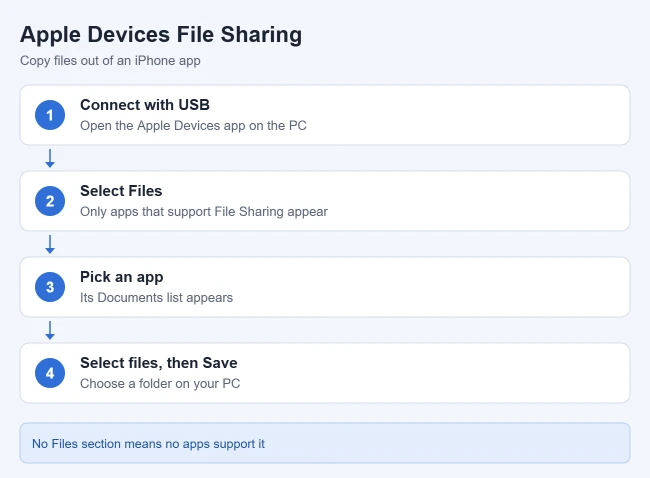
Some apps keep documents inside the app rather than in the Files app. Apple’s File Sharing guide explains how to copy them with the free Apple Devices app for Windows 10 or later.
- Open Apple Devices on the PC and connect the iPhone with a USB cable. Result: the iPhone appears in the sidebar.
- Select Files. Result: a list of apps that support File Sharing appears. If there’s no Files section, none of your apps support it.
- Select an app, then select the files you want in its Documents list. Result: the files are highlighted.
- Select Save, choose a folder on your PC, and select Save again. Result: the files are copied to your PC.
Apple’s Apple Devices user guide adds that you can also connect over Wi-Fi once syncing is set up, and that you should select the Eject button before unplugging. If you delete an app, its shared files are deleted too, so copy them first.
Copying an .ipa package through File Sharing or cloud storage does not install its app. Our guide to installing an IPA on iPhone or iPad explains the separate signing and installation requirements, including Apple Configurator and developer-provided beta options.
If the iPhone Doesn’t Show Up on the PC
- Unlock the iPhone and tap Trust when asked. If you tapped Don’t Trust, unplug and reconnect.
- Try a different cable or USB port, preferably directly on the PC.
- Update Windows, and install or update the Apple Devices app from the Microsoft Store.
- In Apple Devices, see Apple’s steps for when the iPhone doesn’t appear in the sidebar.
Frequently Asked Questions
Can I AirDrop files to a PC?
No. AirDrop only works between Apple devices. See can you AirDrop to Windows 11 for alternatives.
Can I use Bluetooth?
Apple doesn’t list Bluetooth as a way to send files from an iPhone to a PC. Use a cloud service, email or a cable instead.
Is there a size limit?
Cloud services are limited by your storage plan, and email by attachment limits. A USB cable has no cloud limit.
Can I move files the other way?
Yes. Save files to iCloud Drive or OneDrive on the PC and open them in the iPhone’s Files app, or use Add File in Apple Devices File Sharing. Setting up a new iPhone? Our guide to transferring data from one iPhone to another covers Quick Start, cables and backups.

Matthew Burleigh is the founder, head writer, and editor of Solve Your Tech, which he launched in 2012. He has written technology tutorials since 2008 and worked in IT since 2003, including small-business support, IT management, and consulting. He holds Bachelor’s and Master’s degrees in Computer Science from Arizona State University.
Matthew writes practical guides for Windows, iPhone and iPad, Microsoft Office, Outlook, Google apps, and Android. Solve Your Tech’s guides are tested on current devices or checked against official product documentation, with clear steps, sources, and update dates.
Read more about Matthew and how Solve Your Tech writes and updates its guides, or report a correction.