Connect a PS4 controller to a Windows 11 PC with a micro-USB data cable, or pair it through Settings > Bluetooth & devices > Add device > Bluetooth. For wireless pairing, turn the controller off, unplug its USB cable, and hold SHARE and PS until the light bar flashes, then select Wireless Controller on the PC.
These steps cover Sony’s DUALSHOCK 4 (the PS4 controller, both the original and the later model with a light strip on the touchpad) on Windows 11. They also work on Windows 10, but Windows 10 reached end of support on October 14, 2025. If you have a PS5 DualSense, jump to the PS5 section near the end, since its port and pairing button are different.
What You Need
- A DUALSHOCK 4 controller with some charge left. Bluetooth pairing fails more often on a nearly empty battery.
- For a wired connection: a micro-USB cable that carries data. Many cables that came with power banks, lights or cheap chargers only carry power.
- For a wireless connection: a PC with Bluetooth, either built in (most laptops) or from a USB Bluetooth adapter. If you’re not sure, try to turn on Bluetooth in Windows 11.
- A game that supports controllers, or Steam, which can translate the controller’s buttons for many games.
You don’t need to install a driver. Windows sets up the controller on its own as a standard game controller named Wireless Controller.
Choose USB or Bluetooth
Start with USB if you want the fewest things that can go wrong, if the PC has no Bluetooth, or if wireless pairing keeps failing. A cable also charges the controller while you play and removes any wireless lag.
Bluetooth lets you play from the couch, but it depends on the battery and the PC’s Bluetooth hardware. Sony’s DUALSHOCK 4 support page says that on Bluetooth devices other than compatible Sony Xperia phones, the touchpad, vibration, motion sensor, light bar color changes and headphone jack audio are not supported. Some PC software, including Steam, can still use a few of those features in supported games, but if you need them, USB is the safer choice.
Sony’s page also lists its DUALSHOCK 4 USB wireless adaptor for PC. That adapter is no longer widely sold, so most people use a cable or Bluetooth.
| USB cable | Bluetooth | |
|---|---|---|
| Setup | Plug in | Pair once, then press PS |
| Charging while playing | Yes | No |
| Headphone jack | Depends on the game | Not supported per Sony |
| Best for | Troubleshooting, Remote Play, competitive play | Playing away from the desk |
Connect the PS4 Controller With a USB Cable
- Close the game. Connecting before you launch it helps the game detect the controller when it starts.
- Connect the cable. Put the micro-USB end into the port on the top edge of the controller, between the triggers, and the other end into a USB port on the PC. For the first test, plug straight into the PC rather than a hub or keyboard port.
- Turn the controller on. Press the PS button if the light bar doesn’t light up on its own.
- Check the controller in your game or Steam. Open the game’s controller settings, or follow the Steam steps below. Move a stick or press the directional pad and confirm that the menu responds.
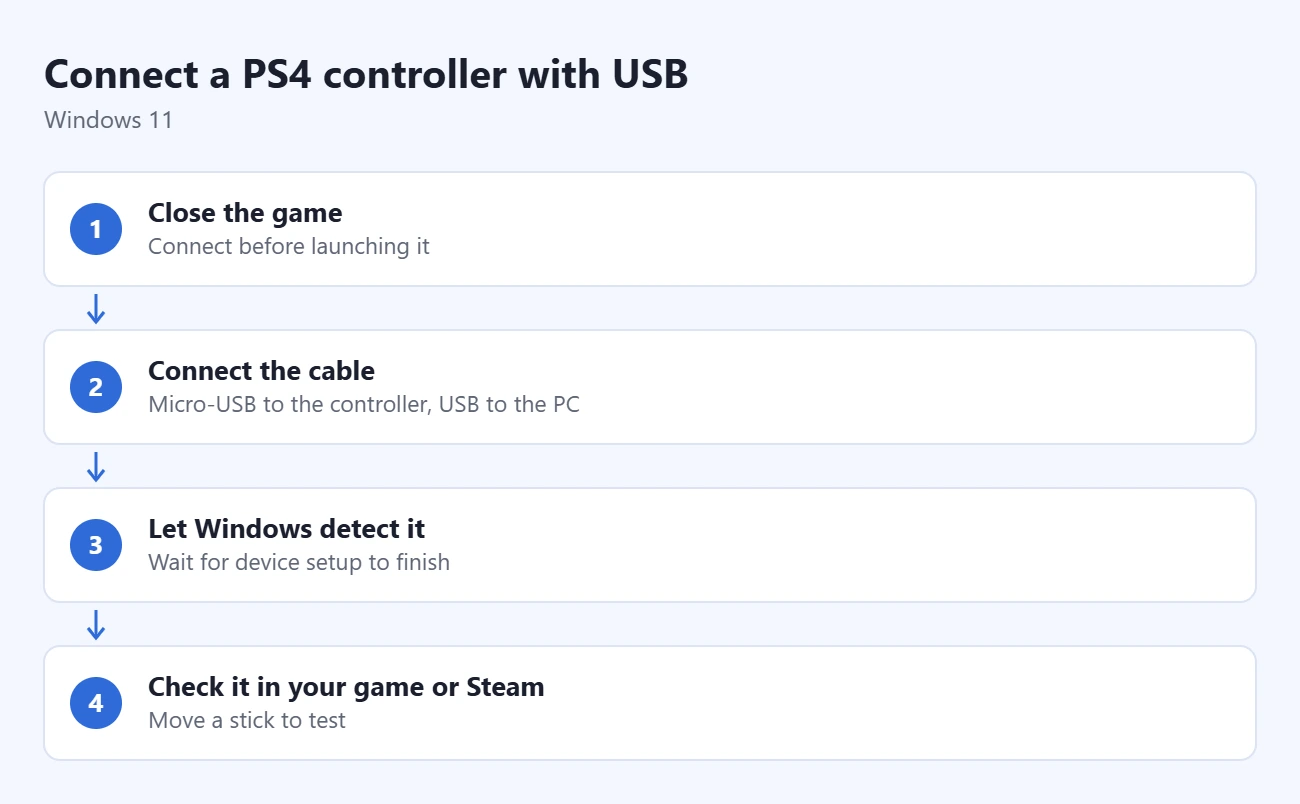
If the controller charges but nothing responds, try a cable you know transfers data and a different USB port before changing anything else.
Pair the PS4 Controller Over Bluetooth
- Prepare the controller. Unplug any USB cable. If the light bar is on, hold the PS button for about 10 seconds until it turns off. If a PS4 console is nearby, turn it off fully (not Rest Mode) so it doesn’t grab the controller back.
- Open Bluetooth settings. Press Windows key + I, select Bluetooth & devices, and turn Bluetooth on.
- Start pairing mode. Hold SHARE, then also hold PS until the light bar flashes rapidly. Release both buttons.
- Add the controller. On the PC, select Add device, then Bluetooth. Select Wireless Controller when it appears. If Windows asks for a PIN, enter 0000.
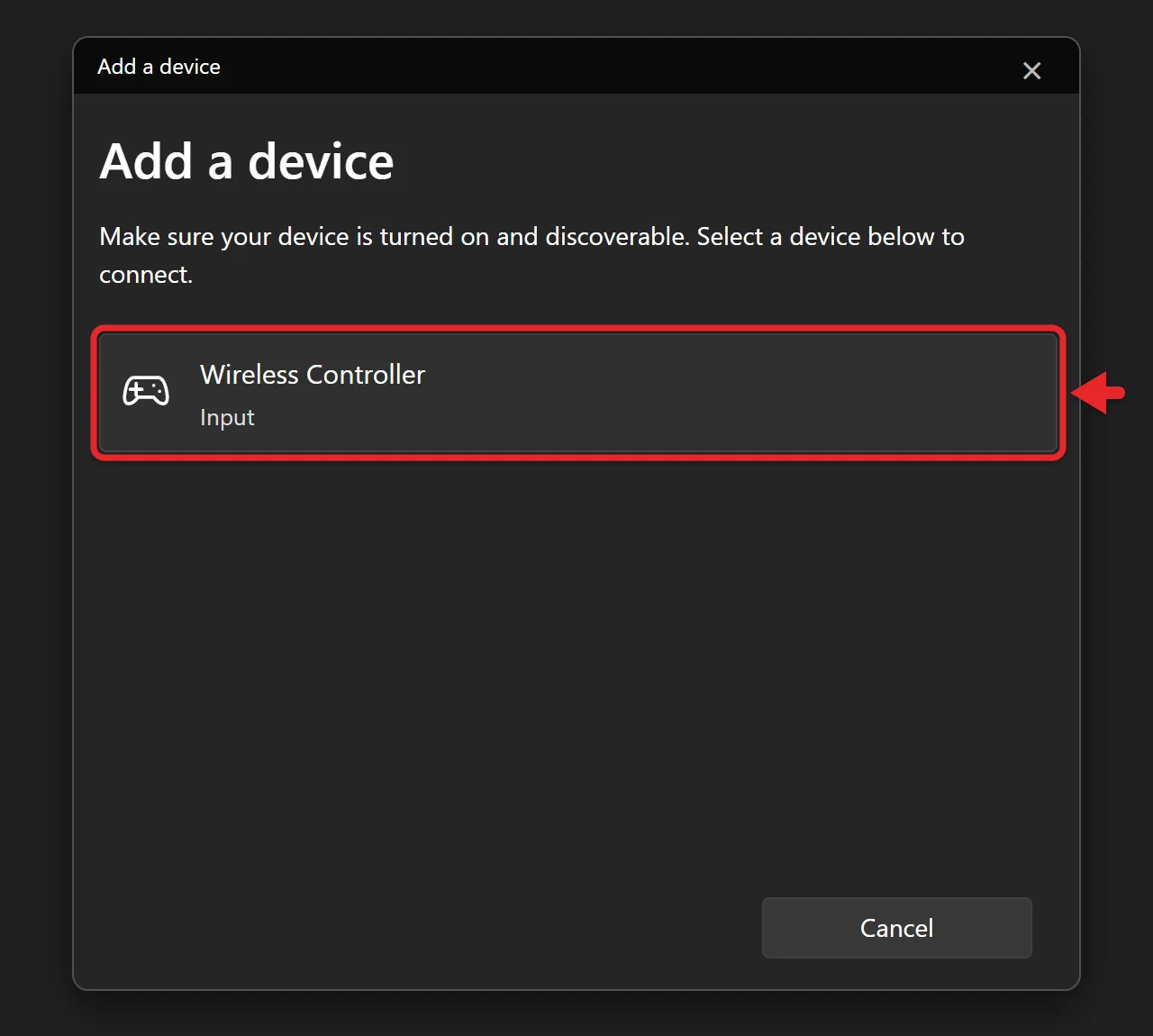
- Confirm it connected. The light bar stops flashing and stays lit, and the controller shows as Connected under Bluetooth & devices. Open your game or Steam and test a button or stick.
Microsoft’s Bluetooth pairing instructions cover the same Windows screens. If the Bluetooth switch is missing, check the steps to install a Bluetooth driver in Windows 11. Installing a driver can’t add Bluetooth hardware to a PC that lacks it, but a USB Bluetooth adapter can.
After pairing, you don’t need to repeat these steps. Turn the controller on with PS and it reconnects to the PC, as long as you haven’t paired it with another device since.
Check That Windows Sees the Controller
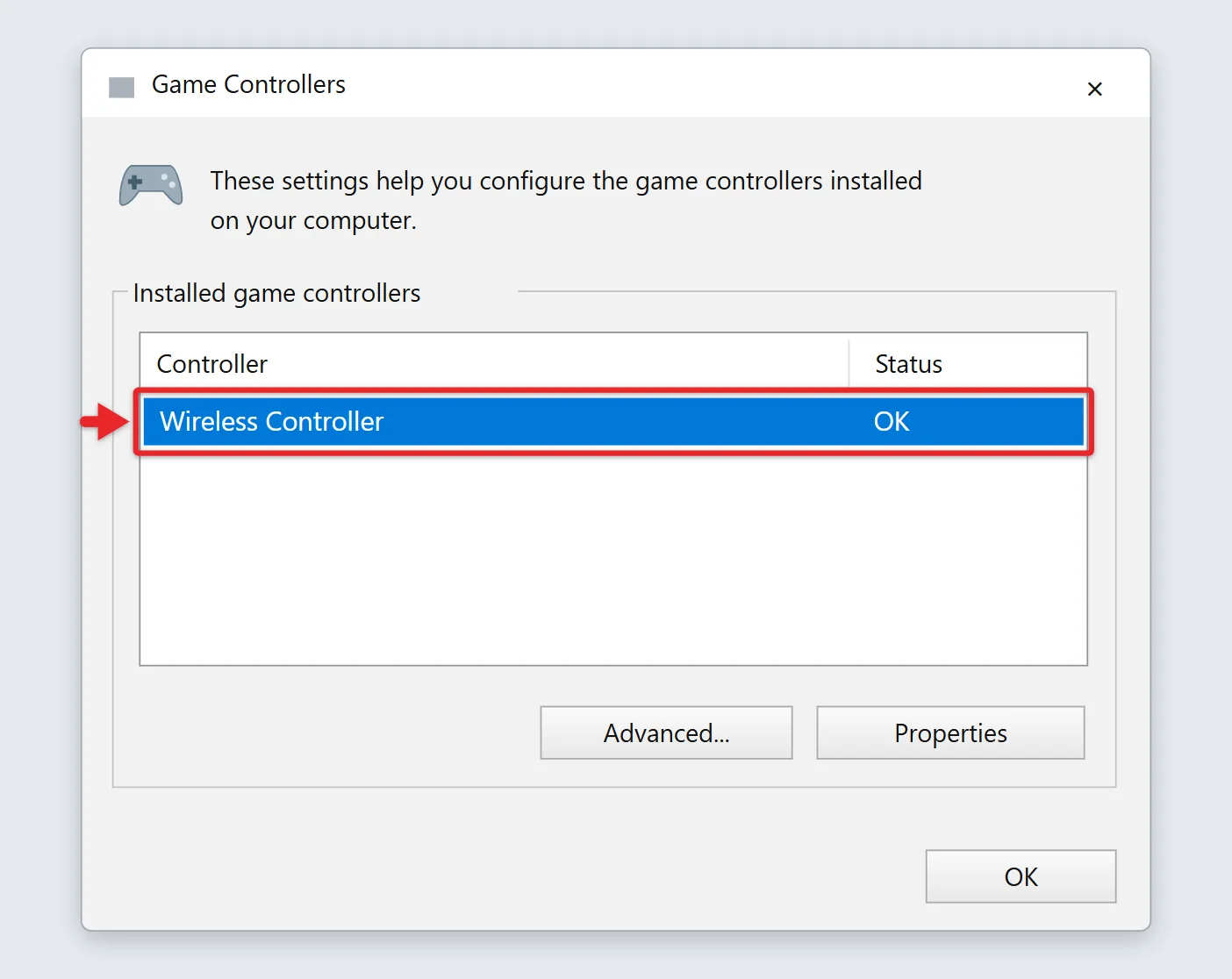
If you’re not sure whether a problem is the connection or the game, test the controller in Windows itself. Press Windows key + R, type joy.cpl, and press Enter. The Game Controllers window opens and lists Wireless Controller with a status of OK when Windows can read it. Select it, then Properties, and move the sticks and press buttons; the test page shows each input as you use it. If the controller works here but not in a game, the game or Steam setting is the issue, not the cable or Bluetooth.
If you also own an Xbox controller, you can learn how to connect an Xbox controller to a Windows PC with USB, Bluetooth or the Xbox Wireless Adapter.
Get the Controller Working in Steam
The PS4 controller is one of Steam Input’s supported devices. Steam Input is Steam’s built-in system for reading controllers and mapping their buttons for games.
- Connect the controller before opening the game, then open Steam > Settings > Controller. Confirm that Steam detects the controller and that PlayStation controller support is turned on there.
- In your Steam library, right-click the game and select Properties > Controller.
- If the game doesn’t recognize the DUALSHOCK 4, choose Enable Steam Input for that game. Launch it again and check movement and menu controls.
- If the game has native PlayStation controller support, follow its developer’s advice instead. Some games need Disable Steam Input to use that support.
For example, Santa Monica Studio’s God of War button-prompt instructions recommend disabling Steam Input for that game. That is a game-specific fix, not a setting to apply everywhere. Steam can also launch games you got elsewhere so they use Steam Input, once you add a non-Steam game to Steam.
Valve’s player setup guide notes that if you run an external remapping tool, Steam sees an emulated Xbox 360 controller instead of your PS4 controller. Running a remapper and Steam Input at the same time is a common cause of double inputs, so use one or the other for a given game.
If Pairing Fails or the Game Doesn’t Respond
- Wireless Controller never appears: charge the controller, unplug USB, turn it off, and enter pairing mode again. Keep it within a few feet of the PC.
- An old pairing won’t connect: open Settings > Bluetooth & devices, select the three dots next to Wireless Controller, choose Remove device, then pair again. For a closer look at this screen, read about removing a paired Bluetooth device in Windows.
- The controller keeps going back to the PS4: turn the console off fully, then pair with the PC again.
- USB works but Bluetooth doesn’t: the problem is pairing or the PC’s Bluetooth adapter. Microsoft’s Bluetooth connection troubleshooter suggests turning Bluetooth off for about 10 seconds and back on, running Windows Update, and restarting.
- Wireless input drops or lags: move closer, charge the controller, and keep other wireless gear away from the Bluetooth adapter. Switch to USB for competitive games.
- The controller won’t connect to anything: use the small reset button in the hole on the back of the controller near the L2 trigger. Press it with an unfolded paper clip for a few seconds, then connect by USB and try again. If it still fails, check Sony’s repair options.
- Steam sees it but one game ignores it: check that game’s controller support and its Steam Input setting. Test another controller-compatible game to separate a connection problem from a game setting.
Connect a PS5 DualSense Controller to a Windows PC
The DualSense uses a USB-C port instead of micro-USB, and its pairing button is Create instead of SHARE. Sony’s DualSense PC guide lists Windows 10 (64-bit) and Windows 11, and says haptic feedback and the headset jack need a wired connection on PC.
- For a wired connection, connect the controller’s USB-C port to the PC with a data cable, then go to step 5.
- For Bluetooth, unplug the cable and turn the controller off.
- Hold Create, then also hold PS until the light bar blinks.
- On the PC, open Settings > Bluetooth & devices > Add device > Bluetooth and select the controller when it appears.
- Open your game or Steam and test a stick or button.
For more detail, read about connecting a PS5 controller to a PC.
How to Reconnect It to Your PS4
Connect the controller to the PS4 with a USB cable and press PS. After it reconnects, you can unplug the cable and play wirelessly. Sony’s DUALSHOCK 4 page gives the same steps. The next time you want to use it on the PC, turn it off and put it in pairing mode again, or connect it by USB.
Frequently Asked Questions
Do I need DS4Windows?
Not to connect it. Windows recognizes the DUALSHOCK 4 as Wireless Controller, and Steam Input supports it. A game outside Steam that only understands Xbox controllers may need a remapping tool such as DS4Windows, which makes the controller appear as an Xbox controller. It is not a Windows driver, so check the game’s own support page first.
Why does my game show Xbox buttons?
Many PC games are built around Xbox controllers. If a game supports PlayStation prompts, look for a button prompt or controller type option in its settings. Otherwise, the buttons still work in the same positions: A is Cross, B is Circle, X is Square and Y is Triangle.
Can I play PS4 games by connecting the controller?
No. Connecting it only supplies input for PC software. To stream games from your console, use PS Remote Play. Sony’s Windows Remote Play guide lists Windows 10 (64-bit) or Windows 11 and says to connect the controller with a USB cable.
Can I connect more than one PS4 controller?
Yes. Pair or plug them in one at a time, and confirm each one works before adding the next. Whether a game lets several players use them depends on the game.
Will the headphone jack, rumble and touchpad work?
It depends on the game and the connection. Over Bluetooth, these features aren’t supported on most devices, so use USB if you need them, and check the game’s controller support. If the headphone jack doesn’t work, plug your headset into the PC instead.

Matthew Burleigh is the founder, head writer, and editor of Solve Your Tech, which he launched in 2012. He has written technology tutorials since 2008 and worked in IT since 2003, including small-business support, IT management, and consulting. He holds Bachelor’s and Master’s degrees in Computer Science from Arizona State University.
Matthew writes practical guides for Windows, iPhone and iPad, Microsoft Office, Outlook, Google apps, and Android. Solve Your Tech’s guides are checked step by step against the device or app maker’s own documentation and tested on his own devices whenever he has the hardware or software, with clear steps, sources, and update dates.
Read more about Matthew and how Solve Your Tech writes and updates its guides, or report a correction.