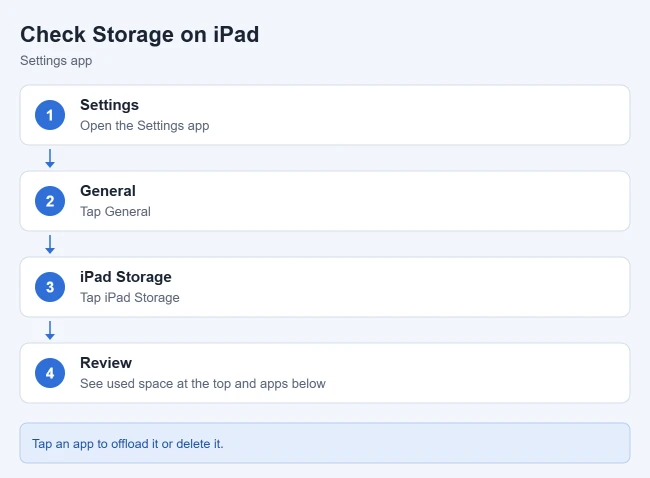
To check how much space is left on your iPad, open Settings and tap General > iPad Storage. The amount used and available shows at the top, with recommendations and a list of apps and how much space each one uses. Tap any app to offload it or delete it.
This guide covers checking storage on the iPad, what each storage category means, checking from a computer, and freeing up space. The steps come from Apple’s Manage storage on iPad guide (iPadOS 27) and its support article How to check the storage on your iPhone and iPad.
How to Check Storage on iPad
- Open the Settings app.
- Tap General.
- Tap iPad Storage.
- Look at the bar at the top to see used and available space.
Result: you see a color-coded bar of what’s using space, recommendations for saving space, and a list of apps with their storage usage. The list is sorted with the largest apps at the top. Apple says cached and temporary data might not count as usage.
Check a single app
Tap an app’s name for details. Apple lists two choices: Offload App, which frees the space the app uses but keeps its documents and data, and Delete App, which removes the app and its related data.
What the Storage Categories Mean
- Apps: installed apps and their content, plus files saved in On My iPad in the Files app and Safari downloads.
- Photos: photos and videos in the Photos app.
- Media: music, videos, podcasts, ringtones, artwork and voice memos.
- Messages and Mail: conversations, emails and their attachments.
- iCloud Drive: iCloud files you downloaded to the iPad.
- Other and System: things like Siri voices, fonts, caches, and the operating system itself.
These definitions come from Apple’s support article. It adds that when storage is low, your iPad frees up space on its own by removing items it can download again, such as unused apps and temporary files.
How to Check iPad Storage on a Computer
Connect the iPad and select it in the Finder sidebar on a Mac, or in the Apple Devices app on a Windows PC (older setups use iTunes). Apple says you’ll see a bar divided by content type, and you can hover over it to see each type’s usage. Numbers may differ slightly from the iPad, because the computer lists cached files as Other.
If the storage check shows you need more room, follow our iPad storage cleanup guide to choose between offloading apps, removing downloads, and optimizing photos, with the deletion effects explained before you act.
How to Free Up Space on iPad
- Photos and videos: if you use iCloud Photos, use Optimize iPad Storage to reduce local copies. Deleting photos from a synced library also deletes them from your other connected devices; verify an independent copy before removing anything you want to keep.
- Messages: delete old conversations and attachments you no longer need.
- Downloaded videos: remove shows and movies you’ve already watched in the TV app and other streaming apps.
- Files: remove unwanted local files after checking another copy. For downloaded iCloud Drive files, Remove Download retains the cloud file; Delete removes the file across devices using that account.
- App files: some apps, such as Pages, Numbers and Keynote, keep files for offline use. Open them and remove what you don’t need.
- Apps: delete apps you don’t use. Apple notes some iPad apps are larger than their iPhone versions.
If you see a Storage Almost Full alert, Apple suggests checking the storage recommendations. Tap Show All on the iPad Storage screen, then tap Enable on a recommendation or tap it to review what you can delete.
How to Offload Unused Apps Automatically
- Open Settings > Apps > App Store.
- Turn on Offload Unused Apps.
Result: when space is low, your iPad removes apps you don’t use but keeps their data. The icon stays on your Home Screen with a cloud symbol. Tap it to reinstall.
Frequently Asked Questions
Why doesn’t used plus available equal my iPad’s capacity?
Part of the space goes to the System category, the operating system itself, which Apple says varies by device and model.
Can I delete cached files myself?
There is no universal control for all cached files. The iPad manages many cached and temporary files automatically; Safari and some apps also provide their own data-clearing controls. Check what a control removes before using it.
Related Guides

Matthew Burleigh is the founder, head writer, and editor of Solve Your Tech, which he launched in 2012. He has written technology tutorials since 2008 and worked in IT since 2003, including small-business support, IT management, and consulting. He holds Bachelor’s and Master’s degrees in Computer Science from Arizona State University.
Matthew writes practical guides for Windows, iPhone and iPad, Microsoft Office, Outlook, Google apps, and Android. Solve Your Tech’s guides are tested on current devices or checked against official product documentation, with clear steps, sources, and update dates.
Read more about Matthew and how Solve Your Tech writes and updates its guides, or report a correction.