To change power and sleep settings in Windows 11, open Settings, go to System > Power & battery, and expand Screen, sleep, & hibernate timeouts. Then pick when the screen turns off and when the PC goes to sleep.
How to Change Power and Sleep Settings in Windows 11
These settings can keep your PC awake longer when you need it or save power when you step away. The steps below match Microsoft’s Windows 11 power settings page.
- Click the Start button.
- Select Settings.
- Choose System from the left side of the Settings window.
- Click Power & battery. (The same page has the switch to show battery percentage on the taskbar.)
- Expand Screen, sleep, & hibernate timeouts.
- Choose how long Windows should wait before turning off the screen.
- Choose how long Windows should wait before putting the computer to sleep.
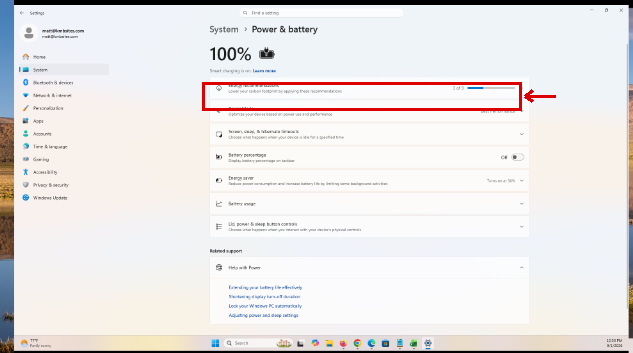
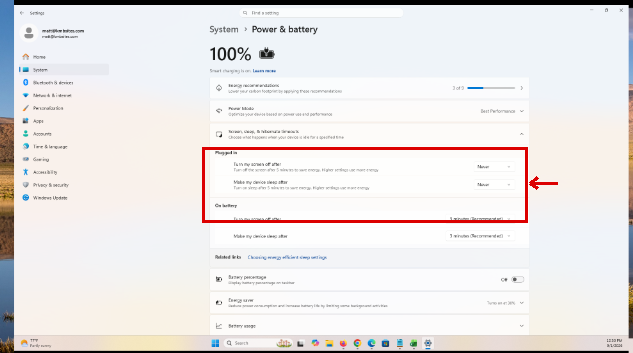
Your changes take effect automatically, so you can close Settings when you are finished.
On a laptop, you may see separate choices for when the computer is running on battery power and when it is plugged in. A desktop PC will normally have fewer options because it does not have a battery.
What Do the Screen and Sleep Settings Do?
The screen timeout and sleep timeout control different things. A screen saver is a third, separate timer, explained in how to change the screen saver in Windows 11.
Turn my screen off after determines how long Windows waits before switching off the display when you aren’t using the computer. The computer itself continues running.
Make my device sleep after determines how long Windows waits before entering a low-power state.
For example, you could have the screen turn off after 5 minutes but have the computer wait 15 minutes before going to sleep.
That arrangement saves some power after five minutes without immediately suspending everything the computer is doing.
A shorter screen timeout also gives a truer number when you check your screen time in Windows 11.
How to Keep Windows 11 From Going to Sleep
If you need your computer to stay awake indefinitely, you can change its sleep timeout to Never.
- Press Windows + I to open Settings.
- Select System > Power & battery.
- Expand Screen, sleep, & hibernate timeouts.
- Open the drop-down next to Make my device sleep after and select Never. A laptop shows separate sleep settings for battery and plugged-in use; set both.
Using Never can be useful when the computer needs to complete a long download, transfer, presentation, calculation, or another unattended task. However, leaving a PC awake continuously also uses more electricity and can drain a laptop battery much faster.
If the PC still powers off on its own with sleep set to Never, try the fixes for a computer that turns off by itself.
Battery vs. Plugged-In Power Settings
Windows 11 laptops can offer different timeout settings depending on the power source.
Shorter timeouts on battery power can extend the amount of time you can use the laptop before charging it.
When plugged in, you may prefer longer screen and sleep timeouts because conserving battery power isn’t as important.
A practical configuration might have the screen turn off and the PC go to sleep sooner on battery while allowing both to remain active longer when connected to a charger.
If a full charge still runs out quickly with shorter timeouts, check your battery health in Windows to see how much capacity is left.
How to Change Power Mode in Windows 11
Power mode affects the balance between performance and energy use. It is different from the sleep timer.
- Press Windows + I to open Settings.
- Select System > Power & battery.
- Open the drop-down next to Power mode and choose Best power efficiency, Balanced, or Best performance.
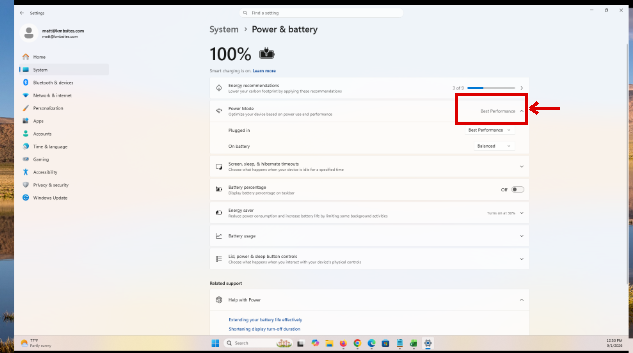
Most PCs offer three modes: Best power efficiency, Balanced and Best performance. Best power efficiency saves the most battery, Balanced is the default, and Best performance uses more power for speed.
Some PCs show separate power modes for battery and plugged-in use. For the classic High performance power plan, open the advanced power settings or read Microsoft’s power mode page.
How to Use Energy Saver in Windows 11
Energy saver (called Battery saver in earlier Windows 11 versions) limits background activity to stretch a laptop’s charge. It doesn’t change when the PC sleeps. To turn it on, open Settings > System > Power & battery and expand Energy saver.
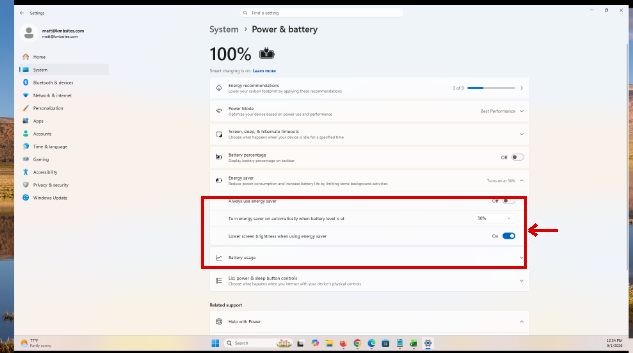
Depending on your Windows version and hardware, you may also see an Energy saver control in Quick Settings.
Your PC can use Energy saver while you are actively working.
You can adjust the saver’s battery-level trigger independently of the sleep timer. A higher available percentage starts power-saving behavior earlier during discharge; it does not make the computer go to sleep at that percentage.
Check Windows 11 Energy Recommendations
Windows 11 can also identify settings that may be using more power than necessary.
- Open Settings.
- Select System > Power & battery.
- Choose Energy recommendations.
- Review the recommendations Windows provides.
- Apply individual recommendations that make sense for you, or use the available option to apply multiple recommendations.
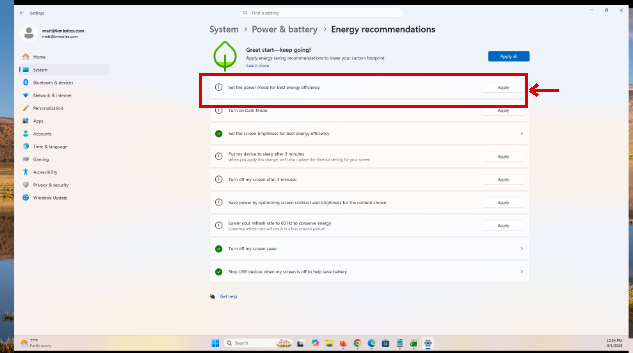
The recommendations can include changes involving screen brightness, power mode, screen timeouts, sleep behavior, and other supported energy-saving features.
The recommendations shown depend on your PC. You don’t need to apply every suggestion if a particular setting would interfere with how you use the computer.
How to Change What the Power Button and Lid Do
Windows can also control what happens when you physically press the computer’s power button.
- Open Control Panel.
- Select System and Security.
- Under Power Options, select Choose what the power buttons do. On a laptop, this page also controls what closing the lid does.
- Next to When I press the power button and, on a laptop, When I close the lid, choose an action for On battery and Plugged in. Avoid Do nothing for the lid if you carry the laptop in a bag, since it keeps running and can heat up.
- Select Save changes.

Depending on the PC, you may be able to choose Sleep, Hibernate, Shut down, or another available action.
This setting is independent of the automatic sleep timeout.
With an external monitor on a desk, you can keep a Windows 11 laptop on with the lid closed.
Other ways to power off, including on a frozen PC, are in turning off your computer in Windows 11.
Sleep vs. Hibernate in Windows 11
Sleep and Hibernate both let you return to your work later, but they handle power differently.
Sleep uses a small amount of power and is designed for relatively short periods away from the computer. It normally lets you resume working quickly.
Hibernate uses less power than Sleep and is useful when you expect to be away from your laptop for an extended period.
Hibernate may take longer to resume than Sleep, and the option isn’t available on every Windows 11 PC.
To add Hibernate to the power menu, open Control Panel > System and Security > Power Options > Choose what the power buttons do. Select Change settings that are currently unavailable, check Hibernate under Shutdown settings, and select Save changes.
Use Presence Sensing on Supported PCs
Some Windows 11 computers have a presence sensor that can add automatic power-saving behavior when you move away from the PC.
On supported hardware, Windows may offer options that automatically turn off the screen when you leave, wake the device when you approach, or dim the display when you look away. You may also see related suggestions under Settings > System > Power & battery > Energy recommendations.
These controls depend on your hardware, so don’t worry if your computer doesn’t show them. Presence Sensing options can also vary depending on what the PC manufacturer enabled.
Why Doesn’t My Windows 11 PC Go to Sleep?
If your computer remains awake even though you configured a sleep timeout, something may be preventing it from entering sleep.
Make sure the sleep setting isn’t set to Never, and check that you changed the battery or plugged-in setting you meant to.
An application can also request that Windows remain awake. Video playback, presentations, downloads, games, updates, connected devices, and some background programs can affect sleep behavior.
If the problem continues, restart the computer and test automatic sleep again without reopening unnecessary applications.
You should also install the latest Windows updates and any applicable hardware drivers if the problem began after a software or hardware change.
Find what’s keeping the PC awake
- Right-click Start and select Terminal (Admin).
- Run this command:
powercfg /requests- Look under DISPLAY, SYSTEM, and EXECUTION for an app or driver name. That’s what’s blocking sleep.
- Close that app, or change its settings, then test sleep again.
Microsoft documents this and related commands on its powercfg command-line options page.
Why Does My Windows 11 PC Wake Up by Itself?
If the PC goes to sleep but wakes up on its own, find out what woke it, then turn that off.
- Open Terminal (Admin) and run powercfg /lastwake to see what caused the last wake.
- Run powercfg /devicequery wake_armed to list devices allowed to wake the PC, such as a mouse or network adapter.
- To stop a device from waking the PC, open Device Manager, right-click the device, select Properties, open the Power Management tab, and uncheck Allow this device to wake the computer.
- To stop scheduled tasks from waking it, open Control Panel > Power Options > Change plan settings > Change advanced power settings, expand Sleep > Allow wake timers, and set it to Disable.
A sensitive mouse is the most common cause. Bumping the desk can be enough to wake the PC.
Why Does My Windows 11 PC Go to Sleep Too Quickly?
If Windows goes to sleep sooner than you want, check Settings > System > Power & battery > Screen, sleep, & hibernate timeouts.
Increase the sleep timeout and make sure you change the right setting for battery or plugged-in use.
If the laptop goes to sleep specifically when you close its lid, changing the automatic sleep timer won’t solve the problem. You need to change the separate lid-close action in Power Options.
Why Are Some Power Settings Missing?
Windows 11 doesn’t show exactly the same power options on every computer.
Desktops don’t need battery-specific controls, while some laptops have additional power-management features supplied by the manufacturer.
Features such as Hibernate, particular power modes, presence sensing, and certain battery options also depend on hardware support.
If an option described here isn’t present on your PC, that doesn’t necessarily indicate a problem with Windows.
Frequently Asked Questions
Where are the sleep settings in Windows 11?
Open Settings > System > Power & battery > Screen, sleep, & hibernate timeouts. The wording and controls can vary slightly by Windows version and hardware.
How do I stop Windows 11 from sleeping?
Open the sleep timeout settings and select Never for the sleep option you want. Laptop users may need to change both the battery and plugged-in settings.
Can I turn off my screen without putting the PC to sleep?
Yes. Windows uses separate settings for the screen timeout and sleep timeout. You can have the display turn off while the computer continues running.
Why does my laptop still sleep when I close the lid?
The lid-close action is separate from the automatic sleep timer. Change it through Control Panel > System and Security > Power Options.
Is Hibernate better than Sleep?
Neither is always better. Sleep is convenient for shorter breaks because the PC can resume quickly. Hibernate uses less power and can be more appropriate when you’ll be away from your laptop for an extended period. Shut down works differently too, and you can disable Fast Startup in Windows 11 if you want a full shutdown every time.
Does setting sleep to Never hurt the computer?
It doesn’t normally damage the computer on its own, but the PC will consume more energy, and a laptop will drain its battery faster. You should also be careful about leaving a laptop running in an enclosed bag where heat can accumulate.
What power settings are best for battery life?
Shorter screen and sleep timeouts, an efficient Power mode, Energy saver, and reasonable display brightness can all reduce energy consumption. The best combination depends on how you use the laptop.
Related guides: sleep vs. hibernate in Windows 11, how to add the Hibernate option, advanced power settings, and how to make your battery last longer.
If an update keeps restarting your PC at a bad time, cancel the update in progress and set active hours.

Matthew Burleigh is the founder, head writer, and editor of Solve Your Tech, which he launched in 2012. He has written technology tutorials since 2008 and worked in IT since 2003, including small-business support, IT management, and consulting. He holds Bachelor’s and Master’s degrees in Computer Science from Arizona State University.
Matthew writes practical guides for Windows, iPhone and iPad, Microsoft Office, Outlook, Google apps, and Android. Solve Your Tech’s guides are checked step by step against the device or app maker’s own documentation and tested on his own devices whenever he has the hardware or software, with clear steps, sources, and update dates.
Read more about Matthew and how Solve Your Tech writes and updates its guides, or report a correction.