The iPhone 17 doesn’t have a privacy screen mode. No iPhone setting limits how the screen looks from the side, so the only true privacy screen is a physical privacy screen protector. What you can do in software is dim the screen with Reduce White Point, which makes it harder to read from a distance, and put it on a triple-click shortcut.
This guide uses Apple’s Change display colors on iPhone and Quickly turn accessibility features on or off pages. Some Android phones, like the Samsung Galaxy S26 Ultra, now have a built-in privacy display, but iPhones don’t.
How a Privacy Screen Works
Privacy screen protectors use micro-louver technology: tiny slats inside the film work like a window blind, so only light aimed straight ahead reaches your eyes. People looking from the side see a dark or blurry screen.
Dim the Screen With Reduce White Point
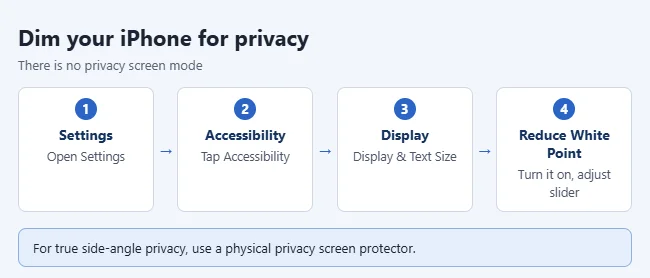
- Open Settings > Accessibility.
- Tap Display & Text Size.
- Turn on Reduce White Point.
- Drag the slider to make bright colors less intense, and lower the brightness in Control Center too.
Result: Apple says Reduce White Point tones down the intensity of bright colors. The screen is dimmer for everyone, including you, so it can be harder to read from a distance. It doesn’t hide anything from someone looking straight over your shoulder.
Turn It On and Off With a Triple-Click
- Go to Settings > Accessibility > Accessibility Shortcut.
- Select Reduce White Point.
- Triple-click the side button to switch it on or off.
Result: Apple says that if you pick only one feature, the triple-click turns it on or off right away. Apple adds that you can also use Back Tap (double- or triple-tap the back of the iPhone), the Action button on supported models, or a Control Center control.
Use a Privacy Screen Protector
A privacy screen protector is the only way to block side views. Here is what to expect from a 4-way privacy protector on a recent iPhone:
- A 4-way protector blocks the top and bottom as well as the sides, which helps when you hold the phone sideways for video. Many protectors only block the sides.
- It worked best at low to medium brightness, with the screen looking dark from the side.
- At wider angles, the reviewer could still make out content faintly.
Buy one made for your exact iPhone 17 model so it fits the screen.
Other Ways to Keep Things Private
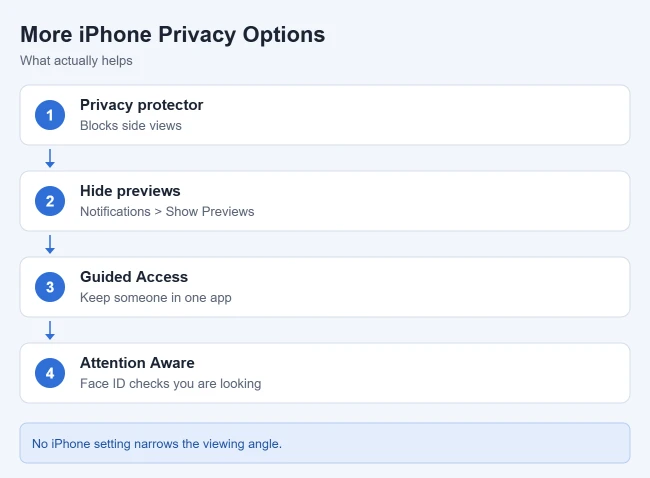
- Hide notification previews: Go to Settings > Notifications > Show Previews, then choose When Unlocked or Never, so message text doesn’t show on the Lock Screen.
- Attention Aware Features: Face ID checks that you’re looking at the screen before unlocking. Find it in Settings > Face ID & Passcode.
- Lending your phone: Guided Access keeps someone in one app until you end the session. You start it with a triple-click of the side button.
Frequently Asked Questions
Is there a hidden privacy screen setting on iPhone 17?
No. There’s no native hardware or software feature on any current iPhone, including the iPhone 17 series, that limits side-angle visibility. Reduce White Point only dims the screen.
Does a privacy screen protector make the screen darker for me?
It works best at low to medium brightness. With a privacy filter, the person looking straight at the screen still gets a clear view while side views go dark.
Related: What Are Restrictions on iPhone? (Screen Time Content & Privacy) and How to Take a Screenshot on iPhone 17.

Matthew Burleigh is the founder, head writer, and editor of Solve Your Tech, which he launched in 2012. He has written technology tutorials since 2008 and worked in IT since 2003, including small-business support, IT management, and consulting. He holds Bachelor’s and Master’s degrees in Computer Science from Arizona State University.
Matthew writes practical guides for Windows, iPhone and iPad, Microsoft Office, Outlook, Google apps, and Android. Solve Your Tech’s guides are tested on current devices or checked against official product documentation, with clear steps, sources, and update dates.
Read more about Matthew and how Solve Your Tech writes and updates its guides, or report a correction.