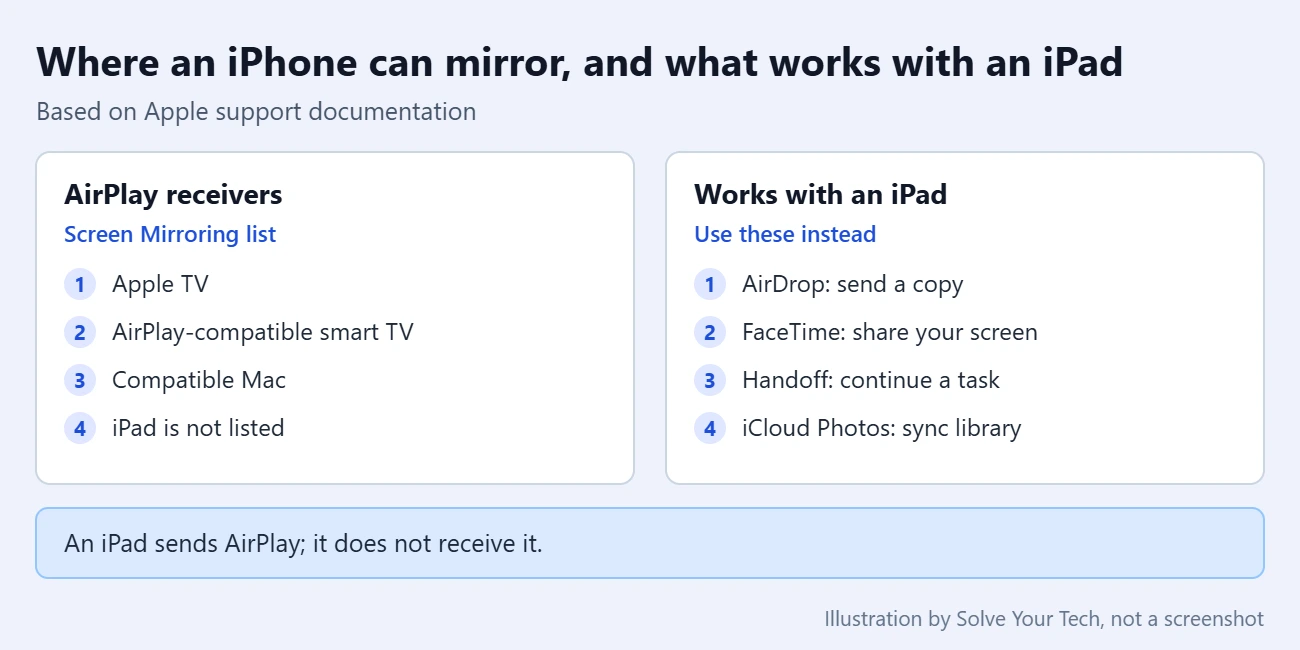
No, you cannot cast or mirror an iPhone to an iPad with Apple’s built-in AirPlay. An iPad can send AirPlay, but it is not an AirPlay receiver, so it never appears in the iPhone’s Screen Mirroring list. The fastest way to get something from the iPhone onto the iPad is usually AirDrop: open the item, tap Share, tap AirDrop, and pick the iPad. To show your live screen to someone who is using an iPad, share it during a FaceTime call.
This guide covers current iPhone and iPad software (iOS 26 and iPadOS 26 and later). Most steps are the same on iOS 17 and iOS 18, and differences are noted where they matter.
Why the iPad does not show up in Screen Mirroring
AirPlay is Apple’s wireless way to send video, audio or a copy of your screen from one device to another. Every AirPlay connection has a sender and a receiver. Apple’s AirPlay instructions for iPhone and iPad name three kinds of receiver: an Apple TV, an AirPlay-compatible smart TV, and a compatible Mac. The iPhone and the iPad are both described as devices you stream or mirror from, not to.
That is why the usual fixes do not help. Putting both devices on the same Wi-Fi network, restarting them, or installing updates will not make an iPad appear, because the receiving feature is not there to turn on. The Screen Mirroring button in the iPad’s Control Center does the same job as the one on the iPhone: it sends the iPad’s screen to a TV or Mac.
Choose the right method for what you want to do
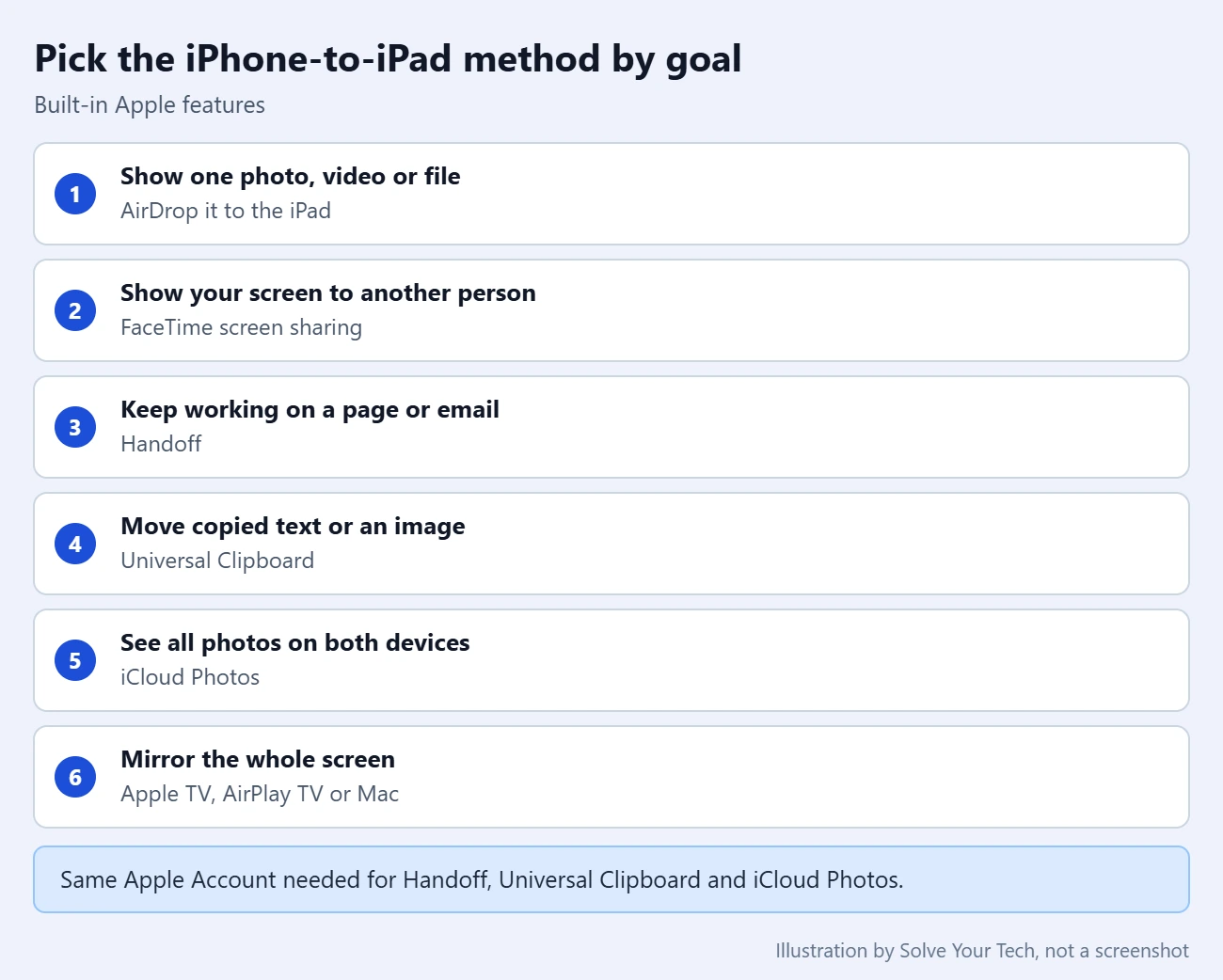
Most people who search for casting to an iPad want one of a few things. Pick the row that matches your goal, then jump to that section.
| Goal | Use this | What you need |
|---|---|---|
| View a photo, video or document on the iPad | AirDrop | Wi-Fi and Bluetooth on, devices within about 30 feet |
| Show your live iPhone screen to another person on their iPad | FaceTime screen sharing | A FaceTime call between the two devices |
| Keep reading or writing on the iPad | Handoff | Same Apple Account on both devices |
| Have all your photos on both devices | iCloud Photos | Same Apple Account and enough iCloud storage |
| Mirror the whole iPhone screen on a bigger display | AirPlay to an Apple TV, smart TV or Mac | A supported receiver on the same Wi-Fi network |
Send a photo, video or file to the iPad with AirDrop
AirDrop sends a copy of an item to a nearby Apple device. It does not show your screen, so nothing else on your iPhone is visible on the iPad. Before you start, check these points from Apple’s AirDrop user guide:
- Wi-Fi and Bluetooth are turned on for both devices.
- The devices are within about 30 feet (10 meters) of each other.
- Personal Hotspot is disconnected on both devices.
- If the iPad belongs to someone else, AirDrop receiving is turned on for it (see the next section).
- On the iPhone, open the photo, video, document or webpage you want on the iPad.
- Tap the Share button. In some apps you may need to tap another button first to reach the sharing options.
- Tap AirDrop. Nearby devices that can accept the item appear.
- Tap the iPad, or the name of the person who owns it.
- If the iPad is signed in to the same Apple Account as your iPhone, the item is accepted automatically. Otherwise, tap Accept on the iPad.
Most items are saved in the same app they were sent from. A photo sent from Photos opens in Photos on the iPad, and some other items are saved in the Files app. If you only need pictures, our iPhone-to-iPad photo transfer guide walks through the full process.
Turn on AirDrop receiving on the iPad
If the iPad does not appear as a recipient, check its receiving setting. Open Control Center on the iPad, touch and hold the top-left group of controls, tap AirDrop, then choose Contacts Only or Everyone for 10 Minutes. The Everyone for 10 Minutes option switches back by itself after ten minutes.
On iOS 26.2 and iPadOS 26.2 or later, a sender who is not in the recipient’s contacts has to enter an AirDrop code. The receiving device shows the code after its owner taps Get AirDrop Code, and the sender types it in. Apple explains this in its AirDrop support article. You can change the setting back later, or follow our steps to turn off AirDrop receiving on an iPad.
FaceTime screen sharing is the closest built-in feature to live mirroring on an iPad. It works inside a FaceTime call, so it is meant for showing your screen to another person rather than for using your own iPad as a second display.
Before you share: the other person sees most of what is on your screen, including any app or message you open. Close anything private first. According to Apple, they do not see your notifications, and passcodes appear as dots.
- Start a FaceTime call with the person who is using the iPad and wait for it to connect.
- On the iPhone, tap the screen to show the FaceTime controls if they are hidden.
- Tap the More button (three dots on current versions), then tap Screen Sharing.
- Tap Share My Screen. A countdown from 3 to 1 appears before sharing starts.
- Open the app, photo or webpage you want to show.
To stop, return to the FaceTime controls, open the same menu, and tap Stop next to Screen Sharing. Ending the call also ends screen sharing. These steps follow Apple’s FaceTime screen sharing guide. If you are new to the app, start with our guide on how to use FaceTime on an iPhone.
During a one-to-one call, the other person can tap or draw on your shared screen to point something out, and can ask to control your iPhone remotely. Viewing and controlling are separate. If a remote control request appears and you do not want it, tap Don’t Allow; screen sharing continues. Apple lists what each permission allows in its screen sharing and screen control safety guide. Only give control to someone you know and trust.
Continue what you were doing on the iPad with Handoff
Handoff lets you start a task on one Apple device and pick it up on another. It does not mirror the screen, but it is often what people really want: the same webpage, email or note, now on the larger display. Universal Clipboard is a related feature that lets you copy on one device and paste on the other.
- Sign in to the same Apple Account on the iPhone and the iPad, and turn on Wi-Fi and Bluetooth on both.
- On each device, open Settings, tap General, tap AirPlay & Continuity (called AirPlay & Handoff on some versions), and make sure Handoff is on. It is on by default.
- On the iPhone, open an app that supports Handoff, such as Safari, Mail, Notes or Maps, and keep it open on the screen.
- On the iPad, tap the app’s Handoff icon in the Dock. It shows a small symbol of the device that is handing off the task.
For Universal Clipboard, copy text or an image on the iPhone as usual, then paste on the iPad. The copied item stays available only briefly. Apple documents the setup in its Handoff article and its Universal Clipboard article.
Keep photos on both devices with iCloud Photos
If the goal is to look at iPhone photos on the iPad regularly, syncing is easier than sending items one at a time. On each device, open Settings, tap your name, tap iCloud, tap Photos, and turn on Sync this iPhone or Sync this iPad.
Warning: iCloud Photos is a sync, not a backup of separate copies. Apple’s iCloud Photos article states that a photo deleted on one device is deleted everywhere you use iCloud Photos, although it stays in Recently Deleted for 30 days. The library also counts against your iCloud storage. For more detail, see how to sync pictures between an iPhone and iPad using iCloud, or our broader guide on how to sync an iPad and iPhone.
If you need true full-screen mirroring
For a live copy of the whole iPhone screen, use a device that Apple supports as a receiver.
- Connect the iPhone to the same Wi-Fi network as the Apple TV, AirPlay-compatible smart TV or Mac.
- Open Control Center by swiping down from the upper-right corner of the screen. On an iPhone with a Home button, swipe up from the bottom edge.
- Tap Screen Mirroring, then select the TV or Mac.
- If an AirPlay passcode appears on the TV or Mac, enter it on the iPhone.
To stop, open Control Center, tap Screen Mirroring, then tap Stop Mirroring. Our iPhone and iPad TV-mirroring guide covers receiver checks in more depth.
A Mac also has a separate feature called iPhone Mirroring, which lets you see and control the iPhone from the Mac. Apple’s iPhone Mirroring requirements list macOS Sequoia 15 or later and iOS 18 or later, and state that the feature is currently unavailable in the European Union. Apple does not list an iPad version of this feature.
What about third-party mirroring apps?
Some App Store apps advertise iPhone-to-iPad mirroring by installing the same app on both devices. Apple does not document or support these as AirPlay receivers, so their results, fees and limits depend entirely on the developer. If you try one, read the developer’s current description for explicit iPhone-to-iPad support, check what it charges, and review the permissions it requests, because a mirroring app can capture everything on your screen. Expect protected video from streaming apps to be blocked.
Troubleshooting
- The iPad is missing from Screen Mirroring. This is expected. Only AirPlay receivers appear in that list.
- The iPad is missing from AirDrop. Confirm Wi-Fi and Bluetooth are on for both devices, move them closer together, disconnect Personal Hotspot, and check the iPad’s AirDrop receiving setting. Apple also notes that a VPN that blocks local networking can interfere.
- AirDrop asks for a code. The sender is not in the recipient’s contacts and both devices run version 26.2 or later. Tap Get AirDrop Code on the receiving device and enter that code on the sending device.
- Screen Sharing is missing in FaceTime. The feature needs a connected call and devices that meet Apple’s system requirements, and Apple notes that some FaceTime features are not available in every country or region.
- The other person sees a blank area during screen sharing. Content that needs a subscription, purchase or rental is not shown through screen sharing.
- The Handoff icon does not appear on the iPad. Make sure both devices use the same Apple Account, have Wi-Fi and Bluetooth on, are near each other, and that the iPhone is unlocked with the app open in front.
- Universal Clipboard does not paste. Paste soon after copying. If it still fails, Apple suggests installing available updates and restarting both devices.
Frequently asked questions
Can an iPad receive AirPlay from an iPhone?
No. Apple’s AirPlay documentation lists Apple TV, AirPlay-compatible smart TVs and compatible Macs as receivers. An iPad is a sender, the same as an iPhone.
Do the iPhone and iPad need the same Apple Account?
It depends on the feature. Handoff, Universal Clipboard and iCloud Photos require the same Apple Account on both devices. AirDrop and FaceTime screen sharing work between different people’s devices; with AirDrop, sharing an account simply means items are accepted automatically.
Can I watch a subscription movie from my iPhone on someone’s iPad through FaceTime?
Not with ordinary screen sharing, which does not show content that requires a subscription, purchase or rental. Supported apps can use SharePlay to play in sync during a FaceTime call instead. Apple states that every participant needs their own access to the content, and that some titles cannot be shared across countries or regions.
Does AirDrop need an internet connection?
AirDrop needs Wi-Fi and Bluetooth turned on and the devices near each other; Apple does not list a Wi-Fi network or internet connection among the requirements. Apple notes that if you move out of range after a transfer has started, the transfer continues over the internet.
Can I use my iPad as a second screen for my iPhone?
Apple does not offer a feature for that. Sidecar, which turns an iPad into a second display, is a Mac feature and does not work with an iPhone.
Next step
Decide what you actually need on the iPad. For a single item, use AirDrop. To show someone your screen, use FaceTime. For ongoing work or photos, set up Handoff or iCloud Photos once and let them run. For whole-screen mirroring, connect to an Apple TV, an AirPlay-compatible TV or a Mac.

Matthew Burleigh is the founder, head writer, and editor of Solve Your Tech, which he launched in 2012. He has written technology tutorials since 2008 and worked in IT since 2003, including small-business support, IT management, and consulting. He holds Bachelor’s and Master’s degrees in Computer Science from Arizona State University.
Matthew writes practical guides for Windows, iPhone and iPad, Microsoft Office, Outlook, Google apps, and Android. Solve Your Tech’s guides are tested on current devices or checked against official product documentation, with clear steps, sources, and update dates.
Read more about Matthew and how Solve Your Tech writes and updates its guides, or report a correction.