To stop McAfee pop-ups on Windows 11, first check where they come from. If the alert names Chrome, Edge, or Firefox and a website, block that site’s notifications in the browser. If it comes from the installed McAfee app, turn off its optional alerts in McAfee’s settings or in Windows notification settings, or uninstall McAfee if you don’t want it. Removing McAfee won’t stop a website that has permission to send notifications.
This guide covers Windows 11 and the desktop versions of Chrome, Microsoft Edge, and Firefox. The Windows 10 paths are nearly the same, but Windows 10 reached end of support on October 14, 2025. A McAfee logo on a warning doesn’t prove it came from your antivirus.
Check what is sending the message
Look at the sender and website address without clicking the message’s buttons. Then open your installed security app yourself from Start to check its status.
- Website notification: a corner alert names Chrome, Edge, or Firefox and a website. Follow the browser steps below, even if you have already uninstalled McAfee. Edge website notifications can appear while Edge is closed.
- Browser window or tab: a page claims your computer is infected or demands a phone call, payment, or remote access. Close it using the browser’s own tab or window controls.
- Installed McAfee app: you see the same warning or subscription status when you open the app independently. Check it there before deciding whether to change alerts or remove the app.
Signs of a fake alert include a countdown or “act now” wording, spelling mistakes, blurry logos, a phone number to call, and buttons that lead to an address other than mcafee.com. A real McAfee alert never asks you to call a number shown in the pop-up.
McAfee’s guide to misleading pop-ups explains why website alerts often copy security-software branding. Never call a number, install a download, or pay from a pop-up. Be careful with “McAfee support” phone numbers found in search results too, since many are posted by scammers; start from mcafee.com instead. If you already gave someone payment details or remote access, contact your bank, change your passwords, and get trusted technical help.
If a fake alert won’t close
Don’t click anything inside it, including its own X button. Press Ctrl + Shift + Esc to open Task Manager, select your browser in the list, and select End task. When you reopen the browser, don’t restore the previous tabs if it offers to.
Block the website in Chrome
Block the site’s notification permission. You don’t need to visit the site again.
- Open Chrome and select the three-dot menu > Settings.
- Select Privacy and security > Site Settings > Notifications.
- Note the unwanted site’s address in the notification or the allowed-sites list. Under Not allowed to send notifications, select Add, enter that address, and select Add again.
- Repeat for any other unwanted senders. Check that the address appears in the blocked list.
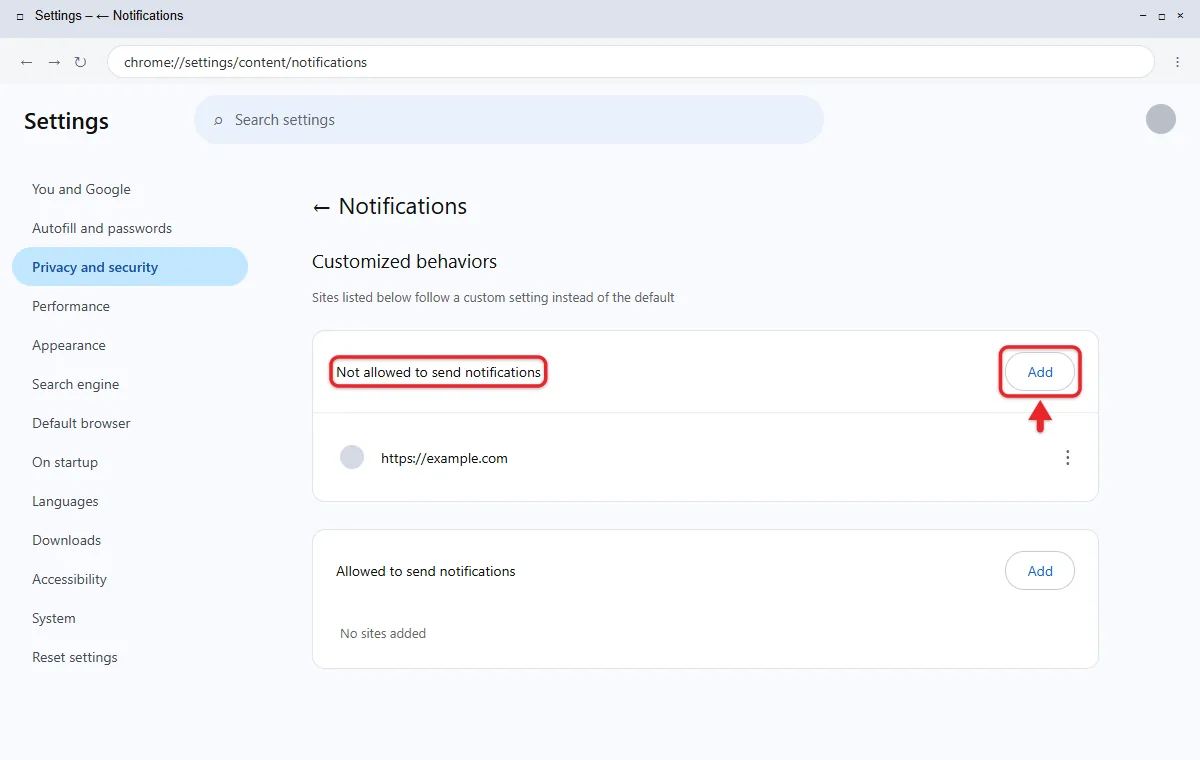
Google documents this route in its Chrome notification settings. Blocking a particular site lets you keep useful notifications from other sites. To stop all sites from asking, choose the option at the top of the same page that doesn’t allow sites to send notifications. To allow a trusted site again later, change its notification permission back to Allow.
Block the website in Microsoft Edge
- Open Edge and select Settings and more (the three dots), then Settings.
- Select Privacy, search, and services > Site permissions > All sites.
- Choose the website responsible for the messages.
- Open its Notifications setting and choose Block.
If you’re on the site, you can also select View site information to the left of the address bar and set Notifications to Block. Microsoft’s current Edge website notification instructions describe both controls. A pop-up blocker controls new browser windows; it does not revoke an existing notification permission. For pop-ups from other sources, read about stopping pop-ups on Windows 11.
Block the website in Firefox
- Open the menu (three lines) and select Settings.
- Select Privacy & Security, then find Permissions (newer versions group it under Permissions and data).
- Select Settings next to Notifications.
- Select the website and set its Status to Block. To stop all new requests, check Block new requests asking to allow notifications.
- Select Save Changes.
Mozilla’s Firefox notification help has the same options.
Scan the PC after a scam alert
A blocked website can’t send more alerts, but check that nothing was installed while it was allowed.
- Open Windows Security from Start and select Virus & threat protection.
- Select Quick scan, or select Scan options > Full scan > Scan now for a deeper check.
- Open Settings > Apps > Installed apps and remove programs you don’t recognize or didn’t install, such as unfamiliar “app store” or “optimizer” tools.
- Review your browser extensions. For Chrome, here’s how to remove an extension.
If another antivirus is active, Windows Security shows that program instead of the scan buttons; run its scan. For details on each scan type, read about running a Windows Defender scan on Windows 11.
Keep McAfee and reduce interruptions
If you keep McAfee, confirm the message in the app first. A malware detection, turned-off protection, or expired subscription needs your attention.
To turn off optional McAfee messages, open the McAfee app from Start, open its Settings (from the gear icon or your account menu), and look for General settings and alerts. Turn off Informational alerts or promotional messages if they’re listed, then select Apply if the page has that button. Older McAfee versions reach the same page through Navigation > General Settings and Alerts. Menu names differ between McAfee versions, and real protection alerts can’t be turned off. McAfee’s help on alert types explains the difference, and its informational alerts steps show the older layout.
To stop McAfee’s banners in the corner of the screen:
- Open Start > Settings > System > Notifications.
- Under Notifications from apps and other senders, select McAfee.
- Turn off Show notification banners to keep messages in the notification center only, or turn off notifications for McAfee completely.
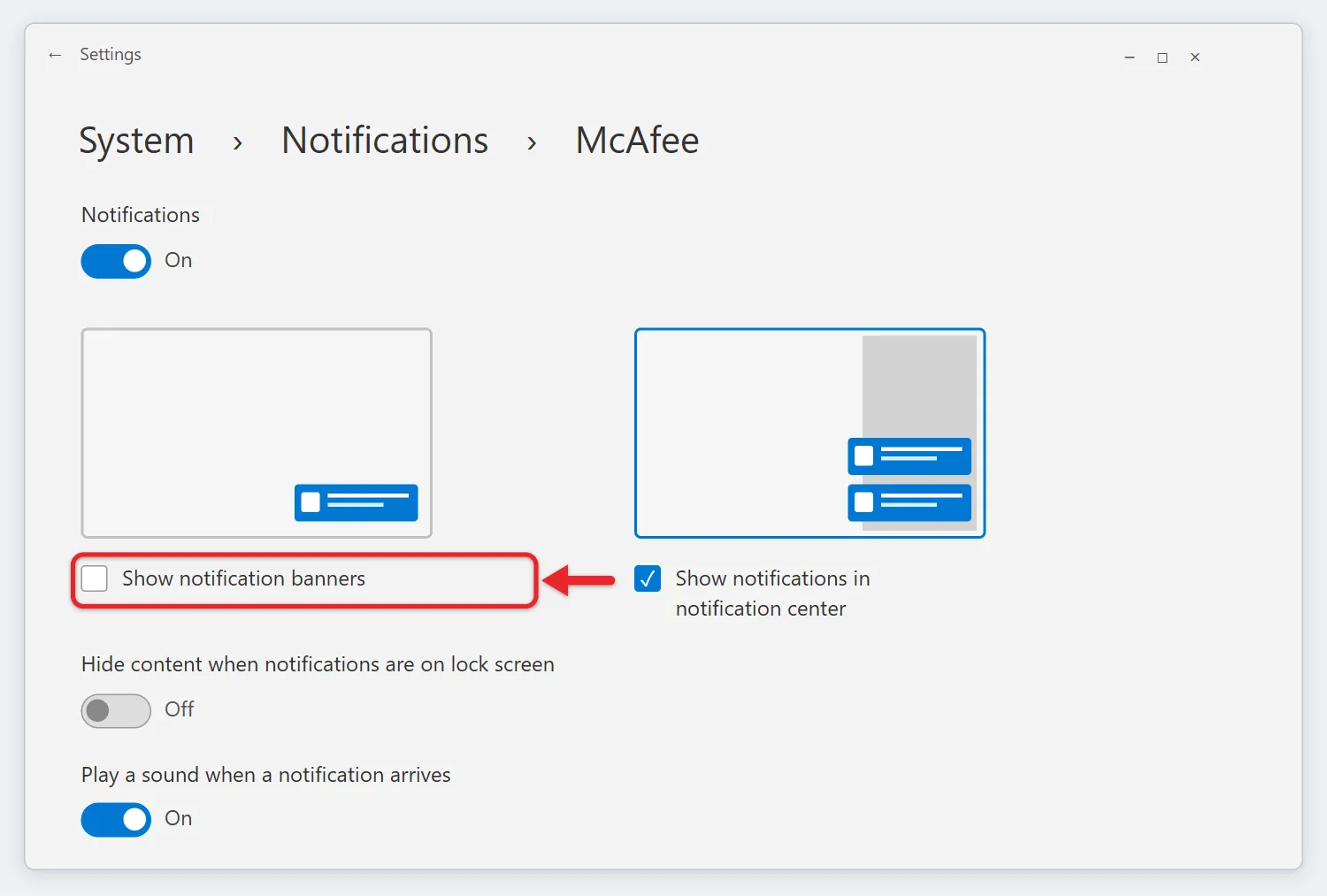
This also hides real warnings, so open the McAfee app now and then to check its status.
Do not disturb can reduce interruptions temporarily, but it does not remove a website’s permission or solve an antivirus problem. Microsoft’s Windows notification guide covers its behavior and exceptions.
On a Windows 10 PC, the same checks apply when stopping pop-ups on Windows 10.
Renewal and subscription reminders
These usually mean the subscription is close to its end date or auto-renewal is off. Sign in to My Account at mcafee.com to check the plan, and use Auto-Renewal Settings there to turn renewal on or off. McAfee’s account help page describes this setting.
Uninstall McAfee if you no longer want it
Before uninstalling: make sure another antivirus, such as Microsoft Defender, will be active. Uninstalling doesn’t cancel a paid McAfee subscription, so turn off auto-renewal first if you’re leaving. On a work or school PC, ask your administrator first.
- Open Start > Settings > Apps > Installed apps.
- Find the installed McAfee security app. Select its three-dot menu > Uninstall.
- Follow the McAfee removal prompts. Approve an administrator prompt only if it belongs to the uninstall you started.
- Restart the PC to finish removal.
- Open Windows Security from Start. Select Settings > Manage providers, then check the Antivirus provider and its status.
Search the Installed apps list for “McAfee” afterward, since some PCs have more than one McAfee entry. These routes come from Microsoft’s Windows app removal instructions, McAfee’s standard uninstall guide, and Microsoft’s security provider settings.
If ratings or warnings still appear in your browser afterward, remove McAfee WebAdvisor from Windows 11 and its browser extension separately.
Microsoft Defender Antivirus should turn back on after you remove McAfee. Check that it’s listed and on under Manage providers, and if Real-time protection is off, turn Windows Defender back on in Windows 11. Microsoft’s support site also shows how to check antivirus protection.
If the standard uninstall fails
Use McAfee’s MCPR removal instructions instead of an unofficial cleaner. Download a fresh copy from that page, run it, and restart after Removal Complete. If it fails, contact McAfee support. MCPR doesn’t remove McAfee PC Optimizer.
For the complete removal process, including the MCPR fallback and protection checks, read how to completely uninstall McAfee from Windows 11.
If the pop-ups keep coming back
- McAfee isn’t in the Windows notification list: some McAfee messages open in the app’s own window, which Windows notification settings don’t control. Use McAfee’s settings instead.
- Alerts continue after uninstalling: look for a website notification permission in each browser you use, a leftover WebAdvisor extension, or a second McAfee entry in Installed apps. Then run MCPR.
- A setting is grayed out: a work or school administrator may manage the PC. Ask them before changing security software.
To confirm the fix, restart the PC and use it normally for a day. If a message appears, check its sender again and use the matching section above.
Frequently asked questions
Why do I get McAfee messages when I never bought it?
A PC can include a preinstalled trial, and a website can also imitate McAfee. Check the installed app and the message’s sender rather than deciding from purchase history alone.
Should I reinstall McAfee just to stop the messages?
No. First identify their source. Browser notification scams require a browser permission change; reinstalling antivirus does not revoke that permission.
Will clearing notifications stop future pop-ups?
No. Clearing removes only the current messages. Block the website or turn off the app’s optional alerts to stop new ones.
Is it safe to turn off McAfee’s informational alerts?
Yes. Informational alerts cover routine events, and McAfee keeps its protection alerts on. Your protection keeps running either way.
Do I need McAfee if I have Windows 11?
Not necessarily. Windows 11 includes Microsoft Defender Antivirus, which turns on when no other antivirus is active. Keep one antivirus running at all times.

Matthew Burleigh is the founder, head writer, and editor of Solve Your Tech, which he launched in 2012. He has written technology tutorials since 2008 and worked in IT since 2003, including small-business support, IT management, and consulting. He holds Bachelor’s and Master’s degrees in Computer Science from Arizona State University.
Matthew writes practical guides for Windows, iPhone and iPad, Microsoft Office, Outlook, Google apps, and Android. Solve Your Tech’s guides are checked step by step against the device or app maker’s own documentation and tested on his own devices whenever he has the hardware or software, with clear steps, sources, and update dates.
Read more about Matthew and how Solve Your Tech writes and updates its guides, or report a correction.