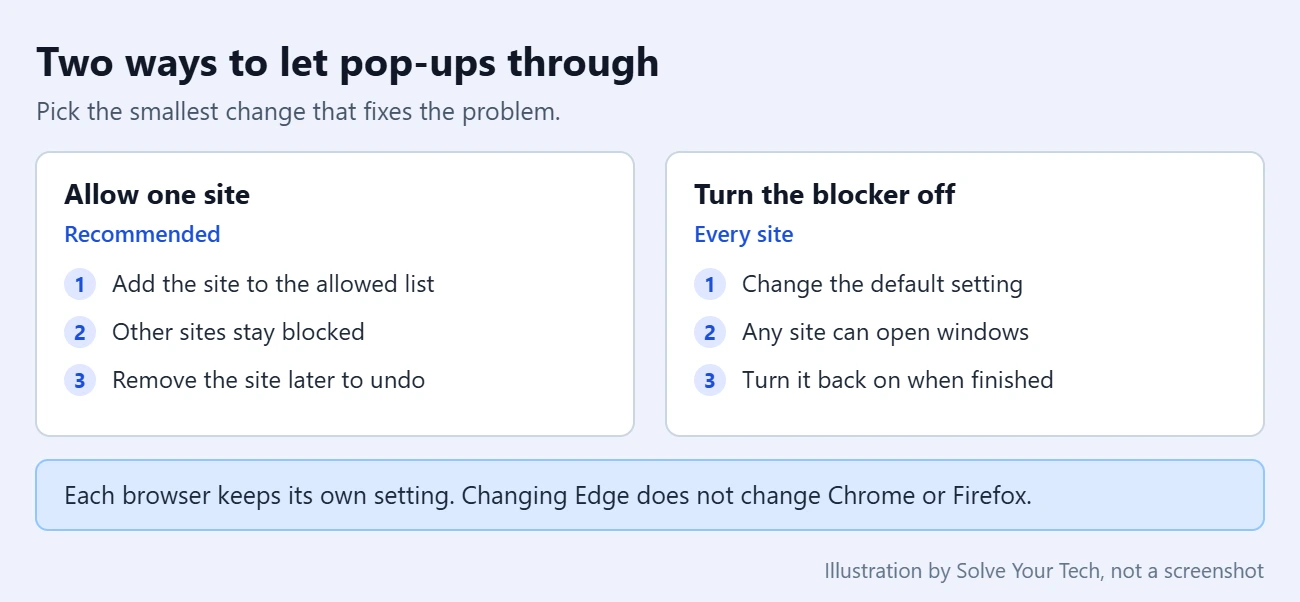
Windows 11 doesn’t have its own pop-up blocker; your web browser does. In Microsoft Edge, open Settings > Privacy, search, and services > Site permissions > All permissions > Pop-ups and redirects, then either add the site under Allowed to send pop-ups and use redirects or turn off Blocked (recommended). In Chrome, open Settings > Privacy and security > Site settings > Pop-ups and redirects. The safest choice is to allow pop-ups only for the site that needs them, not for every site.
This guide covers the desktop versions of Microsoft Edge, Google Chrome and Mozilla Firefox on a Windows 11 PC. The steps follow each company’s current help pages. Menu names can change a little between browser versions, so the guide also notes the older names you may see.
What the Pop-Up Blocker Is and Where It Lives
A pop-up is a new window or tab that a website opens by itself. A redirect is when a page sends your browser to a different address. Browsers block both by default because they are often used for ads and scams. Microsoft says the Edge pop-up blocker is turned on by default, and Google says the same about Chrome.
Some trusted sites do need pop-ups. A bank may open your statement in a new window, and a school or work portal may open a sign-in or print window. When the blocker stops one of these, the button on the page seems to do nothing.
Three things are worth knowing before you change anything:
- There is no Windows 11 switch. The Windows Settings app has no pop-up blocker option. Each browser has its own.
- Each browser is separate. Changing the setting in Edge does not change Chrome or Firefox. Change it in the browser where the site is failing. For the Firefox settings in more detail, see how to configure redirects in Firefox.
- You do not need to sign in or install anything. You only need to be able to open the browser’s settings. On a work or school PC, the setting may be locked by your organization.
Fastest Method: Allow Pop-Ups for the Site You’re On
If a pop-up has just been blocked, you usually don’t need to open settings at all. The browser marks the blocked window in the address bar, and you can allow the site from there.
- Open the site and select the button or link that should open the window.
- Look at the right end of the address bar for a blocked pop-up icon. Chrome labels it Pop-up blocked. Edge shows a small icon in the same spot. Firefox shows an information bar under the toolbar and an icon in the address bar.
- Select the icon. In Chrome, choose Always allow pop-ups and redirects from [site], then select Done. In Edge, choose the option to always allow pop-ups from that site. In Firefox, choose Allow pop-ups for [site].
- Reload the page and select the button again. The window should now open.
In Chrome and Firefox, the same menu also lists the blocked pop-up itself, so you can open it once without changing the setting. If you don’t see an icon, the site may not have tried to open a pop-up yet, or something other than the pop-up blocker is stopping it. Use the settings steps below, then see the troubleshooting section.
Turn Off the Pop-Up Blocker in Microsoft Edge
Edge comes with Windows 11, so this is the browser most people need. These steps match Microsoft’s pop-up guide for Edge.
Allow one site in Edge (recommended)
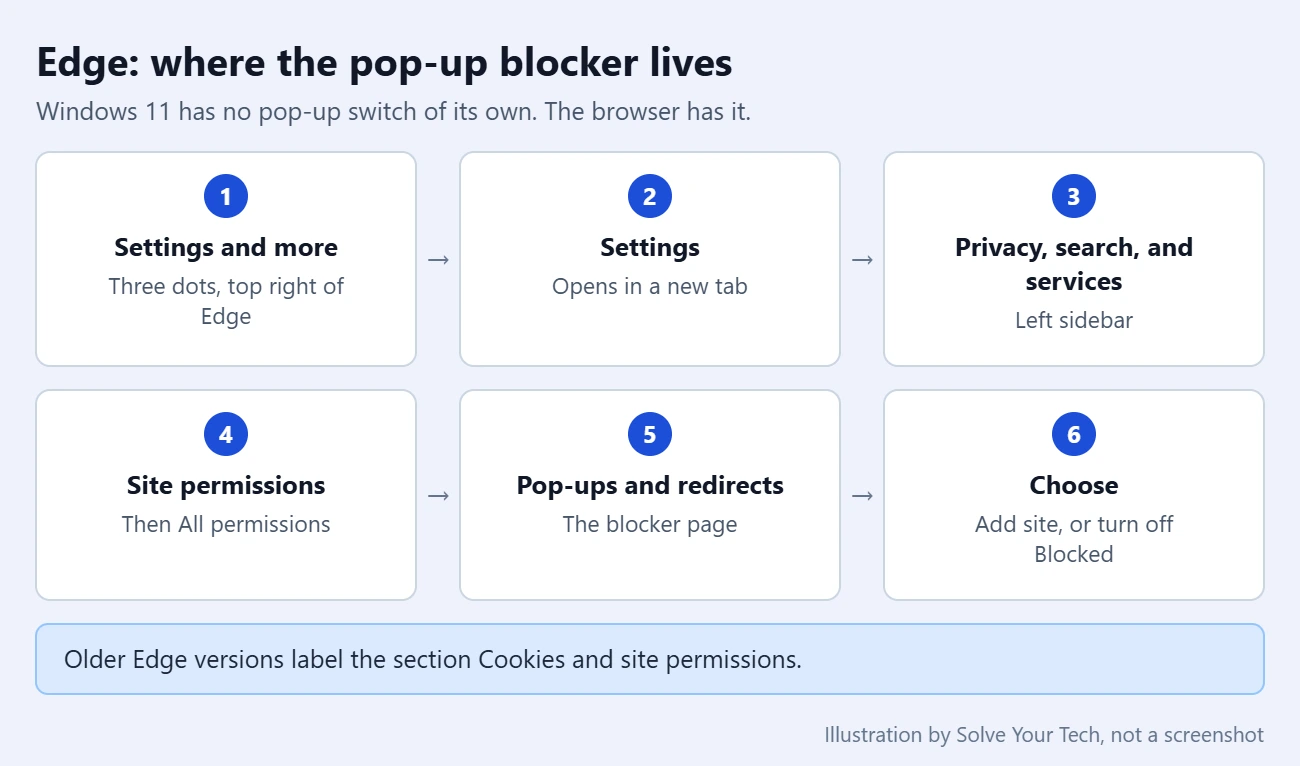
- Open Edge and select Settings and more (the three dots) at the top right.
- Select Settings. It opens in a new tab.
- Select Privacy, search, and services in the left sidebar.
- Select Site permissions, then All permissions.
- Select Pop-ups and redirects.
- Go to Allowed to send pop-ups and use redirects and select Add site.
- Type the site’s address, starting with
https://, and select Add. The address should now appear in the allowed list.
Turn the Edge blocker off for every site
Warning: with the blocker off, any site you visit can open new windows and redirect you, including ad and scam pages. Only do this for a short time, and turn it back on when you finish.
- Follow steps 1 to 5 above to open Pop-ups and redirects.
- Switch the Blocked (recommended) toggle off.
The change applies right away. There is no Save button. To undo it, return to the same page and switch Blocked (recommended) back on.
Two notes on Edge. Older versions call the section Cookies and site permissions instead of Privacy, search, and services > Site permissions, but the Pop-ups and redirects page is the same. You can also try typing edge://settings/content/popups in the address bar to jump to that page; Microsoft’s guide doesn’t list this shortcut, so use the menus if it doesn’t work. For more detail on this browser, see our guide on how to stop blocking pop-ups in Microsoft Edge.
Turn Off the Pop-Up Blocker in Google Chrome
Chrome uses a similar page. These steps follow Google’s help page on pop-ups in Chrome.
- Open Chrome and select More (the three dots) at the top right.
- Select Settings.
- Select Privacy and security, then Site settings.
- Select Pop-ups and redirects.
- Choose the default you want. The option that lets sites send pop-ups and use redirects turns the blocker off for every site. The option that doesn’t allow them keeps it on.
Warning: changing the default allows pop-ups from every site. To allow only one site, leave the default on the blocking option and use the address bar method above. The site then appears on this page under Allowed to send pop-ups and use redirects. That list normally has an Add button as well, so you can type a site’s address by hand. Google notes that the pattern [*.]example.com covers every page across a site.
To undo a single site, find it under Allowed to send pop-ups and use redirects, select More next to it, and choose Block. Typing chrome://settings/content/popups in the address bar should open this page directly, although Google’s help page only describes the menu route.
Turn Off the Pop-Up Blocker in Mozilla Firefox
Firefox keeps the setting under Permissions. These steps follow Mozilla’s pop-up blocker article.
- Open Firefox and select the menu button (three lines) at the top right.
- Select Settings.
- Select Privacy & Security in the left sidebar.
- Scroll down to the Permissions section.
- To allow one site, select Manage exceptions under Block pop-ups and third-party redirects. Type the site’s address, select Allow, then select Save Changes.
- To turn the blocker off for every site, clear the Block pop-ups and third-party redirects check box instead.
Older Firefox versions name the check box Block pop-up windows and the button Exceptions. To undo an exception, open the same window, select the site, and choose Remove Website, then Save Changes. The same Permissions area is where you can stop websites from asking for your location or camera in Firefox.
Pop-Up Blocker Settings at a Glance
| Browser | Where the setting is | Allow one site | Allow every site |
|---|---|---|---|
| Microsoft Edge | Settings > Privacy, search, and services > Site permissions > All permissions > Pop-ups and redirects | Add site under Allowed to send pop-ups and use redirects | Turn off Blocked (recommended) |
| Google Chrome | Settings > Privacy and security > Site settings > Pop-ups and redirects | Pop-up blocked icon > Always allow pop-ups and redirects from the site | Choose the default that lets sites send pop-ups |
| Mozilla Firefox | Settings > Privacy & Security > Permissions | Manage exceptions > Allow > Save Changes | Clear Block pop-ups and third-party redirects |
How to Check That It Worked and Turn the Blocker Back On
Go back to the site, reload the page, and select the button that failed before. If the window opens, the change worked. You can also reopen the Pop-ups and redirects page and confirm that the site is in the allowed list.
When you finish the task, put things back:
- If you turned the blocker off: switch Blocked (recommended) back on in Edge, choose the blocking default in Chrome, or tick the check box again in Firefox.
- If you allowed one site: you can leave a trusted site on the list. To remove it, open the allowed list, select the menu next to the site, and remove or block it.
Troubleshooting: Pop-Ups Still Don’t Open
If the window still won’t appear after you change the setting, work through these checks in order.
- You changed a different browser. Make sure you changed the setting in the browser where the site is open.
- The address doesn’t match. A site can open its pop-up from a different address than the one you typed, for example a separate sign-in or payments domain. Look at the address shown in the blocked pop-up notice, and add it only if you’re sure it belongs to the same service.
- An extension is blocking it. Ad blockers and privacy extensions can stop pop-ups even when the browser allows them. Microsoft suggests turning extensions off, then turning them on one at a time to find the one causing the problem. In Edge, select Settings and more > Extensions.
- The browser is out of date. In Edge, select Settings and more > Settings > About Microsoft Edge and apply any update that is offered.
- Old site data is getting in the way. Clearing cached files can help a page that keeps misbehaving. Here’s how to clear the cache in Microsoft Edge.
- The setting is greyed out or keeps changing back. On a work or school device, your organization may control it. Google says you can’t change the setting yourself on a managed Chrome device, and the same can apply to other managed browsers. Ask your IT administrator to allow the site.
- The menu names don’t match. If you see Cookies and site permissions in Edge or Block pop-up windows in Firefox, you have an older version. The steps are otherwise the same, and updating the browser brings the newer names.
- The site says cookies are blocked too. Cookies and pop-ups are separate permissions. See how to enable cookies in Chrome.
If the whole site won’t load, the pop-up blocker isn’t the cause. See how to unblock websites on Windows 11.
What the Pop-Up Blocker Doesn’t Control
Many things that people call pop-ups are not handled by this setting, so turning the blocker on or off won’t change them.
- Ads inside a page. Microsoft says website advertisements made to look like pop-ups can’t be blocked by the Edge pop-up blocker.
- Windows you open yourself. Microsoft also says Edge doesn’t stop a pop-up from opening when you select a button or link on a page.
- Website notifications. These appear in the lower right corner of the screen and in the notification center, even when the browser is closed. They have their own permission. Microsoft explains how to manage website notifications in Edge.
- Windows 11 notifications. App and system banners are controlled in Settings > System > Notifications, as described in Microsoft’s notifications guide.
- Pop-ups from unwanted software. If windows keep appearing on sites that never showed them before, both Microsoft and Google suggest checking for malware. Here’s how to run a Windows Defender scan on Windows 11.
Frequently Asked Questions
Does Windows 11 have a pop-up blocker in Settings?
No. The Windows 11 Settings app has no pop-up blocker option. Pop-up blocking is part of each web browser, so you change it in Edge, Chrome, Firefox or whichever browser you use.
Is it safe to turn off the pop-up blocker?
Turning it off everywhere lets unwanted ads and scam windows through on any site you visit. It is safer to allow only sites you trust, like your bank or school portal, and to leave the blocker on for everything else.
How do I allow pop-ups for just one website?
Open the browser’s Pop-ups and redirects page and add the site to the allowed list. In Edge, that is Add site under Allowed to send pop-ups and use redirects. In Chrome, select the Pop-up blocked icon in the address bar and choose to always allow the site.
Can I turn off the pop-up blocker temporarily?
There is no timer. In Edge, turn off Blocked (recommended), finish what you need to do, then turn it back on. Chrome and Firefox can also open a single blocked pop-up from the address bar notice without changing any setting.
Why are pop-ups still blocked after I turned the blocker off?
The usual causes are an ad-blocking extension, a setting changed in a different browser, or a work or school policy that controls the browser. Check the troubleshooting list above.
Does turning off the pop-up blocker affect Windows notifications?
No. Windows notifications are controlled in Settings > System > Notifications, and website notifications have their own permission in the browser.
How do I stop pop-ups instead?
Turn the blocker back on using the same page, then see how to stop pop-ups on Windows 11 for notifications and other interruptions.
Next Step
Start with the address bar method for the one site that needs a pop-up, and leave the blocker on for everything else. Having trouble loading Google after changing browser settings? See what to do when Google is not working.

Matthew Burleigh is the founder, head writer, and editor of Solve Your Tech, which he launched in 2012. He has written technology tutorials since 2008 and worked in IT since 2003, including small-business support, IT management, and consulting. He holds Bachelor’s and Master’s degrees in Computer Science from Arizona State University.
Matthew writes practical guides for Windows, iPhone and iPad, Microsoft Office, Outlook, Google apps, and Android. Solve Your Tech’s guides are tested on current devices or checked against official product documentation, with clear steps, sources, and update dates.
Read more about Matthew and how Solve Your Tech writes and updates its guides, or report a correction.