To restart Microsoft Edge, close every Edge window and open Edge again. If an update is waiting, go to Settings and more > Help and feedback > About Microsoft Edge and select Restart. If Edge is frozen on Windows, press Ctrl + Shift + Esc, select Microsoft Edge in Task Manager, and select End task.
This guide covers the current Chromium-based Microsoft Edge on Windows 11, Windows 10, and Mac, with a short section for phones. The steps follow Microsoft’s support articles, including Microsoft Edge update settings and What to do if Microsoft Edge isn’t working. Anything Microsoft does not document is marked that way.
Before You Restart Edge
A restart closes every page you have open. Take a moment to protect anything you would not want to lose.
- Finish or save web forms. Text typed into a form, a chat box, or an online editor that has not been saved can be lost when the tab closes.
- Let downloads finish. A download that is still running may stop when Edge closes.
- Save tabs you need. Press Ctrl + Shift + D to save all open tabs as favorites in a new folder. Microsoft lists this shortcut in its Edge keyboard shortcuts.
- Expect InPrivate windows to close for good. Do not count on InPrivate tabs coming back after a restart.
How to Restart Edge by Closing and Reopening It
This is the standard restart, and it works when Edge is still responding.
- On Windows, select the X in the top right corner of the Edge window, or press Alt + F4. Microsoft also lists Ctrl + Shift + W for closing the current window.
- Repeat for every other Edge window. Each window on the taskbar has to be closed.
- Open Edge again from the taskbar, the Start menu, or a desktop shortcut.
On a Mac, closing the window does not quit the app. Select Microsoft Edge in the menu bar and choose Quit, or press Command + Q, then open Edge again from the Dock or the Applications folder.
If your tabs do not come back, press Ctrl + Shift + T (Command + Shift + T on a Mac). Microsoft describes this shortcut as reopening the last closed tab, so you may need to press it more than once. You can also open History with Ctrl + H and reopen pages from there.
How to Restart Edge to Finish an Update
Microsoft says Edge updates automatically when you restart the browser. When an update has already downloaded, Edge gives you a Restart button so you do not have to close the windows yourself.
- Select Settings and more (the three dots) in the top right corner of Edge.
- Select Help and feedback > About Microsoft Edge. You can also type
edge://settings/helpin the address bar and press Enter. - Read the status on the About page. If it says To finish updating, restart Microsoft Edge, select Restart.
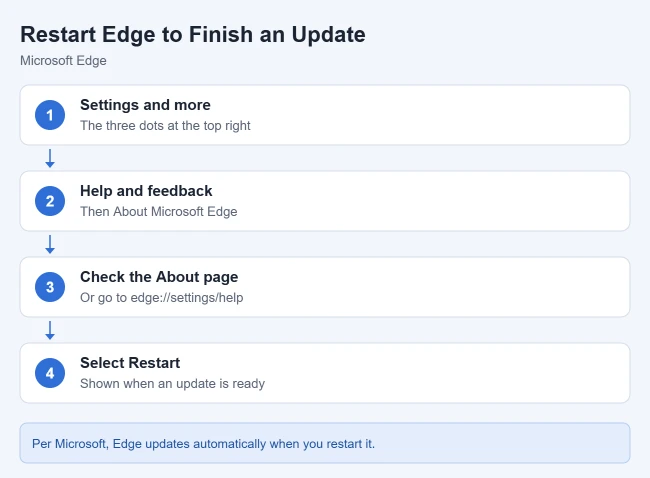
The About page can show two other messages. Microsoft Edge is up to date means there is nothing to apply and no Restart button appears. An update is available with a Download and install button appears when the update has not downloaded yet, which Microsoft says can happen on a metered connection. Select Download and install first, and Edge applies the update the next time it restarts.
To confirm the update worked, open About Microsoft Edge again after the restart. It should now say Edge is up to date. For the full update process, see how to update Microsoft Edge to the latest version.
The edge://restart Shortcut
Edge has internal pages that start with edge://. One of them, edge://restart, closes the browser and opens it again in a single step.
- Click the address bar in Edge, or open a new tab.
- Type
edge://restart. - Press Enter.

Two cautions apply. First, the restart begins the moment you press Enter, with no confirmation, so save your work before you type it. Second, Microsoft’s support articles do not document this address, so it could change or stop working in a later version. Other guides report that Edge reopens with the same tabs, but Microsoft does not promise that. If you use the address often, you can save it as a favorite on the favorites bar and select it when you need a restart. A related address, edge://quit, is reported to close all Edge windows without reopening them, and it is also undocumented.
How to Force Edge to Restart When It Is Frozen
Use this only when Edge will not close normally. Forcing an app to close skips its usual shutdown, so anything unsaved in an open page is lost.
Windows 11 and Windows 10
- Press Ctrl + Shift + Esc to open Task Manager.
- On the Processes tab, select Microsoft Edge.
- Select End task. All Edge windows should disappear.
- Open Edge again. If Edge offers to restore your pages, accept it, or press Ctrl + Shift + T.
Mac
- Press Option + Command + Esc to open the Force Quit window.
- Select Microsoft Edge and click Force Quit.
- Open Edge again from the Dock or the Applications folder.
Why Edge Keeps Running After You Close It
On Windows, closing the last window does not always stop Edge completely. Two settings can keep it running, which matters when you are restarting to clear a problem.
- Startup boost. Microsoft’s startup boost article says this feature keeps the browser running in the background with minimal processes so Edge opens faster. It is available only on Windows. You can turn it on or off at
edge://settings/system/manageSystem. - Background apps and extensions. Microsoft’s policy documentation describes a background mode that lets Edge processes keep running after the last window is closed, and says users can change it at
edge://settings/system. Look for the switch about continuing to run background extensions and apps when Edge is closed. The exact wording can vary by version.
To make a restart complete, turn off both switches, close every Edge window, and open Edge again. You can turn them back on afterward. To undo the change, return to the same page and switch them on.
How to Keep Your Tabs Every Time Edge Restarts
Edge can reopen your last session each time it starts. Go to Settings and more > Settings > Start, home, and new tab page, and under When Edge starts choose Open tabs from the previous session. The section name has changed slightly between versions, so search Settings for “previous session” if you do not see it.
Microsoft notes that restoring the last session turns off features that act when Edge exits, such as clearing browsing data on close. On a shared computer, remember that the next person to open Edge sees your pages. Our guide on how to open a specific page when Microsoft Edge starts covers the other startup choices.
How to Restart Edge on iPhone, iPad, or Android
The mobile Edge apps have no Restart button. Close the app and open it again instead. If you do not have the app yet, see how to get Microsoft Edge on an iPhone.
- iPhone or iPad: swipe up from the bottom of the screen and pause in the middle, find Edge, swipe up on its preview, then tap the Edge icon to reopen it. On a model with a Home button, double-click the Home button first.
- Android: open the recent apps view, swipe Edge away, and open it again. The gesture differs by phone maker.
If Restarting Edge Does Not Fix the Problem
Microsoft’s troubleshooting article suggests these steps, roughly in this order.
- Free up memory. Close other tabs and apps, pause downloads, and remove extensions you do not need.
- Update Edge from the About page.
- Restart your computer, then open Edge again.
- Scan for malware with Windows Security.
- Clear cached data. See how to clear your history in Microsoft Edge.
- Repair Edge. Close Edge, go to Start > Settings > Apps > Installed apps, select Microsoft Edge, select Modify, choose Yes, and select Repair. You need administrator rights and an internet connection. Microsoft says your browser data and settings should not be affected.
If Modify is missing, or the update switches on the About page are dimmed, Microsoft says your organization probably manages Edge. Contact your IT administrator.
Frequently Asked Questions
Will I lose my tabs when I restart Microsoft Edge?
Not necessarily, but do not rely on it. Tabs return automatically only if Edge is set to open tabs from the previous session. Otherwise, press Ctrl + Shift + T after reopening Edge, or reopen pages from History. Unsaved text in forms and InPrivate tabs should be treated as lost.
Why does Edge keep asking me to restart?
An update has downloaded and is waiting. Edge applies updates when the browser restarts, so the message stays until you select Restart on the About page or close and reopen Edge.
Is restarting Edge the same as resetting it?
No. A restart only closes and reopens the browser and changes nothing. A reset, found under Settings > Reset settings, restores settings to their defaults and is a much bigger step. Try a restart first.
Why is Microsoft Edge still in Task Manager after I close it?
Startup boost or the background apps setting is keeping some Edge processes running on Windows. Turn both off at edge://settings/system, or select Microsoft Edge in Task Manager and select End task.
Is there a keyboard shortcut to restart Edge?
There is no single documented restart shortcut. On Windows, Alt + F4 closes the current Edge window, and on a Mac, Command + Q quits Edge. You then open it again yourself.
Next Steps
Once Edge is running again, it is a good time to tidy up a setting or two. These guides may help:

Matthew Burleigh is the founder, head writer, and editor of Solve Your Tech, which he launched in 2012. He has written technology tutorials since 2008 and worked in IT since 2003, including small-business support, IT management, and consulting. He holds Bachelor’s and Master’s degrees in Computer Science from Arizona State University.
Matthew writes practical guides for Windows, iPhone and iPad, Microsoft Office, Outlook, Google apps, and Android. Solve Your Tech’s guides are tested on current devices or checked against official product documentation, with clear steps, sources, and update dates.
Read more about Matthew and how Solve Your Tech writes and updates its guides, or report a correction.