To update Microsoft Edge, select the three-dot Settings and more menu, then Help and feedback > About Microsoft Edge. Edge checks for an update and downloads it right away. Select Restart to finish. You can also type edge://settings/help in the address bar to open the same page.
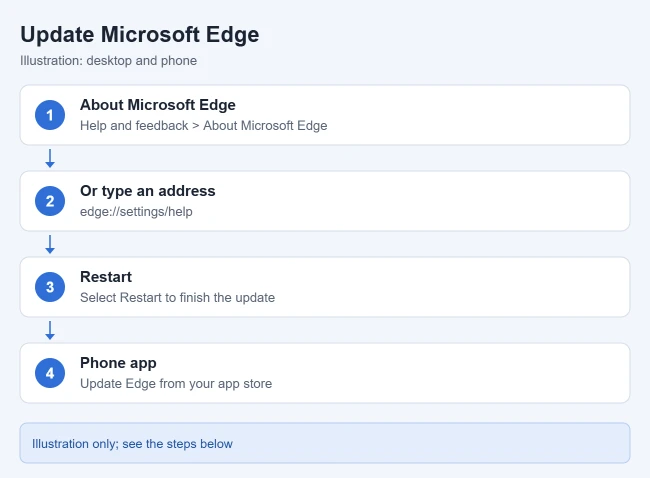
Update Edge Manually
- Open Microsoft Edge.
- Select the three-dot Settings and more menu in the top-right corner.
- Select Help and feedback, then About Microsoft Edge.
- Wait while Edge checks for updates. If you see Download and install, select it.
- Select Restart when it appears. Edge reopens your tabs.

If the page says Microsoft Edge is up to date, you already have the latest version. The version number is listed on the same page.
Does Edge Update by Itself?
Yes. Edge updates automatically in the background, and the update finishes the next time you restart the browser. Checking the About page just makes it happen sooner. Firefox works differently and has a setting for this, as covered in turning off automatic updates in Firefox. Updates sometimes move settings; for example, autofill now lives under Passwords and autofill, as covered in how to turn off autofill in Edge. Microsoft describes how this works in its Edge update settings article.
Turn On Automatic Edge Updates
Edge won’t download updates on its own over a metered connection, such as a phone hotspot or a Wi-Fi network marked as metered. To let it update anyway:
- Open
edge://settings/help. - Turn on Download and install updates automatically and Download updates over metered connections, if you see them.
- Restart Edge when asked.
Downloading on a cellular connection may use your data plan. If the toggles are dimmed or missing, your organization manages Edge, and your IT department controls updates.
Update Edge on a Mac, iPhone, or Android
- Mac: open Edge, select Microsoft Edge in the menu bar, then About Microsoft Edge. The same About page checks for updates.
- iPhone or iPad: open the App Store, tap your profile picture, and select Update next to Microsoft Edge. If the app is not on your phone yet, see how to install Microsoft Edge on an iPhone.
- Android: open the Play Store, search for Microsoft Edge, and tap Update if it appears.
If Edge Won’t Update
- Check your internet connection, then open
edge://settings/helpagain. - Close every Edge window and reopen it. Here’s how to fully restart Edge.
- Run Windows Update in Settings > Windows Update and install any updates.
- Run the Program Compatibility Troubleshooter: go to Settings > System > Troubleshoot > Other troubleshooters and select Run next to it.
- If it still fails, download the latest Edge from microsoft.com/edge and install it over your current version.
These steps come from Microsoft’s Edge update troubleshooting guide. If pages look broken after an update, clear the Edge cache. On a work or school PC, your organization may control updates.
Frequently Asked Questions
How often does Microsoft Edge update?
Edge gets a new major version about every four weeks, with security fixes in between as needed, according to Microsoft’s Edge release schedule.
How do I see my Edge version?
Open edge://settings/help. The version number appears under Microsoft Edge.
Will updating Edge delete my favorites or passwords?
No. Updates keep your favorites, history, passwords, and settings.
Can I stop Edge from updating?
Not on a personal PC. Edge always updates when you restart it, except on metered connections, where you choose when to download. Skipping updates leaves the browser open to security problems. Retired plug-ins are a different case, so see what happened to automatic updates for Adobe Flash Player.
What is the latest version of Edge?
Version numbers change every few weeks. Open edge://settings/help to check yours, or see Microsoft’s Edge Stable release notes for the newest version and what changed.
How do I make Google the search engine in Edge?
See how to set Google as the default search engine in Microsoft Edge.
An updated Edge can also install websites as apps. Here’s how to get JioHotstar on a Windows 11 laptop using that feature.

Matthew Burleigh has been writing tech tutorials since 2008. His writing has appeared on dozens of different websites and been read hundreds of millions of times.
After receiving his Bachelor’s and Master’s degrees in Computer Science he spent several years working in IT management for small businesses. However, he now works full time writing content online and creating websites.
His main writing topics include iPhones, Microsoft Office, Google Apps, Android, and Photoshop, but he has also written about many other tech topics as well.