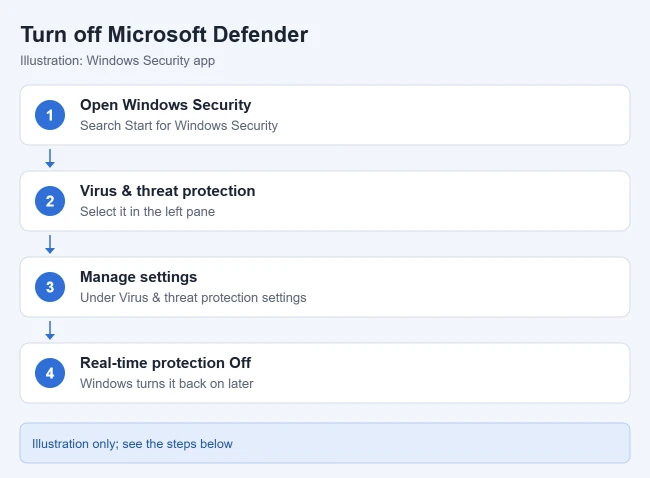
To turn off Microsoft Defender in Windows 11, open Windows Security, select Virus & threat protection, select Manage settings, and switch Real-time protection to Off. This is temporary. Windows turns real-time protection back on by itself after a short while.
Windows 11 has no supported switch that turns Defender off for good. If you want something longer lasting, the two routes Microsoft supports are adding an exclusion for the item Defender keeps blocking, or installing a different antivirus program. This guide covers all three, plus what to do when the switch will not move.
Before You Start
A few things are worth knowing before you change anything.
- The name. “Windows Defender” is the older name. In Windows 11 the antivirus is called Microsoft Defender Antivirus, and you control it from an app called Windows Security. They are the same thing most people mean by “Defender.”
- Real-time protection. This is the part of Defender that checks files and programs at the moment you open, download, or run them. It is the switch this guide turns off.
- You need an administrator account. Windows asks for permission before it changes this setting. On a standard account you will be asked for an administrator password.
- Work and school PCs are different. If your organization manages the computer, the setting may be locked. Ask your IT administrator instead of trying to work around it.
- The firewall is separate. Turning off real-time protection does not turn off Microsoft Defender Firewall.
Warning: While real-time protection is off, files you open or download are not scanned for threats. Do not browse the web, open email attachments, or plug in unknown USB drives while it is off. Finish the one task you turned it off for, then turn it back on.
How to Turn Off Real-Time Protection in Windows 11
This is the quickest method and the documented way to pause the antivirus briefly.
- Select Start, type Windows Security, and open the app from the results. You can also press Windows key + S to jump straight to search.
- Select Virus & threat protection. It is on the home screen of the app and in the menu on the left side.
- Under the Virus & threat protection settings heading, select Manage settings.
- Find Real-time protection at the top of the page and switch it to Off.
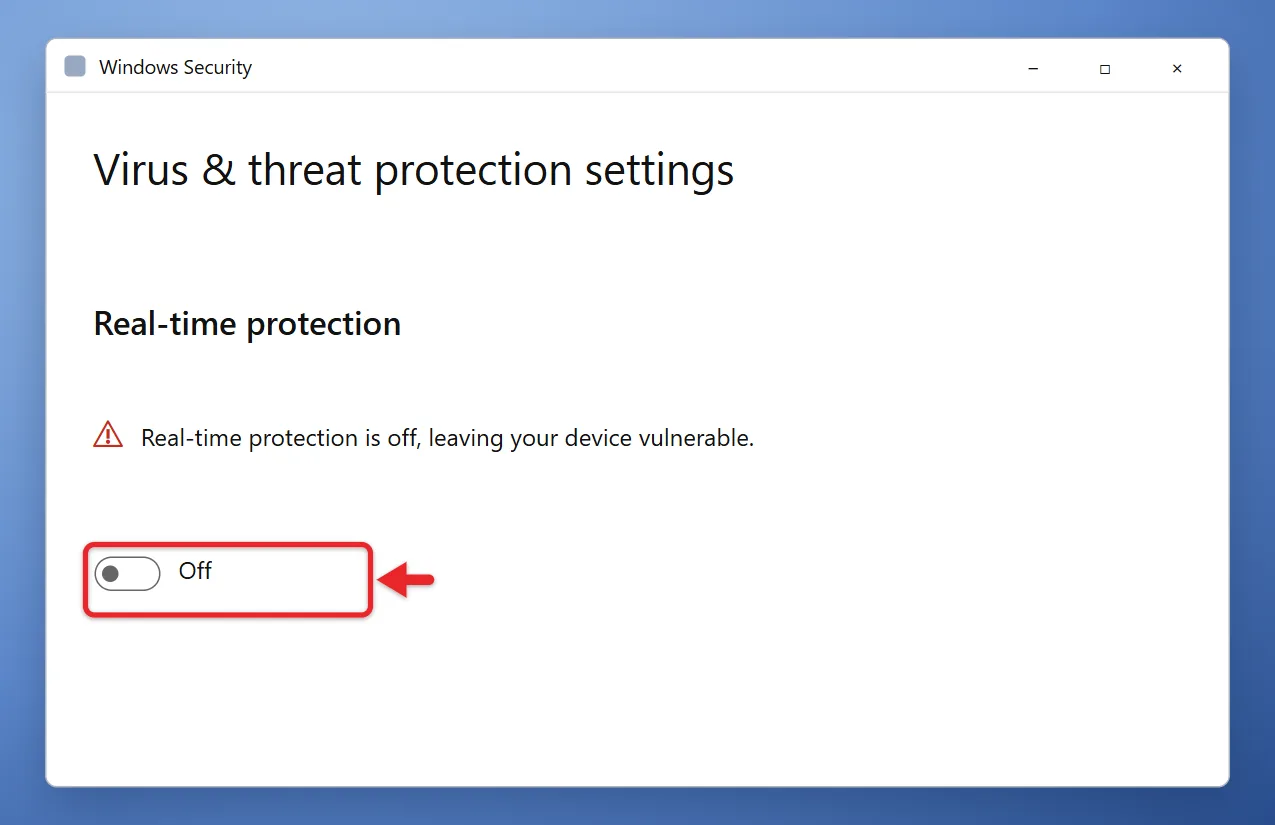
- Select Yes when Windows asks whether to allow the change.
The switch now reads Off, and Windows Security shows a warning that your device may be vulnerable. That warning is how you know the change worked. You may also see a notification asking you to turn virus protection back on.
You can also reach the same app from Settings > Privacy & security > Windows Security if you prefer not to search for it.
Microsoft’s Virus & threat protection guide explains this setting. Scheduled scans keep running while real-time protection is off, but anything you download or install is not checked until the next scheduled scan.
How to Turn Defender Back On
Turn it back on as soon as your task is finished:
- Open Windows Security and select Virus & threat protection.
- Select Manage settings.
- Switch Real-time protection to On.
The warning disappears and the Virus & threat protection tile shows a green check mark again.
If you installed or downloaded something while protection was off, it is a good idea to scan it afterward. You can run a quick, full, or custom Windows Defender scan.
Add an Exclusion Instead of Turning Defender Off
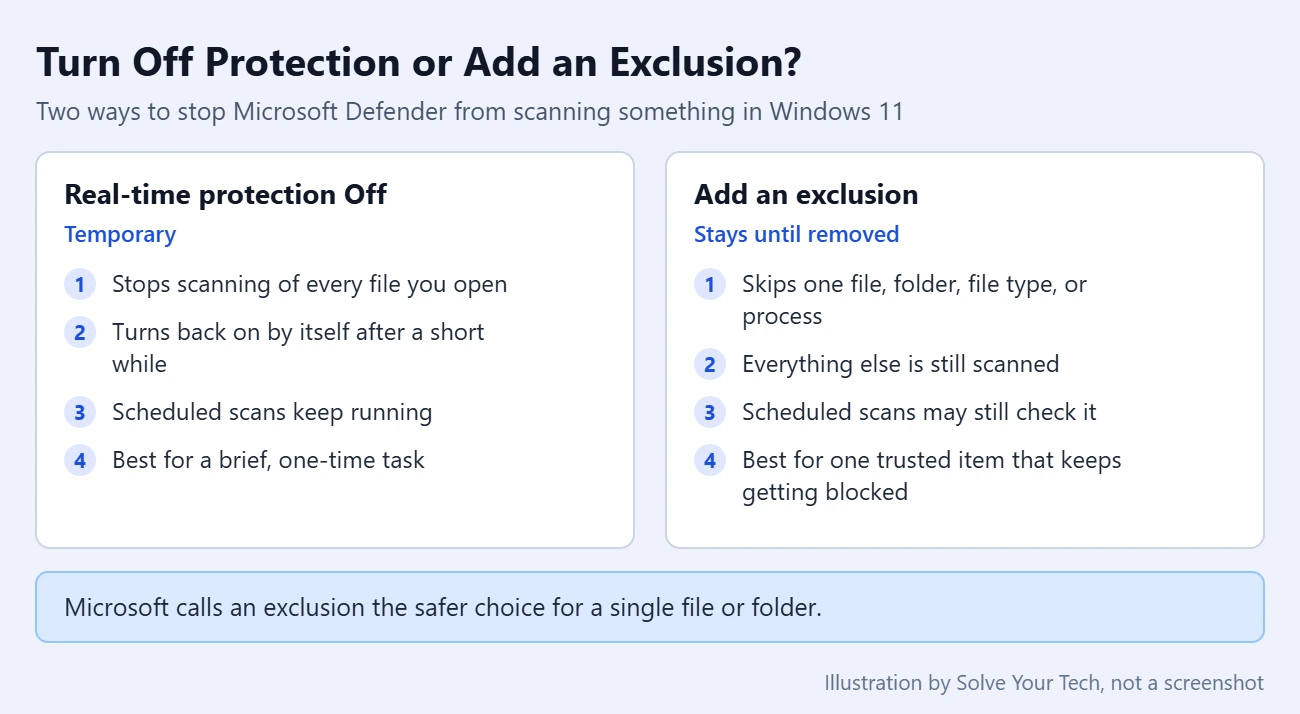
If Defender keeps blocking or slowing down one file, folder, or program that you trust, you do not need to turn off protection for the whole PC. An exclusion tells Defender to skip that one item during real-time scanning and keep checking everything else. This is safer than turning the antivirus off.
Warning: Defender stops checking an excluded item for threats in real time. Only exclude things that came from a source you trust, and never exclude a whole drive or your Downloads folder.
- Open Windows Security and select Virus & threat protection.
- Under Virus & threat protection settings, select Manage settings.
- Scroll down to Exclusions and select Add or remove exclusions. Select Yes if Windows asks for permission.
- Select Add an exclusion and choose a type: File, Folder, File type, or Process.
- Browse to the item, or type the file extension or process name, and confirm. The item now appears in the list on that page.
Here is what each type does, based on Microsoft’s descriptions:
| Exclusion type | What Defender skips |
|---|---|
| File | One specific file |
| Folder | A folder and every file inside it |
| File type | Every file with that extension, such as .docx or .pdf |
| Process | Any file opened by that program while it runs |
Choose the narrowest option that solves your problem. A single file is safer than a folder, and a folder is safer than a file type. For a process, use the full path and file name so that malware cannot hide behind a matching name somewhere else.
To undo an exclusion, go back to Add or remove exclusions, select the item, and select Remove. Exclusions apply only to real-time scanning, so a scheduled scan may still check those files.
Use a Different Antivirus Program
This is the supported way to stop using Defender long term. When you install a compatible antivirus program from another company, Microsoft Defender Antivirus turns itself off automatically so the two do not conflict. You do not need to flip any switches first.
To confirm which program is protecting the PC:
- Open Windows Security.
- Select Settings at the bottom of the left menu.
- Select Manage providers.
- Look under Antivirus for the name of the active program.
If you later remove the other program, Defender is designed to take over again, but check Manage providers to be sure something is turned on. The steps to uninstall McAfee from Windows 11 include that check after a removal.
If that other program is McAfee and its alerts are the problem, you can stop McAfee pop-ups on Windows 11.
Some versions of Windows Security also show a Microsoft Defender Antivirus options link with a Periodic scanning switch when another antivirus is installed. If you see it, turning it on lets Defender run occasional extra scans without interfering with your main antivirus. It is optional.
Can You Turn Off Windows Defender Permanently?
Not with a supported setting on a home PC. Many older guides list registry edits, Group Policy settings, services changes, or PowerShell commands that claim to disable Defender for good. Here is where those methods stand today.
- The DisableAntiSpyware registry value is retired. This setting was meant for PC makers and IT staff deploying another antivirus, was never intended for consumer devices, and has been removed. It is also covered by Tamper Protection.
- Tamper Protection blocks outside changes. Tamper Protection is a Windows Security setting that stops apps and scripts from changing important Defender settings such as real-time protection. Changes made through the registry are blocked, and a change made through Group Policy can look like it worked while Tamper Protection quietly blocks it.
- Policy settings are for managed PCs. Group Policy is a tool organizations use to control many computers at once. It is not included in Windows 11 Home, and Microsoft’s guidance for organizations is to manage Defender through their security tools, not to switch it off.
- Updates can reset changes. Defender is part of Windows and is updated through Windows Update, so unsupported changes may not last.
For those reasons this guide does not walk through registry or policy edits. They are unreliable on current versions of Windows 11, and a mistake in the registry can cause problems that are hard to undo. If Defender is getting in the way, an exclusion or a different antivirus program solves the same problem without leaving the PC unprotected. You can read Microsoft’s explanation on its DisableAntiSpyware reference page.
What to Do if Real-Time Protection Will Not Turn Off
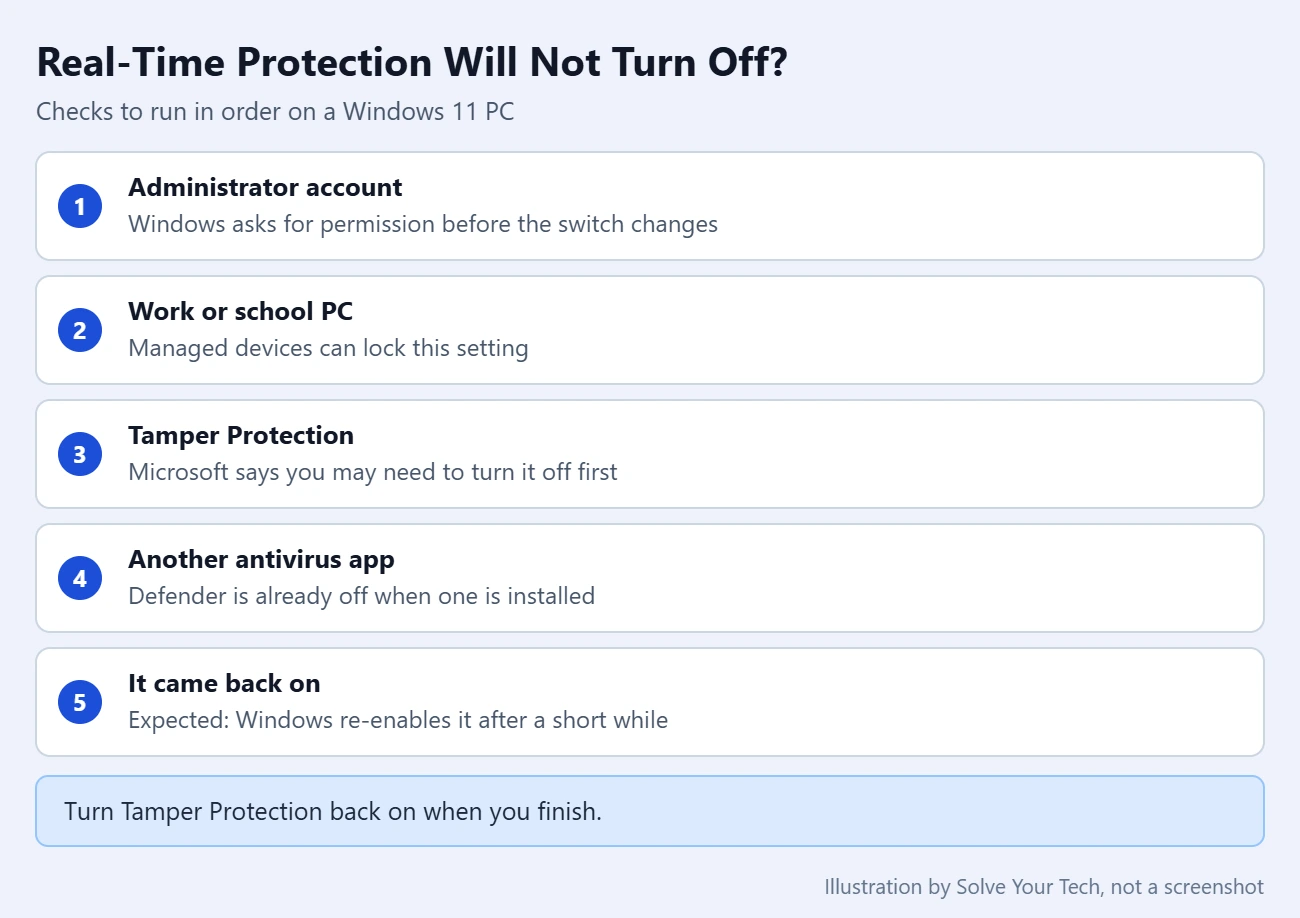
Work through these in order.
- The switch is gray or says it is managed by your organization. The PC is controlled by a work or school account, or a policy has been set on it. Contact your IT administrator. On a personal PC that was once connected to a work account, that connection may still be applying rules.
- The switch moves but turns itself back on right away. Microsoft’s guide includes a note that if Tamper Protection is on, you may need to turn it off before you can turn real-time protection off. On the same Manage settings page, switch Tamper Protection to Off, turn off Real-time protection, and switch Tamper Protection back On as soon as you are done. The same guide also says an administrator can normally change these settings in the app with Tamper Protection on, so try the switch by itself first.
- There is no Real-time protection switch at all. Another antivirus program is probably installed and Defender is already off. Check Settings > Manage providers in Windows Security. Trial antivirus software that came with a new PC is a common cause.
- Windows asks for a password you do not have. You are signed in with a standard account. Sign in with an administrator account, or ask the person who set up the PC. For more on administrator permission, learn how to run an app as administrator in Windows 11.
- Windows Security will not open. Restart the PC and install any pending updates in Settings > Windows Update, then try again.
- Protection came back on by itself. That is how Windows 11 is designed. If you need more time, turn it off again, or use an exclusion so you do not have to repeat the steps.
Frequently Asked Questions
Can I disable Windows Defender permanently on Windows 11?
Not from Settings or Windows Security. The supported way to replace it is to install another antivirus program, which turns Microsoft Defender Antivirus off automatically. Registry and Group Policy methods from older guides are blocked or ignored on current versions of Windows 11 while Tamper Protection is on.
How long does real-time protection stay off?
It turns back on automatically after a short while, with no exact time given. Treat it as a brief pause, and turn it back on yourself when you finish.
Is it safe to turn off Windows Defender?
Only for a short time, and only while you install or run something you trust.
Does turning off real-time protection turn off the firewall?
No. The firewall is a separate setting under Firewall & network protection in Windows Security. If you need to change it, follow the steps to disable the firewall on Windows 11.
Can I uninstall Windows Defender from Windows 11?
No. Microsoft Defender Antivirus is built into Windows 11 and does not appear in the list of apps you can uninstall. It steps aside when another antivirus program is installed and returns when that program is removed.
Should I turn off Tamper Protection?
Leave it on unless Windows will not let you change real-time protection without it. It exists to stop malicious apps from switching off your antivirus. If you do turn it off, turn it back on right after you finish.
Why does Windows keep telling me to turn on virus protection?
Windows shows that message whenever real-time protection is off and no other antivirus is active. Turn Real-time protection back on and the message stops. If it continues, open Windows Security, check that Virus & threat protection shows a green check mark, and install the latest updates in Settings > Windows Update.
How do I check if Defender is on?
Open Windows Security. A green check mark on Virus & threat protection means antivirus protection is on and no action is needed. To see whether that protection comes from Defender or another program, select Settings > Manage providers.
Will an exclusion stop Defender from blocking a game or app?
Usually, if real-time scanning is what is blocking or slowing it. Add the game’s install folder or its main program file as an exclusion. If the app is blocked from the network instead, that is a firewall setting, not an antivirus one.
Next Step
Once your task is done, open Windows Security and confirm that Virus & threat protection shows a green check mark. If you turned off Tamper Protection or added an exclusion you no longer need, undo those changes on the Manage settings page too.

Matthew Burleigh is the founder, head writer, and editor of Solve Your Tech, which he launched in 2012. He has written technology tutorials since 2008 and worked in IT since 2003, including small-business support, IT management, and consulting. He holds Bachelor’s and Master’s degrees in Computer Science from Arizona State University.
Matthew writes practical guides for Windows, iPhone and iPad, Microsoft Office, Outlook, Google apps, and Android. Solve Your Tech’s guides are checked step by step against the device or app maker’s own documentation and tested on his own devices whenever he has the hardware or software, with clear steps, sources, and update dates.
Read more about Matthew and how Solve Your Tech writes and updates its guides, or report a correction.