To install RSAT on Windows 11, open Settings > System > Optional features, select View features, search for RSAT, check the tools you need, and select Next, then Add. RSAT (Remote Server Administration Tools) is built into Windows 11 as optional features, so there’s no separate download.
RSAT lets IT admins manage Windows Server roles, such as Active Directory, DNS, DHCP, and Group Policy, from a Windows 11 PC. You’ll need Windows 11 Pro or Enterprise (Education editions also include it), an administrator account, and an internet connection to Windows Update.
Before You Start
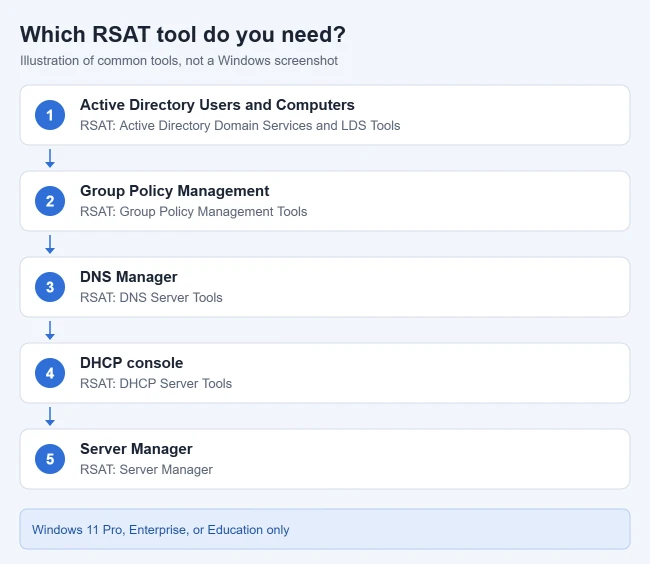
- Edition: Microsoft lists Windows 11 Pro or Enterprise. RSAT isn’t available on Windows 11 Home; check yours in Settings > System > About. Upgrading Home to Pro is the only way to get it.
- Admin rights on the PC, and admin rights on the servers you plan to manage. (For a local web server instead, see how to install IIS on Windows 11.)
- Network access to those servers, usually on your company network or VPN.
- Windows Update access. The features download from Windows Update, which matters on managed PCs (see Troubleshooting).
What RSAT Includes on Windows 11
According to Microsoft’s tool table, the Windows 11 optional features include tools for:
- Active Directory Domain Services and Lightweight Directory Services, plus Active Directory Certificate Services
- Group Policy Management, DNS Server, and DHCP Server
- Remote Desktop Services, Windows Server Update Services (WSUS), and File Services
- Failover Clustering, Network Load Balancing, IP Address Management (IPAM), and BitLocker administration
- Server Manager and Storage Migration Service
Some server-only tools, such as WINS, SNMP, and Fax Server tools, aren’t offered on Windows 11 at all, and Hyper-V Management Tools come from Windows Features (Method 3).
Method 1: Install RSAT From Settings
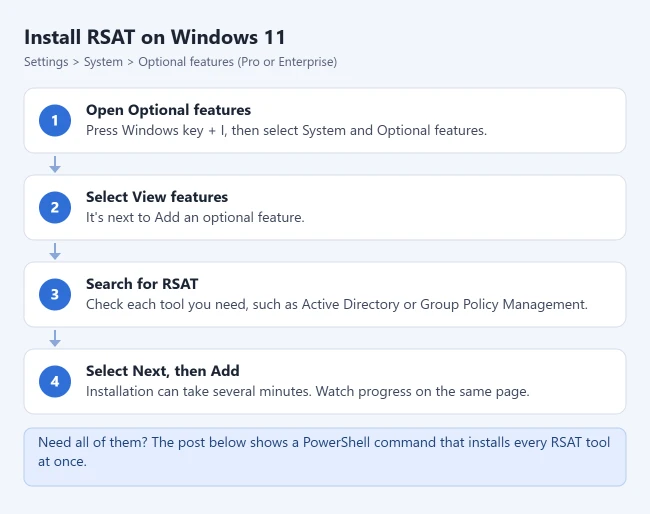
- Press Windows + I to open Settings.
- Select System, then Optional features. On older Windows 11 versions it’s under Apps > Optional features.
- Scroll the installed list to check whether the tool is already there.
- Select View features next to Add an optional feature.
- Type RSAT in the search box.
- Check each tool you need, such as RSAT: Active Directory Domain Services and Lightweight Directory Services Tools or RSAT: Group Policy Management Tools.
- Select Next, then Add. The Optional features page shows each tool downloading, then Added. It can take several minutes.
Method 2: Install RSAT With PowerShell
PowerShell is faster when you want several tools, or all of them. Right-click Start and select Terminal (Admin).
If that menu entry is missing, running an app as administrator in Windows 11 covers other ways to open an elevated PowerShell window.
See which tools are available and installed
Get-WindowsCapability -Name RSAT* -Online | Select-Object DisplayName, StateYou see a list of RSAT tools, each marked Installed or NotPresent.
Install one tool
Copy the tool’s full name from the list above (the Name property; run Get-WindowsCapability -Name RSAT* -Online | Select-Object Name to see it). For example, Active Directory tools:
Add-WindowsCapability -Online -Name "Rsat.ActiveDirectory.DS-LDS.Tools~~~~0.0.1.0"Install every RSAT tool
Get-WindowsCapability -Name RSAT* -Online | Add-WindowsCapability -OnlineInstalling everything takes a while. Most admins only need Active Directory, Group Policy, and DNS. Microsoft’s RSAT guide documents these commands.
Or use DISM
DISM does the same job from Command Prompt (Admin), which is handy in older scripts:
DISM /Online /Add-Capability /CapabilityName:Rsat.ActiveDirectory.DS-LDS.Tools~~~~0.0.1.0Method 3: Hyper-V Management Tools and Other Windows Features
A few tools aren’t optional features. Microsoft’s table shows Hyper-V Management Tools, for example, installs through the classic Windows Features dialog instead:
- Select Start, type Windows Features, and open Turn Windows features on or off.
- Expand the category and check the tool, such as Hyper-V Management Tools.
- Select OK and restart if asked.
Open the Tools After Installing
Open Start > All apps > Windows Tools to see every installed console, or search for a tool by name. Our guide on how to open Windows Tools in Windows 11 covers the other routes to that folder. You can also launch the common ones from the Run box (Windows + R):
| Tool | Run command |
|---|---|
| Active Directory Users and Computers | dsa.msc |
| Group Policy Management | gpmc.msc |
| DNS Manager | dnsmgmt.msc |
| DHCP | dhcpmgmt.msc |
| Active Directory Sites and Services | dssite.msc |
Most of these connect to a domain controller or server, so the PC usually needs to be joined to your company domain. See how to join a domain in Windows 11. To control a single remote PC instead, see how to enable Remote Desktop in Windows 11.
If you’re building one standard Windows 11 image for many PCs, do that on a separate workgroup reference machine instead, as our guide on how to Sysprep Windows 11 for image deployment explains.
To confirm this PC is already joined, check the domain name in Windows 11.
If Active Directory Users and Computers is the only tool you need, our guide on how to install ADUC on Windows 11 covers it, including the separate route for Arm-based PCs.
Install RSAT on Windows 10
For Windows 10 version 1809 or later, Microsoft lists RSAT Features on Demand for Pro or Enterprise, not Home. Sign in with an administrator account, search Start for Optional features and open its settings. Older layouts use Settings > Apps > Optional features; Microsoft’s current Windows 10 guidance also lists System for newer layouts. Select Add a feature, search for RSAT or Remote, choose the tools you need and select Install. Wait for successful installation, restart if requested, then search Start for the specific installed console, such as Active Directory Users and Computers. A tool appearing in the list is not proof that installation finished. Microsoft’s RSAT guidance describes the Windows 10 version and edition requirements.
Troubleshooting
RSAT says “Couldn’t add” or fails to install
On work PCs, Windows often gets updates from a company WSUS server that doesn’t carry optional features, so the install fails. Microsoft’s Configure a Windows repair source guide covers the Group Policy setting Computer Configuration > Administrative Templates > System > Specify settings for optional component installation and component repair. Enable it and check the option to download repair content and optional features directly from Windows Update instead of WSUS. On a managed PC, ask IT to change it rather than editing policy yourself.
RSAT isn’t listed in Optional features
You’re probably on Windows 11 Home, or searching the installed list instead of View features. Check your edition in Settings > System > About.
The tool installed but won’t connect
Make sure you’re on the company network or VPN, signed in with a domain account that has rights on the server, and that the server’s firewall allows remote management.
Uninstall an RSAT Tool
- Go to Settings > System > Optional features.
- Find the tool in the installed list, expand it, and select Remove.
In PowerShell, use Remove-WindowsCapability -Online -Name followed by the tool’s full name.
Frequently Asked Questions
Can I install RSAT on Windows 11 Home?
No. Microsoft lists RSAT only for Pro and Enterprise editions. Upgrading to Pro adds it.
Do I need to download RSAT from Microsoft’s website?
Not on Windows 11. The old standalone RSAT download was for early Windows 10 versions; since the October 2018 update, RSAT comes as optional features through Windows Update.
Does RSAT work on ARM-based Windows 11 PCs?
Tool availability on ARM PCs has been limited and varies by tool. Run the PowerShell list command above to see what your PC offers.

Matthew Burleigh is the founder, head writer, and editor of Solve Your Tech, which he launched in 2012. He has written technology tutorials since 2008 and worked in IT since 2003, including small-business support, IT management, and consulting. He holds Bachelor’s and Master’s degrees in Computer Science from Arizona State University.
Matthew writes practical guides for Windows, iPhone and iPad, Microsoft Office, Outlook, Google apps, and Android. Solve Your Tech’s guides are checked step by step against the device or app maker’s own documentation and tested on his own devices whenever he has the hardware or software, with clear steps, sources, and update dates.
Read more about Matthew and how Solve Your Tech writes and updates its guides, or report a correction.