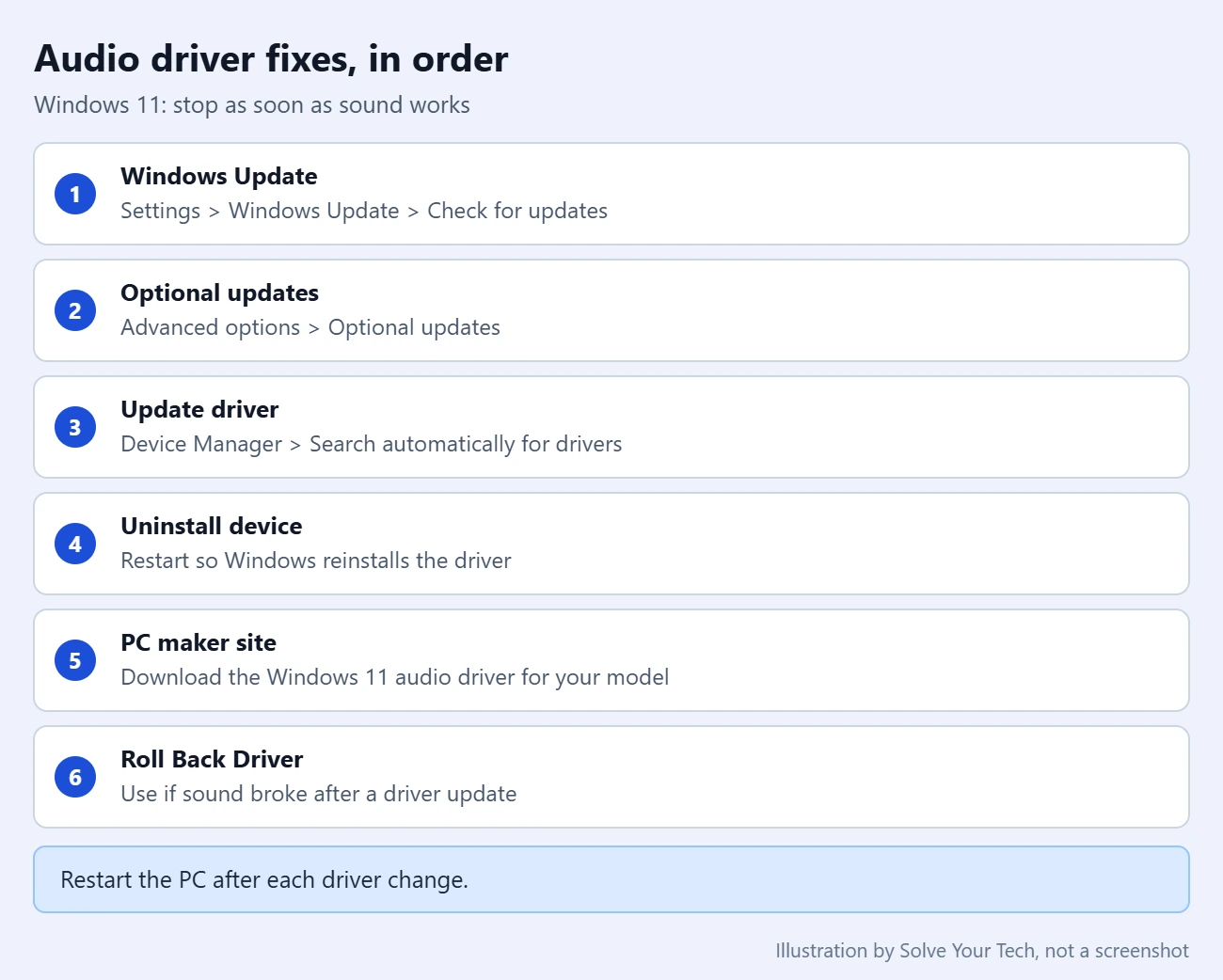
To install or update an audio driver in Windows 11, open Settings > Windows Update, select Check for updates, and then look in Advanced options > Optional updates for an audio driver. If sound still does not work, update or reinstall the driver in Device Manager, or download the latest one from your PC or motherboard maker’s support site. For display problems, update your graphics driver in Windows 11 instead.
Before You Start
An audio driver is the software that lets Windows talk to your sound hardware, such as the built-in speakers, the headphone jack, or a sound card. Windows 11 normally installs one for you, so you only need these steps when sound is missing, distorted, or broken after an update.
- These steps apply to Windows 11. Menu names can differ slightly between Windows 11 versions.
- You need an internet connection for Windows Update and for downloading a driver.
- Sign in with an administrator account. Microsoft says administrator permissions are required to roll back a driver.
- Save your work first. Every method ends with a restart.
Not sure the driver is the cause? Rule out muted volume and the wrong output device first, using the steps for fixing no sound on Windows 11.
If only one app is silent, check its slider in the Windows 11 Volume Mixer before you reinstall anything.
Option 1: Install the Audio Driver With Windows Update
Microsoft calls Windows Update the recommended way to get audio drivers in its Update audio drivers in Windows article. Windows picks the driver that matches your hardware, so you do not need to know your PC’s model number.
- Select Start > Settings > Windows Update.
- Select Check for updates and install anything that is offered. Recommended drivers install automatically with these updates.
- Select Advanced options, and then under Additional options select Optional updates.
- If driver updates are listed, check the audio driver and select Download and install. Audio drivers often carry a chip maker’s name, such as Realtek or Intel.
- Restart the PC when the installation finishes, even if Windows does not ask you to.
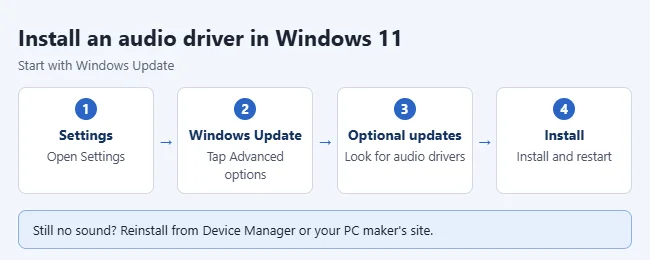
Optional drivers are never installed on their own, which is why this page is worth checking. Microsoft’s guide to getting recommended and updated hardware drivers also suggests turning on Receive updates for other Microsoft products in Advanced options. If no audio driver is listed, Windows Update has nothing newer to offer, so move to the next option.
Option 2: Update the Driver in Device Manager
Device Manager is the Windows tool that lists your hardware and its drivers.
- Right-click Start and select Device Manager. See other ways to open Device Manager if you need them.
- Select the arrow next to Sound, video and game controllers to expand it.
- Right-click your audio device and select Update driver.
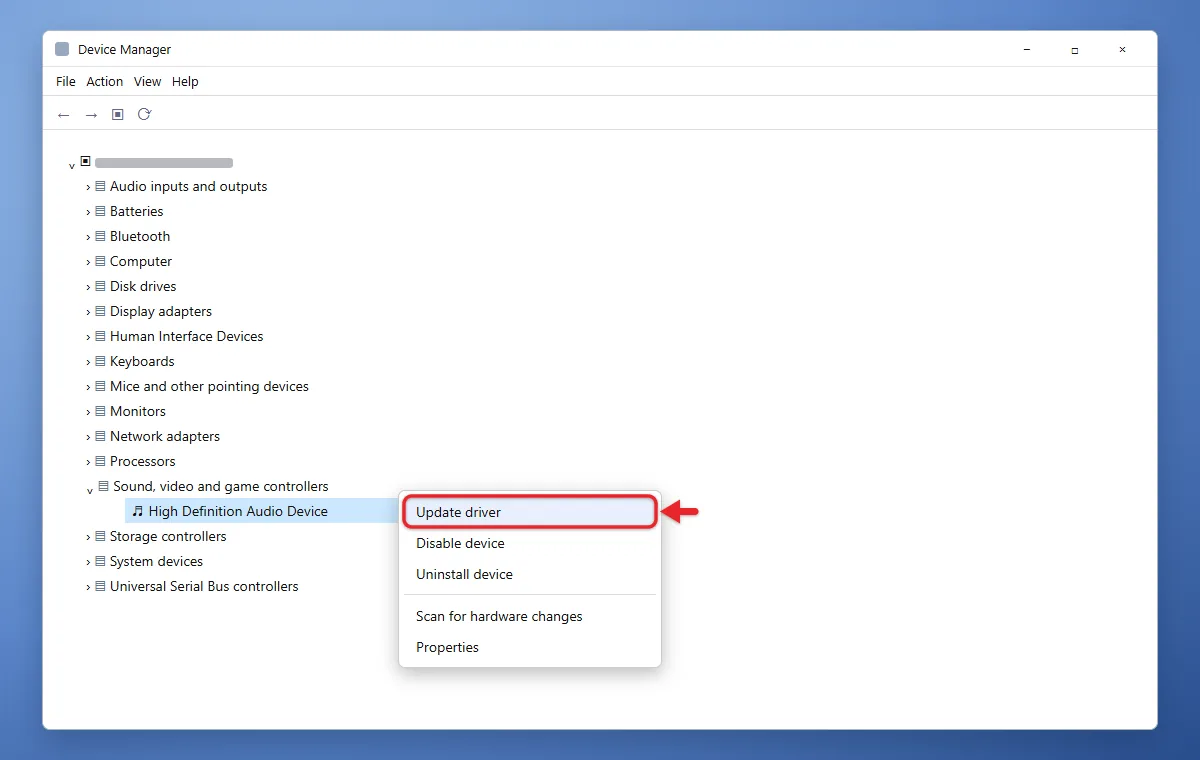
- Select Search automatically for drivers and follow the on-screen instructions.
- Restart the PC.
If Windows reports that the best driver is already installed, a newer version may still be available from the device maker. That is what Option 4 covers.
For network hardware, follow the steps to update the Wi-Fi driver on Windows 11.
Option 3: Reinstall the Audio Driver
Reinstalling refreshes a driver that is corrupted or only partly installed. Warning: your PC has no sound from the moment you uninstall the device until the driver is back, and you must restart, so close your apps first.
Before you uninstall anything, you can create a restore point in Windows 11 so you can roll back if the reinstall goes wrong.
- Open Device Manager and expand Sound, video and game controllers.
- Right-click your audio device and select Uninstall device.
- In the confirmation window, select Uninstall.
- Restart the PC by selecting Start > Power > Restart.
If the Start menu doesn’t respond, press Ctrl + Alt + Delete and use the Power icon, or see other ways to restart Windows 11.
After the restart, Windows attempts to reinstall the audio driver automatically. If the device does not come back, open Device Manager and select Action > Scan for hardware changes.
The confirmation window may also show a checkbox labeled Attempt to remove the driver for this device. Leave it unchecked the first time. If the problem returns, repeat the steps with the box checked, after you download your PC maker’s driver so it’s ready.
Reinstall Realtek Audio on Windows 11
For Realtek speakers or a headset connected to the PC’s audio jack, expand Sound, video and game controllers in Device Manager and look for Realtek Audio or Realtek High Definition Audio. Check the device’s Properties and driver details before selecting it. An NVIDIA, AMD, or Intel display-audio entry usually serves HDMI or DisplayPort audio, so don’t uninstall every audio device to repair one Realtek connection.
Use Option 3 above to uninstall the Realtek device and restart. Leave driver-package removal unchecked the first time. If Windows doesn’t reinstall the device, get the audio driver for your PC or motherboard model from its maker, as described in Option 4. After installation, select the correct output in Sound settings and test playback. Use the rollback steps if the new driver causes problems.
Option 4: Install the Driver From Your PC Maker
Some audio drivers come only from the PC or audio device maker. This route is suggested when sound problems started after a Windows upgrade or when the generic driver does not fix them. Maker drivers can also add extras, like Stereo Mix or an audio settings app.
- Go to the official support website of your PC maker. For a desktop you built yourself, use the motherboard or sound card maker’s site.
- Search for your exact model.
- Download the latest audio driver listed for Windows 11.
- Run the installer and follow the maker’s instructions. If the download is a ZIP file, right-click it and select Extract All first.
- Restart the PC.
Warning: don’t download drivers from any website other than the manufacturer’s official site. That includes third-party driver updater tools, which you do not need for this job.
If the download contains driver files but no installer, install it by hand. In Device Manager, right-click the audio device and select Update driver > Browse my computer for drivers, select Browse, choose the folder that holds the extracted files, and select Next.
How to Confirm the Driver and Undo a Bad Update
To check what is installed, open Device Manager, right-click the audio device, select Properties, and open the Driver tab. It shows the driver provider, date, and version. A device that appears under Sound, video and game controllers without a warning icon, plus working sound, means the install succeeded.
If your microphone is still quiet with a healthy driver, increase mic volume in Windows 11.
If sound stopped right after a driver update, use the same Driver tab to undo it:
- Select Roll Back Driver.
- Choose a reason when prompted and select Yes.
- Restart the PC if prompted.
The button is grayed out when Windows has no earlier driver to return to. In that case, reinstall the driver or install the maker’s version instead.
If sound stopped right after a Windows update rather than a driver change, you can roll back the Windows 11 update that caused it.
With sound working again, you can also play audio through two outputs at once, such as speakers and a headset.
Troubleshooting
- The audio device is not listed. In Device Manager, select View > Show hidden devices, then Action > Scan for hardware changes.
- The device is listed but disabled. Right-click it and select Enable device if that option appears.
- Windows says no audio output device is installed. Microsoft’s missing audio output device article points to a missing, outdated, or disabled driver. Install the maker’s driver from Option 4.
- The maker’s driver did not help. Try the generic driver built into Windows. Right-click the audio device and select Update driver > Browse my computer for drivers > Let me pick from a list of available drivers on my computer, select the audio device, and select Next.
- You want Windows to check for you. Go to Settings > System > Troubleshoot > Other troubleshooters and select Run next to Audio.
Frequently Asked Questions
Does Windows 11 install audio drivers automatically?
Yes. Windows 11 uses Windows Update to install recommended drivers automatically. Optional driver updates are the exception, and you install those yourself from Settings > Windows Update > Advanced options > Optional updates.
Which audio driver do I need?
Use the one your PC maker lists for your exact model and for Windows 11. If you let Windows Update or Device Manager search for it, Windows chooses the match for you.
Will uninstalling the audio device break my PC?
No. Sound stops until you restart, and then Windows attempts to reinstall the driver. If it does not, use Scan for hardware changes or install the driver from your PC maker.
Where are the other sound settings?
Once the driver works, see the Sound control panel and sound equalization to adjust how your audio sounds.
Next Step
Start with Windows Update, since it takes the least effort. If you still have no sound after all four options, work through Microsoft’s Fix sound or audio problems in Windows checklist, because the cause may be a setting or the hardware instead of the driver.

Matthew Burleigh is the founder, head writer, and editor of Solve Your Tech, which he launched in 2012. He has written technology tutorials since 2008 and worked in IT since 2003, including small-business support, IT management, and consulting. He holds Bachelor’s and Master’s degrees in Computer Science from Arizona State University.
Matthew writes practical guides for Windows, iPhone and iPad, Microsoft Office, Outlook, Google apps, and Android. Solve Your Tech’s guides are checked step by step against the device or app maker’s own documentation and tested on his own devices whenever he has the hardware or software, with clear steps, sources, and update dates.
Read more about Matthew and how Solve Your Tech writes and updates its guides, or report a correction.