To get an iPhone out of SOS mode, move to an area with better coverage, turn Airplane Mode on for at least 15 seconds and then off, and restart the phone. If SOS remains, check with your carrier, confirm the correct cellular line is on, and check the SIM or eSIM activation before resetting anything.
Apple says SOS means the iPhone is off your carrier’s network but can still reach emergency services through other carriers in Australia, Canada and the United States. In an emergency, call the local emergency number first. These fixes apply to any iPhone on a recent version of iOS.
1. Try the quick connection fixes
- Move to a location where you normally have reception, if it is safe to do so.
- Open Settings, enable Airplane Mode, wait at least 15 seconds, and disable it.
- Restart the iPhone. On a Face ID model, hold the side button and a volume button until the sliders appear, release them, slide to power off, then turn it back on with the side button.
- Check for your carrier and signal bars. Test an ordinary call and cellular internet, not an emergency number.
If the problem was a temporary network hiccup, your carrier name and signal bars return within a minute or so of turning Airplane Mode off or restarting.
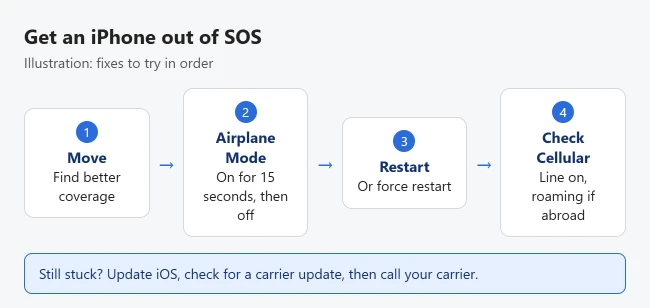
If the screen is frozen, use the force-restart sequence for your iPhone. SOS alone does not mean the phone is frozen.
2. Check for an outage or an account problem
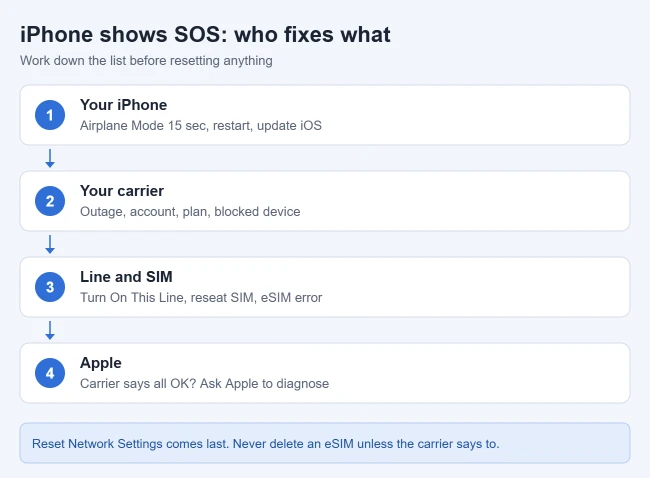
Use Wi-Fi or another phone to check your carrier’s official outage page or support channel. Note whether another phone on the same carrier has service in the same location. If several are affected, repeated resets on your phone are unlikely to resolve the underlying outage.
Ask your carrier to confirm that the line is active, the plan is correct, and the device is not blocked from service. Mention a recent number transfer, new phone, unpaid bill, or SIM change if relevant. If you bought the iPhone in another country, Apple also suggests asking whether your local government requires IMEI registration. Apple’s SOS and No Service guidance identifies carrier and account checks as part of diagnosis.
3. Make sure the correct cellular line is enabled
- Open Settings › Cellular. Depending on your region, this may be called Mobile Service or Mobile Data.
- Select the affected phone number or plan under the SIMs section.
- Enable Turn On This Line if it is off.
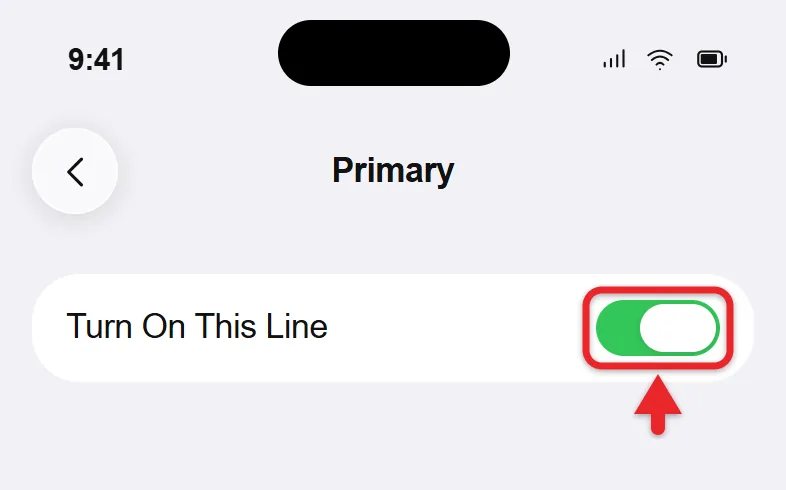
- If you have two lines, check each one separately. Make sure you are testing the number that should have service.
Once the line is on and active, the status bar shows the carrier name for that line instead of SOS.
If your number is missing entirely, or the problem started during a phone transfer, the plan may need activation. Connect to Wi-Fi and contact the carrier that issued the plan. A working second line doesn’t mean the other line is activated. On a new phone, eSIM activation during setup is part of turning on an iPhone 17 and setting it up.
If you’re setting up a new line, the activation steps are part of adding a second number to an iPhone.
For the other symbols that can appear next to the carrier name, see what the icons at the top of your iPhone screen mean.
If service comes back but 5G keeps dropping in and out, you can switch that line from 5G to LTE in its Voice & Data settings.
4. Check the SIM or eSIM without deleting it
Physical SIM: if your model has a SIM tray, check that the SIM is seated correctly. A damaged or poorly fitting card needs a replacement from your carrier. Do not force the tray or try to insert a SIM into an eSIM-only model.
eSIM: if the number appears in Cellular settings, try turning that line off and back on, then restart. If activation still fails, write down the error and follow Apple’s eSIM activation troubleshooting. Your carrier may need the IMEI or EID shown in Settings › General › About; give it only through the carrier’s official support channel.
Do not delete the eSIM as a routine fix. Erasing an eSIM can mean contacting the carrier for a replacement. Remove it only when the carrier specifically directs you to do so.
5. Install carrier settings and iOS updates
- Connect to a working Wi-Fi network.
- Open Settings › General › About. Accept a carrier-settings update if one is offered. This is separate from an iOS update.
- Check Settings › General › Software Update and install an available compatible update after backing up and ensuring adequate power.
- Recheck the affected line after updating.
If an update was offered, a new carrier settings version appears next to Carrier in Settings > General > About, and any iOS update installs after a restart.
No carrier-update prompt may just mean there is no update. It doesn’t tell you whether your account or local network is working.
6. If the problem began while traveling
Confirm with your carrier that your plan can use service in the country you are visiting. A plan without an appropriate roaming arrangement cannot be fixed by repeatedly restarting the phone.
If your plan requires data roaming, open Settings › Cellular, select the right line if you use two, and look under Cellular Data Options for Data Roaming. Turn it on only after checking your plan and possible fees. A travel eSIM may have different instructions from your home carrier. See Apple’s data-roaming guidance.
Data roaming controls internet access away from your carrier’s own network. It is not a universal switch for removing SOS, and it does not resolve an inactive account.
7. Reset network settings only after the earlier checks
A network reset is a later troubleshooting option when coverage, account status, activation, and updates have been checked. Have your Wi-Fi passwords ready: saved networks and some manually configured VPN settings will be removed, and roaming settings may change. On a work-managed phone, check with IT first.
- Open Settings › General › Transfer or Reset iPhone.
- Tap Reset, then Reset Network Settings.
- Enter the device passcode and confirm the network reset.
- Reconnect to Wi-Fi and review Cellular settings before testing service again.
The iPhone restarts with default network settings. Your saved Wi-Fi networks are gone, but your photos and apps stay.
Select the network reset specifically. Do not select Erase All Content and Settings or Delete All eSIMs. Each choice is described in Apple’s iPhone reset options.
To check which option does what before you tap, see the iPhone reset options explained.
For everything the reset removes and what to set up again afterward, read about resetting network settings on iPhone.
Wi-Fi internet can still work while the status bar says SOS. Messages or calls through internet apps may work, but that alone does not mean your cellular connection has recovered.
If your carrier supports Wi-Fi Calling, go to Settings › Cellular, select your line if needed, and open Wi-Fi Calling. Enable it and follow the carrier prompts, including an emergency address if requested. Availability depends on the carrier and region; see Apple’s Wi-Fi Calling instructions. If Wi-Fi itself fails, try these iPhone Wi-Fi troubleshooting steps.
When to contact Apple instead of the carrier
Contact the carrier first for an outage, account, SIM, or activation issue. If the carrier confirms that those are working and the phone still cannot connect in a known coverage area, ask Apple to diagnose the device. Mention physical damage, a cellular-update error, and the steps already tried. On iPhone models running iOS 18 or later, the latest Apple Support app can run extra diagnostics that may help find the cause. Do not jump to a factory reset or pay for a repair before establishing which side of the connection is failing.
Common questions about the SOS status
Can I call emergency services? SOS indicates that emergency calling through another available carrier network is possible. It is not a guarantee of reception everywhere. Do not make a test call to an emergency number.
Is SOS the same as Emergency SOS? No. One is a cellular-status indicator; the other is an emergency-calling feature. The Emergency SOS settings control the button feature, but changing them will not fix missing service.
What if there is no cellular or Wi-Fi at all? On iPhone 14 or later, Emergency SOS via satellite can text emergency services when you are outside with a clear view of the sky, in supported countries. Try calling the local emergency number first; the satellite option appears if the call cannot connect.
Can I remove SOS from the status bar without fixing service? No. The label goes away only when the iPhone reconnects to your carrier.
How do I know the fix worked? Check the affected line, make a normal call, and briefly load a webpage with Wi-Fi off. Turn Wi-Fi back on afterward. If calls work but cellular data does not, check that Cellular Data is on for that line and ask the carrier about the data plan.

Matthew Burleigh is the founder, head writer, and editor of Solve Your Tech, which he launched in 2012. He has written technology tutorials since 2008 and worked in IT since 2003, including small-business support, IT management, and consulting. He holds Bachelor’s and Master’s degrees in Computer Science from Arizona State University.
Matthew writes practical guides for Windows, iPhone and iPad, Microsoft Office, Outlook, Google apps, and Android. Solve Your Tech’s guides are checked step by step against the device or app maker’s own documentation and tested on his own devices whenever he has the hardware or software, with clear steps, sources, and update dates.
Read more about Matthew and how Solve Your Tech writes and updates its guides, or report a correction.