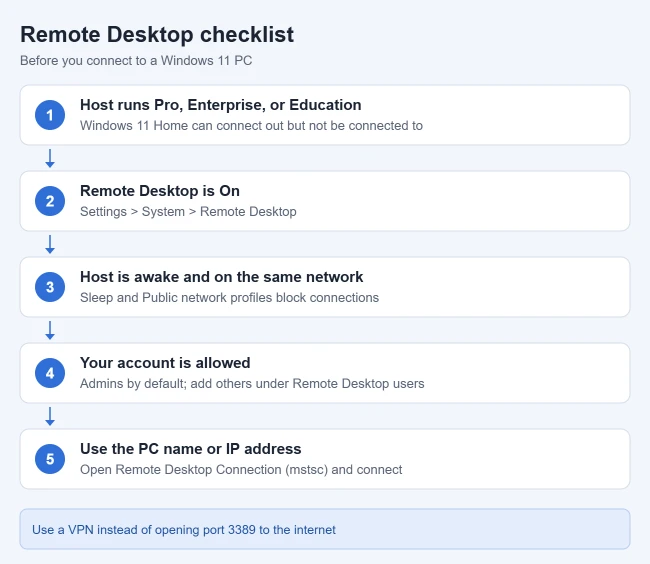
To enable Remote Desktop in Windows 11, open Settings > System > Remote Desktop, turn Remote Desktop on, and select Confirm. Other devices on your network can then connect to the PC with the Remote Desktop Connection app or Microsoft’s Windows App. The PC you connect to must run Windows 11 Pro, Enterprise, or Education; Windows 11 Home can connect to other PCs but can’t be connected to.
This guide covers turning Remote Desktop on in Settings, Control Panel, and the command line, choosing who can connect, connecting from a PC, Mac, or phone, staying secure, and fixing connections that fail. For options that also work on Windows 11 Home or a Mac, see how to set up your computer for remote access. You need an administrator account on the PC you’re setting up.
Turn On Remote Desktop in Settings
- Press Windows key + I to open Settings.
- Select System, then Remote Desktop. The page shows an on/off switch. On Windows 11 Home, it shows a message instead (see below).
- Turn Remote Desktop on and select Confirm. The switch stays on, and the page lists the PC name and the Remote Desktop port.
- Note the PC name shown on the page. You’ll use it, or the PC’s IP address, to connect.
Leave Require devices to use Network Level Authentication to connect turned on. Microsoft explains in its Enable Remote Desktop guide that this makes users sign in before a session is set up, which adds a layer of protection.
On Windows 11 Home

Home editions show “Your Home edition of Windows 11 doesn’t support Remote Desktop.” Microsoft confirms Home can act only as a client. To host connections, upgrade to Pro; see how to get Windows 11 Pro. Check your edition in Settings > System > About.
Other Ways to Turn On Remote Desktop
Control Panel
- Open Control Panel and select System and Security.
- Under System, select Allow remote access.
- Under Remote Desktop, select Allow remote connections to this computer, then Apply and OK.
PowerShell
In PowerShell run as administrator, these two commands turn on Remote Desktop and allow it through Windows Firewall:
Set-ItemProperty -Path "HKLM:\System\CurrentControlSet\Control\Terminal Server" -Name "fDenyTSConnections" -Value 0
Enable-NetFirewallRule -DisplayGroup "Remote Desktop"
Settings is the simplest choice for one PC; the commands help when you’re setting up several.
Choose Who Can Connect
Microsoft says members of the Administrators group can connect by default. To allow a standard account, select Remote Desktop users on the Remote Desktop page, select Add, type the user name, and select OK. Every account with access should have a strong, unique password.
Connect From Another Device
From a Windows PC
- Select Start and open Remote Desktop Connection, or press Windows key + R and type
mstsc. - Enter the PC name or its IP address and select Connect. Here’s how to find your IP address on Windows 11.
- Sign in with an account on the remote PC. Microsoft accounts use the email address and password. The remote desktop fills your screen. Close the bar at the top to disconnect.
From a Mac, iPhone, iPad, or Android
Use Microsoft’s Windows App on Mac, iPhone, iPad or Android to connect to the remote PC. Microsoft’s current Windows App instructions describe the supported clients, including Android from Google Play. Add the PC by name or IP address and sign in with an account on the host PC. The built-in Windows Remote Desktop Connection client remains a separate option.
Keep Remote Desktop Secure
- Only enable it on trusted networks. Microsoft warns that turning on Remote Desktop opens a port that other devices on your network can reach.
- Don’t expose it to the internet. To connect from outside your home, Microsoft points to a VPN or port forwarding. A VPN is the safer choice; forwarding port 3389 directly invites attacks.
- Keep Network Level Authentication on and use strong passwords.
- Turn it off when you don’t need it. Switch Remote Desktop off on the same Settings page.
Troubleshooting
- The switch turns itself back off: a Microsoft Q&A thread traced this to broken Windows Firewall rules. Check that Remote Desktop is allowed under Windows Security > Firewall & network protection > Allow an app through firewall. See our Windows Firewall guide for where these settings live.
- “Remote Desktop can’t connect to the remote computer”: make sure the PC is on, awake, and on the same network, and that Remote Desktop is still on. Sleep settings can knock it offline.
- The PC name doesn’t work: connect with the IP address instead.
- Your network is set to Public: Public networks use stricter firewall settings. On a home network, set the network profile to Private.
- Your credentials are rejected: use the full Microsoft account email or the local user name, and check that the account is allowed to connect. If you are not sure of the name, see how to find your computer username in Windows 11.
Set Up and Connect to a Windows 10 Remote PC
Windows 10 Pro uses the same switch: open Settings > System > Remote Desktop, turn on Enable Remote Desktop, and confirm. Connect to it with the Windows PC steps above. Microsoft documents this Windows 10 setup, but Windows 10 no longer gets free security updates, so move the PC to Windows 11 when you can.
Frequently Asked Questions
Can I connect from outside my home network?
Yes, but not safely by default. Set up a VPN into your network, or use a remote support tool, instead of opening Remote Desktop to the internet.
Why can’t I find Remote Desktop in Settings?
Windows 11 Home doesn’t include the host feature. Check your edition under Settings > System > About.
What port does Remote Desktop use?
Port 3389 by default. The Remote Desktop settings page shows the current port.
Can two people use the PC at once?
No. Windows 11 allows one active session, so connecting remotely signs out or locks the local user.
What do IT admins use for servers?
For managing servers rather than single PCs, see how to install RSAT tools on Windows 11. To test whether a port is reachable, see how to enable Telnet on Windows 11.

Matthew Burleigh is the founder, head writer, and editor of Solve Your Tech, which he launched in 2012. He has written technology tutorials since 2008 and worked in IT since 2003, including small-business support, IT management, and consulting. He holds Bachelor’s and Master’s degrees in Computer Science from Arizona State University.
Matthew writes practical guides for Windows, iPhone and iPad, Microsoft Office, Outlook, Google apps, and Android. Solve Your Tech’s guides are checked step by step against the device or app maker’s own documentation and tested on his own devices whenever he has the hardware or software, with clear steps, sources, and update dates.
Read more about Matthew and how Solve Your Tech writes and updates its guides, or report a correction.