To delete temporary files in Windows 11, open Settings > System > Storage > Temporary files, review the categories, and select Remove files. Leave Downloads unchecked unless you intend to delete those personal files. Review Recycle Bin items before selecting that category, too.
This cleanup removes the junk files Windows builds up: temporary files, thumbnails, and update leftovers. It does not clear every browser or app cache, and Downloads and the Recycle Bin hold your own files, so check those two before you include them. The steps apply to current Windows 11 releases, including version 26H2, and earlier supported versions such as 25H2 and 24H2.
On Windows 10, the same Settings > System > Storage > Temporary files path works, and so does the Disk Cleanup tool covered below. The Windows cache and Storage Sense guide shows the older Windows 10 layout. Save your work and close apps before you start.
Before You Choose Files to Delete
Read each category before you check it. Copy anything you want to keep out of Downloads, and restore anything you need from the Recycle Bin. Files deleted from these categories can’t be recovered.
If you already removed something you need, here’s how to find deleted files on Windows 11.
Previous Windows Installation(s) removes Windows.old. If you upgraded within the last 10 days and might want to go back to your previous Windows version, leave it unchecked. Microsoft warns that deleting the previous installation can’t be undone and removes that rollback option. The Windows.old removal guide explains that decision.
How to Delete Temp Files in Settings
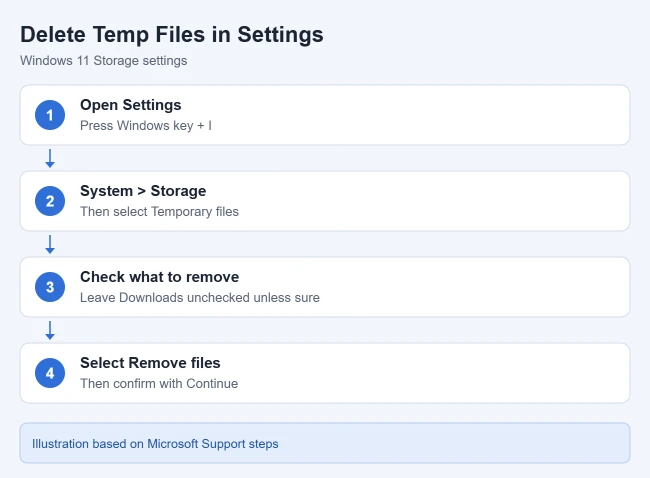
- Press Windows key + I to open Settings. Select System, then Storage.
- Open Temporary files. Let the scan finish so you can review the category names, descriptions, and estimated space.
- Check the categories you want to remove, such as Temporary files, Thumbnails, Delivery Optimization Files and Windows Update Cleanup. Leave Downloads and Previous Windows installation(s) unchecked unless you mean to delete them. The total you’ll free appears at the top.
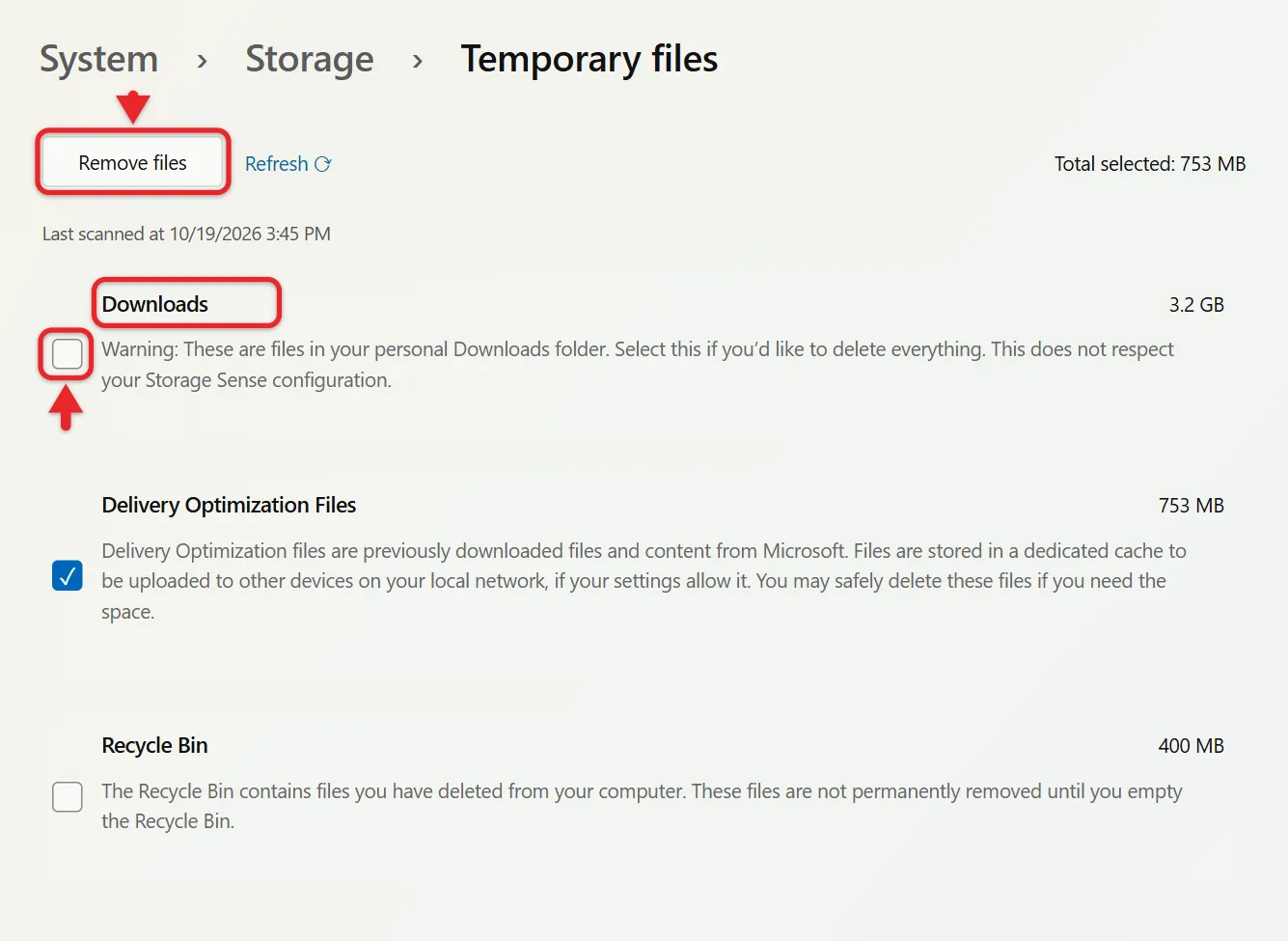
- Select Remove files, then select Continue to confirm. Wait for the cleanup to finish.
- Return to Storage to see how much space you freed.
If a category isn’t listed, there are no files of that type to remove. Some categories need an administrator account. Microsoft’s drive-space cleanup instructions cover the other Windows 11 cleanup options.
Clean temp files on another drive
The Storage page shows your system drive, usually C:. To clean a second internal drive, open Settings > System > Storage, expand Advanced storage settings, select Storage used on other drives, pick the drive, then open Temporary files and follow steps 3 and 4.
Use Cleanup Recommendations for a Broader Review
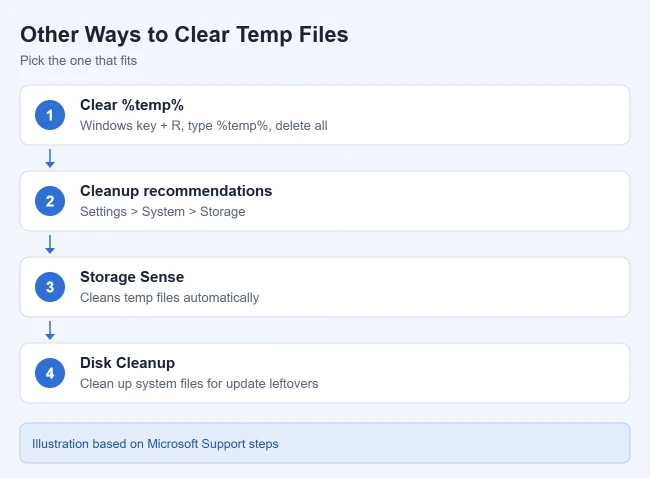
Open Settings > System > Storage > Cleanup recommendations. Review each section, choose specific items, then use its Clean up button. Windows shows how much space each item frees. In addition to temporary files, recommendations can include large or unused files, files synced to the cloud, and unused apps. Those sections involve different decisions; a document you rarely open can still be valuable.
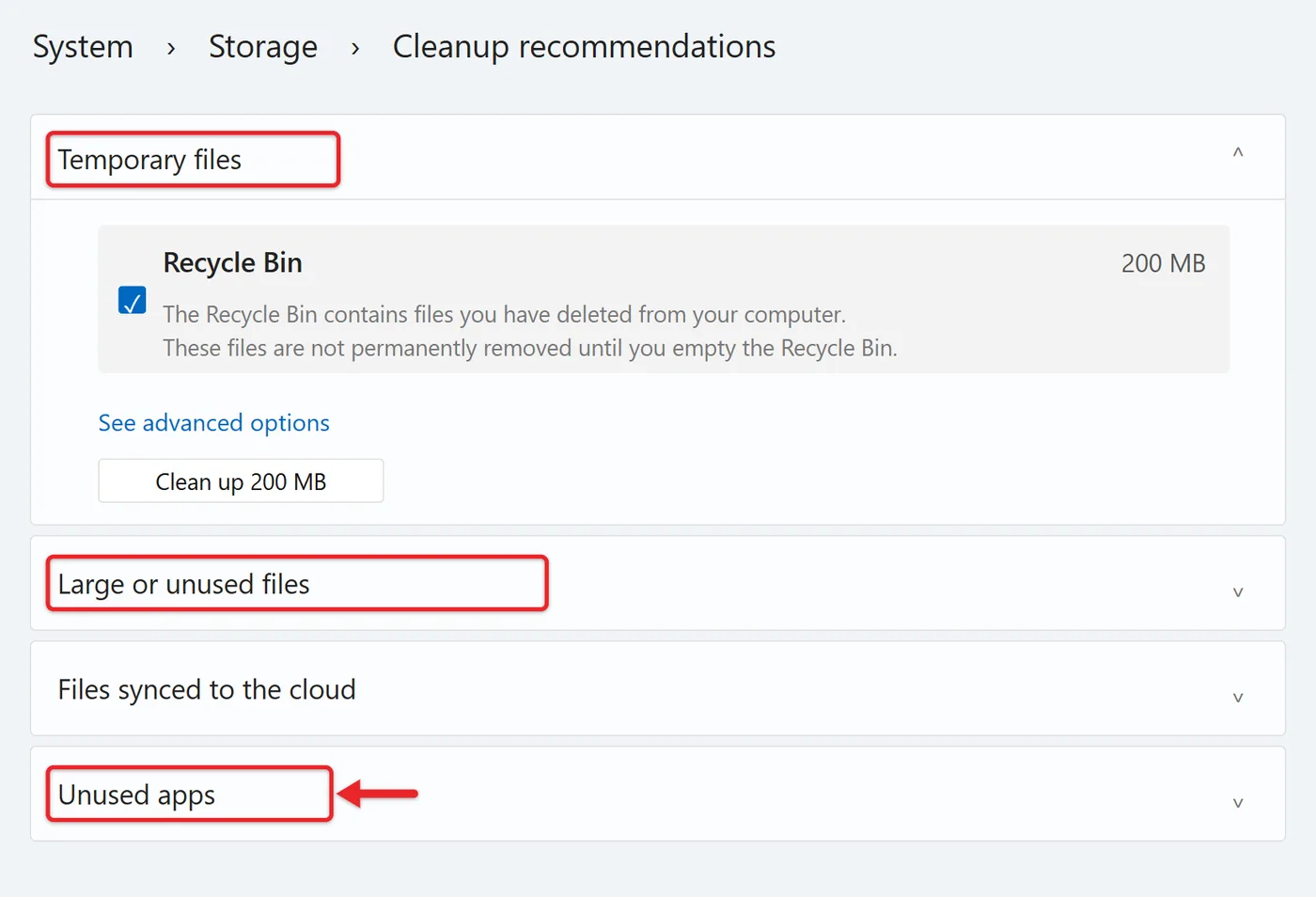
Check each item before you clean up. Windows can flag a file as unused, such as an old tax spreadsheet, that you still need. Old installers are usually safe to remove.
Set Up Storage Sense Carefully
Microsoft’s Storage Sense documentation explains automatic cleanup and its limits. Storage Sense is off by default. Review its rules before enabling it, particularly if you use Downloads for long-term storage or the Recycle Bin as a temporary holding area.
- Open Settings > System > Storage. Turn on Storage Sense, then select it to see its cleanup options.
- Choose a schedule under Run Storage Sense: every day, every week, every month, or during low free disk space.
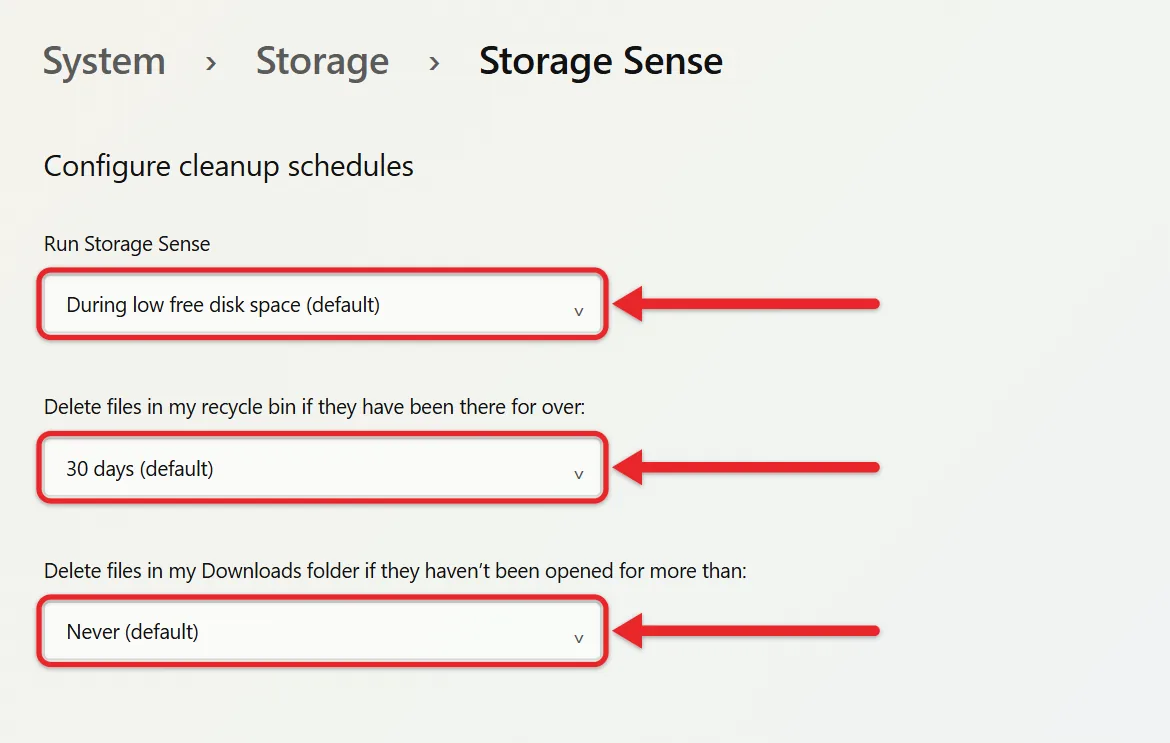
- Review the temporary-file option and the Recycle Bin deletion period. Downloads aren’t cleaned unless you pick a time period, so leave it at Never if you manage downloaded files yourself.
- Check the cloud-content setting separately. If it’s on, OneDrive files you haven’t opened in a while become online-only. They stay in the cloud, but you need an internet connection to open them again. Files marked Always keep on this device aren’t affected.
- Select Run Storage Sense now to apply these rules right away, then recheck your free space.
Storage Sense works only on the Windows system drive, and its settings apply to your user account. It needs you signed in and online for more than ten minutes before it runs. Other users manage their own rules.
Optional: Clear Your User Temp Folder
Try Settings first. Microsoft’s temporary-files guide also covers manual cleanup and says to stick to temp folders only. Save your work, close your apps, and make sure you’re inside the Temp folder. Don’t delete the AppData folder above it.
- Press Windows key + R, enter
%temp%, and press Enter. File Explorer opens the current user’s temporary-files location. - Check that the address bar ends in AppData\Local\Temp, then press Ctrl + A to select everything in the folder.
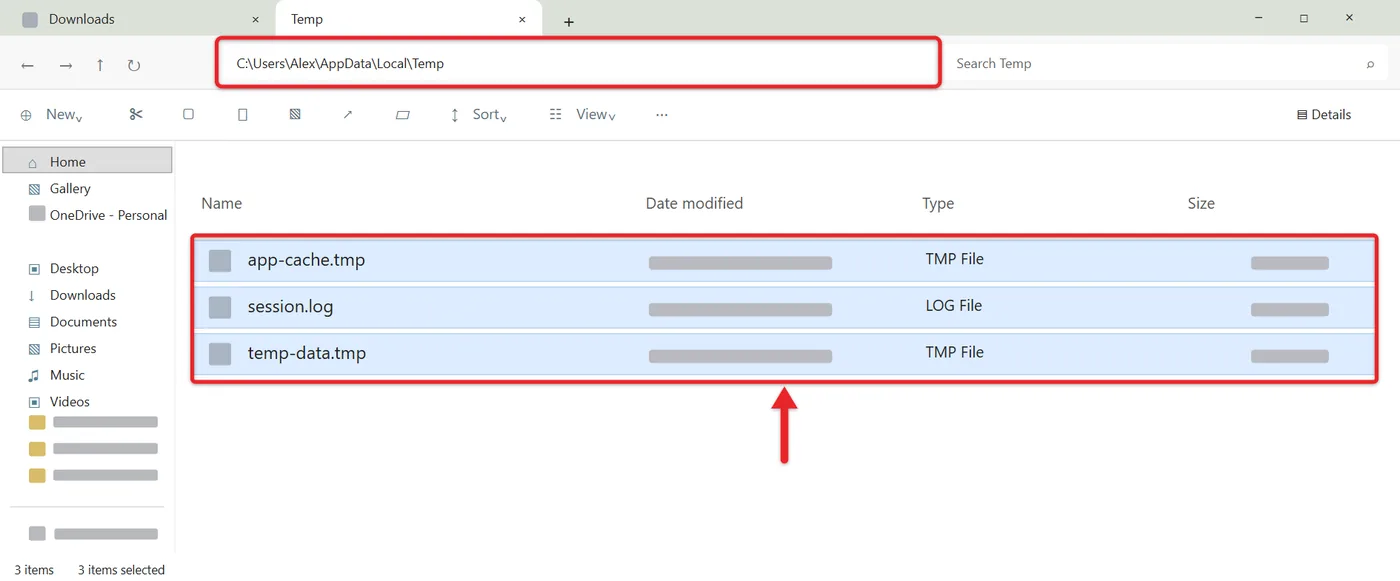
- Press Delete. The files go to the Recycle Bin, so empty it afterward to get the space back.
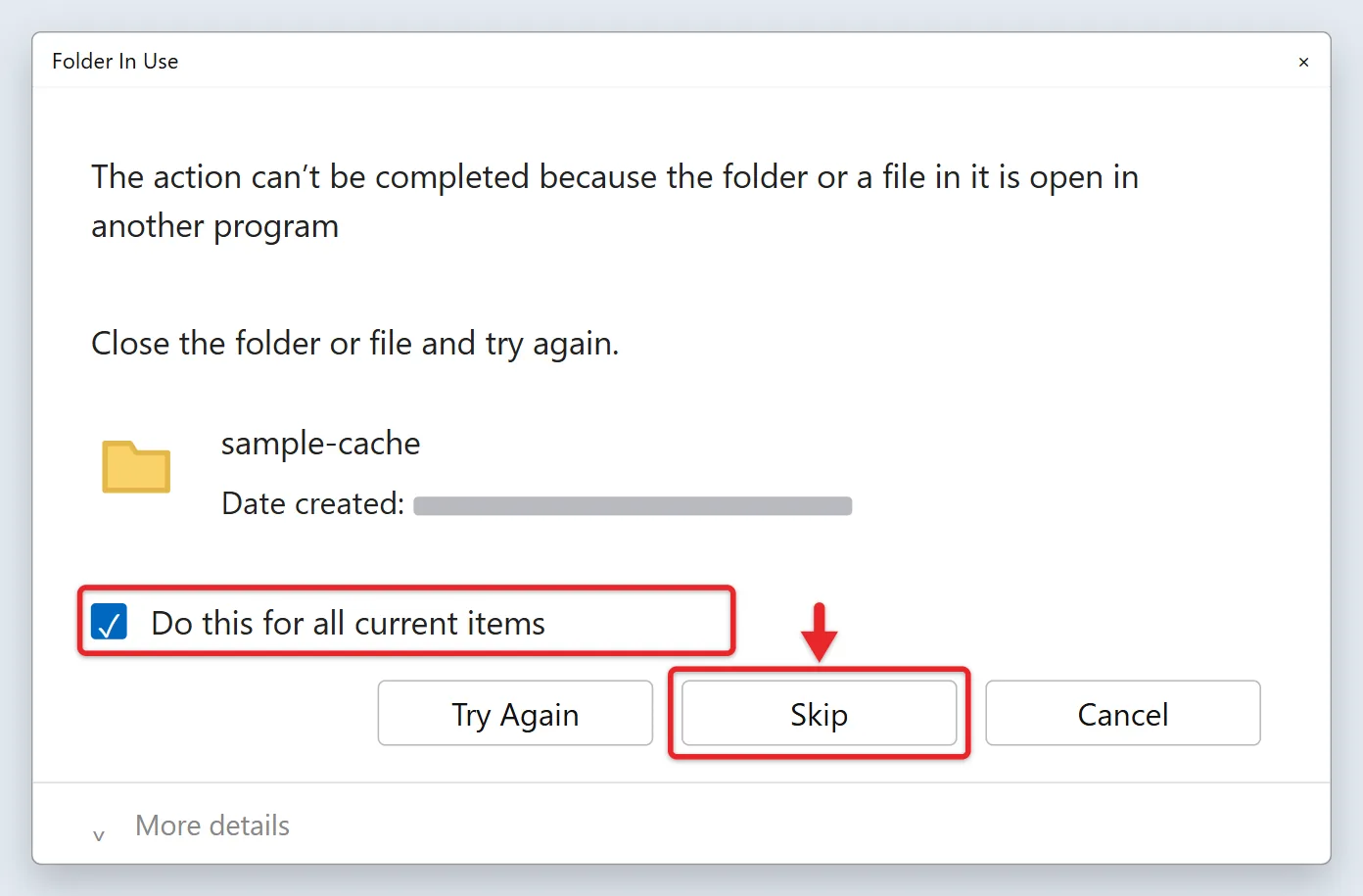
- If Windows says a file is in use, check Do this for all current items and select Skip. Those files belong to running apps and can stay.
For one of your own files that keeps saying it is in use outside the temp folder, here are the safe options to force delete a file in Windows 11.
The separate C:\Windows\Temp folder needs administrator permission. You can repeat the same steps there; select Continue at the permission prompt and skip files in use. Don’t change the folder’s permissions. To learn what the AppData folder holds, read about finding AppData in Windows 11.
Use the Classic Disk Cleanup Tool
- Search Start for Disk Cleanup and open it. You can also press Windows key + R, type
cleanmgr, and press Enter. - Choose drive C: and select OK.
- Select Clean up system files to include Windows Update leftovers, then choose C: again.
- Check the categories you want to remove. Select a category to read its description. Select OK, then select Delete Files. The Downloads, Recycle Bin and previous-installation warnings above still apply.
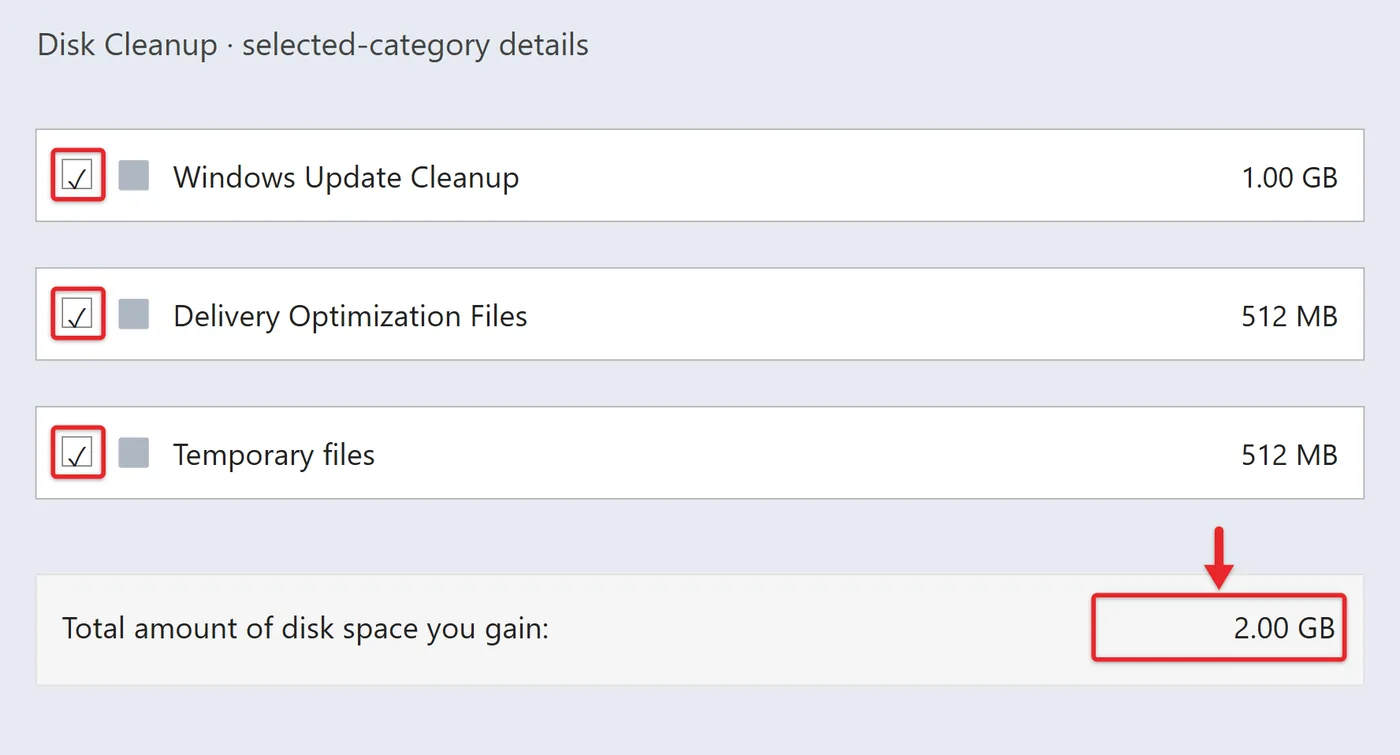
Disk Cleanup works one drive at a time, so repeat it for other drives. To also remove old system restore points, select the More Options tab after Clean up system files, then select Clean up under System Restore and Shadow Copies. This keeps only the most recent restore point.
Methods to Skip
Some guides suggest extra cleanup steps that Microsoft’s own instructions don’t include. Skip these:
- Prefetch folder: Windows uses these files to start apps faster and rebuilds them anyway.
- SoftwareDistribution or other system folders: Use Windows Update Cleanup in Settings or Disk Cleanup instead of stopping services and deleting folders by hand.
- Batch scripts and third-party “cleaner” apps: They can delete more than you expect. The built-in tools above are enough.
If Space Fills Up Again
Temp files come back as Windows and apps run, so some regrowth is normal. If the drive fills up quickly, find what is using the space with this guide to finding what takes up space. If the Temp folder keeps filling with Microsoft Store app files, run wsreset.exe from the Run box to clear the Store cache.
If large apps you no longer use are taking the space, uninstall the programs you don’t need to free it.
Temp files are only part of the junk on most PCs. These steps free up more space:
- Empty the Recycle Bin. Deleted files still use space until you do.
- Uninstall apps you don’t use. To spot them, list your installed programs.
- Turn on OneDrive Files On-Demand so cloud files don’t take up full space on your PC. The steps for clearing the OneDrive cache show how to free that space.
- Move large photos and videos to an external drive.
Frequently Asked Questions
Is everything on the Temporary files screen safe to delete?
Not always. The screen can include your Downloads folder, files in the Recycle Bin you might want back, and your previous Windows installation. Temporary files, thumbnails, and delivery optimization files are safe to remove.
Does clearing temp files make Windows faster?
It can help if your drive is nearly full, because Windows needs free space for updates and virtual memory. If you already have plenty of free space, deleting temp files won’t make a noticeable difference.
Why won’t some temp files delete?
An app or Windows itself is using them. Skip them; most can be removed after a restart. You don’t need Safe Mode for routine cleanup.
How often should I delete temp files?
Only when you need space. Storage Sense can handle it automatically on the schedule you choose.
Do I need to restart after every cleanup?
No. Windows deletes the files right away, so you don’t need to restart. Restart only if Windows asks you to, and save your work first.

Matthew Burleigh is the founder, head writer, and editor of Solve Your Tech, which he launched in 2012. He has written technology tutorials since 2008 and worked in IT since 2003, including small-business support, IT management, and consulting. He holds Bachelor’s and Master’s degrees in Computer Science from Arizona State University.
Matthew writes practical guides for Windows, iPhone and iPad, Microsoft Office, Outlook, Google apps, and Android. Solve Your Tech’s guides are checked step by step against the device or app maker’s own documentation and tested on his own devices whenever he has the hardware or software, with clear steps, sources, and update dates.
Read more about Matthew and how Solve Your Tech writes and updates its guides, or report a correction.