To change virtual memory in Windows 11 or Windows 10, press Windows key + R, enter SystemPropertiesAdvanced, then select Performance > Settings > Advanced > Virtual memory > Change. Usually, keep Automatically manage paging file size for all drives selected. Use a custom size when an application’s support instructions or a diagnosed memory problem calls for it.
These steps adjust the Windows paging file, sometimes called “virtual RAM.” They do not increase your installed physical RAM or guarantee a faster PC.
Before You Change the Paging File
Save your work before restarting, and note the existing settings so you can undo the change. If this is a work or school PC and the controls are restricted, ask your administrator rather than trying to bypass the restriction.
Check that the selected drive has free space. Avoid choosing No paging file or deleting pagefile.sys as a cleanup shortcut: some applications and crash-dump configurations depend on a paging file.
Open the Virtual Memory Settings
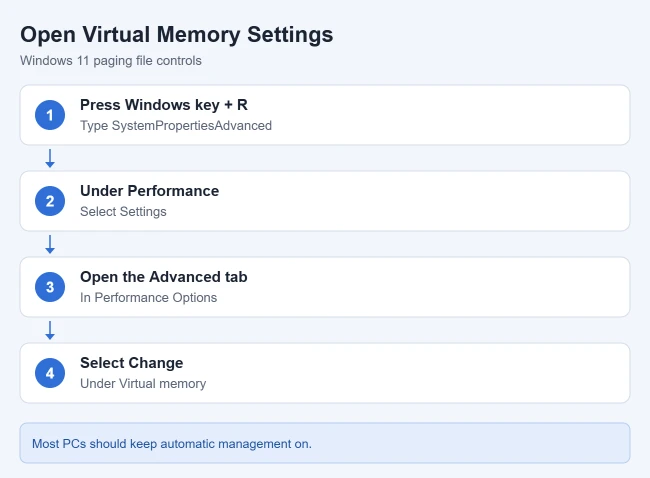
- Press Windows key + R, type
SystemPropertiesAdvanced, and press Enter. System Properties opens on the Advanced tab. - Under Performance, select Settings. This opens Performance Options.
- Select its Advanced tab, then select Change under Virtual memory. The next window lists paging-file settings for your drives.
Microsoft documents the Run command in its Windows system configuration tools guide. This route avoids hunting for a link whose location can vary in Settings.
Keep or Restore Automatic Management
- In the Virtual Memory window, select Automatically manage paging file size for all drives. If it is already selected and you have no specific troubleshooting requirement, leave it selected.
- Select OK to close the dialog and the remaining settings windows.
- If you changed the setting, save any open work and restart Windows. Reopen this window afterward to confirm the automatic option remains selected.
With automatic management, Windows adjusts the paging file as needed, subject to available disk space and system requirements. The disabled custom-size boxes are expected while that option is selected.
Set a Custom Size When Needed
To pick a size, open Task Manager with Ctrl + Shift + Esc, select Performance > Memory, and watch Committed while you run the task that causes trouble. The second number is your commit limit, which is your RAM plus the current paging file. If the first number gets close to the second, the paging file is too small. For example, if a 16 GB PC reaches about 22 GB committed during a heavy job, a paging file of at least 6 GB is needed; setting Initial size to 8192 MB and Maximum size to 16384 MB leaves room above that peak (1 GB = 1024 MB). Microsoft’s paging-file sizing documentation explains this method in more detail.
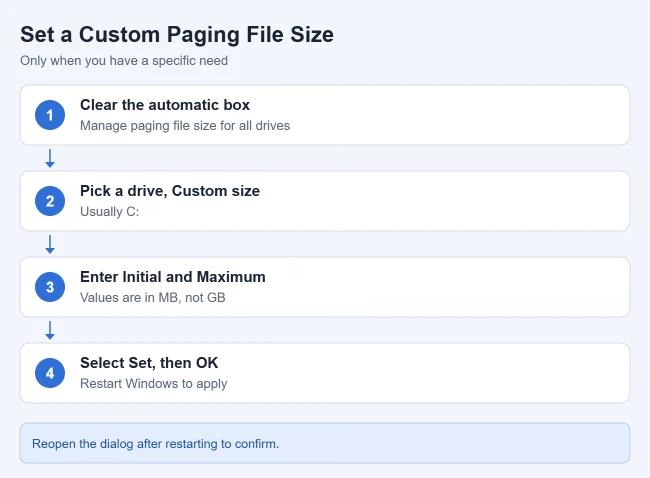
- Open the Virtual Memory window using the steps above and clear Automatically manage paging file size for all drives.
- Select the drive whose existing paging file you intend to change, commonly C:, and choose Custom size. Avoid changing other drives unnecessarily.
- Enter your chosen Initial size (MB) and Maximum size (MB). These are megabytes, not gigabytes; the maximum must not be smaller than the initial size. If you do not have a justified size, use automatic management instead of guessing.
- Select Set, then OK to close the settings windows. Save your work and restart the PC.
- Reopen the dialog after restarting to check the chosen drive and sizes. Test the application that originally reported the problem. If the change does not help, restore automatic management.
After the restart, Windows uses the paging file size you set on that drive. If the PC behaves worse, go back and select Automatically manage paging file size for all drives again.
If Memory Errors or Slowdowns Continue
Press Ctrl + Shift + Esc to open Task Manager. Under Performance > Memory, examine Committed while reproducing the problem: the first value is the current committed memory and the second is its limit. A workload approaching that limit merits investigation; it does not identify the cause by itself.
Close unneeded applications normally, check drive space, and follow the affected application’s troubleshooting guidance. For a generally slow PC, use our Windows 11 slow-computer guide to investigate other causes. A larger paging file is not a general speed upgrade.
Change the Paging File in Windows 10
Windows 10 uses the same dialog and the same steps above: run SystemPropertiesAdvanced, then choose Performance > Settings > Advanced > Virtual memory > Change.
Frequently Asked Questions
Is a paging file the same as extra RAM?
No. It is a file on storage that supports Windows memory management. Microsoft’s introduction to the page file explains its role in the system’s memory commitment limit and crash dumps. It does not turn disk space into installed RAM.
Why do some instructions recommend 1.5 times RAM?
Microsoft includes that value in a specific workaround for allocation errors caused by slow paging-file growth. It is not a universal tuning rule for every PC or every slowdown; use the guidance for your actual problem.
Can the paging file be on another drive or an SSD?
Windows can use paging files on different suitable volumes, including SSDs. Moving one involves more than choosing the fastest drive: keep the required crash-dump support and sufficient space. For a basic size adjustment, changing the existing configuration is simpler than moving or removing files.
If you are unsure what size you need, restore automatic management and investigate the original error before making further changes.
Related Guides
- How to open Task Manager in Windows 11
- How to change startup programs in Windows 11
- How to fix a slow computer in Windows 11
Moving the paging file can also help when Windows won’t shrink a drive far enough to partition a hard drive on Windows 11.

Matthew Burleigh is the founder, head writer, and editor of Solve Your Tech, which he launched in 2012. He has written technology tutorials since 2008 and worked in IT since 2003, including small-business support, IT management, and consulting. He holds Bachelor’s and Master’s degrees in Computer Science from Arizona State University.
Matthew writes practical guides for Windows, iPhone and iPad, Microsoft Office, Outlook, Google apps, and Android. Solve Your Tech’s guides are checked step by step against the device or app maker’s own documentation and tested on his own devices whenever he has the hardware or software, with clear steps, sources, and update dates.
Read more about Matthew and how Solve Your Tech writes and updates its guides, or report a correction.