To change startup programs in Windows 11, open Settings > Apps > Startup and turn off the apps you don’t want to open when you sign in. Turning an app off here doesn’t uninstall it. It only stops the app from starting automatically, which can help your PC start faster.
This guide covers the three ways Microsoft documents for managing startup apps (Settings, Task Manager and File Explorer), plus how to read startup impact and fix an app Windows can’t find. It follows Microsoft’s startup apps support article and its guide to taking control of Windows startup.
Turn Startup Apps On or Off in Settings
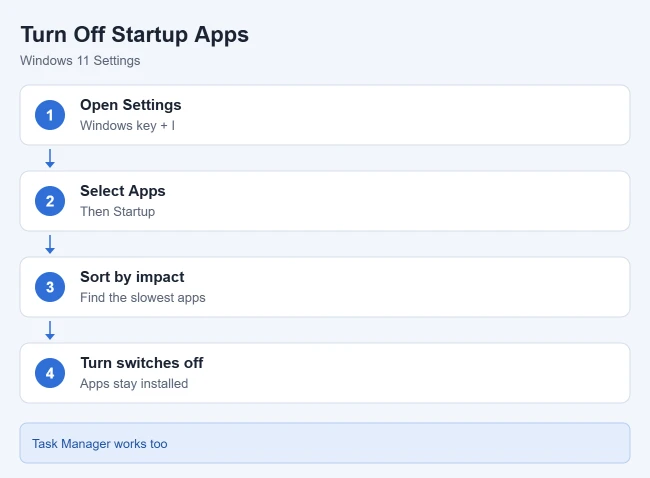
- Press Windows key + I to open Settings, or select Start > Settings.
- Select Apps in the left pane, then select Startup. You can also type “Startup apps” in the Settings search box.
- Use Sort by to list apps by Startup impact, so the ones that slow startup most are at the top.
- Turn the switch Off for apps you don’t need at sign-in, or On for apps you want to open automatically.
Some apps show a chevron (arrow) next to the switch. Select it to see that app’s advanced startup options.
Apps you turned off won’t open by themselves the next time you sign in. You can still open them from the Start menu whenever you want.
What Startup Impact Means
Windows measures how much each app slows down sign-in and gives it a rating. Microsoft defines the ratings like this:
| Rating | What it means |
|---|---|
| High impact | Uses more than 1 second of CPU time or more than 3 MB of disk activity at startup |
| Medium impact | Uses 300 to 1,000 milliseconds of CPU time, or 292 KB to 3 MB of disk activity |
| Low impact | Uses less than 300 milliseconds of CPU time and less than 292 KB of disk activity |
| Not measured | The app is on, but Windows doesn’t have enough data yet |
| None | The app is turned off |
If your PC starts slowly, turn off high-impact apps first. If it’s still slow, turn off medium-impact apps too. If you have Norton 360 installed, you can also delay startup programs with Norton Startup Manager instead of turning them off.
Use Task Manager Instead
- Right-click the Start button and select Task Manager, or press Ctrl + Shift + Esc.
- Select Startup apps in the left pane.
- Select an app, then select Enable or Disable at the top of the window. You can also right-click the app to do the same thing.
The change matches what you’d see in Settings. Task Manager also shows each app’s startup impact in its own column.
If the shortcut doesn’t work for you, here are other ways to open Task Manager in Windows 11.
Add a Program to Startup
Not every app shows up in the startup list. To make one of those apps open at sign-in, add it to your Startup folder.
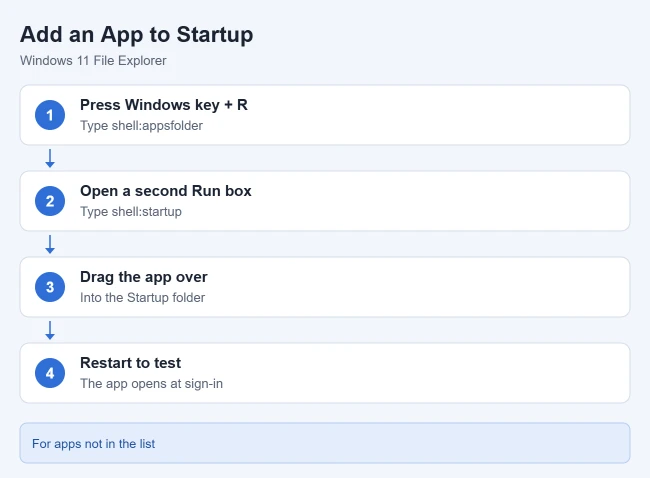
- Right-click Start, select Run, type shell:appsfolder, and press Enter. A window with all your apps opens.
- Open a second Run box (Windows key + R), type shell:startup, and press Enter. Your personal Startup folder opens. It sits inside the hidden AppData folder.
- Drag the app from the apps window into the Startup folder. Windows creates a shortcut there.
- Restart your PC or sign out and back in to test it.
The app opens automatically after you sign in. To stop it, delete its shortcut from the Startup folder or turn it off in Settings.
To make an app start for everyone who uses the PC, type shell:common startup instead in step 2.
For example, you can put Sticky Notes on your desktop every time you sign in, or make Outlook open on startup. You can also place a desktop shortcut you already made into the folder.
The same folder works for your browser too: here’s how to start Google Chrome automatically at sign-in.
Fix “We Couldn’t Find This App”
If an app in the startup list says We couldn’t find this app, Windows can’t reach the file it’s supposed to open. The app may be on a removable or network drive that isn’t connected, or the path may no longer be valid. Select the info icon next to the switch to see where the startup entry is stored, in the registry or as a file. Reinstalling the app often fixes it.
Windows keeps most startup entries in two registry keys: HKCU\Software\Microsoft\Windows\CurrentVersion\Run for the current user, and HKLM\Software\Microsoft\Windows\CurrentVersion\Run for all users. Editing the registry is risky, so use Settings or Task Manager when you can.
Which Apps Should You Turn Off?
Keep security software, such as your antivirus, turned on. Also keep anything you need right away, like a cloud sync app you rely on. If you do not use Microsoft cloud storage, you can turn off OneDrive on Windows 11 from this same list. Chat apps, game launchers, music players and updaters for apps you rarely use are usually safe to turn off.
If you would rather replace a preinstalled McAfee trial than keep it running at startup, you can uninstall McAfee from Windows 11 and let Microsoft Defender take over.
Not sure about an app? Turn it off, restart, and turn it back on if something stops working.
If you never use an app at all, you can uninstall the program from Windows 11 instead of only stopping it at startup.
If your whole PC still feels sluggish after trimming startup apps, try the other fixes for speeding up a slow Windows 11 computer.
How to Perform a Clean Boot in Windows 11
A clean boot starts Windows with only Microsoft services and no startup apps, so you can tell whether third-party software is causing a problem. These steps come from Microsoft’s clean boot support article, and you need to be signed in as an administrator.
- Select Search, type msconfig, and select System Configuration.
- On the Services tab, check Hide all Microsoft services, select Disable all, then select Apply.
- On the Startup tab, select Open Task Manager.
- On the Startup apps page, select each app marked Enabled and select Disable. Write down which apps you turn off.
- Close Task Manager, select OK in System Configuration, and restart your PC.
Some features may not work while your PC is in a clean boot. If the problem goes away, one of the disabled services or apps is the cause. Turn them back on a few at a time, restarting after each batch, until the problem returns.
To return to normal startup, open System Configuration again and select Normal Startup on the General tab. On the Services tab, clear Hide all Microsoft services, select Enable all, and select Apply. Then turn your startup apps back on in Task Manager and restart when prompted.
Manage Startup Apps in Windows 10
Windows 10 reached the end of routine Microsoft support on October 14, 2025. These steps document PCs still using Windows 10. The recommended path is to move to Windows 11 where possible or check whether the PC qualifies for Extended Security Updates. See Microsoft’s Windows 10 support guidance.
In Windows 10, open Settings > Apps > Startup to turn a listed app on or off. To use Task Manager instead:
- Press Ctrl + Shift + Esc to open Task Manager.
- Select More details if Task Manager opens in its compact view.
- Open the Startup tab.
- Select the app and choose Enable or Disable. Keep needed security software enabled.
- Sign out and back in to check the result.
Windows 11’s newer Task Manager calls this Startup apps and places it in the sidebar. For adding an app that is not listed, the shell:appsfolder and shell:startup shortcut method above also works in Windows 10. See Microsoft’s startup-app documentation.
Frequently Asked Questions
Why does an app still start after I turned it off?
Some apps turn their own startup setting back on. Check the app’s settings for an option like “Open at login” or “Start with Windows,” and also look in your Startup folder for a shortcut. Microsoft Edge has a separate Startup boost setting that keeps Edge processes running after sign-in. To turn it off, open Edge, go to edge://settings/system/manageSystem, and turn off Startup boost, as Microsoft’s startup boost guide explains.
Spotify does this often; here’s how to stop Spotify from opening on startup if it keeps coming back.
Does turning off startup apps make my PC faster?
It can speed up sign-in and free up memory, especially when you turn off high-impact apps on an older PC.
Is turning off a startup app the same as uninstalling it?
No. The app stays installed and works normally when you open it. Every app on your PC shows up when you find installed programs in Windows 11.
How do I see what’s running right now?
Open Task Manager with Ctrl + Shift + Esc and look at the Processes page. Here’s how to see what apps are running in the background.
If news and weather pop up on your taskbar after you sign in, you can turn off the news feed in Windows 11.
Still short on memory after trimming startup apps? Here’s how to change virtual memory in Windows 11.

Matthew Burleigh is the founder, head writer, and editor of Solve Your Tech, which he launched in 2012. He has written technology tutorials since 2008 and worked in IT since 2003, including small-business support, IT management, and consulting. He holds Bachelor’s and Master’s degrees in Computer Science from Arizona State University.
Matthew writes practical guides for Windows, iPhone and iPad, Microsoft Office, Outlook, Google apps, and Android. Solve Your Tech’s guides are checked step by step against the device or app maker’s own documentation and tested on his own devices whenever he has the hardware or software, with clear steps, sources, and update dates.
Read more about Matthew and how Solve Your Tech writes and updates its guides, or report a correction.