To change the main display in Windows 11, go to Settings > System > Display, click the monitor you want in the diagram at the top, open Multiple displays, and check Make this my main display. The main display (also called the primary monitor) is where the Start menu, the taskbar clock and most new windows show up first.
These steps are for Windows 11 with two or more screens connected, including a laptop plus an external monitor. A separate section covers Windows 10, which uses nearly the same page. Microsoft describes the Display page in its multiple monitors guide.
What the Main Display Does
- Taskbar clock and Start menu: they appear on the main display. Other screens can show a taskbar too, if you turn that on.
- New windows and dialog boxes: many open on the main display first, though some apps reopen wherever you last closed them.
- Desktop icons: they normally sit on the main display.
Your main display can still be numbered 2 or 3. The numbers only identify each screen; they don’t decide which one is main. To understand the labels, read about whether you can change monitor identity numbers in Windows 11.
The wallpaper menu uses the same numbers when you set a different background for each monitor.
Before You Start
- Connect and turn on every monitor you want to use. Windows can only make a screen main if it can see it.
- Set your screens to Extend. If they show the same picture (Duplicate), there is only one desktop, so there is nothing to choose between. Press Windows key + P and pick Extend if needed.
- You don’t need an administrator account or a restart for this change.
How to Change the Main Display in Windows 11
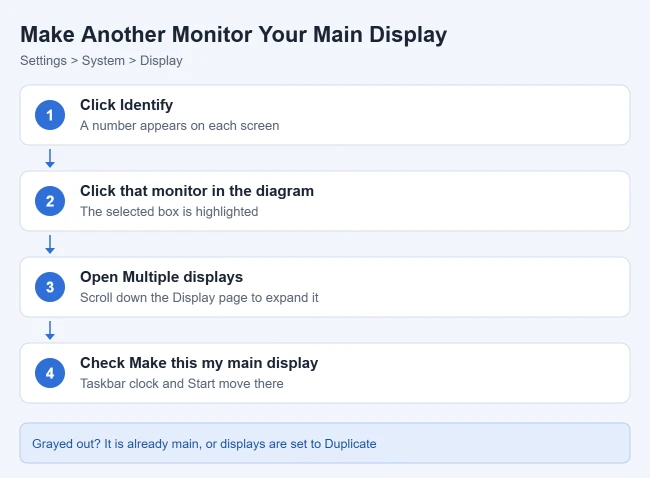
- Right-click an empty spot on the desktop and choose Display settings, or press Windows key + I and go to System > Display. The Display page opens with a box for each screen.
- Click Identify. A large number appears briefly on each screen so you can tell them apart.
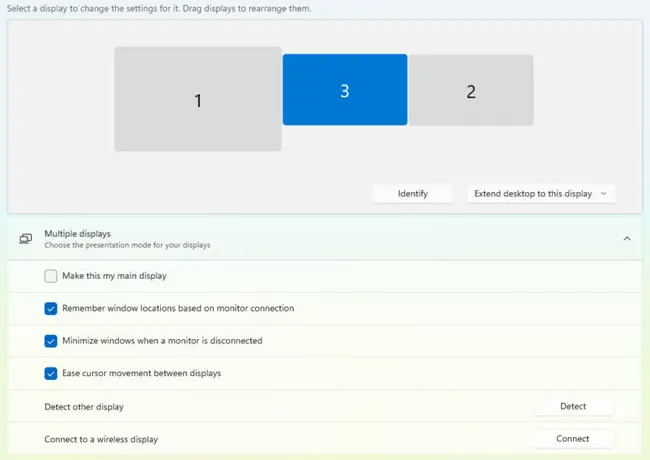
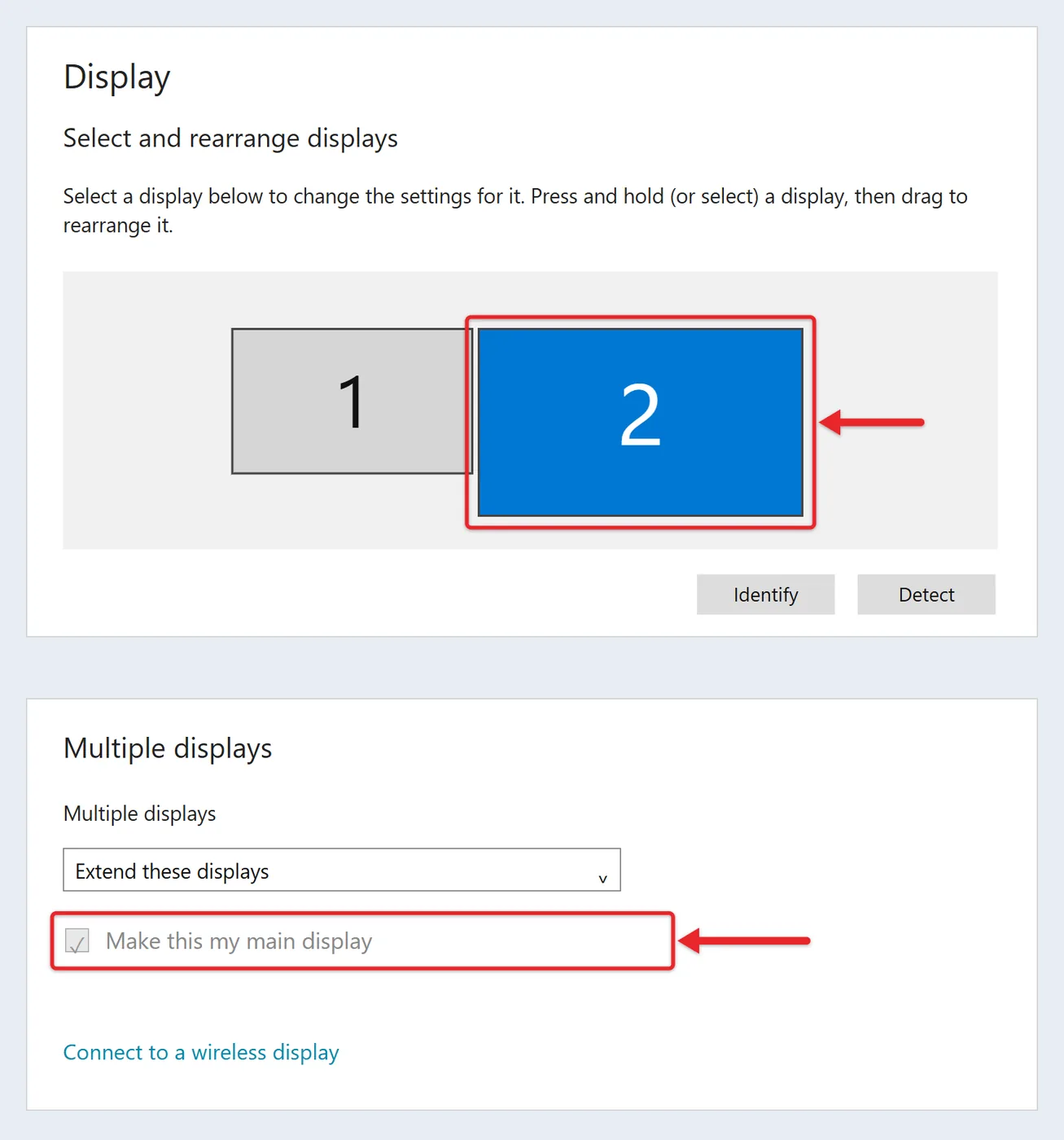
- Click the box for the monitor you want as your main display. That box is highlighted in the diagram.
- Scroll down and click Multiple displays to expand it. The multi-monitor options appear.
- Check Make this my main display. The change happens right away, and the taskbar clock and Start menu move to that screen.
Check that it worked
Click the Start button or open a new app. Start should open on the screen you picked, and the clock should sit in that screen’s taskbar. Back in Display settings, the box is now checked and grayed out for that monitor, because it is already the main display.
Undo the change
Select the monitor that used to be main, open Multiple displays, and check Make this my main display for it. Windows has no separate reset button for this setting.
If things look too big on a Windows 10 screen after the change, put the screen back to normal size with the recommended scale and resolution.
Laptop with an external monitor
Many people want the bigger external screen as the main display. Select the external monitor’s box in step 3 and check the box. The laptop screen stays on as a second screen. To turn the laptop screen off, press Windows key + P and choose Second screen only.
Arrange Your Displays to Match Your Desk
Setting a main display doesn’t change where Windows thinks each screen sits. If your mouse jumps off the wrong edge, arrange them. In Display settings, drag each display box to match its real position on your desk, then select Apply. Use Identify to see which box is which, then move your mouse across the screens to test the layout.
If a screen turns upside down while you rearrange things, you can fix an upside-down screen in Windows 11 from the same Display page.
Choose the Right Display Mode With Windows + P
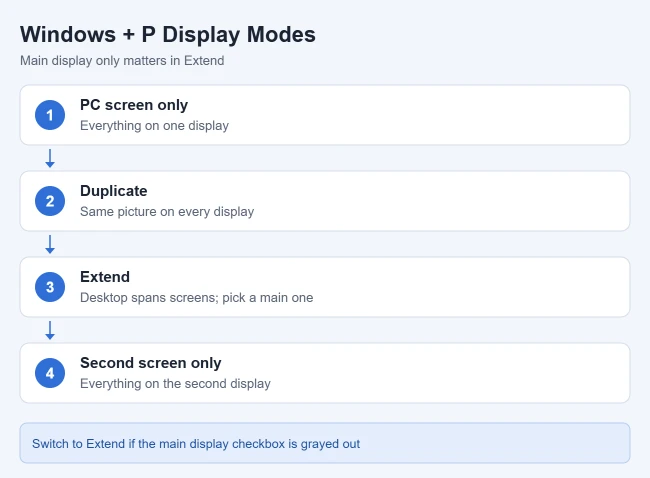
Press Windows key + P to choose what shows on your displays:
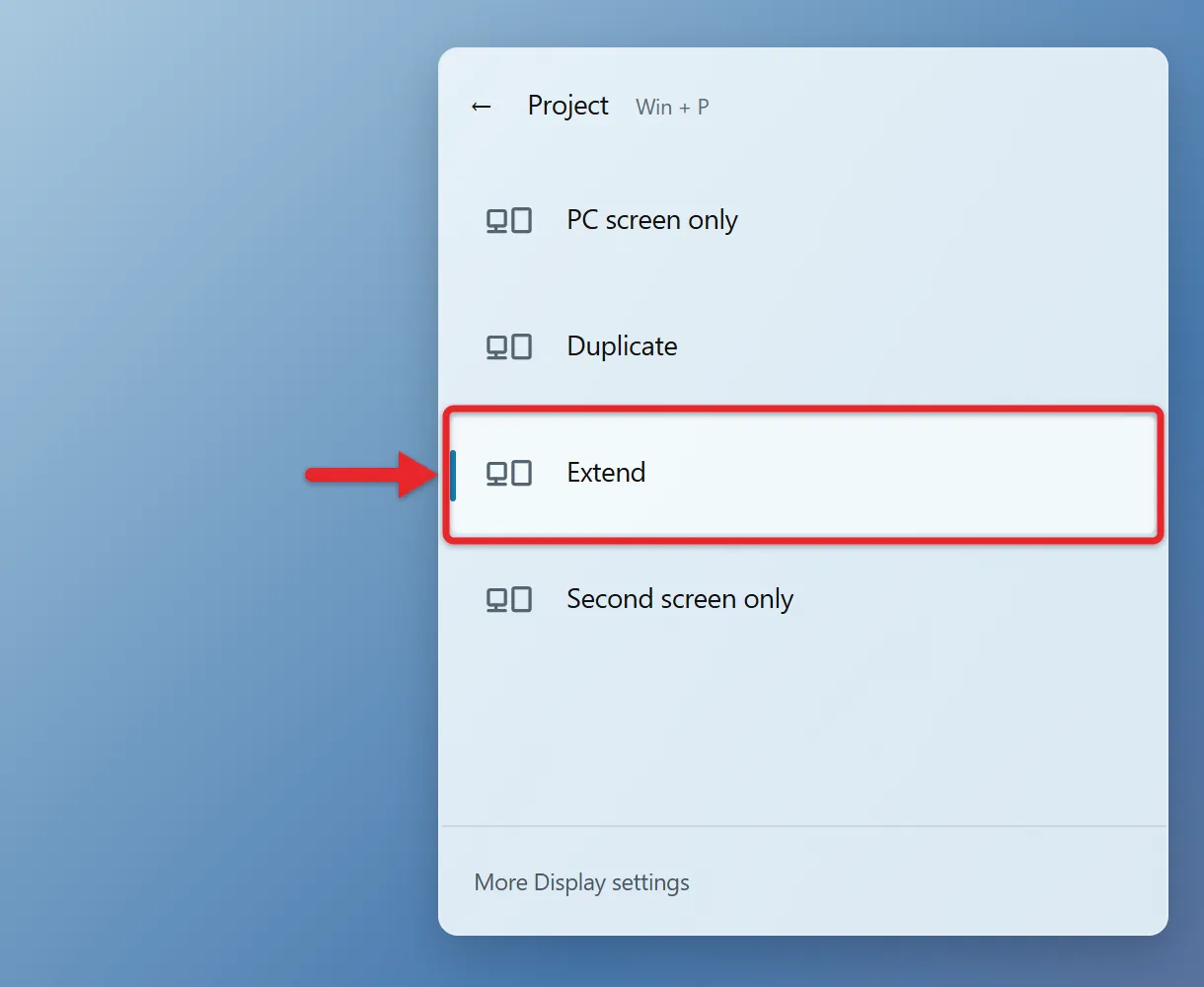
- PC screen only: see things on one display only.
- Duplicate: see the same thing on all your displays.
- Extend: spread your desktop across multiple screens and move items between them.
- Second screen only: see everything on the second display only.
A main display only matters in Extend mode, because that’s the only mode where your screens show different things. To learn more about that mode, read about extending your display on Windows 11.
Use Your Graphics Control Panel Instead
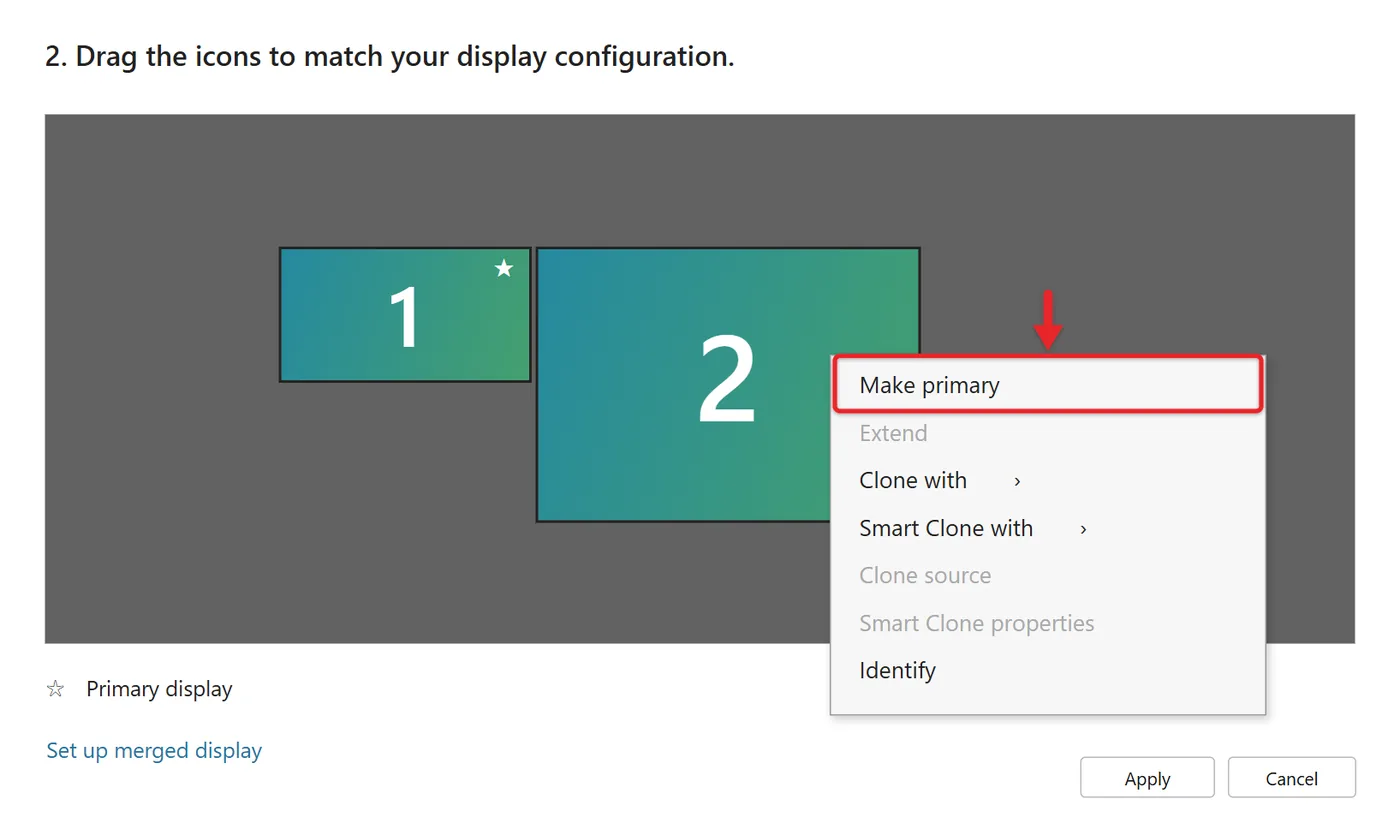
Windows Settings is the easiest route, but graphics software can set the main display too. In the NVIDIA Control Panel, go to Display > Set up multiple displays, right-click the display you want, click Make Primary, and then click Apply (NVIDIA’s steps). AMD and Intel graphics apps have their own display settings with similar options. Windows Settings is enough for most people; try the graphics app if Windows doesn’t keep your choice.
What If “Make This My Main Display” Is Grayed Out?
- It’s already the main display. Select a different monitor in the diagram and the box becomes available for that one.
- Your displays are set to Duplicate. Press Windows + P and choose Extend, then try again.
- Windows only sees one display. Go to Settings > System > Display > Multiple displays and select Detect. For a wireless display, select Connect instead.
If a monitor still doesn’t appear, check that its cables are firmly connected to your PC or dock, that the monitor is set to the right input (HDMI or DisplayPort), and run Windows Update to get the latest display drivers.
Apps Keep Opening on the Wrong Screen
Some apps reopen on the screen where they were last closed, even after you change the main display. Drag the app to the main display and close it there. It opens on that screen next time.
If an app reopens somewhere you can’t see it at all, you can move the off-screen window back with the keyboard.
Two related options sit under Multiple displays: Remember window locations based on monitor connection and Minimize windows when a monitor is disconnected. Toggle them to control what happens when you undock or reconnect a monitor.
Set the Main Display in Windows 10
Windows 10 uses the same Display page. Microsoft ended Windows 10 support on October 14, 2025, so these steps are for PCs that haven’t moved to Windows 11 yet.
- Right-click the desktop and choose Display settings, or open Settings > System > Display.
- Select Identify, then click the diagram box for the monitor you want.
- Under Multiple displays, make sure Extend these displays is selected.
- Check Make this my main display. The Start menu and taskbar clock move to that screen.
Frequently Asked Questions
How do I change my primary monitor in Windows 11?
“Primary monitor” and “main display” mean the same thing. Use the steps above.
Can I show the taskbar on both screens?
Yes. Go to Settings > Personalization > Taskbar > Taskbar behaviors and turn on Show my taskbar on all displays.
To put the taskbar on a different edge of the screen instead, change the taskbar location in Windows 11.
Does changing the main display change the monitor numbers?
No. The numbers stay the same. Only the location of the Start menu, taskbar clock and new windows changes.
What if my second monitor isn’t detected?
Open Multiple displays and select Detect. If it still doesn’t show up, follow the steps for multiple monitor setup on Windows 11.
Things look too big or small on one screen. How do I fix that?
Each display has its own scale and resolution in Display settings. You can change both by adjusting screen size on a second monitor in Windows 11.
If your taskbar disappears after you switch screens, get the taskbar back in Windows 11.

Matthew Burleigh is the founder, head writer, and editor of Solve Your Tech, which he launched in 2012. He has written technology tutorials since 2008 and worked in IT since 2003, including small-business support, IT management, and consulting. He holds Bachelor’s and Master’s degrees in Computer Science from Arizona State University.
Matthew writes practical guides for Windows, iPhone and iPad, Microsoft Office, Outlook, Google apps, and Android. Solve Your Tech’s guides are checked step by step against the device or app maker’s own documentation and tested on his own devices whenever he has the hardware or software, with clear steps, sources, and update dates.
Read more about Matthew and how Solve Your Tech writes and updates its guides, or report a correction.