To resize an image in Paint, open the picture, select Resize and skew in the Image group (or press Ctrl + W), and enter a new size by Percentage or Pixels. Keep the link button between Horizontal and Vertical turned on so the picture does not stretch, then select OK and save.
These steps are for Paint in Windows 11. Microsoft’s Paint page describes it as a free app included in Windows for cropping, resizing, drawing, and adding text.
How to Resize an Image in Paint
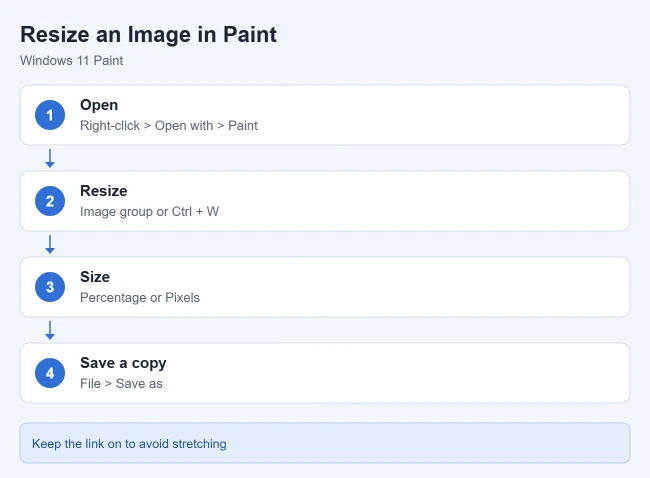
- Right-click the image file and choose Open with > Paint.
- In the Image group at the top, select Resize and skew, or press Ctrl + W.
- Choose Percentage or Pixels and enter the new size.
- Leave the link button between Horizontal and Vertical turned on so the picture keeps its shape. Older versions of Paint call this Maintain aspect ratio.
- Select OK.
- Select File > Save as to save a resized copy and keep the original.
Percentage or Pixels?
Use Percentage for a quick change, such as 50 to make a picture half its size. Use Pixels when a website or form asks for an exact size, like 1200 pixels wide. Making a photo much larger than the original can make it look blurry, because Paint has to stretch the existing detail.
Choose a File Format
Microsoft says Paint can save in several formats, including PNG, JPEG, BMP, and GIF, and you choose the format when you save. JPEG is usually smaller for photos, while PNG keeps sharp edges for screenshots.
How to Edit a Screenshot in Paint
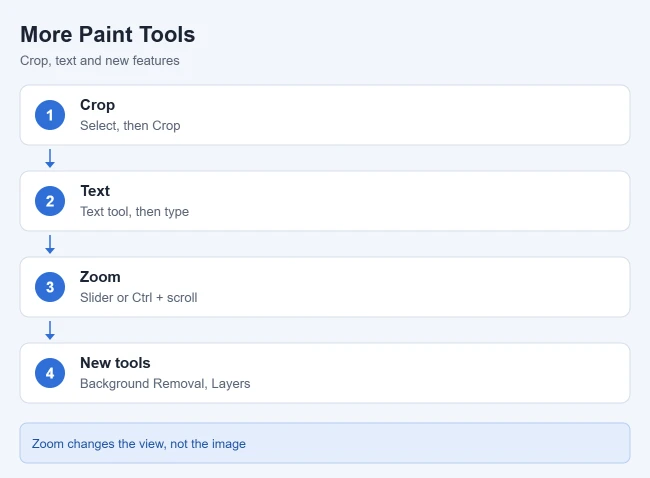
- Paste it: take a screenshot, open Paint, and press Ctrl + V.
- Crop it: use the Select tool to draw around the part you want to keep, then select Crop. Paint removes everything outside the selection.
- Add text: choose the Text tool, click where you want text, type, and pick a font, size, and color.
- Draw or highlight: use the pencil, brushes, shapes, and colors.
Frequently Asked Questions
Does resizing change the original file?
Only if you choose Save. Use Save as to keep the original and create a resized copy.
What is the difference between Paint and the Photos app?
Microsoft says the Photos app is mainly for viewing, organizing, and making simple adjustments to your photos, while Paint is for creating and editing images and drawings.
Is Paint free?
Yes. Microsoft says Paint is included in Windows.
More Windows Guides

Matthew Burleigh is the founder, head writer, and editor of Solve Your Tech, which he launched in 2012. He has written technology tutorials since 2008 and worked in IT since 2003, including small-business support, IT management, and consulting. He holds Bachelor’s and Master’s degrees in Computer Science from Arizona State University.
Matthew writes practical guides for Windows, iPhone and iPad, Microsoft Office, Outlook, Google apps, and Android. Solve Your Tech’s guides are checked step by step against the device or app maker’s own documentation and tested on his own devices whenever he has the hardware or software, with clear steps, sources, and update dates.
Read more about Matthew and how Solve Your Tech writes and updates its guides, or report a correction.