To install Windows 11, make a bootable USB drive with Microsoft’s Media Creation Tool, start the PC from it, and follow Windows Setup. This clean install erases the drive, so back up your files first. To upgrade an eligible Windows 10 PC and keep your files instead, use Settings > Update & Security > Windows Update, as shown in Method 1 below and in this walkthrough to update to Windows 11 from Windows 10.
This guide covers Microsoft’s three official methods, the ISO and Rufus options for making install media, and what to do after setup. Still on Windows 7? Follow this Windows 7 to Windows 11 guide.
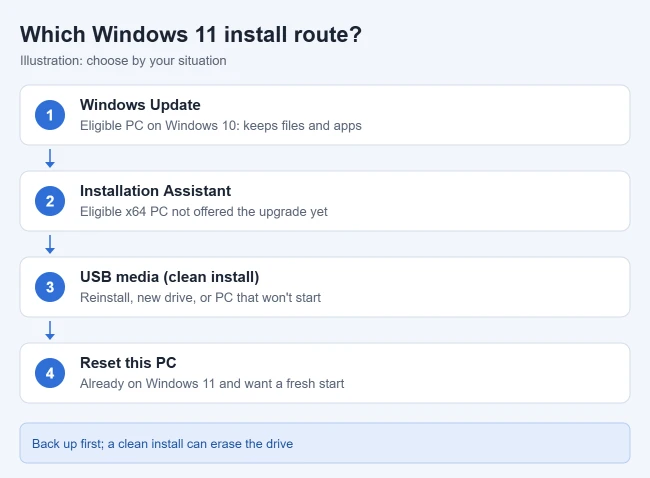
Before You Start
Check the system requirements
Microsoft lists these minimum requirements for Windows 11:
- Processor: 1 GHz or faster with 2 or more cores on a compatible 64-bit processor or system on a chip.
- Memory: 4 GB RAM.
- Storage: 64 GB or larger.
- Firmware: UEFI, Secure Boot capable.
- TPM: Trusted Platform Module version 2.0.
- Graphics: DirectX 12 or later with a WDDM 2.0 driver.
- Display: 720p, larger than 9 inches diagonally.
- Internet and account: a Microsoft account and internet connection are required to set up Windows 11 Home and Windows 11 Pro for personal use.
The easiest check on a Windows 10 PC is Microsoft’s own PC Health Check app. Your PC must also be running Windows 10, version 2004 or later, to upgrade.
If the check fails only because TPM or Secure Boot is turned off, your PC maker’s instructions may show how to turn it on in the firmware settings. Don’t use unofficial workarounds to skip the requirements. Microsoft says it isn’t recommended to install Windows 11 on a device that doesn’t meet them, and such a PC won’t be entitled to receive updates. This piece on installing Windows 11 on an unsupported CPU explains the risks and the supported options.
Here’s how to enable TPM 2.0 for Windows 11 in the firmware and confirm it worked.
Back up your files
Copy documents, photos, and other important files to an external drive or a cloud service. Here’s how to back up Windows 11 to an external hard drive. A clean install erases the drive, and even an upgrade is safer with a backup. Moving to a new PC instead? You can transfer data from Windows 10 to Windows 11.
Other things to have ready
- Enough free space. The Installation Assistant needs 9 GB free to download Windows 11.
- A blank USB flash drive with at least 8 GB, only if you’re making installation media. Everything on it is deleted.
- A power connection for laptops, and time. Your PC restarts several times.
- Your product key, only if you have one. Most PCs with a digital license or a key stored in firmware don’t need one.
Method 1: Upgrade Through Windows Update (Recommended)
It’s best to wait until Windows Update shows the upgrade is ready for your PC.
- Select Start > Settings > Update & Security > Windows Update. The Windows Update page opens.
- Select Check for updates. Install any waiting Windows 10 updates first and restart, because the Windows 11 upgrade may not appear until they’re installed. If your PC is ready, a Windows 11 message appears.
- Select Download and install, then Accept and install in the license terms window. The status shows the download and installation progress.
- When the status changes to Pending restart, select Restart now. The PC restarts a few times to finish installing.
- Sign in when the sign-in screen appears. You’re on Windows 11 with your files and apps in place.
If Windows 11 isn’t offered
According to Microsoft, the upgrade may not show because it isn’t ready for your PC yet, because of a known compatibility issue that will be resolved later, or because the PC doesn’t meet the requirements. A “Get ready for Windows 11” message doesn’t check your hardware; run PC Health Check to find out.
Method 2: Use the Windows 11 Installation Assistant
The Installation Assistant upgrades the PC you’re using now, keeping your files and apps. Waiting for Windows Update is the suggested route, but you can use it earlier. It doesn’t run on Arm-based PCs; it only works on x64 processors.
- Go to Microsoft’s Download Windows 11 page and select Download Now under Windows 11 Installation Assistant.
- Run the downloaded file. You need to be an administrator. The tool checks your hardware.
- If your PC is compatible, select Accept and install. Windows 11 downloads and prepares.
- Select Restart now when prompted. Don’t turn off the PC while it restarts. The upgrade finishes and you sign in to Windows 11.
For more on the upgrade from Windows 10, read about updating to Windows 11 from Windows 10.
An upgrade keeps your old system in a Windows.old folder for about 10 days. Once you know you’re staying, delete Windows.old in Windows 11 to get the space back.
Method 3: Create Installation Media for a Clean Install
Use a USB drive when you want to reinstall Windows, install it on a new drive, or start completely fresh. To start over on a PC that already runs Windows 11, Reset this PC is usually simpler. The Media Creation Tool only makes media for x64 PCs; Arm-based PCs should wait for Windows Update.
Make the USB drive
- On Microsoft’s Download Windows 11 page, select Download Now under Create Windows 11 Installation Media.
- Run the Media Creation Tool as an administrator and select Accept to agree to the license terms.
- Choose the language, edition, and 64-bit architecture. Use the same language as your current Windows.
- Select USB flash drive, plug in a blank drive of at least 8 GB, and select it. The tool downloads Windows 11 and makes the drive bootable. Anything on the drive is erased.
These bootable USB guides cover other ways to make the drive, including from an ISO file. A DVD works too, if you burn the ISO file to a disc with ImgBurn.
Install Windows 11 from the USB drive
- Plug the USB drive into the PC and restart it. If it doesn’t boot from the drive, open the boot menu or change the boot order in the firmware. The key is often F2, F12, Delete, or Esc right after power-on, but it varies by PC. On a PC that already runs Windows 10 or 11, you can also hold Shift while selecting Restart, then choose the option to boot from the USB drive.
- On the setup screen, choose your language, time, and keyboard, then select Next and start the installation. Windows Setup continues.
- If asked for a product key and the device already has a valid Windows 11 digital license for that edition, select I don’t have a product key. Otherwise use your valid product key or verify the licensing route first. Skipping the prompt does not provide a license.
- Review the license terms. Current media shows Install Windows 11 and a confirmation that files, apps and settings will be deleted; older media may show Custom: Install Windows only (advanced). Use the clean-install option appropriate to your media only after checking the backup.
- Select the drive or partition for Windows, then select Next. Deleting or formatting partitions permanently removes everything on them, so double-check the drive. Installation begins. Don’t turn off the PC.
- When the PC restarts, follow the setup screens to connect to the internet and sign in.
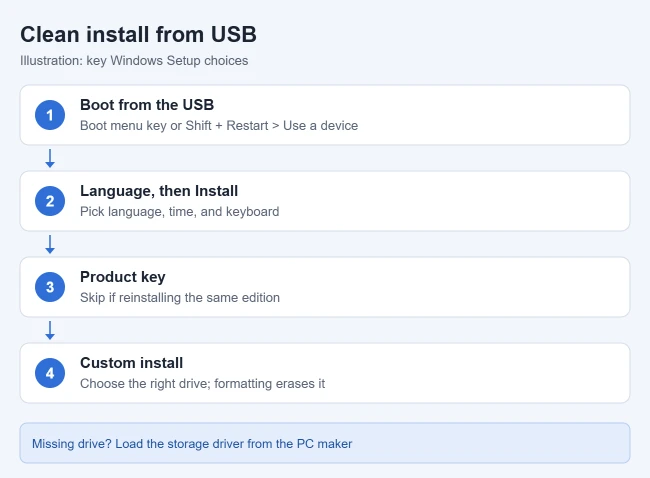
If you changed the boot order and Windows Setup appears again after installation, change the boot order back so the PC starts from its internal drive.
Download the Official Windows 11 ISO
An ISO is the installation disk image, rather than the Installation Assistant. Use Microsoft’s Windows 11 download page to obtain it directly.
- Scroll to Download Windows 11 Disk Image (ISO) for x64 devices. For an Arm PC, follow the separate Arm64 link instead; x64 and Arm64 images are not interchangeable.
- Select the Windows 11 edition currently offered, then select the download or confirmation button below that menu. The standard image contains multiple editions; your license determines which edition you can activate.
- Choose your product language and select Confirm. Match your existing Windows language if you intend to keep apps during an upgrade.
- Select the download link that appears and save the .iso file. Generated links expire after 24 hours; return to the page to generate a new one if necessary.
The same ISO includes Pro. If you need that edition, here’s how to download Windows 11 Pro.
Keep the ISO for the Rufus steps below. Downloading it doesn’t install Windows or erase anything.
Create a Windows 11 Installation USB With Rufus
Rufus is a free alternative to the Media Creation Tool for making a bootable USB drive from the ISO. These steps are for an eligible x64 PC that uses UEFI.
- Download Rufus from its official website and the Windows 11 x64 ISO from Microsoft.
- Plug in a USB drive of at least 8 GB and open Rufus. Under Device, check the drive’s name and size. Everything on it will be erased.
- Under Boot selection, click SELECT and open the Windows ISO.
- Set Partition scheme to GPT and Target system to UEFI. Keep the other defaults.
- Click START, leave the requirement-bypass options unchecked, confirm the erase, and wait for READY.
Then boot the PC from the USB drive and follow the “Install Windows 11 from the USB drive” steps above. For boot errors, see the Rufus FAQ.
Can You Finish Windows 11 Setup Without Internet?
Creating a Windows 11 USB on another connected computer lets you start installation on a PC without an active connection. It does not mean you can finish account setup offline. Microsoft currently requires internet connectivity and a Microsoft account for Windows 11 Home and Pro for personal use; see its system requirements. Downloading the installer, copying Windows files, finishing setup and later activation are separate stages.
Before a clean installation, make the official USB and backup using the steps above, get the network drivers for your PC model, and have a working connection ready for setup. Ethernet can help when Wi-Fi is unavailable, but it still needs a working network and adapter driver. If Setup cannot see a network, use the PC manufacturer’s driver and setup instructions; a working USB doesn’t mean the network hardware will work.
The I don’t have internet option and bypass commands seen in some guides may not exist in current installation media, so don’t plan around them. On a work or school PC, ask IT which setup method to use.
For what Microsoft changed and the supported options, see whether you can skip the Microsoft account sign-in.
IT admins who want one prepared setup to copy to many PCs can Sysprep Windows 11 for image deployment.
After Installing Windows 11
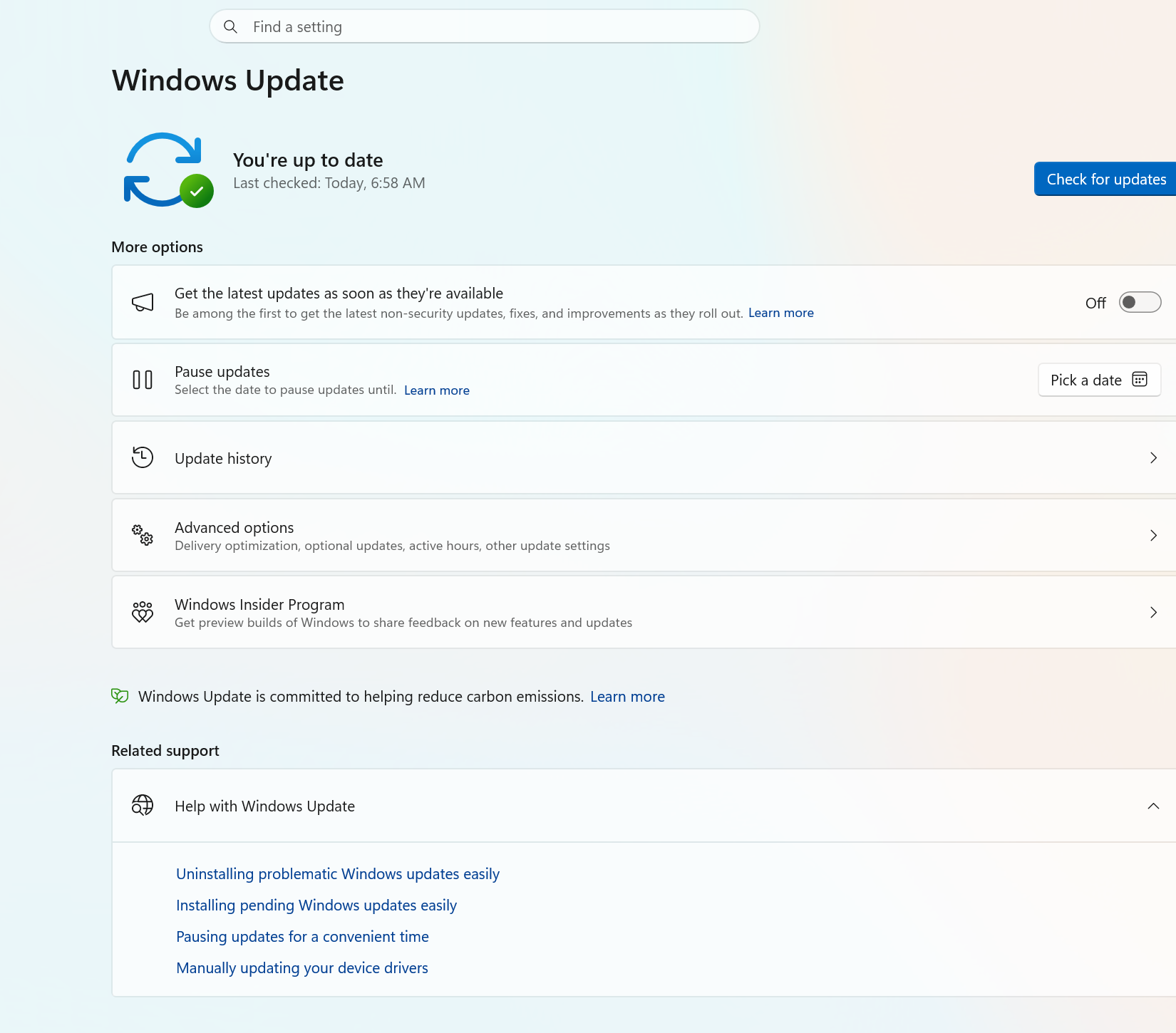
- Go to Settings > Windows Update and select Check for updates.
- Visit your PC maker’s support site for any extra drivers.
- Check activation in Settings > System > Activation. After a clean install, signing in with your Microsoft account usually reactivates a digital license.
- Restore your files from your backup and reinstall your apps.
Troubleshooting
- “This PC doesn’t currently meet the requirements”: run PC Health Check to see which item fails. TPM and Secure Boot may just be turned off; check your PC maker’s instructions.
- Upgrade not showing: install pending Windows 10 updates, restart, and check again, or use the Installation Assistant on an eligible x64 PC.
- No drives shown during setup: you may need to load a storage driver from your PC maker’s website.
- USB drive not listed in the boot menu: check your PC maker’s instructions. Some PCs need Secure Boot turned off temporarily.
- PC boots back into the old Windows: it may not have fully shut down. Select Shut down from the power menu, then start it again with the USB drive plugged in.
Frequently Asked Questions
Is Windows 11 free?
Upgrading an eligible Windows 10 PC with a valid license is free through Windows Update or the Installation Assistant.
Will installing Windows 11 delete my files?
An upgrade through Windows Update or the Installation Assistant keeps your files and apps. A clean install from USB erases the drive you install to, so back up first.
Do I need a product key?
Usually not for an upgrade or a reinstall of the same edition. Many PCs have a digital license or a key stored in firmware, which Windows applies automatically. Don’t enter a key you don’t own. If you need one, there are legal ways to get Windows 11 without buying a product key.
If you have a genuine key and Windows isn’t activated after setup, you can also activate Windows 11 from Command Prompt.
How long does it take?
It depends on your internet speed and hardware. Expect the PC to restart several times, and leave it plugged in until you reach the sign-in screen.
Can I install Windows 11 on an unsupported PC?
Microsoft doesn’t recommend it. A PC that doesn’t meet the requirements won’t be supported and isn’t entitled to receive updates.
Microsoft Resources

Matthew Burleigh is the founder, head writer, and editor of Solve Your Tech, which he launched in 2012. He has written technology tutorials since 2008 and worked in IT since 2003, including small-business support, IT management, and consulting. He holds Bachelor’s and Master’s degrees in Computer Science from Arizona State University.
Matthew writes practical guides for Windows, iPhone and iPad, Microsoft Office, Outlook, Google apps, and Android. Solve Your Tech’s guides are checked step by step against the device or app maker’s own documentation and tested on his own devices whenever he has the hardware or software, with clear steps, sources, and update dates.
Read more about Matthew and how Solve Your Tech writes and updates its guides, or report a correction.