To open the one-time boot menu on a Windows 11 PC, restart or power on the computer and press the boot-menu key documented for that exact model before Windows loads. Use the menu to select a prepared USB drive or another available boot device. The key is chosen by the PC maker, not by Windows 11.
If Windows still starts, you can also open Settings > System > Recovery > Advanced startup > Restart now. On a compatible UEFI PC, choose Use a device when available to select external boot media. Firmware setup and Windows recovery tools are separate destinations.
Prepare Before Restarting
Save work, close applications, and keep a laptop connected to power. Connect the bootable USB or insert the disc before restarting. An ordinary drive containing documents is not automatically bootable; use media prepared for the intended system or recovery tool.
Back up important files before installing or repairing an operating system. Opening a menu does not erase them, but an installer or recovery operation selected afterward can. Have your BitLocker recovery key available if the Windows drive is encrypted; some recovery tools or firmware changes can require it. On a managed PC, ask IT about permitted boot media and firmware restrictions.
How to Boot Windows 11 Installation Media from USB
For a Windows 11 installer, first create compatible boot media, then select that USB using either boot method below. Starting the USB opens Windows Setup; it does not by itself install Windows or provide a portable Windows desktop.
Create the USB If You Do Not Already Have One
Back up the USB first: creating installation media erases its contents. Also back up the PC before any subsequent installation. Check Windows 11 requirements and the PC architecture on Microsoft’s Windows 11 download page. Its Media Creation Tool creates x64 media; it does not create an Arm64 installer. Use Microsoft’s separate Arm64 download and the PC maker’s instructions for an Arm-based device.
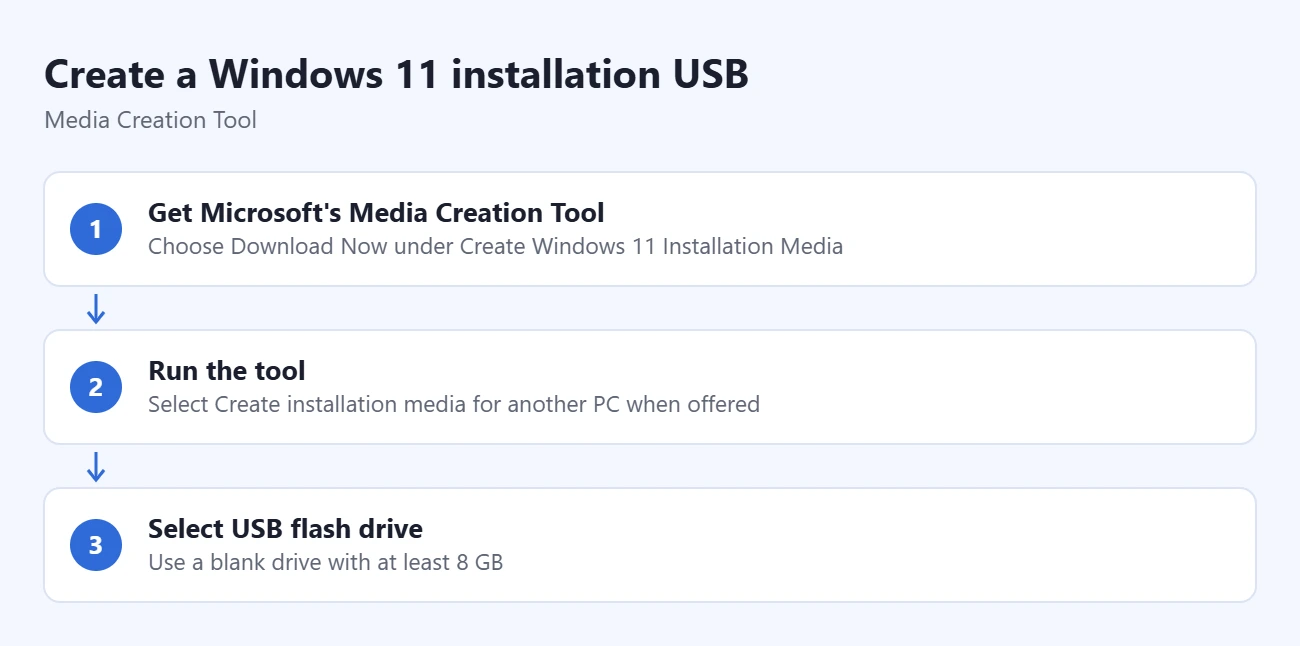
- Get Microsoft’s Media Creation Tool on a working Windows PC. Choose Download Now under Create Windows 11 Installation Media, rather than Installation Assistant. The tool requires administrator access.
- Run the tool and review its license terms. If you accept them, select Create installation media for another PC when offered. Check the language, edition and architecture for the PC you intend to start.
- Select USB flash drive and a blank drive with at least 8 GB. Check the selected drive carefully before continuing; unplug unrelated removable drives if their names are confusing. Let the tool finish preparing the media. You do not need to download an ISO separately for this route.
Start the USB and Choose the Correct Next Action
- Connect the completed USB to the intended PC. Keep a laptop on power. Use the manufacturer’s one-time boot menu below, or Advanced startup > Use a device when available, and select the matching USB entry.
- Confirm that Windows Setup starts. Seeing its language or keyboard screen confirms that the installer booted. If Windows starts normally instead, check the selected device and the USB troubleshooting below.
- Choose repair or installation deliberately. For recovery tools, follow the initial language screens and choose Repair my PC to enter Windows Recovery Environment, as Microsoft’s recovery-media instructions explain. An encrypted drive can require its BitLocker recovery key.
A clean installation can remove personal files, applications and settings. Stop before accepting a deletion warning or changing partitions unless that is your intended task and your backup is ready. Microsoft’s installation-media guide explains the installation options, license and matching edition requirements. To reinstall while retaining supported files and apps, it describes running setup.exe from the media while signed into Windows; do not assume booting the USB offers the same keep options.
After repair, exit the recovery tools and return to the installed Windows system. If the installer starts again after an ordinary restart, remove the external media when its instructions allow, or restore the internal boot priority. Reusable installation media must still match the next PC’s architecture and licensing; creating it grants no additional Windows license.
Open the Manufacturer’s One-Time Boot Menu
- Find the correct model instructions. Look for “one-time boot menu” or “boot device selection” in the PC or motherboard’s official manual. Do not substitute a BIOS setup key just because it appears in a generic list.
- Restart normally or follow the model’s power-off sequence. Keep the intended boot media connected. Avoid forcing the computer off simply to retry a missed key.
- Press the documented key at the startup logo. Follow the manual’s tapping or holding instruction before Windows starts. If Windows loads, let it finish and try again.
- Choose the intended device. Read its name and the on-screen controls. Many menus use arrow keys and Enter. Several entries may appear for similar drives, so match the device and boot mode to the media’s instructions.
- Check what starts. Expect the selected operating system, installer, or diagnostic environment. Stop if it is the wrong tool; do not proceed through installation or drive deletion merely to test menu access.
For a concrete example, Dell’s Latitude 7455 manual specifies F12 immediately after power-on or restart. Its menu also includes diagnostics and BIOS Setup. That is an example for a documented model, not a guarantee for every Dell or other brand.
Microsoft’s Windows 11 installation-media instructions also direct users to the manufacturer’s documentation for boot access. F2, F12, Delete, and Esc can serve different purposes on different PCs.
Use Windows 11 Advanced Startup
- Open Settings with Windows + I. Select System > Recovery.
- Choose Restart now beside Advanced startup. Save anything outstanding before confirming. Expect a restart and the Windows recovery choices.
- Choose Use a device if it appears. Select the intended bootable USB, disc, or other supported entry. Availability depends on the firmware, connected media, and configuration.
- Follow the selected tool’s instructions. If device selection is unavailable, use the manufacturer’s startup-key method rather than choosing an unrelated reset option.
Another entry point is holding Shift while selecting Power > Restart from Start or the sign-in screen. Microsoft’s Windows recovery guide documents these entry points. Its WinRE technical reference identifies booting from a device through this menu as a UEFI feature.
For Windows repair tools rather than external boot-device selection, follow our Windows 11 recovery-mode guide. It covers Advanced startup, Shift + Restart, recovery media and the choices inside WinRE.
Choose the Menu That Matches Your Task
- Boot another device once: use the manufacturer’s one-time boot menu or an available Use a device choice.
- Change persistent boot order: enter firmware setup and follow the exact model’s instructions. Record the old order so you can restore it. Our Windows 11 BIOS and UEFI access guide covers opening and leaving setup.
- Repair Windows startup: use the relevant Windows recovery tool. Choosing a boot device alone does not repair the installed system.
Change the Permanent Boot Drive or Boot Order
For a drive you want the PC to try first on future restarts, change the boot priority in firmware setup. This selects an existing bootable system or device; it does not copy Windows to a new SSD or make a blank drive bootable. If you only need one USB startup, use the one-time menu above.
- Open firmware setup. On a compatible Windows 11 UEFI PC, use System > Recovery > Advanced startup > Restart now, then Troubleshoot > Advanced options > UEFI Firmware Settings > Restart. Microsoft documents this route in its UEFI access instructions. If the tile is absent, follow the exact model’s setup-key instructions.
- Find the persistent boot settings. Look for Boot, Boot Configuration or Boot Sequence in the model’s manual. Record the current order before changing it. An internal Windows installation can appear as Windows Boot Manager rather than the drive’s retail name; identify the correct entry using the manual and your installed systems.
- Move the intended bootable entry to the first priority. Use the controls shown on that screen. Arrow keys may only move focus; other firmware uses buttons or dragging. Do not assume F10 or a universal key combination saves the change. Leave unrelated security and storage-mode settings alone.
- Save the reviewed change and restart. Use the firmware’s documented save-and-exit action. Check that the intended system starts, then restart again to confirm the priority persists. If the wrong system starts, return to setup and restore the recorded order.
For supported Surface models, Microsoft’s USB startup guide gives a concrete example: enter Surface UEFI, select Boot configuration, drag USB Storage to the top, then choose Exit > Restart Now. Its Surface UEFI reference explains that the specified order requires Enable Alternate Boot Sequence to be on. These controls are Surface-specific; use your own model’s manual for other PCs.
No suitable internal entry appears? Check the model’s drive detection and the existing installation’s boot configuration. Do not initialize or format the drive merely to make it appear: that can destroy the data you are trying to start. A missing bootloader, faulty connection or Windows migration needs its own diagnosis; changing priority alone will not fix it.
If the Key or USB Does Not Work
Windows starts before the menu: recheck the exact key and timing. Follow any requirement to use Fn with a function key. If an external keyboard is not recognized before Windows, try the built-in keyboard or a directly connected wired one.
Firmware setup opens instead: look again for the model’s boot-menu instructions. Setup can contain a boot override, but menus and labels vary; entering setup does not mean you must change permanent settings.
The drive is missing: reconnect it, try an appropriate direct USB port, and confirm that the media was created for this PC’s architecture and boot mode. Copying an ISO file onto a USB as an ordinary file is not the same as preparing boot media. Use the tool’s documented creation process; back up the USB first because preparation can erase it.
A security setting blocks media: check the PC maker’s and media provider’s guidance. Do not disable Secure Boot or switch Legacy/CSM modes as a routine first step. Such changes have wider effects and can affect the installed Windows configuration. A firmware password requires the authorized password or administrator’s help.
Return to Normal Startup
After finishing with external media, restart into the installed Windows system. If you changed persistent boot order, restore the intended internal drive priority according to the manual. A one-time device selection normally avoids that permanent change. Confirm Windows starts normally before considering the task finished.

Matthew Burleigh is the founder, head writer, and editor of Solve Your Tech, which he launched in 2012. He has written technology tutorials since 2008 and worked in IT since 2003, including small-business support, IT management, and consulting. He holds Bachelor’s and Master’s degrees in Computer Science from Arizona State University.
Matthew writes practical guides for Windows, iPhone and iPad, Microsoft Office, Outlook, Google apps, and Android. Solve Your Tech’s guides are tested on current devices or checked against official product documentation, with clear steps, sources, and update dates.
Read more about Matthew and how Solve Your Tech writes and updates its guides, or report a correction.