To upgrade from Windows 10 to Windows 11, open Settings > Update & Security > Windows Update, select Check for updates, and select Download and install under the Windows 11 upgrade offer. The upgrade is free for Windows 10 PCs that meet the Windows 11 hardware requirements, and it keeps your personal files and apps by default, but back up first.
These steps are for a Windows 10 Home or Pro PC moving to the matching Windows 11 edition. Microsoft’s download page currently offers Windows 11 version 26H2, released September 29, 2026. The steps follow Microsoft’s articles on ways to install Windows 11, the Windows 11 upgrade FAQ, going back to a previous version and Extended Security Updates.
Which Upgrade Method Should You Use?
| Your situation | Best method |
|---|---|
| Windows Update shows the Windows 11 offer | Windows Update (Microsoft’s recommended route) |
| PC is eligible but no offer has appeared yet | Windows 11 Installation Assistant |
| Assistant won’t run, or you want to reuse one download on several PCs | Installation media or ISO, run from inside Windows 10 |
| You want to erase everything and start fresh | Clean install from a USB drive |
| PC Health Check says the PC can’t run Windows 11 | Stay on Windows 10 with Extended Security Updates, or replace the PC |
All of the in-place methods keep your files and apps unless you choose otherwise. An in-place upgrade means Windows 11 installs over Windows 10 instead of wiping the drive.
Windows 11 Minimum Requirements
| Component | Requirement |
|---|---|
| Processor | 1 GHz or faster, 2 or more cores, on Microsoft’s approved CPU list |
| Memory | 4 GB RAM |
| Storage | 64 GB or larger |
| Firmware | UEFI, Secure Boot capable |
| TPM | Trusted Platform Module 2.0 |
| Graphics | DirectX 12 or later with a WDDM 2.0 driver |
| Display | 720p, larger than 9 inches diagonally |
| Upgrade path | Windows 10, version 2004 or later |
Windows 11 Home and Windows 11 Pro for personal use also need an internet connection and a Microsoft account during initial device setup. TPM is a security chip (or firmware feature) that stores encryption keys, and Secure Boot only lets trusted software load when the PC starts.
Before You Start
- Back up your files. Files already syncing to OneDrive are covered; copy everything else to an external drive. Here’s how to back up Windows 10 to an external hard drive.
- Free up space. The Installation Assistant needs at least 9 GB free just for the download, and the install itself needs more working room. If the drive is nearly full, uninstall apps you don’t use and move large files off the PC.
- Install pending Windows 10 updates. Microsoft says pending updates can block the Windows 11 offer.
- Check for S mode. Windows 10 Pro in S mode won’t be offered Windows 11 until you leave S mode, because Windows 11 Pro has no S mode. Here’s how to exit S mode. The switch is free but permanent.
- Plug in a laptop and use a reliable connection. The download is large, so avoid a metered or capped connection if you can.
- Have your Microsoft account password handy. It’s best to sign in to Windows 10 with a Microsoft account before you upgrade.
Check That Your PC Can Run Windows 11
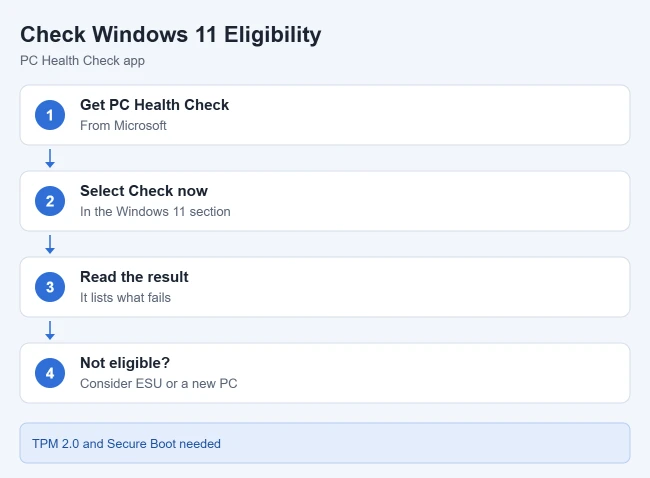
- Search for PC Health Check from the taskbar and open it. If it isn’t installed, download it from Microsoft at aka.ms/GetPCHealthCheckApp.
- Select Check now in the Windows 11 section. After a few seconds, a results window opens.
- Read the result. It either says the PC meets the requirements or lists what it misses, like the processor, TPM or Secure Boot. If the processor is the item that fails, see whether you can install Windows 11 on an unsupported CPU, and read Microsoft’s warning in the section on PCs that aren’t eligible.
If TPM or Secure Boot is the problem, it may only be turned off in your PC’s firmware settings (the UEFI or BIOS setup screen). Turn on TPM 2.0 and Secure Boot there, then run Check now again. Microsoft’s guide to using the PC Health Check app explains the other sections of the app.
Upgrade Through Windows Update
- Open Settings and select Update & Security, then Windows Update.
- Select Check for updates. Install any pending Windows 10 updates, restart if asked, then select Check for updates again.
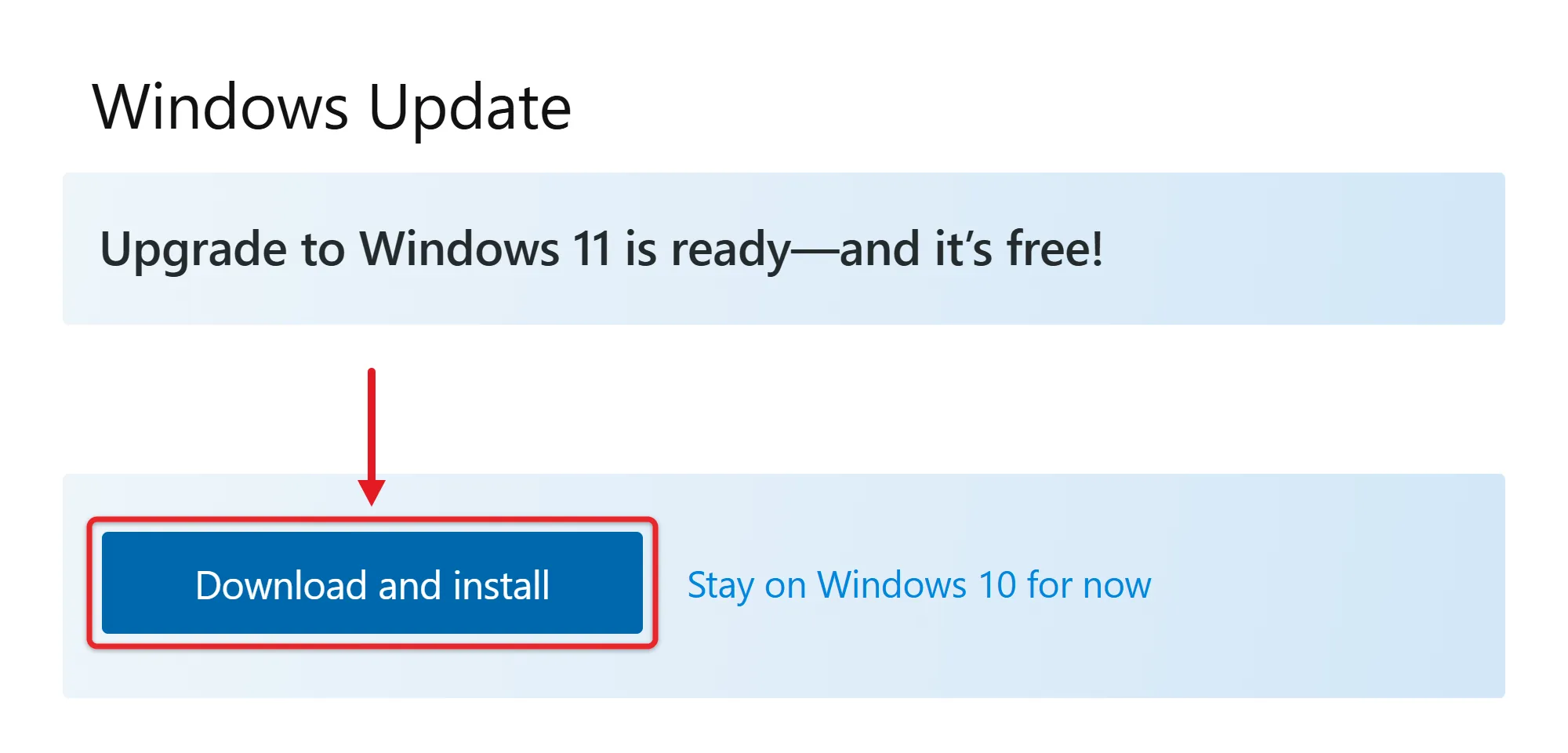
- When the Windows 11 offer appears, select Download and install.
- Read the license terms and select Accept and install. The download starts, and you can keep using the PC while it runs.
- When the status changes to Pending restart, save your work and select Restart now. You can also schedule the restart for a time you aren’t using the PC.
- Wait while the PC installs Windows 11 and restarts several times. Don’t turn it off.
- Sign in when the sign-in screen appears.
Your PC starts in Windows 11 with your files and apps in place. To keep it current afterward, you can update Windows 11. It’s also worth checking that Windows updates your other Microsoft products, such as MSI-based Office.
The free upgrade keeps your edition and license, so you won’t need a new key; if Windows still asks for one, you can check, find or buy a Windows 11 license.
Upgrade With the Windows 11 Installation Assistant
Use the Installation Assistant when PC Health Check says your PC is eligible but Windows Update hasn’t shown the offer yet. It needs Windows 10 version 2004 or later, 9 GB of free space, a Windows 10 license and an x64 processor. It doesn’t run on Arm-based PCs.
- Go to Microsoft’s Windows 11 download page and download the Windows 11 Installation Assistant.
- Open the downloaded file and select Yes if User Account Control asks for permission.
- If the Assistant asks you to check compatibility, run PC Health Check, then select Refresh in the Assistant.
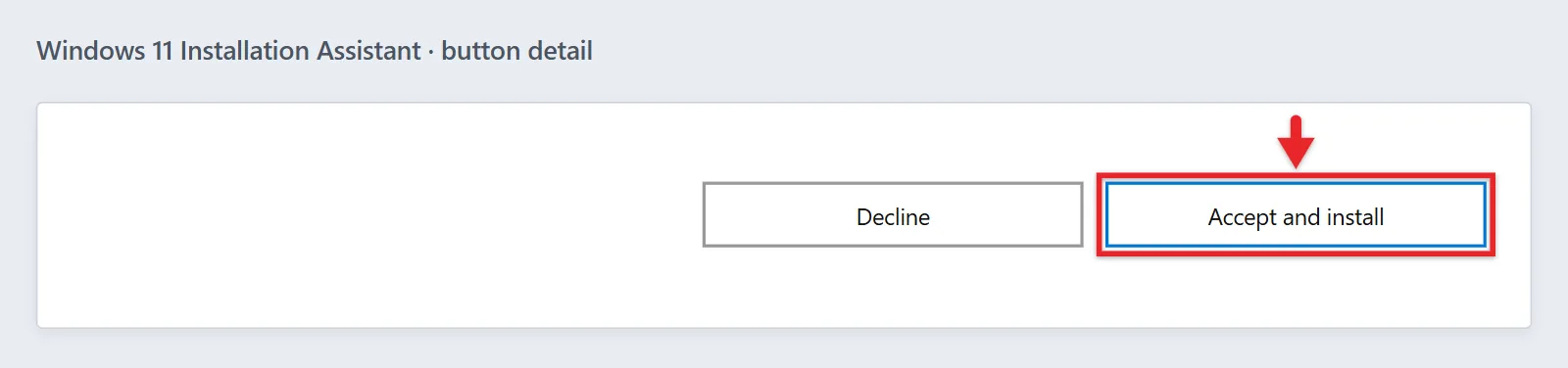
- Select Accept and install. The Assistant downloads Windows 11 and prepares it while you keep working.
- Select Restart now when prompted. If you step away, the PC restarts on its own after a countdown, so save your work first.
If the Assistant says the PC doesn’t meet the minimum system requirements, staying on Windows 10 is the recommended choice.
Upgrade With Installation Media or an ISO
This route uses a Windows 11 USB drive or disk image (an ISO file, a single file that holds the whole installer). You can create a USB drive with the Media Creation Tool or download the ISO, both from the same Microsoft download page. You can also burn the ISO to a DVD with ImgBurn if you’d rather use a disc.
- Sign in to Windows 10 on the PC you’re upgrading.
- Plug in the USB drive, or right-click the ISO file in File Explorer and select Mount. The installer appears as a new drive under This PC.
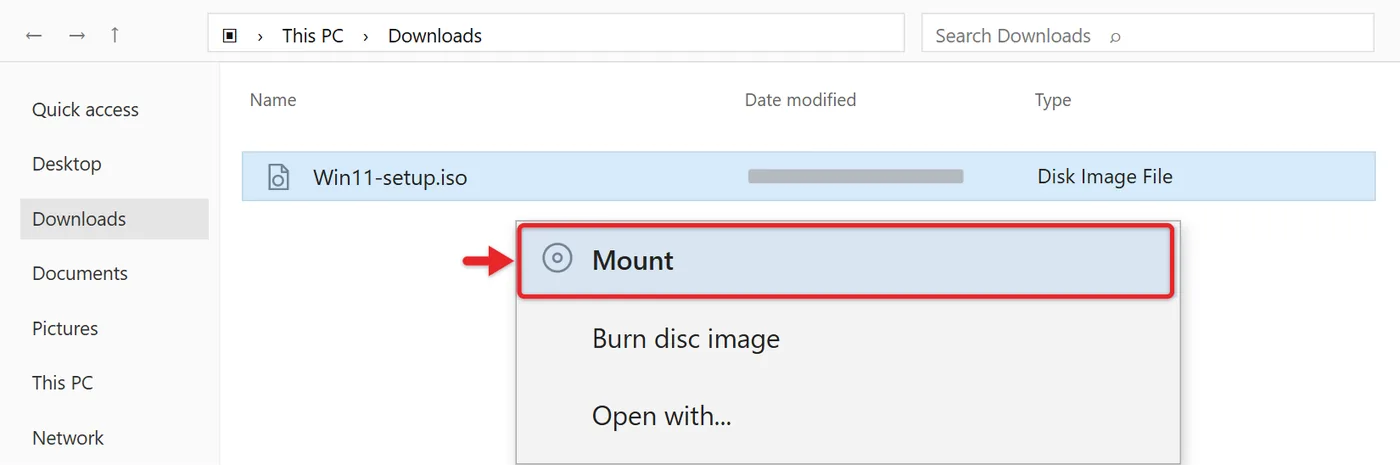
- Open the drive and run setup.exe. Select Yes in the User Account Control prompt.
- Follow Windows 11 Setup and accept the license terms.
- On the Ready to install screen, check what will be kept. Select Change what to keep to choose Keep personal files and apps (the default), Keep personal files only, or Nothing. Nothing removes everything, so only pick it after a full backup.
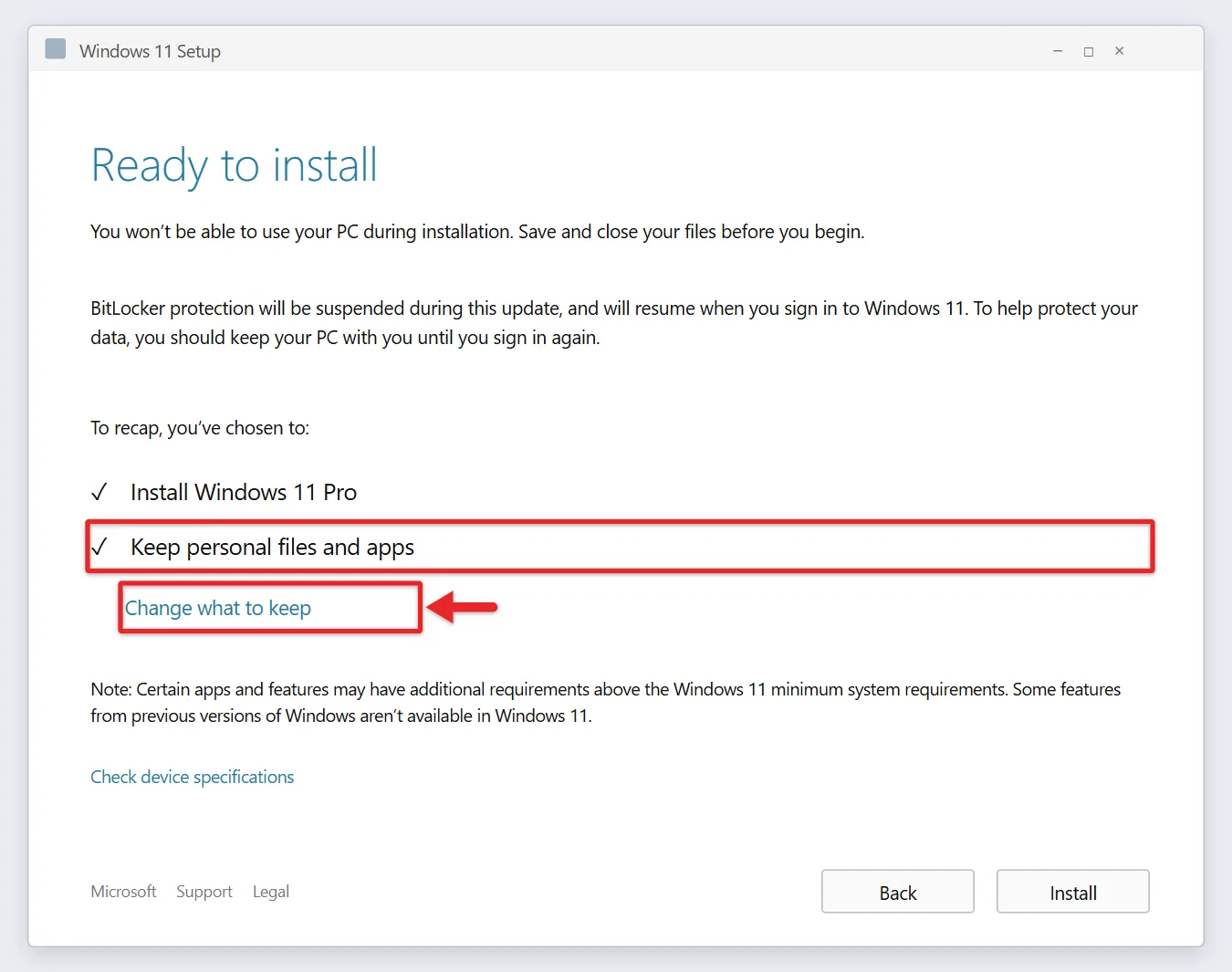
- Select Install. The PC restarts several times and opens to the sign-in screen.
A clean install, where you boot the PC from the USB drive, erases the drive and all apps and files, so it’s a different process. Booting from media only checks some of the requirements, so run PC Health Check first. The Windows 11 clean install walkthrough covers that route.
Confirm the Upgrade Worked
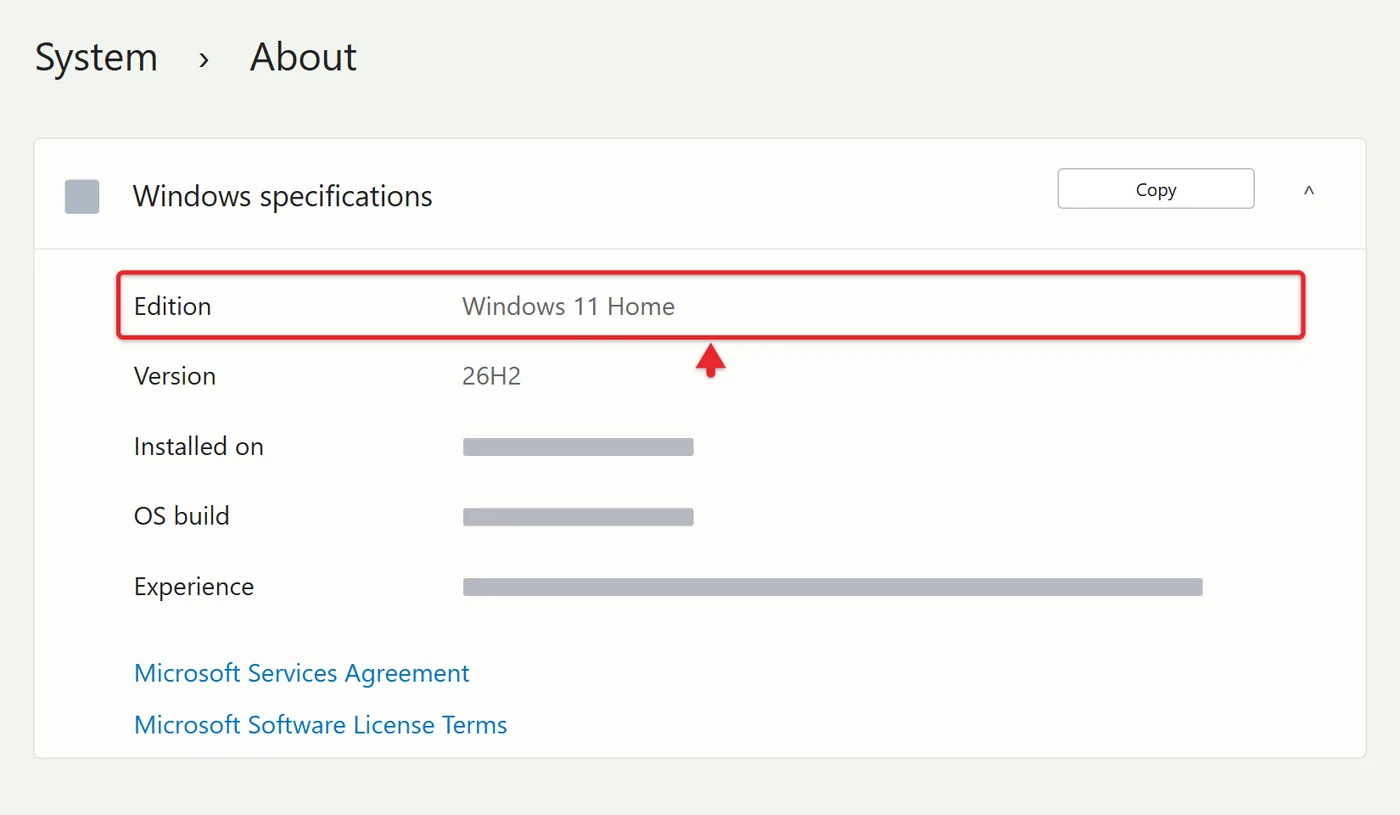
Open Settings > System > About. Under Windows specifications, Edition should read Windows 11 Home or Windows 11 Pro. The page on telling Windows 10 and 11 apart also shows where the version number appears.
Then open Settings > Windows Update and select Check for updates to pick up the latest security fixes and drivers. Check your printer, Wi-Fi, Bluetooth and sound. If a device doesn’t work, look for a Windows 11 driver on its manufacturer’s support site. Some apps are uninstalled during the upgrade because they don’t work with Windows 11; check with the app’s publisher for an updated version.
Troubleshooting
- No Windows 11 offer in Windows Update: Install pending updates, restart and check again. If PC Health Check says the PC is eligible but the offer still doesn’t appear, the PC may have a compatibility hold, which delays the upgrade until a known problem with a driver or app is fixed. Waiting for Windows Update is better than forcing the upgrade with another method.
- “What needs your attention” during setup: This message can mean the PC doesn’t meet the minimum requirements. Read the listed item, fix it if you can, and run PC Health Check again before retrying.
- TPM or Secure Boot not detected: Turn them on in the firmware settings, then rerun PC Health Check. A PC that shows TPM 1.2 or no TPM at all can’t be fixed this way.
- Not enough disk space: Run Disk Cleanup or Storage Sense, uninstall unused apps, or move photos and videos to an external drive, then try again.
- The Installation Assistant won’t open: Make sure the PC runs Windows 10 version 2004 or later and isn’t an Arm-based PC. On Arm PCs, wait for Windows Update to offer the upgrade.
- The download stalls: Restart the PC, pause other large downloads, and try a wired connection if you have one.
- Windows asks for a product key: An activated Windows 10 license carries over. If Windows 10 isn’t activated, activate Windows 10 before upgrading.
If Your PC Isn’t Eligible
Microsoft ended Windows 10 support on October 14, 2025. The PC still works, but it no longer gets free security fixes. Microsoft’s consumer Extended Security Updates (ESU) program gives eligible, enrolled Windows 10 version 22H2 PCs critical and important security updates through October 12, 2027.
- How to enroll: At no cost by syncing your PC settings, by redeeming 1,000 Microsoft Rewards points, or with a one-time $30 purchase (plus tax). One license covers up to 10 devices.
- Account rules: You sign in with a Microsoft account that’s an administrator on the PC. Child accounts can’t enroll, and the license is tied to the account you enroll with.
- What it doesn’t include: New features, other types of fixes, or technical support.
- Regional differences: Enrollment options and timing may vary by region, such as in the European Economic Area.
Microsoft also warns against installing Windows 11 on devices that don’t meet the requirements, and recommends rolling back to Windows 10 if that happens. Registry edits and other workarounds that skip the hardware check aren’t supported by Microsoft, and the PC may not get future updates. When ESU ends, replacing the PC is the supported way to stay protected.
Frequently Asked Questions
Is the upgrade really free?
Yes. Upgrades from Windows 10 to Windows 11 are free on eligible PCs. Your internet provider may still charge for a large download on a metered plan.
Will I lose my files when I upgrade?
Windows Update, the Installation Assistant and setup.exe with Keep personal files and apps are designed to keep your personal files and apps. Back up first anyway, in case something goes wrong.
Can I go back to Windows 10?
In most cases, you have 10 days. Go to Settings > System > Recovery and select Go back (more on rolling back a Windows 11 update). This needs the Windows.old and $windows.~bt folders, and you’ll need to remove any user accounts created after the upgrade. Apps and settings you add or change after upgrading may be lost. After 10 days, the only way back is a clean install of Windows 10.
When can I delete Windows.old?
Once you’re sure you’re staying on Windows 11. Deleting it removes the built-in way to go back. When you’re ready, follow the steps for deleting Windows.old.
How long does the upgrade take?
It depends mostly on your internet speed and the PC. It usually takes longer than a normal Windows 10 feature update. Plan on one to two hours on a typical PC with a fast connection; the download runs in the background, and the install phase with its restarts usually takes 30 to 90 minutes. Older PCs with hard drives take longer.
What if I’m moving to a new Windows 11 PC instead?
You’ll need to copy your files over. Follow the steps for transferring data from Windows 10 to Windows 11.

Matthew Burleigh is the founder, head writer, and editor of Solve Your Tech, which he launched in 2012. He has written technology tutorials since 2008 and worked in IT since 2003, including small-business support, IT management, and consulting. He holds Bachelor’s and Master’s degrees in Computer Science from Arizona State University.
Matthew writes practical guides for Windows, iPhone and iPad, Microsoft Office, Outlook, Google apps, and Android. Solve Your Tech’s guides are checked step by step against the device or app maker’s own documentation and tested on his own devices whenever he has the hardware or software, with clear steps, sources, and update dates.
Read more about Matthew and how Solve Your Tech writes and updates its guides, or report a correction.