To update your graphics driver in Windows 11, open Settings > Windows Update > Advanced options > Optional updates, check any display driver listed under Driver updates, and click Download & install. For the newest drivers, especially for gaming, use your graphics maker’s app instead: the NVIDIA app, AMD Software: Adrenalin Edition, or Intel Driver & Support Assistant.
These steps are for Windows 11 desktops and laptops with NVIDIA, AMD, or Intel graphics. Installing a driver needs an administrator account. Device Manager works the same way on Windows 10 if you still have a PC on it.
Which Method Should You Use?
- Windows Update is the easiest and the safest. Microsoft only offers drivers that have been tested with Windows, but they are often a few versions behind.
- Your graphics maker’s app gets you the newest driver, usually on the day a big game launches. Pick this if you play new games or a game asks for a newer driver.
- Your laptop maker’s support page is the better choice on many laptops, because those drivers are tuned for that exact model’s screen and power settings.
- Device Manager is useful for installing a driver you already downloaded, or for a quick check, but it rarely finds anything newer than Windows Update.
Find Out Which Graphics Card You Have
You need the exact name of your graphics hardware before you download anything.
- Right-click the Start button and select Device Manager. The Device Manager window opens.
- Click the arrow next to Display adapters. Your graphics chip or card is listed by name, such as “NVIDIA GeForce RTX 4060” or “Intel(R) Arc(TM) Graphics.”
- To see the driver you have now, right-click the adapter, select Properties, and open the Driver tab. Note the Driver Date and Driver Version so you can compare them after the update.
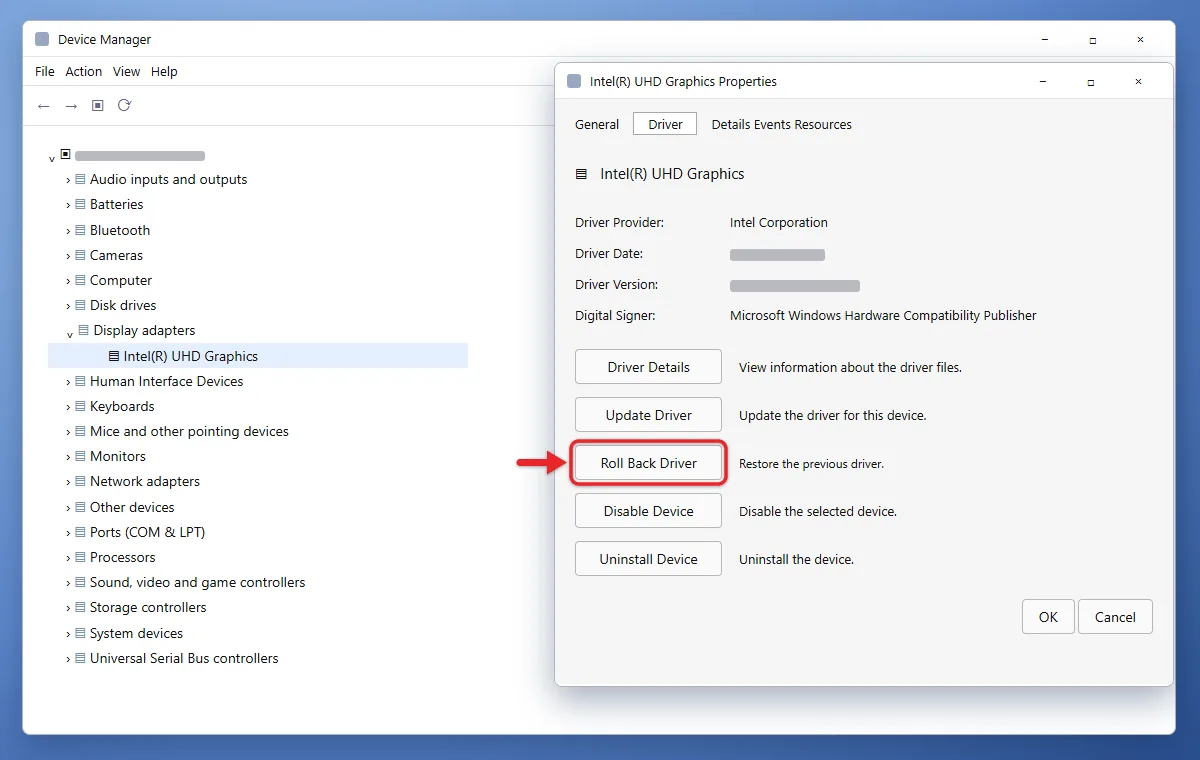
Many laptops list two adapters: a built-in Intel or AMD chip and a separate NVIDIA or AMD card. Update both. If the only entry is Microsoft Basic Display Adapter, Windows hasn’t installed a real driver yet, and any of the methods below will fix that.
For more on reading driver details, read checking drivers on Windows 11.
Method 1: Update Graphics Drivers With Windows Update
- Click Start, then Settings, and select Windows Update in the left pane.
- Click Advanced options.
- Scroll to Additional options and click Optional updates.
- Expand Driver updates. If you see a display or graphics driver (it usually has “Display” or your graphics maker’s name in it), check its box.
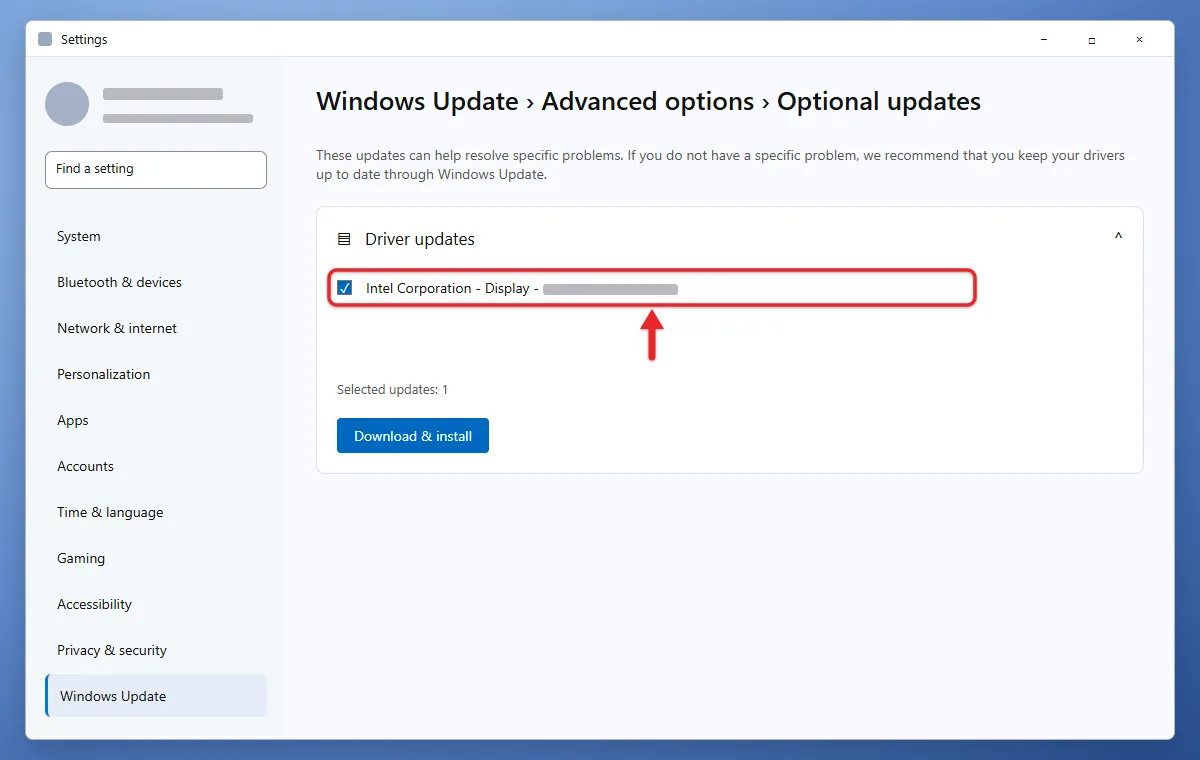
- Click Download & install. The screen may flicker or go black for a second while the driver switches over.
- Restart your PC when the install finishes, even if Windows doesn’t ask.
Microsoft’s page on getting recommended and updated hardware drivers explains that recommended drivers install automatically with normal updates, while optional drivers wait until you choose them. If Driver updates is empty, Windows has nothing newer for you, so move on to Method 2.
Method 2: Update From Your Graphics Maker
Download drivers only from the maker’s own site or app. Third-party “driver updater” tools aren’t needed and sometimes bundle unwanted software.
NVIDIA
- Download and install the NVIDIA app, which replaced GeForce Experience.
- Open it and click Drivers in the left pane.
- Choose Game Ready (tuned for new games) or Studio (tuned for creative apps like video editors). Most people should use Game Ready.
- Click Download, then Install when it finishes. Choose Express installation unless you want a clean install.
AMD
- Go to AMD’s drivers and support page and download the auto-detect and install tool, or open AMD Software: Adrenalin Edition if it’s already installed.
- In Adrenalin, click Check for Updates near the top right of the window.
- If a newer recommended driver is listed, click Download, then Install. The screen may go black briefly during the install.
Intel
- Install and run Intel Driver & Support Assistant from Intel’s website. It opens in your web browser and scans your PC.
- Click Download next to the graphics driver, then Install.
Intel notes that some laptops use customized graphics drivers. If the assistant says your driver is supplied by your computer maker, get it from the laptop maker’s support page instead.
Laptop makers
Go to your laptop maker’s support site (Dell, HP, Lenovo, ASUS, Acer and others), enter your model or serial number, and look under Drivers > Graphics or Video. Many makers also have their own update app, such as HP Support Assistant or Lenovo Vantage.
Before a big driver install, it’s worth taking a minute to create a restore point in Windows 11 so you have an easy way back.
Method 3: Update the Driver in Device Manager
- Right-click Start and select Device Manager.
- Expand Display adapters.
- Right-click your graphics adapter and select Update driver.
- Click Search automatically for drivers. Windows installs a newer driver if it finds one, or shows “The best drivers for your device are already installed.”
- If you downloaded a driver yourself, choose Browse my computer for drivers instead, click Browse, select the folder you extracted it to, and click Next.
- Click Close, then restart your PC.
“The best drivers are already installed” only means Windows has nothing newer. Your graphics maker may still have a newer version. Microsoft’s Device Manager driver guide covers these steps.
Method 4: Reinstall the Driver
Use this if the driver seems corrupted: the display keeps glitching, games crash on launch, or the graphics control panel won’t open.
- Save your work and close your apps.
- In Device Manager, expand Display adapters, right-click the adapter, and select Uninstall device.
- Click Uninstall in the confirmation box. The screen may switch to a lower resolution because Windows is now using a basic driver.
- Restart the PC from Start > Power > Restart. Windows tries to reinstall a driver automatically.
- If the resolution stays low, install the driver with Method 1 or Method 2.
Check That the Update Worked
Open Device Manager, right-click the adapter, select Properties, and open the Driver tab. The Driver Date and Driver Version should be newer than the ones you noted earlier. The NVIDIA app, Adrenalin, or Intel’s assistant will also say your driver is up to date.
If colors still look washed out or tinted after the update, change monitor color in Windows 11.
If an Xbox app or Microsoft Store game still won’t start with a current driver, check that Gaming Services is installed.
Roll Back a Driver That Causes Problems
If games crash, the screen flickers, or something else breaks right after an update, go back to the previous driver.
To confirm the driver is to blame, check the crash logs in Windows 11 for a faulting module that names it.
- In Device Manager, expand Display adapters, right-click the adapter, and select Properties.
- Open the Driver tab and click Roll Back Driver.
- Pick a reason when asked and click Yes.
- Restart if prompted.
If Roll Back Driver is grayed out, Windows has no earlier driver saved. Download an older version from your graphics maker or laptop maker and install it with Method 3.
To keep Windows Update from swapping a driver back, stop automatic driver updates in Windows 11.
If you made a restore point before the update, you can also do a System Restore on Windows 11 to undo the driver change.
If a driver change left your desktop sideways or upside down, read how to fix an upside-down screen in Windows 11.
Troubleshooting
- The screen went black or froze: press Windows + Ctrl + Shift + B. This restarts the graphics driver; you’ll hear a beep and the screen will flicker.
- The installer fails or says no compatible hardware was found: make sure you downloaded the driver for your exact graphics model and for Windows 11. On an Arm-based PC, an x64-only driver won’t install, so check your processor type in Windows 11 first.
- Windows keeps replacing your driver: Windows Update can install its own version over a maker’s driver. If that version causes problems, roll it back and reinstall the maker’s driver.
- Nothing is offered anywhere: older graphics cards eventually stop getting new drivers. If your card is no longer supported, the last available driver is the one to keep.
Frequently Asked Questions
How often should I update my graphics driver?
You don’t need every release. Let Windows Update handle the basics, and use your graphics maker’s app when a new game asks for a newer driver or you’re troubleshooting a problem. If everything works, there’s no rush.
Does updating my graphics driver delete my games or files?
No. A driver update only replaces the software that lets Windows talk to your graphics hardware. Games, files and settings stay where they are, though some in-game graphics options may reset.
Do I need to uninstall the old driver first?
Usually not. The NVIDIA, AMD and Intel installers replace the old driver for you. Uninstall first only if a normal install keeps failing.
What other drivers should I keep updated?
Audio and Wi-Fi drivers matter too. You can also install an audio driver or update your Wi-Fi driver in Windows 11.

Matthew Burleigh is the founder, head writer, and editor of Solve Your Tech, which he launched in 2012. He has written technology tutorials since 2008 and worked in IT since 2003, including small-business support, IT management, and consulting. He holds Bachelor’s and Master’s degrees in Computer Science from Arizona State University.
Matthew writes practical guides for Windows, iPhone and iPad, Microsoft Office, Outlook, Google apps, and Android. Solve Your Tech’s guides are checked step by step against the device or app maker’s own documentation and tested on his own devices whenever he has the hardware or software, with clear steps, sources, and update dates.
Read more about Matthew and how Solve Your Tech writes and updates its guides, or report a correction.