To sync an iPad and iPhone, sign in to both with the same Apple Account, then turn on iCloud for the apps you want to share. Supported information stored in iCloud can then stay up to date on both devices. Data kept only on one device or in another provider’s account needs separate attention. You can also turn on Handoff, automatic app downloads, and call and text forwarding so the two devices work together.
How to sync your iPad and iPhone
Do these steps on both devices. These steps use the recent iPhone and iPad Settings layout, including iOS 27. On older versions, app settings such as Messages or Mail may appear directly in Settings instead of under Apps. If you’re replacing an iPad rather than syncing two devices, see how to transfer data from your old iPad to a new iPad.
- Sign in with the same Apple Account. Open Settings and look at the name at the top. If you see Apple Account instead of your name, tap it and sign in. Both devices must use the same account.
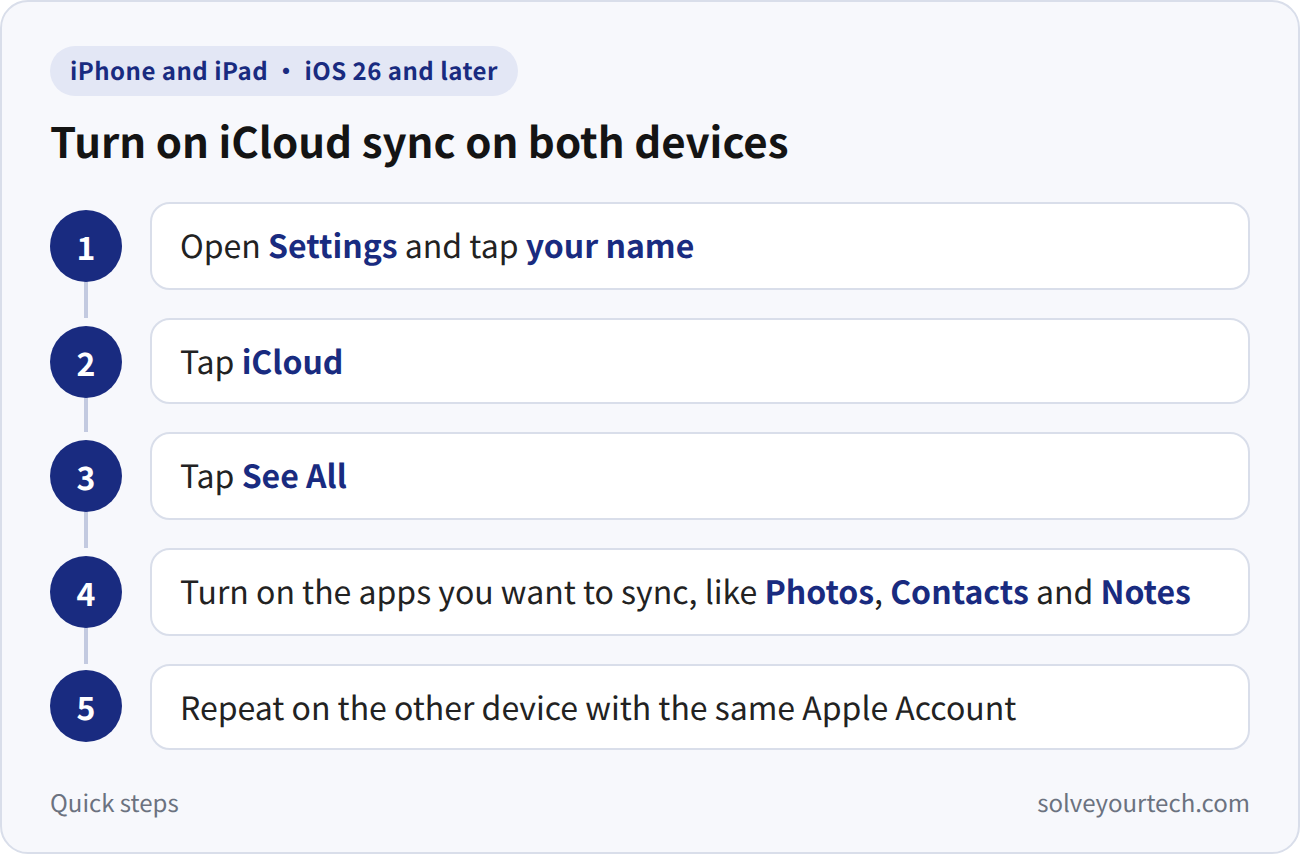
- Turn on iCloud for your apps. In Settings, tap your name, tap iCloud, then tap See All. Turn on the apps you want to sync, such as Photos, Contacts, Calendars, Notes, Messages, Mail, and iCloud Drive.
- Optionally turn on Handoff. Go to Settings > General > AirPlay & Continuity and turn on Handoff. This lets you start something on one device and finish it on the other. It does not mirror the screen; our guide explains why an iPhone cannot cast to an iPad and what to use instead.
- Optionally download apps on both devices. Go to Settings > Apps > App Store and turn on App Downloads. Compatible apps purchased with that Apple Account can download automatically. This setting does not automatically copy every app’s data.
- Set up messages. Turn on iMessage on both devices and check that Settings > Apps > Messages > Send & Receive shows the same Apple Account and the addresses you want to use. Messages in iCloud keeps conversation history up to date. If you are not using it, on your iPhone go to Settings > Apps > Messages > Text Message Forwarding and turn on your iPad.
- Optionally get calls on your iPad. On your iPhone, go to Settings > Apps > Phone > Calls on Other Devices. Turn on Allow Calls on Other Devices, then turn on your iPad. On the iPad, open Settings > Apps > FaceTime, enable FaceTime, and turn on Calls from iPhone. FaceTime must use the same Apple Account and phone number; keep the iPhone nearby and both devices on the same Wi-Fi network for this relay feature.
Apple explains these settings in its guides to using iCloud on iPhone, Handoff, text message forwarding, calls on other devices, and App Store settings.
Sync Contacts Between iPhone and iPad
On both devices, go to Settings > your name > iCloud > See All and turn on Contacts. Open Contacts and check the Lists view so you are comparing the same iCloud list. See Apple’s iCloud Contacts setup. If a missing contact belongs to Google, Exchange, or another provider, enable that same account’s Contacts on both devices instead; turning on iCloud alone does not import that provider’s address book.
Sync Notes, Including Notes Stored Only on Your iPhone
On each device, open Settings > your name > iCloud > See All > Notes and turn on Sync this device. In Notes, return to Folders and open an iCloud folder. Notes under On My iPhone are local; they do not appear on the iPad simply because you enabled iCloud. See Apple’s Notes sync guide.
To move selected local notes, open their list, tap More > Select Notes, select the notes, tap the Folder button, and choose an ordinary folder under iCloud. Verify the notes on the iPad before removing any other copies. The move control can look different on older versions. Apple documents the note selection and folder controls.
Sync iMessages and Text Message History
On each device, open Settings > your name > iCloud > See All > Messages in iCloud, then enable the switch labeled Use on this device or Sync this device. Messages in iCloud requires two-factor authentication and iCloud Keychain. Check Settings > Apps > Messages > Send & Receive on both devices for the same account and your desired phone number or email addresses. Open Messages and allow time for the initial history sync. See Apple’s setup requirements.
Messages in iCloud includes text message forwarding, so you do not normally need to enable forwarding separately. If you are not using it, enable your iPad under Settings > Apps > Messages > Text Message Forwarding on the iPhone. If the iPad is absent, check its iMessage account. Apple explains both forwarding options. Deleting conversations with Messages in iCloud enabled can also delete them on your other synced devices.
Sync Saved Passwords
On both devices, open Settings > your name > iCloud > Passwords (use See All if needed), then turn on Sync this device. Older versions call the feature Passwords & Keychain. Complete any device approval prompts and use the same Apple Account with two-factor authentication. Then check the Passwords app on each device; older versions list saved passwords in Settings. This syncs Apple’s saved passwords and passkeys, rather than automatically importing every third-party password manager. Because the list is shared, deleting a saved password on your iPhone also removes it from the iPad. See Apple’s iCloud Keychain instructions.
Once password syncing is enabled, use our guide to finding and saving passwords on iPad to inspect a login, copy it, or check a missing entry. It also covers AutoFill and the older Settings route.
Keep the Same Mail Account on Both Devices
For iCloud Mail, enable Mail under Settings > your name > iCloud on each device. For Gmail, Outlook, or another provider, open Settings > Apps > Mail > Mail Accounts on both devices. If the account is missing, choose Add Account, enter the same email address, and complete the provider’s sign-in prompts. Make sure Mail is enabled for that account, then compare the same mailbox in the Mail app. Apple documents account setup on iPad and on iPhone.
If incoming mail appears at different times, check Mail Accounts > Fetch New Data. Accounts without Push check according to their fetch settings rather than updating instantly. This is separate from copying a backup from one device to the other.
For apps already on your iPhone, our guide to getting iPhone apps on an iPad covers selected App Store downloads, automatic downloads and the separate checks for saved data and eligible in-app purchases.
What syncs and what doesn’t
- Photos: iCloud Photos keeps your full photo library the same on both devices. New photos can take a few minutes to show up.
- Contacts, Calendars, Notes, and Reminders: items stored in the iCloud account can update on the other device once iCloud is enabled for that app. Items in local folders or another account do not automatically move to iCloud. To add calendar accounts or pick a default calendar on the phone, see how to change iPhone Calendar settings.
- Mail: iCloud Mail syncs through iCloud. Other email accounts, such as Gmail or Outlook, need to be added to each device.
- Messages: iMessages sync once iMessage is turned on and Messages is on in iCloud. For SMS, MMS, and RCS forwarding, your iPhone must be turned on, connected to Wi-Fi or cellular service, and able to send and receive messages. It does not need to be nearby just to forward texts.
- Apps: apps download on both devices, but app settings and data only sync if the app supports iCloud.
Why isn’t my iPad syncing with my iPhone?
- Check that both devices show the same Apple Account at the top of Settings.
- Make sure both devices have an internet connection for iCloud syncing. Handoff additionally needs nearby devices with Wi-Fi and Bluetooth enabled. The normal iPhone call relay uses nearby devices on the same Wi-Fi network.
- Check your iCloud storage. If it is full, new photos and files stop syncing.
- Update both devices in Settings > General > Software Update.
Frequently asked questions
Can I sync an iPad and iPhone without iCloud?
Yes, for selected types of content. A provider such as Google can keep its own mail, contacts, or calendars updated when you add the same account on both devices. You can also connect each device to a computer and sync supported content with Finder on a Mac or the Apple Devices app on a Windows PC. This copies content from the computer. It does not keep the iPad and iPhone in sync with each other in real time.
Will deleting a photo on my iPhone delete it from my iPad?
Yes, if iCloud Photos is on for both devices. Deleted photos go to the Recently Deleted album, where you can get them back for up to 30 days.

Matthew Burleigh is the founder, head writer, and editor of Solve Your Tech, which he launched in 2012. He has written technology tutorials since 2008 and worked in IT since 2003, including small-business support, IT management, and consulting. He holds Bachelor’s and Master’s degrees in Computer Science from Arizona State University.
Matthew writes practical guides for Windows, iPhone and iPad, Microsoft Office, Outlook, Google apps, and Android. Solve Your Tech’s guides are tested on current devices or checked against official product documentation, with clear steps, sources, and update dates.
Read more about Matthew and how Solve Your Tech writes and updates its guides, or report a correction.