To put a sticky note on your Windows 11 desktop, select Start, type Sticky Notes, and open the app. Press Ctrl + N or select the + icon to create a note, then drag it anywhere on your desktop. Windows remembers where you put it. If Sticky Notes isn’t on your PC, install Microsoft Sticky Notes free from the Microsoft Store.
These steps cover the Sticky Notes app on Windows 11 Home and Pro, and they also work on Windows 10, which no longer gets security updates after support ended on October 14, 2025. You don’t need an administrator account, and a Microsoft account is only needed for syncing.
Windows 11 has two versions of Sticky Notes. These steps cover the standalone Microsoft Sticky Notes app. Microsoft is also rolling out a newer Sticky Notes experience built into the OneNote app for Windows, which you open from the Sticky Notes button in OneNote or with Windows key + Alt + S. Creating, typing, and dragging notes works the same way, but its menus and settings look different, and it can dock to the side of the desktop next to your other apps.
How to Add a Sticky Note to Your Desktop
- Select Start, type Sticky Notes, and open it. It opens your notes or the notes list.
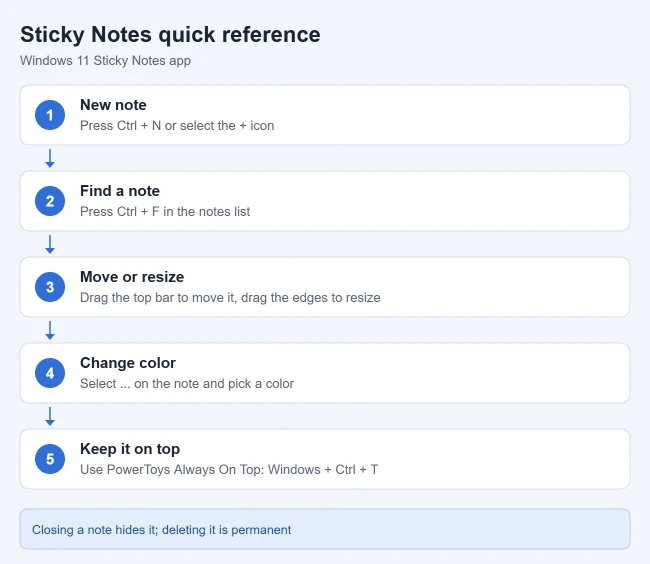
- Select the + icon in the upper-left corner, or press Ctrl + N. A new yellow note appears.
- Type your note. On a touchscreen you can also write with a pen or your finger, and you can add a picture with the image icon at the bottom of the note.
- Drag the top bar of the note to move it where you want on the desktop, and drag its edges to resize it. The note stays where you leave it.
- To change the color, select the … icon on the note and pick a color. Colors make it easy to sort notes at a glance, such as yellow for errands and blue for work.
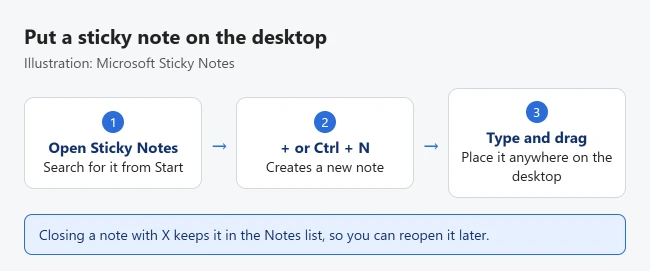
To put a note away without deleting it, select the X on the note or press Ctrl + W. It stays in the notes list, and you can double-click it there to bring it back. These steps come from Microsoft’s Sticky Notes guide.
Format and Organize Your Notes
- Text formatting: select text and use the toolbar at the bottom of the note for bold, italic, underline, strikethrough, and bullet points.
- Search: in the notes list, type in the search box or press Ctrl + F to filter notes by a word. Press Esc to clear the search.
- Light or dark mode: in the notes list, select Settings and choose light, dark, or your Windows mode.
- Font size: you can’t currently change the font or text size. Resize the note instead.
Sticky Notes keyboard shortcuts
These come from Microsoft’s Sticky Notes keyboard shortcuts list for a US keyboard:
| Shortcut | What it does |
|---|---|
| Ctrl + N | New note |
| Ctrl + W | Close the current note |
| Ctrl + D | Delete the current note |
| Ctrl + H | Go to the notes list |
| Ctrl + Tab | Move to the next open note |
| Ctrl + B, I, U | Bold, italic, underline |
| Ctrl + T | Strikethrough |
| Ctrl + Shift + L | Bulleted list |
| Ctrl + Z | Undo |
Make Sticky Notes Easier to Reach
- Pin to the taskbar: while Sticky Notes is open, right-click its icon on the taskbar and select Pin to taskbar. Here’s more on pinning apps to the taskbar.
- New note from the taskbar: right-click the pinned icon and select New note.
- Show all notes: right-click the taskbar icon to open the notes list or show your notes again.
Open Sticky Notes automatically at startup
- Press Windows key + R, type
shell:startup, and press Enter. Your personal Startup folder opens in File Explorer. - Select Start, find Sticky Notes in All apps, and drag its icon into the Startup folder to create a shortcut.
- Restart, or sign out and back in. Sticky Notes opens with your notes after you sign in.
If dragging doesn’t work, right-click inside the Startup folder, select New > Shortcut, and enter explorer.exe shell:AppsFolder\Microsoft.MicrosoftStickyNotes_8wekyb3d8bbwe!App as the location. You can turn it off later in startup apps settings.
Keep a Sticky Note on Top of Other Windows
Sticky Notes can’t currently stay on top of other apps. Your notes stay on the desktop, but open windows cover them. Two workarounds:
- PowerToys Always On Top: install Microsoft’s free PowerToys, click a note, and press Windows + Ctrl + T. Microsoft’s Always On Top documentation says this pins the active window above all others until you press the shortcut again or close it.
- Show the desktop: press Windows + D to minimize everything and see your notes, then press it again to bring your windows back.
Sync Sticky Notes to Other Devices
- In the notes list, select Settings (the gear icon). The settings page opens.
- Select Sign in and use your Microsoft account. Your notes start syncing.
- On your other Windows PCs, open Sticky Notes and sign in with the same account. The same notes appear there.
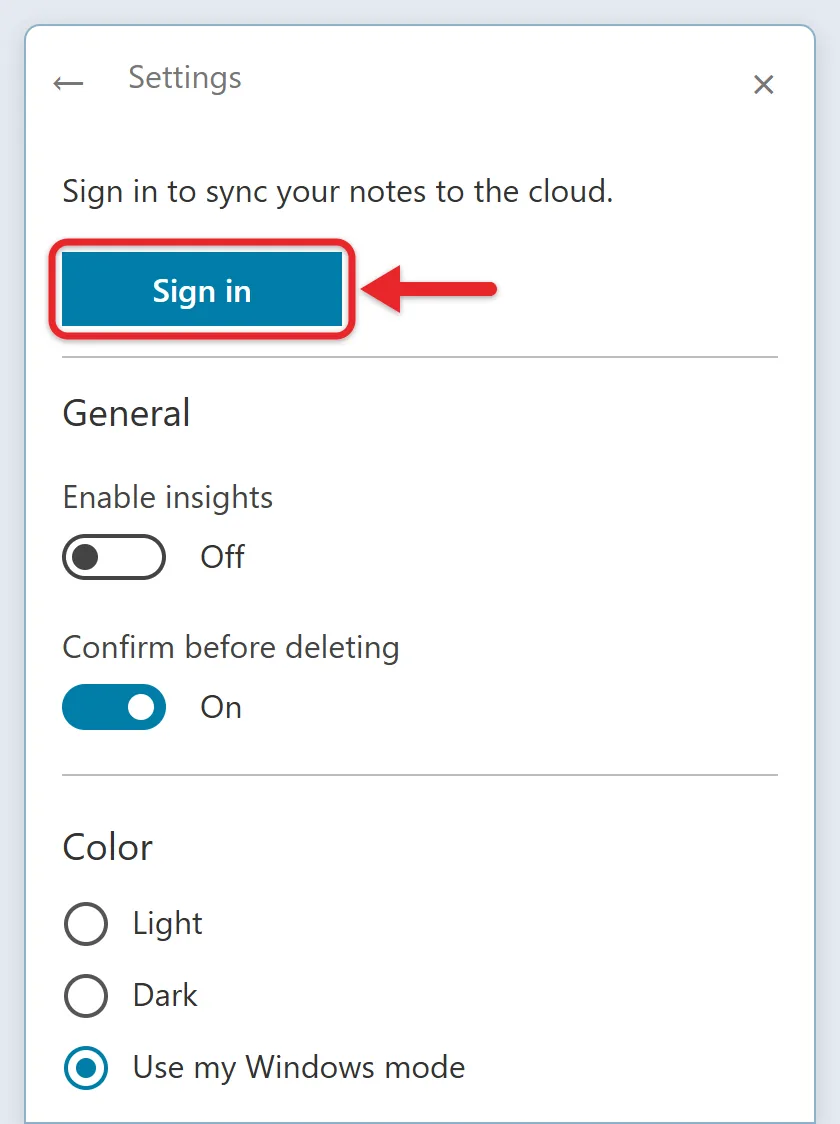
According to Microsoft, Sticky Notes version 3.0 and later syncs notes, including their colors. On an iPhone, iPad, or Android phone, your sticky notes appear in the OneNote app when it’s signed in to the same account. A work or school account works only if your organization allows it; if sign-in fails, install Windows updates, restart, and ask your administrator.
Sticky Notes doesn’t sync with Apple Notes, so use iCloud.com to view your iPhone notes on a Windows PC.
Delete a Sticky Note
Open the note, select …, and choose Delete note, or press Ctrl + D. You can also hover over a note in the notes list and use its menu. Deleting can’t be undone, so close notes you might need again instead of deleting them.
Other Ways to Keep Notes on Your Desktop
- Notepad: a small Notepad window works as a plain-text note and saves as a file you can back up.
- Widgets: the Widgets board can show a to-do list or calendar without keeping a window open.
Sticky Notes can’t alert you at a set time, so use Microsoft To Do to set a timed reminder on Windows 11.
If Your Sticky Notes Disappeared
- Only one note shows: the app was closed while one note was open. Select … on the note, then Notes list.
- Notes are behind other windows: press Windows + D or open the notes list and double-click the note.
- Notes are missing after a new PC or sign-in: make sure you’re signed in to Sticky Notes with the same Microsoft account you used before.
- The app is gone: reinstall Microsoft Sticky Notes from the Microsoft Store and sign in with the same account. Synced notes come back; notes that were never synced don’t.
- You deleted a note: deletion is permanent. Turn on Confirm before deleting in Settings to avoid it next time.
Microsoft’s missing Sticky Notes page covers more cases.
Back Up Sticky Notes on Windows 10 or 11
Syncing isn’t a backup, because a deleted note disappears from every synced device. Before you reset, reinstall, or replace your PC, copy the text of important notes into a Notepad file and save it somewhere safe, such as a USB drive. Be aware that resetting or uninstalling the app while signed out deletes local notes.
The older standalone Sticky Notes app keeps its notes in a file called plum.sqlite. To back it up, close Sticky Notes completely, paste %LocalAppData%\Packages\Microsoft.MicrosoftStickyNotes_8wekyb3d8bbwe\LocalState into the File Explorer address bar, and copy the whole LocalState folder to your backup drive. Keep it as a recovery copy only; pasting it over a newer notes library can erase newer notes.
Transfer Sticky Notes to Another Windows PC
The easiest way to move notes to a new PC is to sign in to Sticky Notes with the same Microsoft account on both computers.
- On the old PC, open the notes list and select Settings.
- Check which account is signed in, and select Sync now if it’s offered.
- Open Sticky Notes on the new PC, sign in with that account, and wait for your notes to appear.
If your notes were never synced, paste the text from your Notepad backup into new notes.
Frequently Asked Questions
Can I change the font size in Sticky Notes?
Not the font or text size. Changing those isn’t available right now. You can resize the note and change its color.
Can I make a sticky note stay on top of other windows?
Not with Sticky Notes alone. Use PowerToys Always On Top (Windows + Ctrl + T) to pin the note window.
Is Sticky Notes free?
Yes. It comes with Windows 11, and you can reinstall it free from the Microsoft Store.
Can I see my sticky notes on my phone?
Yes. Sign in to Sticky Notes with your Microsoft account, then open OneNote on your iPhone, iPad, or Android phone with the same account.
Where are sticky notes saved?
The standalone app keeps local data, and signed-in notes can sync to your Microsoft account. Sync is not an independent dated backup; use the backup methods above before resetting or reinstalling the app.
What else can I keep on my desktop?
Widgets can show weather, calendar, and news at a glance. Here’s how to add widgets in Windows 11.

Matthew Burleigh is the founder, head writer, and editor of Solve Your Tech, which he launched in 2012. He has written technology tutorials since 2008 and worked in IT since 2003, including small-business support, IT management, and consulting. He holds Bachelor’s and Master’s degrees in Computer Science from Arizona State University.
Matthew writes practical guides for Windows, iPhone and iPad, Microsoft Office, Outlook, Google apps, and Android. Solve Your Tech’s guides are checked step by step against the device or app maker’s own documentation and tested on his own devices whenever he has the hardware or software, with clear steps, sources, and update dates.
Read more about Matthew and how Solve Your Tech writes and updates its guides, or report a correction.