For a new, empty SSD or hard drive in Windows 11, open Disk Management, identify the correct disk, choose Initialize Disk and GPT, then create and format a New Simple Volume. Initialization alone does not give you a usable drive letter.
Stop if the disk already contains files you need. Microsoft warns that initialization can erase existing data. A used drive showing Not Initialized is a recovery problem, not proof that it is empty. Use the setup steps for a blank storage disk, the separate cloning section to move Windows on the same PC, or the read-only health checks for an existing drive. This guide does not recover a damaged library of files.
Check an SSD’s Capacity and Free Space
For physical disk capacity in Windows 11, open Settings > System > Storage > Advanced storage settings > Disks & volumes. Identify the intended disk by model and compare its capacity with its listed volumes. Microsoft’s Storage settings guide explains the disk type, capacity and usage information. You can also right-click Start > Disk Management in Windows 11 or Windows 10 and read the intended physical disk’s total size in the lower pane, alongside its partitions and any unallocated space. Match the model and size; do not assume Disk 0 is always the SSD. Viewing this information does not require initialization, formatting or changing partitions.
For the space in a particular drive letter on either Windows version, open File Explorer > This PC and read the intended drive under Devices and drives. Right-click it and choose Properties, then review Capacity, Used space and Free space in General. Microsoft’s drive-space guide documents the This PC check. These figures concern that volume; a partitioned SSD can contain several volumes plus space without a drive letter. Use Disk Management for the whole physical disk and Task Manager’s model/type check below to identify the intended drive. Free space, total disk capacity and drive health are different measurements. Record the figure you need without selecting any erase or resize control.
Check an Existing SSD’s Health Without Initializing It
For an existing NVMe SSD in Windows 11, open Settings > System > Storage > Advanced storage settings > Disks & volumes. Identify the physical SSD by model and capacity, then select its Properties, rather than a volume’s partition controls. Review the available Drive health information, including estimated remaining life, available spare and temperature. Windows 10 uses Storage > Manage disks and volumes. Microsoft’s storage-warning guide explains these readings and states that this monitoring supports NVMe SSDs, not SATA SSDs or hard disks.
If these readings are unavailable, that is not proof the drive is healthy; check the drive maker’s supported diagnostic utility for that model. A critical warning warrants backing up accessible important data and seeking support. A healthy report is an estimate, not a guarantee against failure. Do not initialize, format or delete volumes to check health. The setup steps below are only for a verified new, empty disk, and cannot repair a failing SSD.
Before You Start
Use an administrator account and confirm which physical drive you installed. Note its model and capacity before opening the tool. Compare both with the disk shown in Windows rather than assuming every new drive is Disk 1 or Disk 2. If you cannot identify it confidently, cancel and check the hardware information first.
Back up valuable files on your existing drives before disk maintenance. Disconnect unnecessary external storage if it helps prevent a selection mistake. Leave the drive that contains Windows, its EFI System Partition and its Recovery Partition alone. Do not delete another volume to make room for the new disk.
Microsoft’s new-disk initialization instructions apply to Windows 11 and require a disk without existing data. Some USB storage devices do not offer initialization; do not force that step if the device instead needs a volume or drive letter.
Connect and Check an External Drive First
Connect the external drive with its supported cable and, if required, its power supply. Open File Explorer > This PC and look for the drive’s name and letter. Many new external drives are already formatted: if yours opens normally, you can copy a small test file and use it without initialization or formatting.
If it is missing, try a direct USB port and another compatible cable, then check Disk Management using the steps below. A healthy existing data volume may need a drive letter; a verified new, empty disk may need the initialization and New Simple Volume steps. A used drive with missing files needs recovery checks. Do not treat every missing drive as permission to initialize it.
For an internal SSD or hard drive, follow the PC and drive manufacturers’ installation instructions before starting Windows. SATA and NVMe hardware use different connectors and slots. This guide covers the Windows setup after the correct hardware is installed; it does not describe opening every model of PC.
Set Up a Second Internal SSD for Storage
For a second internal SSD, first confirm the PC or motherboard has a compatible spare connection. Follow that model’s installation instructions with the PC shut down and disconnected from power. A SATA SSD normally uses SATA data and power connections; an M.2 SSD uses a compatible motherboard slot, and the slot’s supported SATA or NVMe type matters. Do not assume every SSD fits every M.2 slot.
Start Windows from your existing system drive, then follow the disk-state checks, initialization and New Simple Volume steps below for the new, empty SSD. Match its model and capacity before selecting it. Leave the Windows drive and its partitions alone. When the new drive appears in This PC, verify its label and letter with a small test file. This adds storage; it does not automatically move Windows, installed programs or existing files to the new drive.
Check the Disk’s State First
Open Disk Management with Start > right-click > Disk Management. You can also press Windows + R, enter diskmgmt.msc, and choose OK. Microsoft’s Disk Management guide documents these entry points. Look at the lower graphical pane, where a disk label sits to the left of its volumes.
| Disk state | What to do |
|---|---|
| New, empty disk: Unknown / Not Initialized | Use the initialization steps below after checking its identity. |
| New, empty disk: Online / Unallocated | It may already be initialized. Skip to creating a volume. |
| Healthy volume without a letter | Add a drive letter to the existing data volume instead of initializing it. |
| Used disk: RAW, Unallocated or Not Initialized | Do not initialize, format or create a volume if you need old files. Seek recovery help. |
| Disk absent from the tool | Check detection and connections before changing partition settings. |
An empty-looking graphical area tells you what Windows recognizes, not whether the hardware has ever held data. For example, a newly purchased empty SSD and an old external drive with missing family photos need different treatment even if the same status appears.
Mount an Existing Data Volume With a Drive Letter
For a connected drive that already has a healthy, Windows-readable data volume but no letter, right-click Start > Disk Management. Identify the correct disk and volume by model/capacity and existing contents; right-click that volume, choose Change Drive Letter and Paths > Add, select Assign the following drive letter, choose an unused letter and select OK, reviewing any confirmation. Open File Explorer > This PC and check that this drive appears and a known file opens. Our drive-letter guide covers this case and its limits. If the drive is genuinely new and empty, use the separate initialization and New Simple Volume steps below; initialization alone does not create a usable volume. If a drive that should contain files shows RAW, Unallocated or Not initialized, stop and investigate recovery rather than initializing or formatting it. Leave system, recovery and EFI partitions alone.
Initialize the New SSD or Hard Drive
- Open Disk Management with administrator permissions. If the normal entry point lacks permission, search for Computer Management, right-click it and choose Run as administrator. Approve the prompt for this Windows tool, then open Storage > Disk Management.
- Identify the new blank disk. Match its model and capacity. If it is Offline, right-click its disk label and choose Online. Do not assume that a particular disk number is always your new drive.
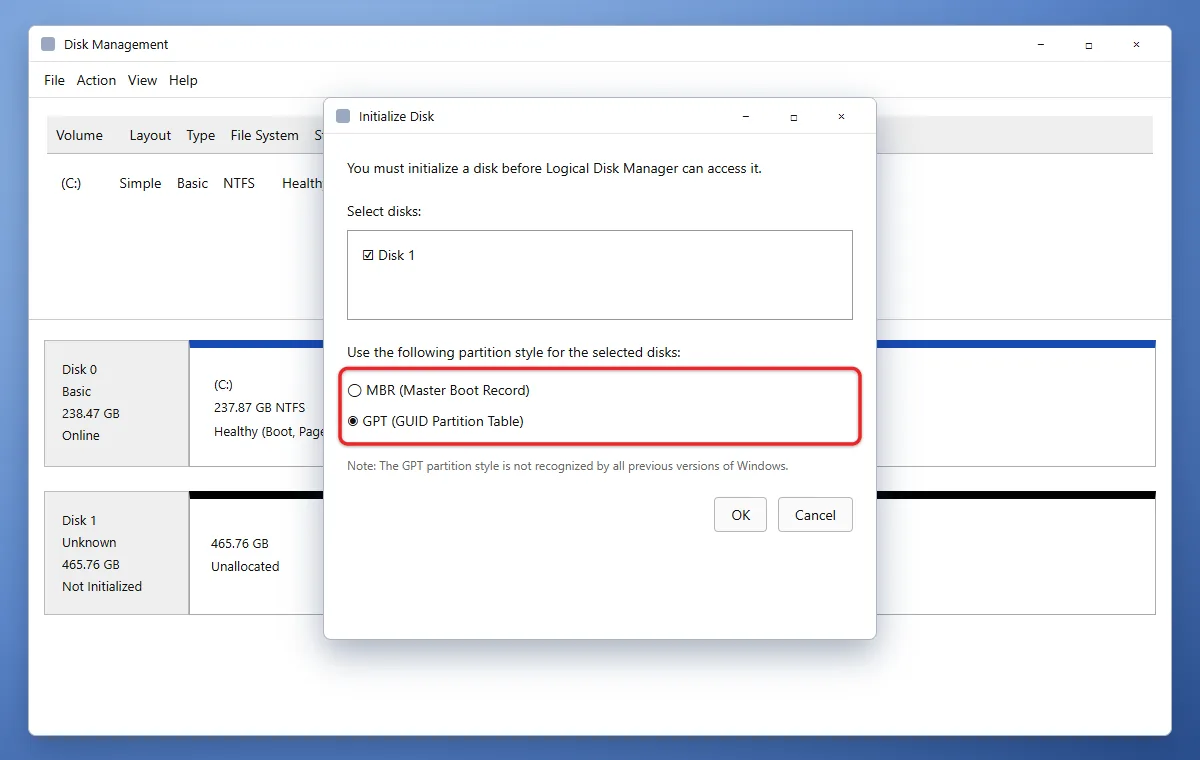
- Right-click the disk label and choose Initialize Disk. Use the left-hand disk label, rather than an existing volume or the unallocated area.
- Check the selected disk and partition style. For a normal modern Windows 11 storage drive, choose GPT (GUID Partition Table). Choose MBR only for a specific older-system compatibility requirement.
- Choose OK. After initialization, the disk should be Online with unallocated space. Continue below; it still needs a formatted volume to store files.

Create a Volume and Give It a Drive Letter
These steps are for the verified empty space on the new disk. Formatting destroys data on the selected volume. Recheck the disk and capacity before finishing.
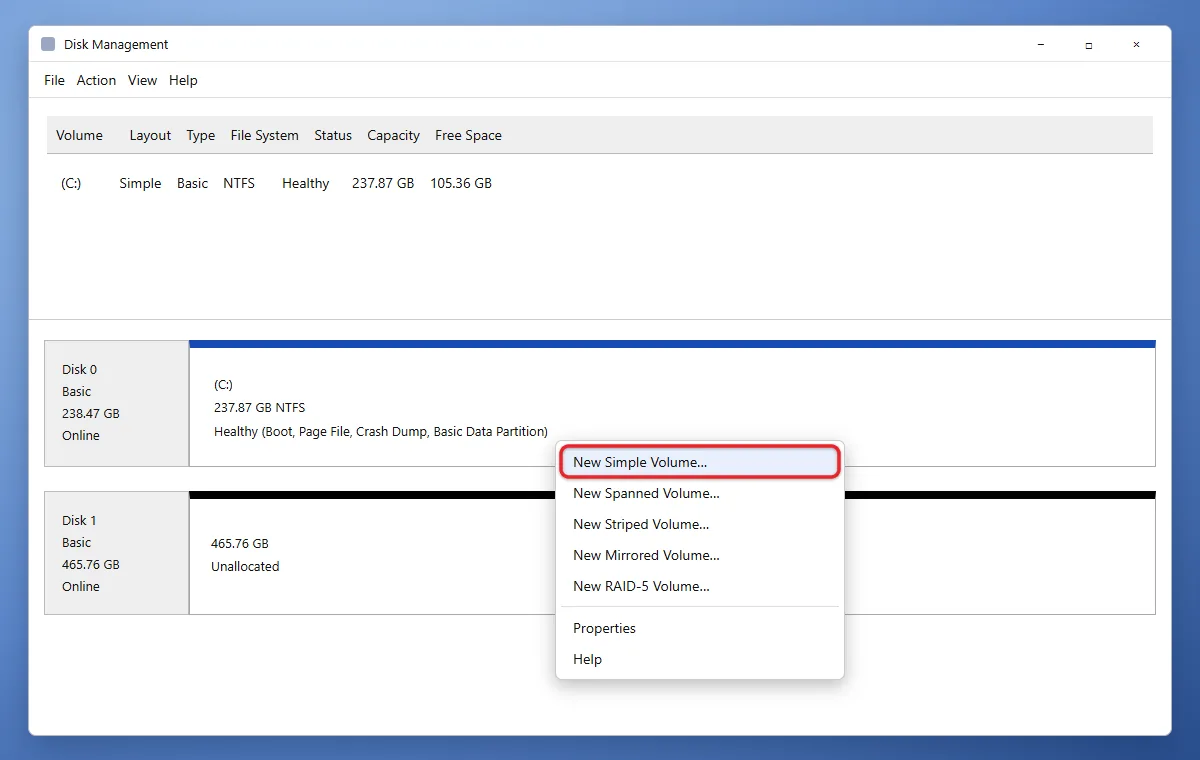
- Right-click the new disk’s Unallocated area. Choose New Simple Volume, then Next.
- Choose the volume size. The maximum default uses the available space for one volume. Pick a smaller size only if you deliberately want separate volumes, then choose Next.
- Choose an unused drive letter. Keep the proposed letter if suitable, then choose Next.
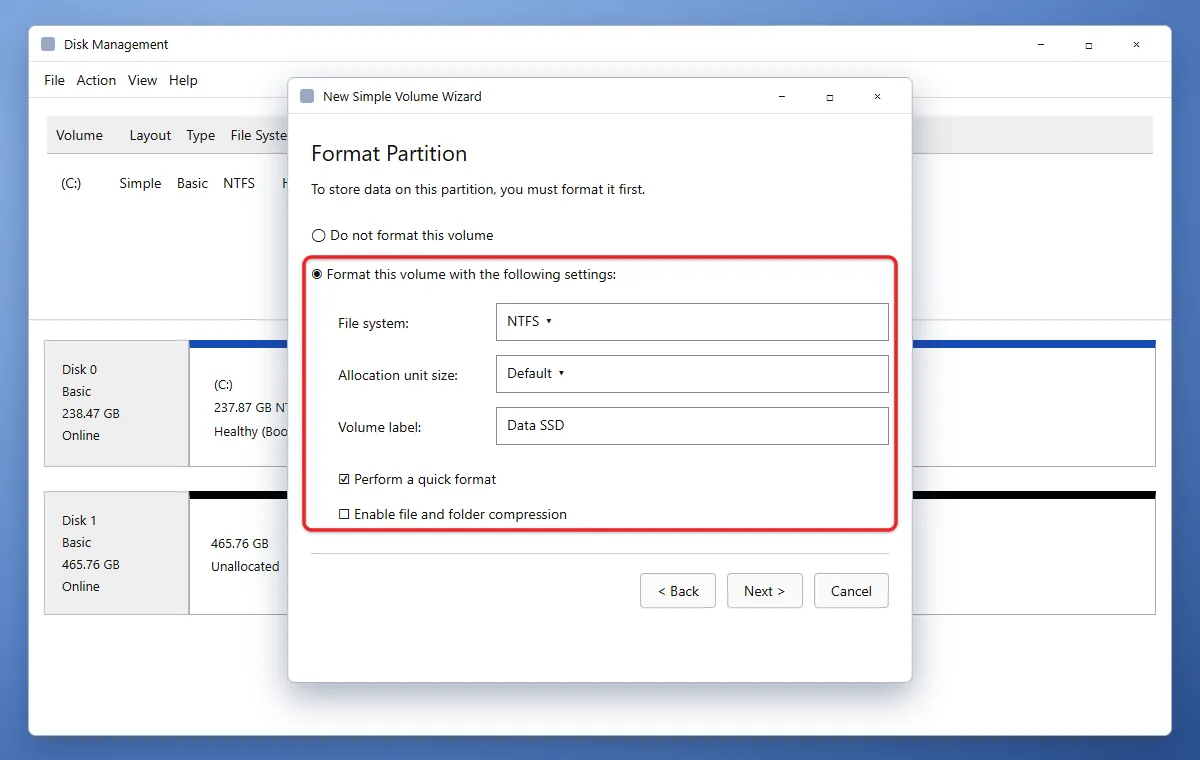
- Format the new volume. For ordinary Windows file storage, NTFS is the usual choice. Leave the allocation size at its default unless you have a specific requirement, and give the volume a recognizable label such as New SSD.
- Review the wizard’s choices and choose Finish. Wait for formatting to complete. You should see a formatted volume with its letter in Disk Management.
- Open File Explorer > This PC. Check that the new label and letter appear. Create a small test folder and copy a nonessential file to confirm you are using the intended destination.
The final check is more useful than relying on the disk number you saw earlier. Once you have confirmed the letter, use that drive for your files; moving files and installing Windows are separate tasks.
Initialize a New SSD in Windows 10
The same blank-disk procedure applies to Windows 10. Right-click Start > Disk Management, identify the new empty disk by model and capacity, bring it Online if needed, and choose Initialize Disk > GPT > OK. Then right-click its Unallocated space > New Simple Volume, choose the size and letter, format with NTFS for normal Windows storage, and finish. Check the new drive in This PC with a test file. Microsoft’s initialization guide lists both Windows versions. Keep the backup and used-disk recovery precautions above.
GPT, MBR and Formatting Are Different Choices
Initialization establishes the partition layout. A volume is the storage area you create within that layout. Formatting gives the volume its file system, such as NTFS; the drive letter lets you find it in File Explorer. Selecting GPT does not automatically create all of those pieces.
GPT is the normal modern choice and supports large drives. MBR is an older partition style with capacity and partition-count limitations. Neither choice is a promise that a faulty SSD will become reliable. For a brand-new Windows 11 data drive, keep the GPT default unless your intended use specifically requires something else.
Troubleshooting
Initialize Disk is missing
Check whether the empty disk is already Online with Unallocated space. If so, create its volume instead. A healthy existing partition may just lack a drive letter. Some USB devices do not support this initialization step. Our USB drive detection guide explains the other states and drive-letter checks.
The SSD does not appear, or initialization fails
For an external drive, check its power supply, cable and a direct USB port. Use Action > Rescan Disks in Disk Management. For internal hardware, shut down before checking connections and follow your PC manufacturer’s installation instructions. Do not change firmware storage modes at random.
Record the exact error and disk model for the manufacturer. Microsoft’s Disk Management troubleshooting guide distinguishes detection, corruption and hardware failures. If the drive previously held valuable data, prioritize recovery instead of repeated initialization attempts.
The drive already contains files, but Windows asks to format it
Cancel. A format prompt is not permission to destroy the only copy of your files. Keep the disk out of the new-drive procedure until you know why Windows cannot read it and have a recovery plan.
Safely Eject an External Drive in Windows 11
Finish file transfers and close files and apps using the external hard drive or SSD. In the taskbar’s system tray, open Show hidden icons if necessary, right-click Safely Remove Hardware and Eject Media, and choose Eject for the intended device. Wait for Safe To Remove Hardware before unplugging it. Microsoft’s safe-removal guide covers external hard drives as well as USB flash drives.
If the icon is missing, Microsoft also documents Settings > Bluetooth & devices > Devices: find the intended hardware under Other devices, expand it, and use Remove immediately beneath that device. Wait until it disappears from that list before disconnecting it. Check the device name carefully; removing an unrelated device is not an eject operation for your drive.
If Windows says the drive is in use, keep it connected, close the file or program using it and try again. Do not assume every external hard disk offers an Eject command in File Explorer. If safe removal remains blocked, save your work and fully shut down the PC before unplugging, rather than forcing removal during a write. This section is for external storage; your running Windows system disk should not be ejected.
Move Windows to Another SSD by Cloning the System Disk
To move Windows 10 or 11 to another SSD in the same PC, cloning copies the system disk; initializing a blank data drive above does not migrate Windows. Back up important source files and anything on the destination separately. Connect a compatible replacement with enough usable capacity and identify both disks by model and size. Use a current supported cloning product from its publisher, check its requirements and licensing, and prepare its rescue media before replacing your boot disk. The example below uses Macrium Reflect X; do not assume it is a free product or that another program has identical controls.
In Reflect X, open Create Backups > Local Disks, identify the current Windows disk, and choose Clone this disk. Select the intended destination with Select a disk to clone to. Include the Windows and required system partitions, not just copied files from C:. Choose Copy Partitions, review the proposed layout and use its offered sizing choices when needed. Do not initialize or format the source disk. For a one-time move, continue without a recurring schedule, review the summary, and choose Finish. In Backup Save Options, select Run this backup now and confirm; read and accept the destination-overwrite confirmation only after checking the disk again. Cloning can erase destination partitions. Wait for successful completion and inspect the destination layout. Macrium’s Reflect X cloning guide documents these controls.
Shut down before physically replacing a drive. Follow the PC maker’s installation instructions to connect the new system drive internally, then use its boot menu or firmware boot-order controls to select the new drive’s Windows boot entry. Keep the old disk intact as a fallback. Boot Windows from the new disk, sign in, open important files and apps, and check the intended drive is the running system disk before considering the migration complete. A completed copy alone does not prove that Windows boots. If it fails, retain the original and use the product’s documented rescue-media boot troubleshooting or support; do not erase the old disk to troubleshoot. Moving the same installation to a different computer, changing disk sector compatibility, and encryption requirements need separate planning.
Check Disk Activity in Task Manager
To see what an SSD or hard drive is doing in Windows 10 or 11, press Ctrl + Shift + Esc to open Task Manager. Choose More details if the compact Windows 10 view appears, select Performance, and choose the intended Disk entry. Check its model and capacity against the drive you mean to inspect. Watch the activity graph and the read/write speed figures while the relevant task runs; the drive type may also be shown. Microsoft describes disk activity in its Task Manager overview. These figures describe current workload, not remaining drive life or a reliable prediction of failure. Use the separate health checks above for supported health information.
Measure SSD Speed With CrystalDiskMark
Task Manager above reports activity from the current workload; for a controlled read/write test, use CrystalDiskMark from its official publisher, Crystal Dew World. Back up important files first and avoid repeated benchmarks on a drive that is failing. Download the correct Windows edition from the publisher’s Download link. Its installation instructions cover running the installer or extracting the ZIP edition. Open CrystalDiskMark and confirm which drive letter belongs to the intended SSD by checking its model/capacity in Windows; selecting C: by habit can test the wrong disk.
Following the publisher’s main-window guide, select the test count, test size and target drive, then choose All and wait for the tests to finish. Read the sequential and random read/write rows and their displayed units, commonly MB/s. Record the tool’s major version, settings and drive identity with the result. Compare like tests under similar conditions; file size, test data, controller and other activity affect results, so an advertised maximum is not a guaranteed everyday speed. This benchmark writes test data and adds wear; it does not initialize or format the drive, repair it, measure health or prove that its files are safe.
Frequently Asked Questions
Does initializing a disk migrate Windows to the SSD?
No. Initialization creates additional storage and does not migrate Windows. Use the separate system-disk cloning section above to move an existing Windows installation on the same PC, then verify that the new disk boots. A newly initialized drive does not become bootable merely because it uses GPT.
Can I change MBR to GPT later without losing files?
Do not assume conversion is harmless. Disk Management conversion commonly requires removing volumes. Microsoft’s MBR2GPT tool is a separate supported-system-disk conversion method with layout checks and UEFI requirements; it does not convert ordinary non-system data disks. Plan and back up before a conversion rather than experimenting on your working drive.
Is a quick format a secure erase?
No. A quick format is not a secure disposal method. If you plan to sell or discard an SSD, use a separate manufacturer-supported sanitization procedure rather than this setup guide.
Before clicking OK or Finish, make one final check: this is the new disk, it is empty, and the proposed drive letter is the one you intend to use. If any of those answers is uncertain, stop at that point.

Matthew Burleigh is the founder, head writer, and editor of Solve Your Tech, which he launched in 2012. He has written technology tutorials since 2008 and worked in IT since 2003, including small-business support, IT management, and consulting. He holds Bachelor’s and Master’s degrees in Computer Science from Arizona State University.
Matthew writes practical guides for Windows, iPhone and iPad, Microsoft Office, Outlook, Google apps, and Android. Solve Your Tech’s guides are tested on current devices or checked against official product documentation, with clear steps, sources, and update dates.
Read more about Matthew and how Solve Your Tech writes and updates its guides, or report a correction.