This post contains affiliate links. As an Amazon Associate, solveyourtech.com earns from qualifying purchases, at no extra cost to you.
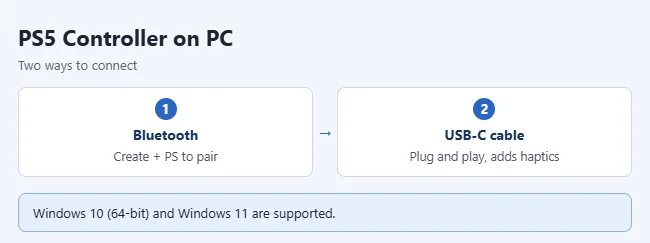
To connect a PS5 controller to a PC, turn the controller off, then hold the Create button and the PS button together until the light bar blinks. On a Windows 11 PC, go to Settings > Bluetooth & devices > Add device > Bluetooth and select the controller. Or skip pairing and plug the controller into the PC with a USB-C cable. This guide covers the DualSense and DualSense Edge controllers on Windows 11 and Windows 10.
These steps follow Sony’s How to use DualSense wireless controllers with PC, Mac and mobile devices page and Microsoft’s Pair a Bluetooth device in Windows page.
What you need
- A supported PC: Sony lists Windows 10 (64-bit) and Windows 11.
- A DualSense or DualSense Edge controller with some charge in the battery.
- For Bluetooth: a PC with Bluetooth turned on. If you can’t find the switch, see how to turn on Bluetooth in Windows 11.
- For USB: a cable with a USB-C plug for the controller. Use one that carries data. Some cables only charge.
Your PC needs Bluetooth. If it doesn’t have it, a small USB adapter like the TP-Link USB Bluetooth adapter adds it.
You don’t need extra software just to connect. Sony says the controller works over Bluetooth or USB with compatible games and apps, and with games that support generic controllers.
Put the controller in pairing mode
Do this first for either version of Windows.
- Check the player indicator, the row of small lights below the touchpad. If it’s on, press and hold the PS button until it turns off.
- Unplug any USB cable from the controller.
- Press and hold the Create button (left of the touchpad). While holding it, press and hold the PS button for at least 3 seconds.
- Let go when the light bar starts blinking. The controller is now ready to pair.
If your PS5 is on and nearby, turning the controller on with the PS button alone connects it to the console instead. Holding Create and PS together is what starts pairing mode.
Connect with Bluetooth in Windows 11
- Select Start, then Settings.
- Select Bluetooth & devices and make sure Bluetooth is switched on.
- Select Add device, then Bluetooth.
- Select the controller in the list. It usually shows up as Wireless Controller or DualSense Wireless Controller. The exact name can vary.
- Select Done if Windows asks. The light bar blinks, then the player indicator lights up.

Windows 11 has a shorter route too. Select the Network, Sound, or Battery icon next to the clock, select the Manage Bluetooth devices arrow on the Bluetooth quick setting, then pick the controller under New devices.
Connect with Bluetooth in Windows 10
Windows 10 keeps Bluetooth in a different part of Settings.
- Select Start, then Settings.
- Select Devices, then Bluetooth & other devices.
- Turn on Bluetooth if it’s off.
- Select Add Bluetooth or other device, then Bluetooth.
- Select the controller in the list, then select Done. The player indicator on the controller lights up.
Microsoft ended support for Windows 10 in October 2025. Sony still lists Windows 10 (64-bit) as supported for the controller.
Connect with a USB cable
- Plug the USB-C end of the cable into the port on the top edge of the controller.
- Plug the other end into a USB port on your PC.
- Wait a few seconds while Windows sets the controller up. There’s no pairing step.
Sony says a wired connection is needed for haptic feedback on PC and for the controller’s headset jack. A long cable like the Anker 10-foot USB-A to USB-C cable lets you sit back from the screen.
If the controller charges but the PC doesn’t react, the cable may be charge-only. Try another cable or another USB port.
Check that it worked
- On the controller: the player indicator stays lit.
- In Windows 11: open Settings > Bluetooth & devices. The controller appears in your devices and shows as connected.
- In Windows 10: open Settings > Devices > Bluetooth & other devices and look for the controller there.
- In a game: start a game that supports controllers and move a stick in the menu.
To turn the controller off when you finish, press and hold the PS button until the light bar and player indicator go dark. Next time, press the PS button to turn it on again.
What works on PC
Connecting the controller doesn’t switch on every feature. Sony lists these limits for Windows:
| Feature | Bluetooth | USB cable |
|---|---|---|
| Buttons, sticks and triggers | Yes, in games that support controllers | Yes, in games that support controllers |
| Adaptive triggers | In games that support them. Some games may need USB. | In games that support them |
| Haptic feedback | No | In games that support it |
| Built-in mic and speaker | In games that support them | In games that support them |
| Headset jack | No | Yes |
Sony also notes that feature support in a game can differ between the PS5 version and the PC version.
After you connect, Windows may list the controller as a sound device. If your PC’s sound stops coming from your speakers, pick your usual output again in the Windows sound settings. Our guide on fixing no sound on Windows 11 shows where that setting is.
Use the controller in Steam
Steam has built-in support for the DualSense. Sony suggests checking a game’s Steam store page to see its level of controller support before you buy or play.
- Connect the controller with Bluetooth or USB first.
- Open Steam and select Steam > Settings > Controller.
- Check that the controller is detected and that the PlayStation controller support option is turned on. The exact label depends on your Steam version.
- Start a game with controller support from your library.
Games from other stores may have their own controller setting. Look in the game’s options menu.
Update the controller on your PC
You don’t need a PS5 to update the controller. Sony’s free PlayStation Accessories app for Windows does it. The app needs Windows 10 (64-bit) or Windows 11, about 250 MB of free space, and a display of 1280 x 800 or higher.
- Download PlayStation Accessories from Sony’s page and install it.
- Connect the controller to the PC with a USB cable or Bluetooth.
- Open the app and select Firmware for your controller.
- Select Update if it appears. If it doesn’t, the controller is already up to date.
- Keep the PC on and the controller connected until the update finishes.

Sony says to keep the controller on the latest firmware for the best experience. An update is a good first move when the controller pairs but behaves oddly.
Use a DualSense Edge on a PC
Sony has a separate page for the DualSense Edge on PC, Mac and mobile devices. The basics match the standard controller:
- It supports Windows 10 (64-bit) and Windows 11.
- Pairing uses the same Create and PS button hold, with the light bar and player indicator off first.
- Haptic feedback may need USB, and the headset jack needs a wired connection.
- If you pull the USB cable out, the controller disconnects and turns off.
The Edge adds one thing on PC. In the PlayStation Accessories app you can create custom profiles. Sony’s profile setup page lists what you can change: button assignments, stick sensitivity and deadzone, trigger deadzone, and vibration and trigger effect intensity.
- Connect the DualSense Edge to the PC and open PlayStation Accessories.
- Select Create Profile, or select a profile marked Not Assigned.
- Enter a name and choose the shortcut for the profile.
- Change the settings you want and select Apply.
- Select Done.
You can keep up to three custom profiles plus the default one, which can’t be edited or deleted. Profiles are saved so you can switch between them without the app open. The standard DualSense gets firmware updates from the app but no profiles.
Keep your PC and other devices paired with slots
Sony says a DualSense can save up to four pairings. Each one sits in a slot tied to an action button, so you can pick the device you want instead of pairing again.
| Slot | Hold these buttons |
|---|---|
| 1 | PS + Triangle |
| 2 | PS + Circle |
| 3 | PS + Cross |
| 4 | PS + Square |
- Turn the controller off and unplug any cable.
- Press and hold the PS button and one action button for more than 5 seconds. The light bar and player indicator flash twice.
- On the PC, add the controller as a Bluetooth device using the Windows 11 or Windows 10 steps above.
- To come back to that device later, press and hold the PS button and the same action button for about 3 seconds.
Pairing with Create and PS picks a slot for you. If all four slots are full, the one you haven’t used for the longest time is replaced.
Switch the controller back to your PS5
- Connect the controller to the console with a USB cable.
- Press the PS button.
- Unplug the cable when the controller is connected. You can play wirelessly again.
To stop the PC from grabbing the controller later, you can remove the paired Bluetooth device from Windows.
If the controller won’t connect
The PC doesn’t find the controller
- Make sure the light bar is blinking. A steady light means it isn’t in pairing mode.
- Turn off a nearby PS5, or move away from it, so the controller doesn’t reconnect to the console.
- Charge the controller, then try again.
- In Windows 11, go to Settings > Bluetooth & devices > Devices. Under Device settings, set Bluetooth devices discovery to Advanced, then search again.
- Check that Airplane mode is off.
There is no Bluetooth switch in Settings
Windows only shows the switch when it detects a Bluetooth adapter. Your PC may not have one, or its driver may be missing. See how to install a Bluetooth driver in Windows 11, or use a USB cable instead.
It paired before but won’t reconnect
- In Windows 11, open Settings > Bluetooth & devices > Devices. In Windows 10, open Settings > Devices > Bluetooth & other devices.
- Find the controller. In Windows 11, select More options, then Remove device. In Windows 10, select the controller, then Remove device.
- Put the controller in pairing mode and add it again.
The connection drops or feels slow
- Move the controller closer to the PC.
- Keep the controller and Bluetooth adapter away from devices plugged into USB 3.0 ports. Microsoft says unshielded USB devices can interfere with Bluetooth.
- In Windows 11, run the Bluetooth troubleshooter at Settings > System > Troubleshoot > Other troubleshooters.
- Update the Bluetooth driver. Open Device Manager, expand Bluetooth, right-click the adapter, and select Update driver.
- Switch to a USB cable. It avoids Bluetooth entirely.
Microsoft’s Fix Bluetooth problems in Windows page has more checks.
Reset the controller
If nothing else helps, Sony’s troubleshooting page says to reset the controller.
- Turn off your PS5 if you have one nearby, and unplug the USB cable from the controller.
- Find the small hole next to the Sony logo on the back of the controller. The reset button is inside it.
- Use a pin or similar tool to press and hold the button for at least 5 seconds.
- Pair the controller with the PC again, or plug it in with USB. To use it with the console, connect it to the PS5 with a USB cable and press the PS button.
If the controller still won’t connect after a reset, Sony points you to PlayStation Repairs.
Frequently Asked Questions
Why won’t my PC find the controller?
The controller is probably not in pairing mode. Turn it off, then hold Create and PS until the light bar blinks. If it still won’t show up, try a USB cable, or reset the controller using the steps above.
Why doesn’t the controller work in some PC games?
Sony says the DualSense works in compatible games and in games that support generic controllers, and features like adaptive triggers only work in games built for them. If you play through Steam, check that PlayStation controller support is turned on in Steam’s controller settings. Games from other stores may need their own controller setting turned on.
Does Steam support the PS5 controller?
Yes. Steam has built-in support for the DualSense, and you can check each game’s controller support on its store page.
Do haptic feedback and adaptive triggers work over Bluetooth?
Haptic feedback doesn’t. Sony says it requires a USB connection on PC and a game that supports it. Adaptive triggers work in games that support them, and Sony says some games may need USB for those too.
Can I use a headset plugged into the controller?
Only when the controller is connected with a USB cable. Sony says the headset jack needs a wired connection on PC.
Do I need to install a driver or an app?
No. Windows sets the controller up when you pair it or plug it in. The PlayStation Accessories app is only for firmware updates and for DualSense Edge profiles.
Can I use the controller for PS5 games streamed to my PC?
Yes. Sony says the controller can be used with PS Remote Play on PC to play games streamed from your console.
Will pairing with a PC remove the controller from my PS5?
The controller connects to one device at a time. To go back, connect it to the console with a USB cable and press the PS button.
Do I need to buy a new controller for my PC?
No. The same controller works with your PS5 and PC. If you want a second one, get the PlayStation DualSense Wireless Controller.
Next step
Once the controller is connected, install the PlayStation Accessories app and check for a firmware update. Have a different controller too? See how to connect an Xbox controller to a PC or how to connect a PS4 controller to Windows 11.

Matthew Burleigh is the founder, head writer, and editor of Solve Your Tech, which he launched in 2012. He has written technology tutorials since 2008 and worked in IT since 2003, including small-business support, IT management, and consulting. He holds Bachelor’s and Master’s degrees in Computer Science from Arizona State University.
Matthew writes practical guides for Windows, iPhone and iPad, Microsoft Office, Outlook, Google apps, and Android. Solve Your Tech’s guides are tested on current devices or checked against official product documentation, with clear steps, sources, and update dates.
Read more about Matthew and how Solve Your Tech writes and updates its guides, or report a correction.