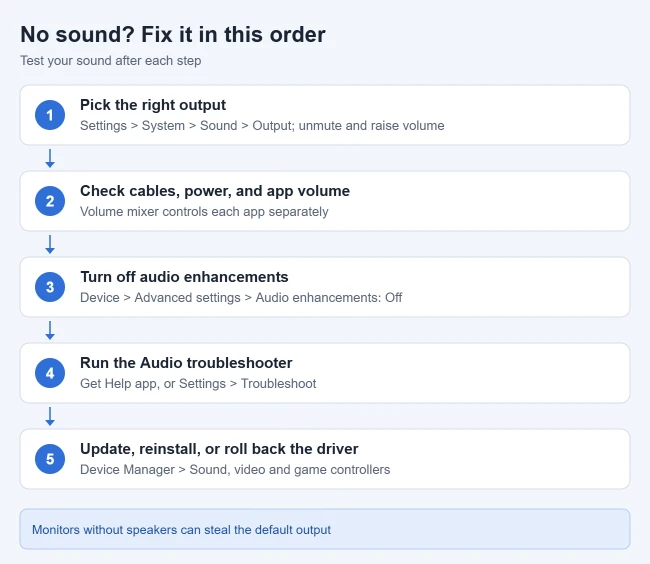
If you have no sound on Windows 11, go to Settings > System > Sound and make sure the right speakers or headphones are selected under Output and the volume isn’t muted. If that doesn’t fix it, turn off audio enhancements, run the Audio troubleshooter, and update, reinstall, or roll back your audio driver. Most no-sound problems are one of those.
This guide covers Windows 11 versions 24H2, 25H2, 26H1, and 26H2 (the newest, released September 29, 2026). It follows Microsoft’s troubleshooting order, plus fixes for “No output devices found,” Bluetooth headphones that connect but stay silent, sound that stopped after an update, and sound that works in some apps but not others. Some driver steps need an administrator account. Windows 10 reached end of support on October 14, 2025; most of these steps look similar there, but its menus differ.
How to Fix No Sound on Windows 11
Work through these in order and test your sound after each one, for example by playing a video.
1. Check the output device and volume
Go to Settings > System > Sound. Under Output, select the speakers or headphones you want to use, and make sure the volume slider is up and not muted. Play a video to check that the volume bar moves.
If your speakers work but people on calls say you sound too quiet, you can increase mic volume in Windows 11.
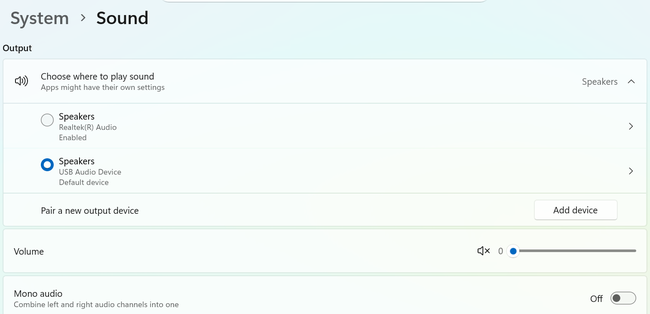
Microsoft warns that an external monitor without built-in speakers can end up as the default output, which means no sound at all. You can also switch devices quickly: select the sound icon on the taskbar, then the arrow next to the volume slider. On many laptops, a key with a speaker symbol mutes the sound too, so press it once and check whether the volume icon changes.
2. Check cables, power, and app volume
- Make sure speakers are plugged in, turned on, and not muted with their own volume knob.
- On desktops, green jacks are usually for output and pink for microphones.
- Try a different USB port, and unplug headphones to see if the speakers start working.
- For Bluetooth headphones, check that they’re connected in Settings > Bluetooth & devices.
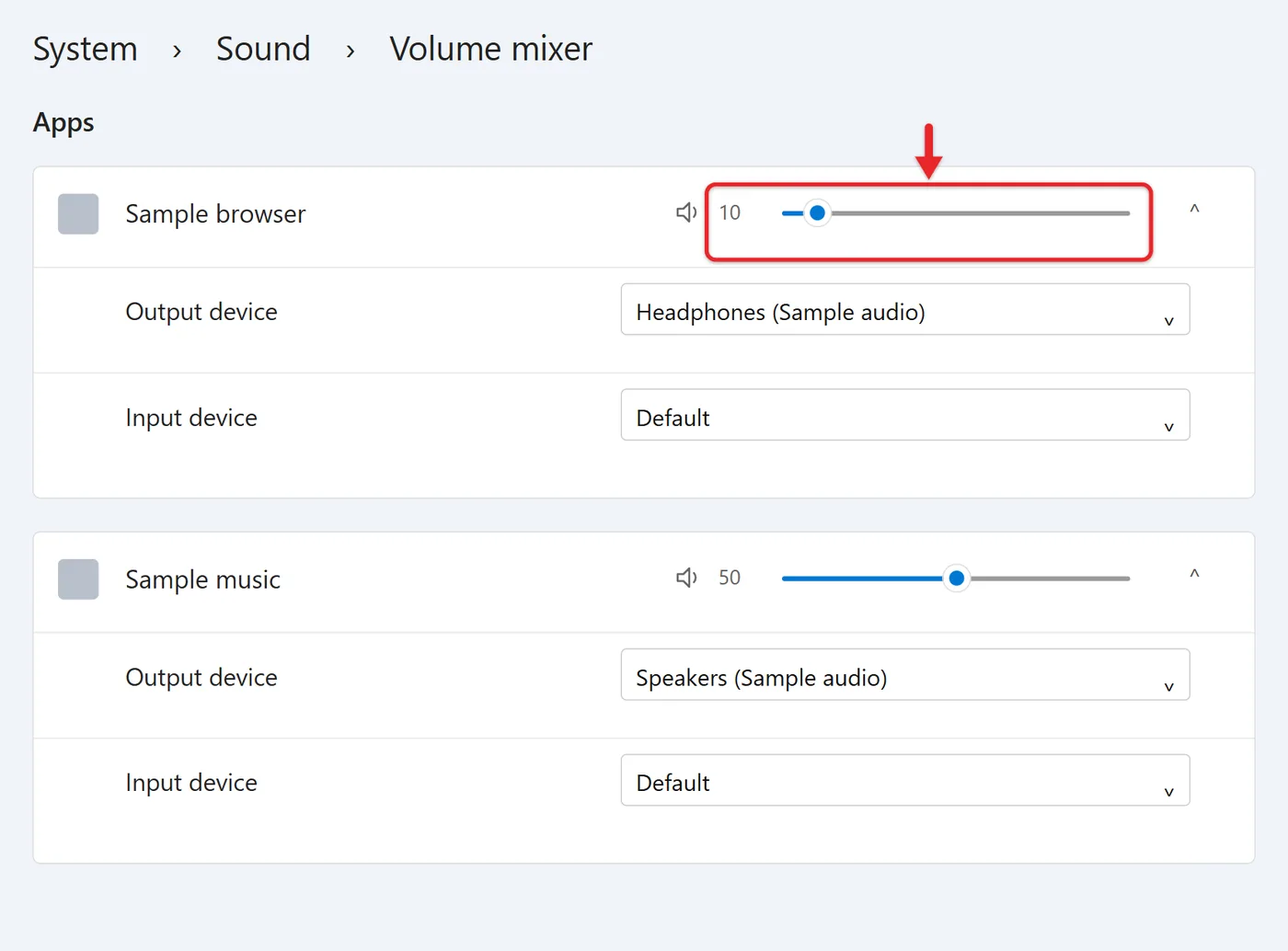
- If only one app is silent, open the Volume mixer in Settings > System > Sound and check that app’s slider.
- Try the speakers or headphones on another computer or phone. If they’re silent there too, the device itself is the problem.
3. Set the default playback device
On the Sound page, select More sound settings, open the Playback tab, right-click your device, and select Set as default. If the device is grayed out, right-click it, select Properties, and set Device usage to Use this device (enable). There are other ways to get to the Sound control panel in Windows 11 as well.
4. Turn off audio enhancements
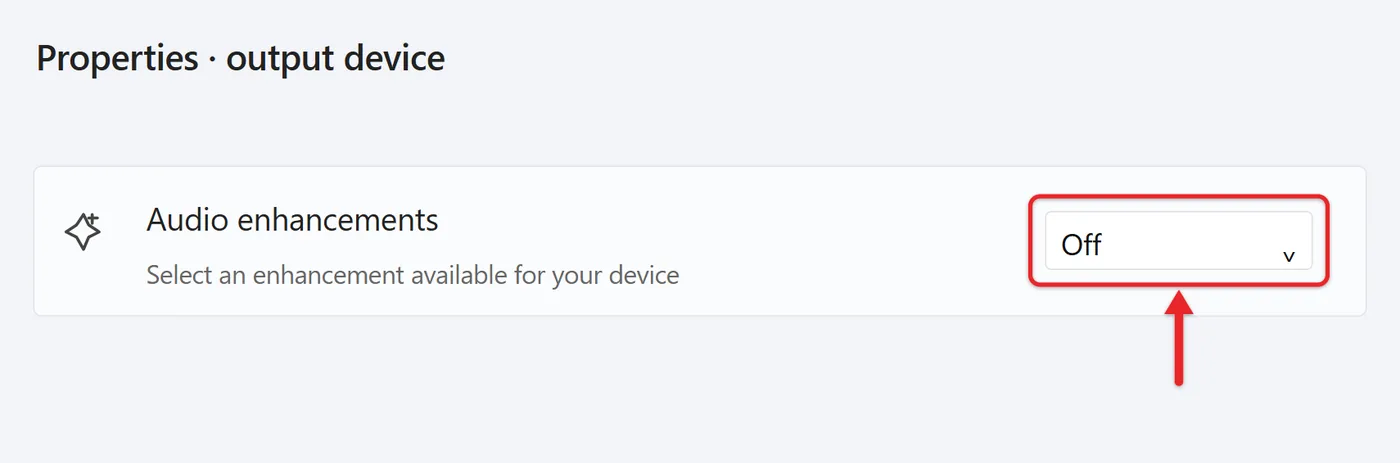
In Settings > System > Sound, select your output device. Under Advanced settings, set Audio enhancements to Off. Enhancements can sometimes cause audio problems.
If your sound works again and you turn enhancements back on later, you can turn on sound equalization in Windows 11 to even out the volume.
5. Run the Audio troubleshooter
Open the Get Help app and run the audio troubleshooter, or go to Settings > System > Troubleshoot > Other troubleshooters and select Run next to Audio. It runs checks, applies any fixes it finds, and tells you what it changed.
The article on how to run a troubleshooter in Windows 11 covers the other built-in troubleshooters and what to do if one won’t open.
6. Install updates and restart
Go to Settings > Windows Update, select Check for updates, install anything available, and restart. Many audio fixes only take effect after a restart. If Start > Power shows Update and restart, an update is waiting, so choose it.
Windows Update also carries drivers that don’t install on their own. Go to Settings > Windows Update > Advanced options > Optional updates. If an audio driver is listed under driver updates, check it, select Download and install, and restart.
7. Update, reinstall, or roll back the audio driver
- Right-click Start and select Device Manager.
- Expand Sound, video and game controllers.
- Right-click your audio device and select Update driver > Search automatically for drivers. If Windows says the best driver is already installed, move on to the next step.
- If that doesn’t help, right-click it again, select Uninstall device, check Attempt to remove the driver for this device, select Uninstall, and restart. Windows reinstalls the driver during startup.
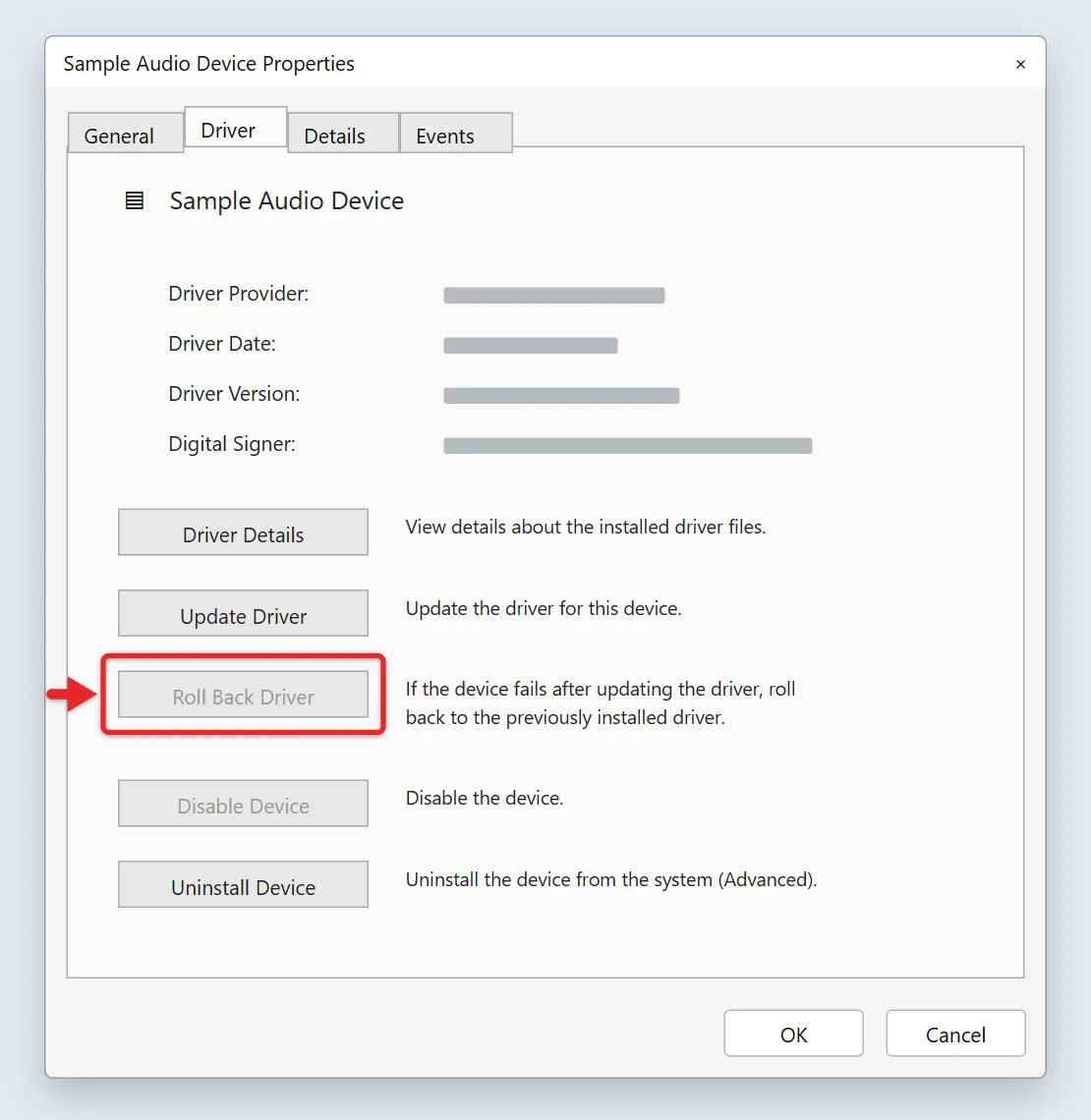
- If sound broke after an update, open the device’s Properties > Driver tab, select Roll Back Driver, and select Yes. If the button is grayed out, Windows has no older driver saved, so reinstall instead. When a Windows update itself caused it, you can roll back the Windows 11 update.
Microsoft also suggests trying the generic Windows driver: select Update driver > Browse my computer for drivers > Let me pick from a list of available drivers on my computer, choose High Definition Audio Device, and select Next. Microsoft calls this out for PCs that list an IDT High Definition Audio CODEC. There’s a full walkthrough to install an audio driver in Windows 11.
Where to get a driver. Use only three sources: Windows Update, the support page for your PC model on your PC maker’s website (Dell, HP, Lenovo, and so on), or the maker of the audio chip, such as Realtek, if your PC maker doesn’t offer one. Start with your PC maker for a laptop, because its driver is set up for that laptop’s speakers and jacks. Skip “driver updater” programs and driver download sites; they aren’t needed and can install the wrong driver.
8. Restart the Windows Audio service
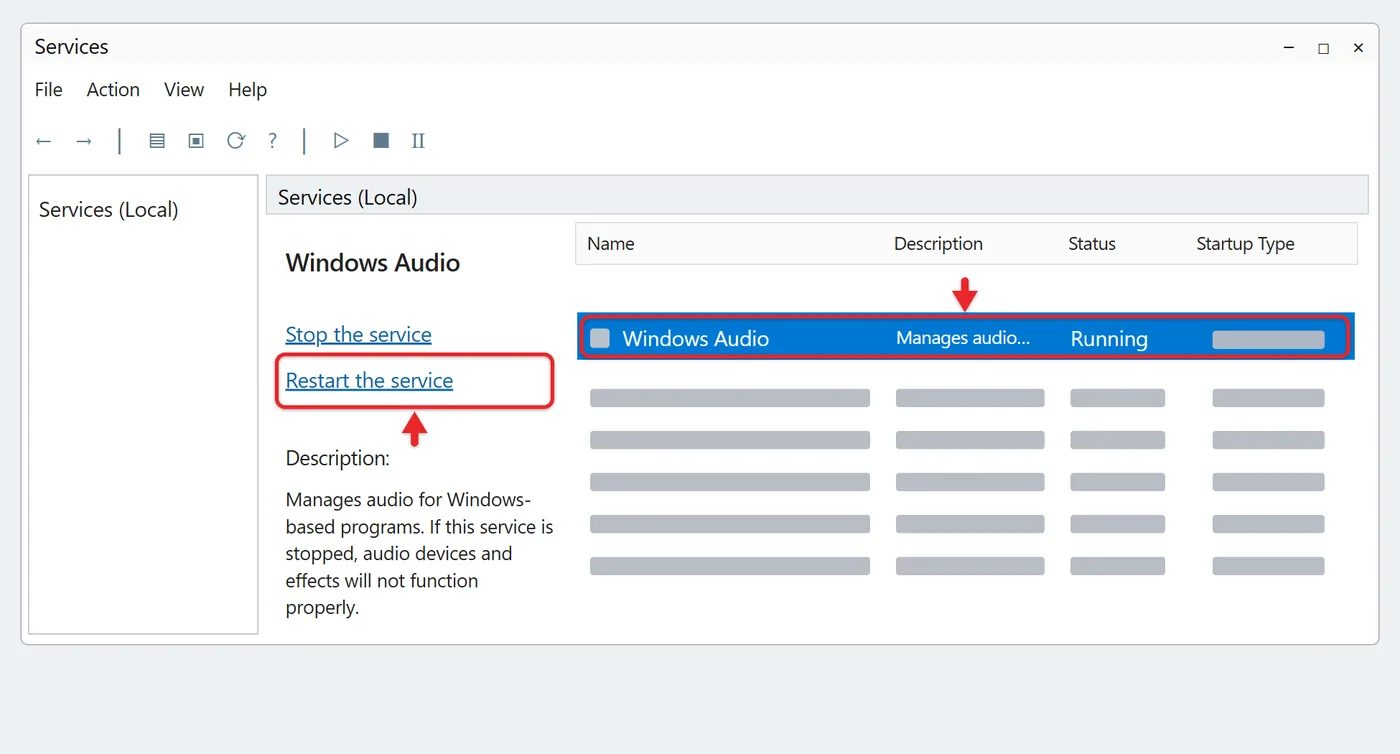
Press Windows + R, type services.msc, and press Enter. Find Windows Audio, right-click it, and select Restart. Do the same for Windows Audio Endpoint Builder if sound still doesn’t work. Restarting these services doesn’t remove your devices or settings.
9. Change the audio format
Open Control Panel and select Hardware and Sound > Sound. On the Playback tab, right-click your default device and select Properties. On the Advanced tab, pick a different Default Format, select OK, and test. Try a couple of formats if the first one doesn’t help.
These steps follow Microsoft’s sound problems guide and its shorter page on no sound from speakers or headphones.
If your speakers work but a recording of your PC’s sound comes out silent, you can record PC audio with Stereo Mix or Audacity.
If Your Audio Device Is Missing
When Windows shows “No output devices found” or an X on the speaker icon, it can’t see your audio hardware. Microsoft’s missing audio device page gives this order:
- Open Device Manager and expand Sound, video and game controllers.
- If your audio device is listed, right-click it and select Enable device if that option appears.
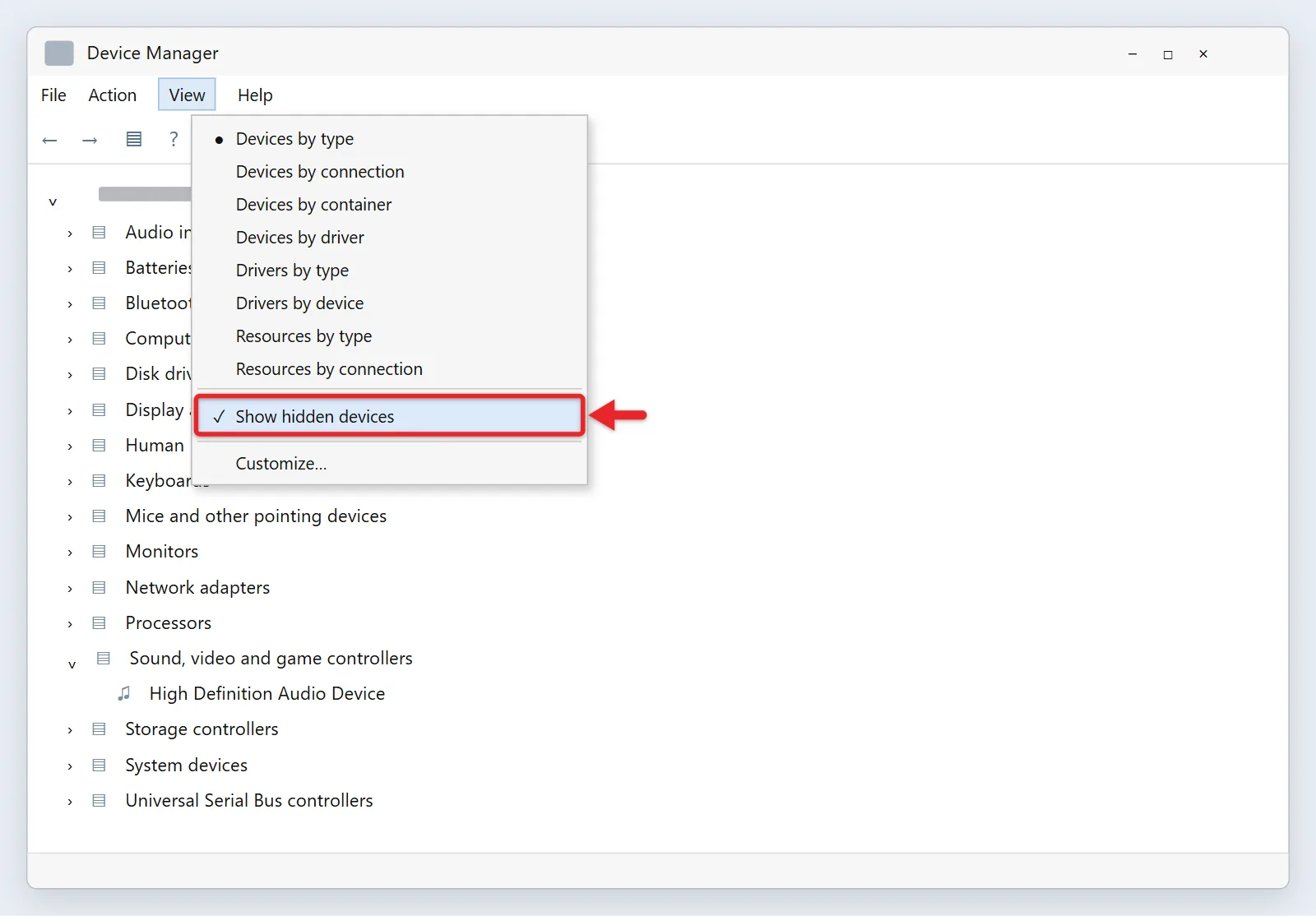
- If it isn’t listed, select View > Show hidden devices, then Action > Scan for hardware changes. Windows looks for the hardware again and loads a driver if it finds it.
- Still missing? Download the latest audio driver for your model from your PC maker’s support site, install it, and restart.
If none of that brings it back, the built-in audio hardware may have failed. A USB headset or Bluetooth headphones are a good test: if they work, Windows and your apps are fine.
If Bluetooth Headphones Connect but Play Nothing
- Select the sound icon on the taskbar and choose the Bluetooth device as the output.
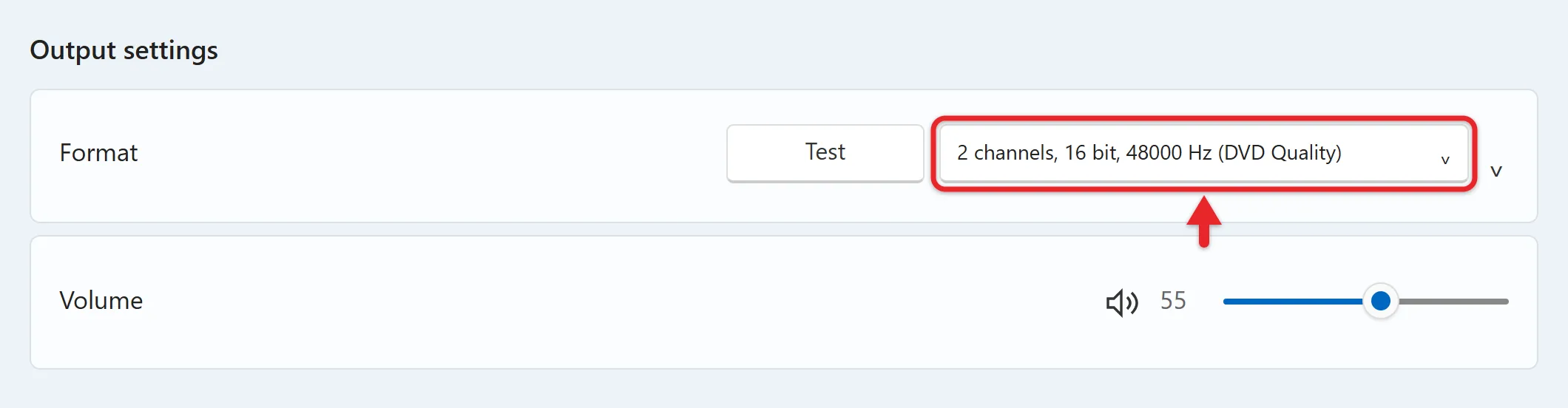
- Go to Settings > Bluetooth & devices > Devices, select the headphones, and open Advanced sound properties (it only shows while they’re connected). Set the format to 2 channels, 16 bit, 48000 Hz (DVD Quality).
- Turn Bluetooth off, wait about 10 seconds, and turn it back on.
- Remove the headphones and pair them again (removing a paired Bluetooth device has the steps). Put them in pairing mode, then select Add device > Bluetooth.
- Update the Bluetooth adapter driver in Device Manager under Bluetooth, or follow how to install a Bluetooth driver in Windows 11.
If sound plays in only one ear, open Settings > System > Sound, turn off Mono audio, then select the device and check that the Left and Right volume sliders match. Microsoft’s Bluetooth no sound page also suggests checking the headphone maker’s site for firmware updates.
Specific Problems and Fixes
- Sound stopped after a Windows update: roll back the audio driver, or do a System Restore to a point from before the update if rolling back isn’t available.
- HDMI or monitor audio doesn’t work: set the HDMI or display device as the default output, and make sure the monitor or TV actually has speakers (the full setup is in using HDMI on a Windows 11 laptop) and isn’t muted.
- Crackling or cutting out: turn off audio enhancements, update the driver, and for Bluetooth, move closer to the PC.
- Sound works in one app but a second app is silent: some apps take full control of the speakers. In the device’s Properties > Advanced tab, clear Allow applications to take exclusive control of this device, then test both apps.
- A headset mic doesn’t work in calls: check Settings > Privacy & security > Microphone and make sure Microphone access and the app’s switch are on.
Last Resort: Reset Windows
If nothing above works and other headphones are silent too, Microsoft’s recovery options include Reset this PC with Keep my files, which reinstalls Windows but keeps your documents. It removes installed apps, so back up first and treat it as the final step before contacting your PC maker about a hardware repair.
How to Confirm It’s Fixed
Play a video or song and watch the volume bar on the Settings > System > Sound page move. Then restart the PC once and test again, because some fixes don’t stick until after a restart.
Frequently Asked Questions
Why did my sound stop working after a Windows update?
An update can replace or change your audio driver. Roll back the driver in Device Manager, or reinstall the latest one from your PC maker’s website.
How do I switch between speakers and headphones?
Select the sound icon on the taskbar, then select the arrow next to the volume slider and pick a device. Sound can also play through 2 audio outputs at the same time.
Why does sound work in one app but not another?
That app’s volume is probably muted or turned down in the Volume mixer, or the app has its own output setting. Check both. Start by opening the Volume Mixer in Windows 11.
Should I use a driver updater program?
No. Windows Update, your PC maker, and the audio chip maker cover every driver you need. Third-party updaters can install a driver meant for different hardware.
Is my sound card broken?
If the speakers and headphone jack stay silent with every driver you try, but a USB headset or Bluetooth headphones work, the built-in audio hardware may be faulty. Contact your PC maker.
Sound problem on an iPad instead? Try these fixes for no sound on iPad.

Matthew Burleigh is the founder, head writer, and editor of Solve Your Tech, which he launched in 2012. He has written technology tutorials since 2008 and worked in IT since 2003, including small-business support, IT management, and consulting. He holds Bachelor’s and Master’s degrees in Computer Science from Arizona State University.
Matthew writes practical guides for Windows, iPhone and iPad, Microsoft Office, Outlook, Google apps, and Android. Solve Your Tech’s guides are checked step by step against the device or app maker’s own documentation and tested on his own devices whenever he has the hardware or software, with clear steps, sources, and update dates.
Read more about Matthew and how Solve Your Tech writes and updates its guides, or report a correction.