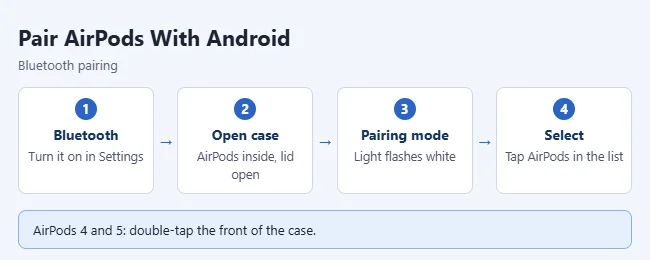
To connect AirPods to an Android phone, turn on Bluetooth on the phone. Put the AirPods in their case, open the lid, and put them in pairing mode until the light flashes white. Then tap the AirPods in your phone’s Bluetooth list. How you start pairing mode depends on your AirPods model, and the Bluetooth menu looks a little different on each brand of phone.
These steps come from Apple’s Pair AirPods with a non-Apple device guide. The phone-side steps come from Google’s Android Bluetooth help page and Samsung’s Galaxy pairing guide.
What You Need
- Any AirPods model. Apple’s guide covers AirPods 1 through 5, AirPods Pro 1 through 3, and AirPods Max.
- An Android phone or tablet with Bluetooth. Google notes that some of its Bluetooth steps work only on Android 15 and up. Older phones can still pair, but the menu names may differ.
- Some charge in the case. Put both AirPods in the case first so they can charge.
- No app. Pairing uses the Bluetooth settings already on your phone.
How to Pair AirPods With Android
- On your Android phone, turn on Bluetooth. On many phones, go to Settings > Connections > Bluetooth. If you can’t find the menu, see how to find the Settings app on your phone.
- Put both AirPods in the charging case and open the lid.
- Start pairing mode (see the next section for your model). The status light flashes white.
- When your AirPods appear in the Bluetooth list, tap them. If the phone asks you to confirm, tap OK or Pair.
How to Start Pairing Mode on Each Model
- AirPods 1, 2, or 3, or AirPods Pro 1 or 2: With the AirPods in the case and the lid open, press and hold the setup button on the back of the case for about 5 seconds, or until the status light flashes white.
- AirPods 4 or 5, or AirPods Pro 3: These cases have no button on the back. Open the case with the AirPods inside, hold it next to your phone, then double-tap the front of the case so the status light flashes white.
- AirPods Max: Press and hold the listening mode button for about 5 seconds, or until the status light flashes white.
On most cases the status light is on the front. On the Lightning Charging Case for AirPods 1 and 2, it is inside the case.
Open the Pairing Screen on a Google Pixel or Similar Phone
Google’s steps apply to Pixel phones and other phones that use Google’s version of Android.
- Swipe down from the top of the screen.
- Touch and hold Bluetooth.
- Tap Pair new device.
- Tap the name of your AirPods.
- Follow any on-screen instructions.
Open the Pairing Screen on a Samsung Galaxy
Samsung notes that screens and settings can vary by carrier and software version.
- Put your AirPods in pairing mode.
- Swipe down from the top of the screen to open the Quick settings panel.
- Touch and hold the Bluetooth icon.
- Make sure Bluetooth is on, then scroll down to Available devices and select your AirPods.
- Tap OK to confirm the pairing.
How to Check That It Worked
Open the Bluetooth settings again. Your AirPods should now be listed with your saved or paired devices instead of the available ones. Put the AirPods in your ears and play a song or video. If the sound comes from the AirPods, you’re done.
After the first pairing, you don’t need pairing mode again on that phone. If the AirPods don’t connect on their own when you take them out of the case, open the Bluetooth settings and tap their name.
What Works and What Doesn’t on Android
Apple says AirPods work as a Bluetooth headset on non-Apple devices: you can listen and talk, but you can’t use Siri. Here is how the rest breaks down, based on Apple’s documentation.
| Feature | On Android |
|---|---|
| Music, video, and call audio | Works |
| Microphone for calls | Works |
| Siri | Not available |
| Changing AirPods settings | Not available. Apple puts these settings on iPhone, iPad, and Mac. |
| Automatic switching between devices | Not available. Apple describes it only for Apple devices. |
| Firmware updates | Not delivered. Apple sends them through an iPhone, iPad, or Mac. |
| Battery level | Varies by phone. Some phones show a basic level in Bluetooth settings. |
The buttons on the AirPods themselves are part of the hardware. Apple lists a stem press for play and pause on AirPods 3 and later and on every AirPods Pro, and a press and hold on the stem to switch listening modes on AirPods 4 with Active Noise Cancellation, AirPods 5, and AirPods Pro. On AirPods Max, you use the Digital Crown and the listening mode button. Apple doesn’t spell out which of these controls work on non-Apple devices, so results can vary by phone and app.
What you can’t do from Android is change those controls. If you also have an iPhone, set them there first. See how to change what a double tap or press and hold does on AirPods.
If Your AirPods Don’t Show Up
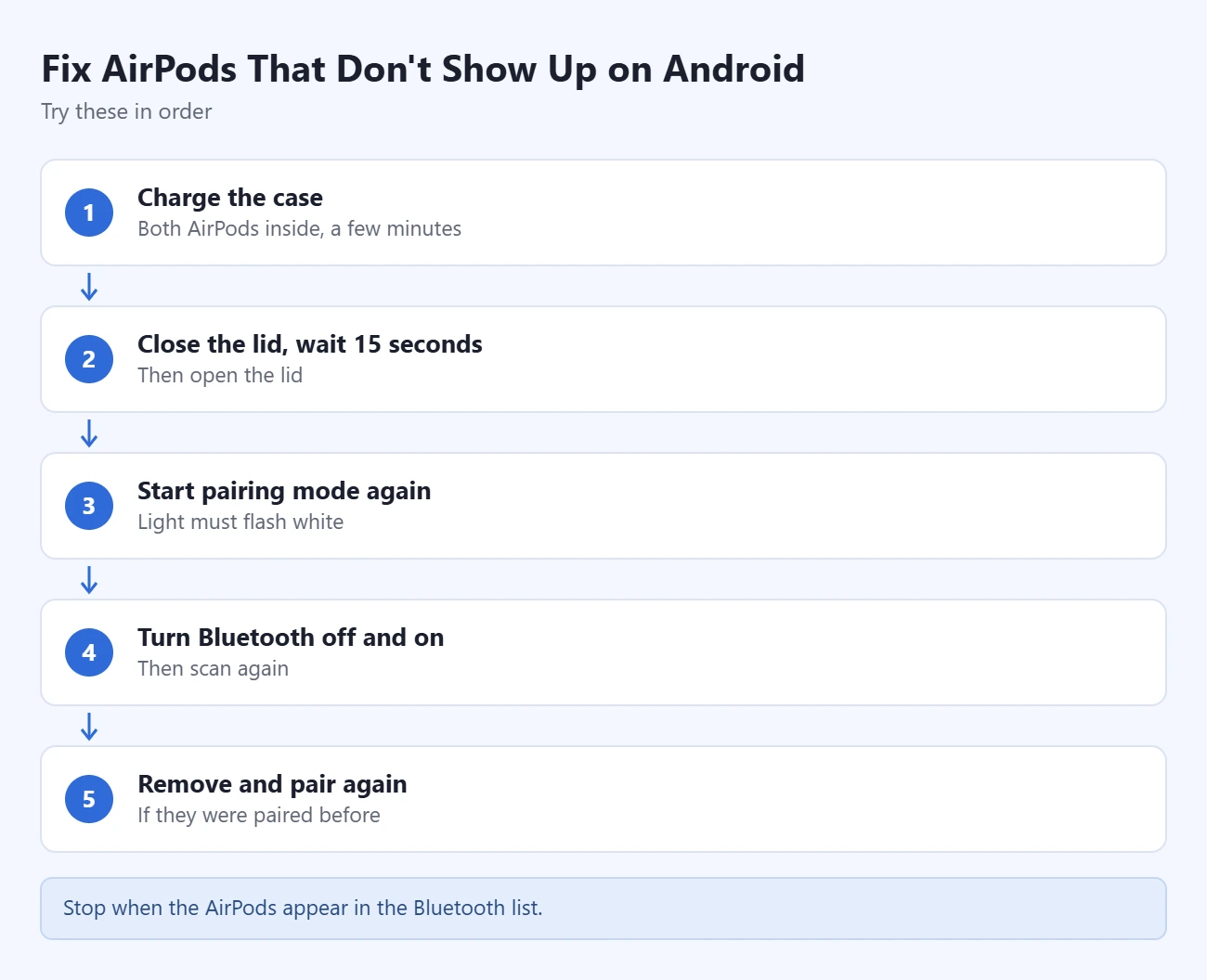
Try these in order. Stop when the AirPods appear in the Bluetooth list.
- Put both AirPods in the case and charge the case for a few minutes.
- Close the lid, wait 15 seconds, then open the lid.
- Start pairing mode again and make sure the light is flashing white, not amber or green.
- Turn Bluetooth off and back on, then scan again.
- If the AirPods were paired to the phone before, remove them from the Bluetooth list and pair again.
A few notes on those steps:
- The light is green or amber and steady. That is the charge light, not pairing mode. Green means fully charged. Amber means less than one full charge remains.
- Nothing happens when you double-tap. On AirPods 4, AirPods 5, and AirPods Pro 3, the lid must be open and the AirPods must be in the case.
- The Bluetooth switch is greyed out or missing. On a work or school phone, your organization may limit Bluetooth. Ask the administrator.
How to Remove AirPods From Your Android Phone
Removing the AirPods undoes the pairing. It doesn’t delete anything else, and you can pair again at any time.
- Google Pixel and similar phones: Swipe down, touch and hold Bluetooth, open the settings for your AirPods, then tap Forget.
- Samsung Galaxy: Go to Settings > Connections > Bluetooth, tap the Settings icon next to your AirPods, then tap Unpair.
Last Resort: Reset Your AirPods
Warning: A reset returns the AirPods to factory settings. You have to pair them again with every device you use, including your iPhone, and you can’t undo it. Try the steps above first.
These steps are from Apple’s How to reset your AirPods and AirPods Pro page. First, remove the AirPods from your phone’s Bluetooth list as shown above.
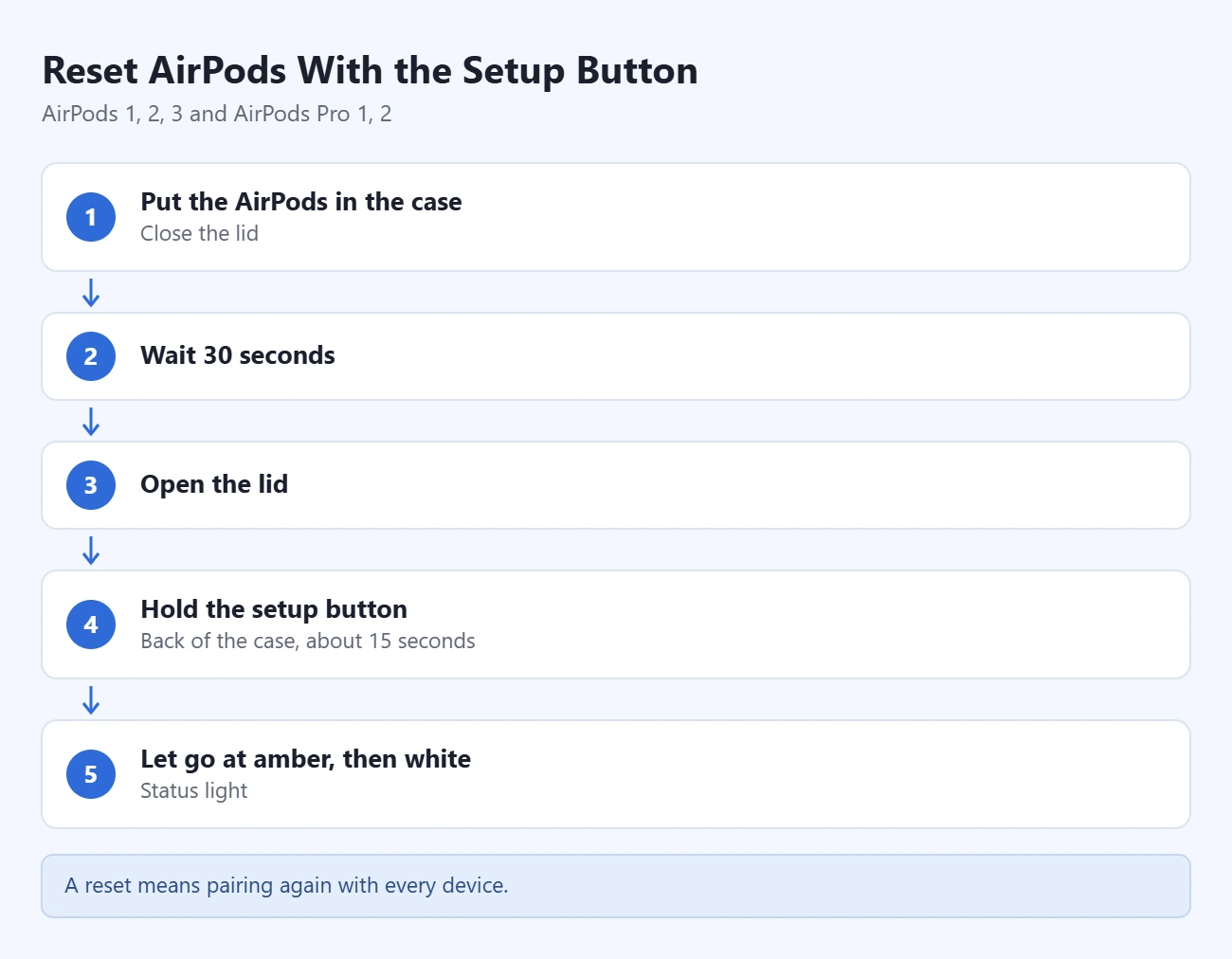
AirPods 1, 2, or 3, or AirPods Pro 1 or 2
- Put the AirPods in the case and close the lid.
- Wait 30 seconds.
- Open the lid.
- Press and hold the setup button on the back of the case for about 15 seconds.
- Let go when the status light flashes amber, then white.
AirPods 4 or 5, or AirPods Pro 3
- Put the AirPods in the case and close the lid.
- Wait 30 seconds.
- Open the lid.
- Double-tap the front of the case while the status light is on.
- Double-tap again when the status light flashes white.
- Double-tap a third time when the status light flashes faster. The light flashes amber, then white.
AirPods Max
- On the right headphone, press and hold the Digital Crown and the listening mode button at the same time.
- Keep holding for around 15 seconds, until the status light next to the charging port changes from flashing amber to flashing white.
After the reset, pair the AirPods with your Android phone again using the steps at the top of this guide.
If other Bluetooth devices also fail to pair with the phone, the problem may be on the phone side. You can reset network settings on Android, but that clears every saved Wi-Fi network and Bluetooth pairing, so keep it for last.
Frequently Asked Questions
Do AirPods work with Samsung, Pixel, and other Android phones?
Yes. Apple says you can use AirPods as a Bluetooth headset with a non-Apple device. The brand of phone only changes where the Bluetooth menu is.
Can I use AirPods with Android and an iPhone?
Yes. You can pair the AirPods with both. Automatic switching is an Apple feature for Apple devices signed in to the same Apple Account, so the AirPods won’t move to your Android phone on their own. Open the phone’s Bluetooth settings and tap the AirPods to connect. If they don’t connect, put them in pairing mode and pair again. For the Apple side, see how to make AirPods connect to your iPhone automatically.
How do I check AirPods battery on Android?
Android may show a battery level in Bluetooth settings, but it isn’t as detailed as on an iPhone, and it varies by phone. The case light also helps: green means fully charged, and amber means less than one full charge remains. On Apple devices, see how to check AirPods battery life.
Can I use Siri or Google Assistant with AirPods on Android?
Siri doesn’t work on a non-Apple device. Apple’s documentation doesn’t describe a way to start another voice assistant from the AirPods, so use your phone for that.
Do I need an iPhone to keep AirPods up to date?
For firmware, yes. Apple delivers firmware updates while the AirPods are charging and in Bluetooth range of an iPhone, iPad, or Mac that is connected to Wi-Fi. The AirPods still work on Android without updates.
Can I connect AirPods to a Windows PC too?
Yes. See how to pair AirPods to Windows 11.
Next Step
Once the AirPods are paired, they stay in your phone’s Bluetooth list. Next time, open the case near the phone and check that they connect. If they don’t, tap their name in Bluetooth settings.

Matthew Burleigh has been writing tech tutorials since 2008. His writing has appeared on dozens of different websites and been read hundreds of millions of times.
After receiving his Bachelor’s and Master’s degrees in Computer Science he spent several years working in IT management for small businesses. However, he now works full time writing content online and creating websites.
His main writing topics include iPhones, Microsoft Office, Google Apps, Android, and Photoshop, but he has also written about many other tech topics as well.