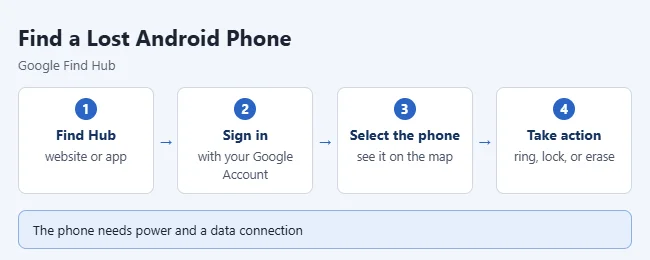
To find a lost Android phone, go to the Find Hub website (google.com/android/find) or open the Find Hub app on another device, sign in with the Google Account on the lost phone, and select it to see where it is on a map. From there, you can make it ring, lock it with a message, or erase it. This guide covers Google’s Find Hub on any Android phone, plus Samsung’s own finder for Galaxy phones.
The steps come from Google’s Find, secure, or erase a lost Android device help page. Find Hub was formerly called Find My Device, so you may still see the old name on a phone that has not been updated.
What You Need
Google says a lost phone can only be found, locked, or erased remotely if it:
- Has power.
- Is connected to mobile data or Wi-Fi.
- Is signed in to a Google Account.
- Has Find Hub turned on.
- Is visible on Google Play.
You also need the email address and password for that Google Account. Any device with a web browser will work for the search, including a Windows PC, a Mac, an iPhone, or a friend’s phone.
The Find Hub app works on phones with Android 6 and newer. The Find Hub network, which helps find phones that are offline, needs Android 9 or newer and is only available on some devices and in some countries.
How to Find Your Phone From a Browser
- On a computer or any other device, open a browser and go to google.com/android/find. The shorter address android.com/find opens the same page.
- Sign in with the Google Account that is on the lost phone.
- Select the lost phone from the list of devices. The phone gets a notification that it is being located.
- If asked, enter the lost phone’s lock screen PIN or your Google password. Google can ask for the PIN on phones with Android 9 or newer.
- Look at the map. You will see where the phone is, with a circle that shows how exact the location is. If the current location can’t be found, you may see the last known location instead.
- Choose Play sound, Mark as lost, or Factory reset. Each option is explained below.
How to Find Your Phone From Another Phone or Tablet
These steps are for another Android phone or tablet. The Find Hub app is a free download from the Google Play Store.
- Open the Find Hub app.
- If the device is yours and uses the same Google Account, continue as yourself. If you are borrowing a friend’s phone, tap Sign in as guest and enter your own Google Account details.
- Tap the lost phone in the list of devices.
- If asked, enter the lost phone’s lock screen PIN or your Google password.
- Check the map, then choose an action.
On an iPhone or iPad, there is no need to install anything. Open Safari, go to google.com/android/find, and follow the browser steps above.
If you have a Wear OS watch with Find Hub on it, Google says you can use the watch to find your phone as well.
Play Sound, Lock, or Erase the Phone
| Option | What it does | Use it when |
|---|---|---|
| Play sound | Rings the phone at full volume for 5 minutes, even if it is set to silent or vibrate. | The map shows the phone is in your home, car, or office. |
| Mark as lost | Locks the phone with your PIN, pattern, or password. You can add contact info and a message that show on the lock screen. | The phone is somewhere you can’t get to right away. |
| Factory reset | Permanently deletes all data on the phone. | You do not expect to get the phone back. |
Some phones show Secure device instead of Mark as lost. It is the same lock option.
If you are within about 10 meters of the phone, Find Hub can also offer Find nearby. It shows a shape that fills in as you get closer.
Read this before you use Factory reset
Warning: Factory reset cannot be undone. It permanently deletes everything stored on the phone. Anything that was not backed up is gone. Google notes that it may not erase an SD card. After the reset, the phone no longer appears in Find Hub, so you cannot locate it, ring it, or lock it again.
Try Play sound and Mark as lost first. Erase the phone only when you are confident it is not coming back. If you do find the phone after erasing it, you will need your Google Account password to set it up again. The reset itself works the same way as the one described in how to factory reset an Android phone.
How Accurate Is the Location?
The map is a good guide, not an exact pin. Google lists three sources for the location:
- GPS: Accurate to about 20 meters. It is less reliable indoors or underground.
- Wi-Fi: Uses the location of nearby Wi-Fi networks.
- Cell towers: Can be off by as much as a few thousand meters.
A large circle on the map means the phone could be anywhere inside it. Use Play sound once you are close.
How to Find a Phone That Is Offline
A phone with no mobile data or Wi-Fi can’t report its location directly. Find Hub can still help in two ways, but only if a setting called Find your offline devices was turned on before the phone went missing.
- Last known location: The phone stores its recent location in encrypted form, and Find Hub shows it on the map.
- Find Hub network: Other Android devices nearby can pick up your phone over Bluetooth and report its location. Google says this crowdsourced location information is end-to-end encrypted. It needs Location and Bluetooth turned on.
The setting has four choices: Off, Without network, With network in busy places only, and With network everywhere. The two network choices need a PIN, pattern, or password on the phone.
What to Do If the Phone Is Off or Was Stolen
A phone that is turned off can’t ring and can’t show a live location. Find Hub shows the last known location if one was saved. Google says some supported phones, such as the Pixel 8 series, can still be located for several hours after they power off, as long as Bluetooth and Location were on and one of the network choices was selected. Most phones do not have this.
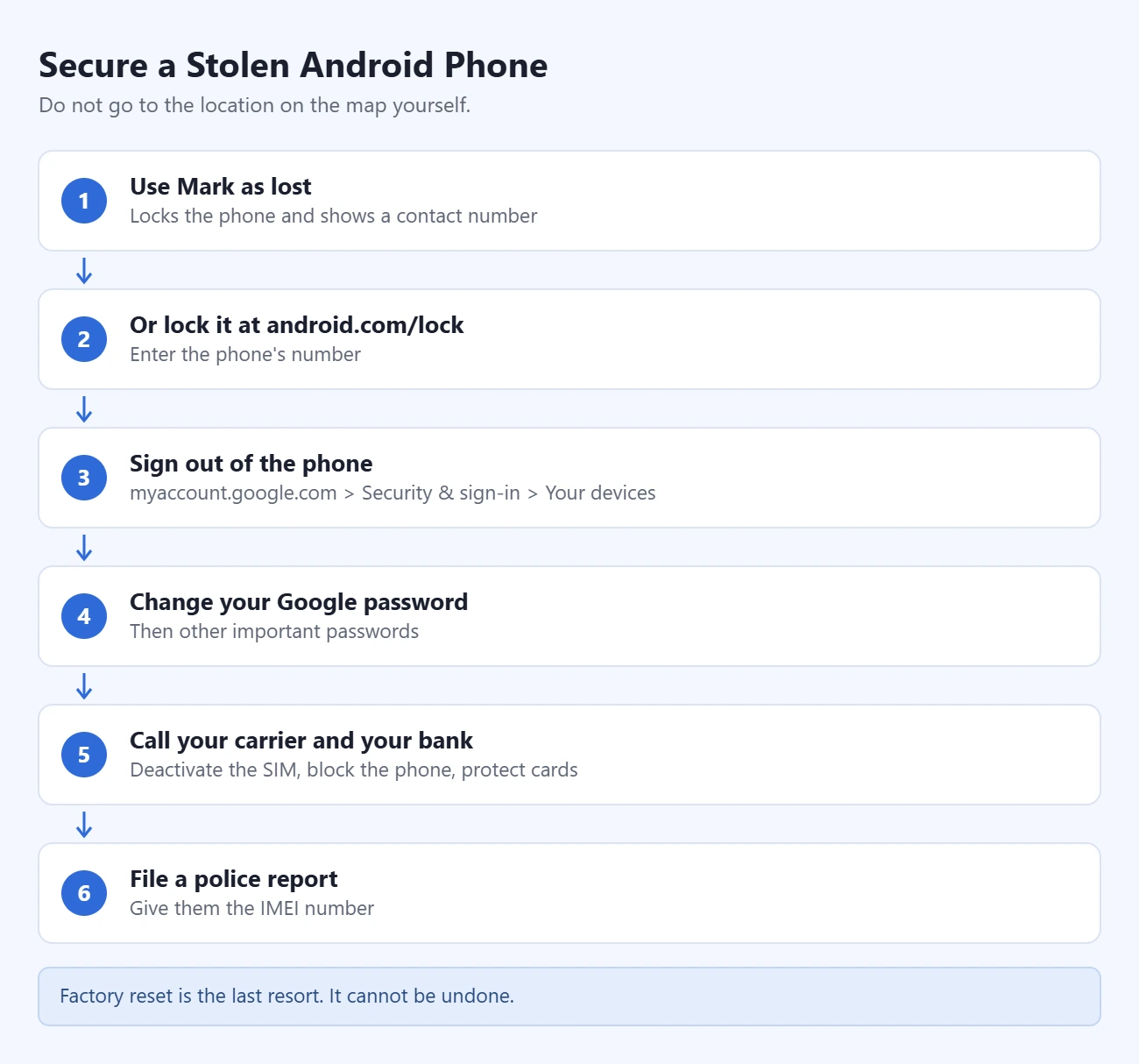
If you think the phone was stolen, do not go to the location on the map yourself. Give the location to the police. Then work through this list:
- Use Mark as lost in Find Hub to lock the phone and show a contact number.
- If you can’t sign in to Find Hub, go to android.com/lock, enter the phone’s number, and complete the security check to lock the screen. This is called Remote Lock.
- Go to myaccount.google.com, open Security & sign-in (shown as Security on some accounts), find Your devices, select the lost phone, and choose Sign out.
- Change your Google Account password. Then change other important passwords saved on the phone.
- Call your mobile carrier. They can deactivate the SIM, order a replacement, and block the phone.
- Call your bank or card company if payment cards were set up on the phone.
- File a police report and give them the phone’s IMEI number.
Remote Lock only works if it was available before the phone was lost. Google lists these requirements: a screen lock, an active SIM card, a verified phone number, Find Hub turned on, and an internet connection. It can lock the screen twice in 24 hours.
How to find the IMEI number without the phone
Open Find Hub in the app or a browser and select the settings icon next to the lost phone. The IMEI is listed there. It is also printed on the box the phone came in.
How to Find a Samsung Galaxy Phone With Samsung Find
Galaxy phones work with Find Hub like any other Android phone. Samsung also runs its own service, which uses your Samsung account instead of your Google Account. These steps follow Samsung’s guide to locating a lost Galaxy phone or tablet.
- In a browser, go to samsungfind.samsung.com. Samsung also offers the same tools at smartthingsfind.samsung.com.
- Sign in with the Samsung account that is on the lost phone.
- Select the phone from the list of devices on the left side of the screen. Its location appears on the map.
- Choose an action.
Samsung’s actions are a little different from Google’s:
- Ring: Plays a ringtone for one minute, even if the phone is set to Mute or Vibrate.
- Lock: Locks the phone with a PIN. You can add an emergency contact and a message for the lock screen.
- Track location: Sends an updated location every 15 minutes.
- Extend battery life: Turns on Maximum power saving mode so the phone stays on longer.
- Erase data: Factory resets the phone. This deletes everything and cannot be undone.
This only works if a Samsung account was added to the phone and the finder settings were on. To check them on a Galaxy phone you still have, go to Settings > Security and privacy > Lost device protection. Turn on Allow this phone to be found, Send last location, and Offline finding. Send last location saves where the phone was before it powered off. Offline finding lets the phone be found without a network connection.
If you also have another Galaxy phone or tablet, you can use the Samsung Find app on it instead of the website.
How to Set Up Find Hub Before a Phone Is Lost
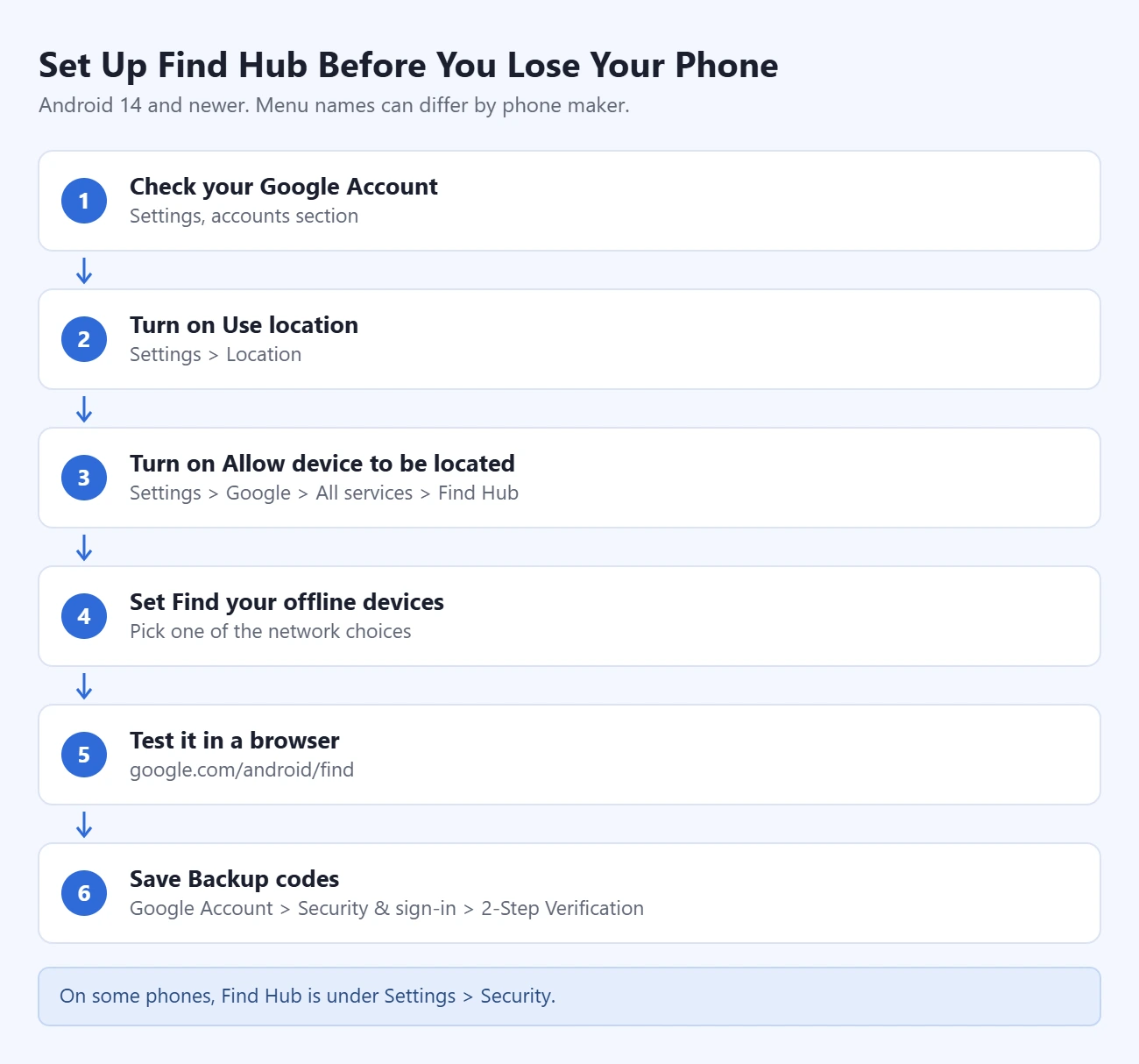
Everything above depends on settings that must be on ahead of time. Take five minutes now, while the phone is in your hand. Google wrote these steps for Android 14 and newer in its Be ready to find a lost Android device page. Menu names can differ slightly by phone maker. If you are not sure where to start, see how to find the Settings app on your phone.
- Open Settings and check that you are signed in to a Google Account. Look under the accounts section and confirm your email address.
- Go to Settings > Location and turn on Use location.
- Go to Settings > Google > All services > Find Hub and make sure Allow device to be located is on. On some phones, Find Hub is under Settings > Security.
- On the same screen, tap Find your offline devices and pick one of the network choices. Set a PIN, pattern, or password if the phone does not have one.
- Go to google.com/android/find on a computer, sign in, and confirm the phone shows up in the list.
- Open your Google Account, go to Security & sign-in (shown as Security on some accounts), open 2-Step Verification, and save a set of Backup codes somewhere other than your phone.
The backup codes matter more than they seem. If your lost phone is also how you approve Google sign-ins, you could be locked out of Find Hub at the moment you need it. A printed code gets you in.
While you are in Settings, go to Settings > Google > All services > Theft protection. On phones with Android 10 and newer, you can turn on Theft Detection Lock, which locks the screen if the phone senses it was snatched, and Offline Device Lock, which locks the screen if the phone is taken offline. These are not available on tablets or Android Go phones.
Finally, turn on automatic backup. If you ever have to erase the phone, a backup is what lets you get your data back. Follow how to back up an Android phone to set that up.
If Find Hub Is Not Working
- The phone is not in the list. You may be signed in to a different Google Account than the one on the phone. Sign out and try your other accounts. The phone may also be hidden on Google Play. Go to play.google.com/library/devices and make sure Show in menus is checked for it.
- Find Hub says it can’t reach the phone. The phone is off, out of battery, or has no connection. Check the last known location if one is shown, and try again later.
- The location is old or far off. You are seeing the last known location, or a location based on cell towers.
- You can’t sign in because of 2-Step Verification. Use a backup code, or pick another verification method on the sign-in screen. If neither works, use android.com/lock to lock the screen with the phone number.
- You are asked for a PIN you don’t remember. Google accepts either the lost phone’s lock screen PIN or your Google password. Look for the password option on that screen.
- The phone belongs to work or school. Your organization may manage it. Contact your IT department, which may be able to lock or erase it for you.
- Play sound does nothing. The phone has not received the request yet. It needs a connection to ring.
Frequently Asked Questions
Can I find my Android phone if it is turned off?
You can’t see a live location for a phone that is off. Find Hub shows the last known location if the phone saved one. A small number of supported phones, such as the Pixel 8 series, can be located for several hours after powering off if Bluetooth, Location, and the Find Hub network setting were on.
Can I find my phone from an iPhone?
Yes. Open google.com/android/find in Safari on the iPhone and sign in with the Google Account that is on the lost Android phone. You do not need an app.
Does Find Hub work on Samsung phones?
Yes, if the phone is signed in to a Google Account and Find Hub is on. Samsung also has its own service at samsungfind.samsung.com, which uses your Samsung account. You can set up both.
Is Find Hub the same as Find My Device?
Yes. Google renamed Find My Device to Find Hub. The website address and the main features are the same.
Can I find my phone with just the phone number or IMEI?
No. Find Hub needs you to sign in to the Google Account on the phone. The phone number can be used to lock the screen at android.com/lock, but not to see a location. The IMEI is for your carrier and the police.
Will Play sound work if the phone is on silent?
Yes. The phone rings at full volume for 5 minutes, even on silent or vibrate. It does need to be on and connected.
Can someone use my phone after I erase it?
Not easily. After a remote factory reset, the phone asks for your Google Account password before it can be set up again.
Does Find Hub cost anything?
No. Find Hub is free with a Google Account, and Samsung’s finder is free with a Samsung account.
Next Step
If your phone is with you right now, open Find Hub in a browser and confirm the phone appears on the map. Then save your backup codes. Those two checks are what make everything in this guide work on the day you need it.

Matthew Burleigh is the founder, head writer, and editor of Solve Your Tech, which he launched in 2012. He has written technology tutorials since 2008 and worked in IT since 2003, including small-business support, IT management, and consulting. He holds Bachelor’s and Master’s degrees in Computer Science from Arizona State University.
Matthew writes practical guides for Windows, iPhone and iPad, Microsoft Office, Outlook, Google apps, and Android. Solve Your Tech’s guides are checked step by step against the device or app maker’s own documentation and tested on his own devices whenever he has the hardware or software, with clear steps, sources, and update dates.
Read more about Matthew and how Solve Your Tech writes and updates its guides, or report a correction.