To reset a Nest thermostat, open its menu on the thermostat, choose Settings, then pick Restart to fix a glitch or Factory reset (called Reset > All Settings on older models) to erase everything. A restart keeps your settings; a factory reset wipes them, and you have to add the thermostat to the app again.
These steps cover the Nest Thermostat (the 2020 model), the Nest Learning Thermostat (4th gen), the Nest Learning Thermostat (3rd gen or earlier) and the Nest Thermostat E, following Google’s help pages.
Restart, Reset, or Factory Reset: Which One You Need
Picking the wrong option can erase a schedule you wanted to keep.
- Restart turns the thermostat off and on. Nothing is erased. Try this first for a frozen screen, a thermostat that shows offline, or odd behavior.
- Partial reset clears one kind of information. Only the Nest Thermostat E and the Nest Learning Thermostat (3rd gen or earlier) have these options: Schedule, Home/Away, Account connection and Network.
- Factory reset returns the thermostat to its out-of-the-box state. Your schedule, presets, Wi-Fi details and personal settings are gone, and the thermostat must be set up and added to your home again. Use it when you sell the thermostat, move out, or start over.
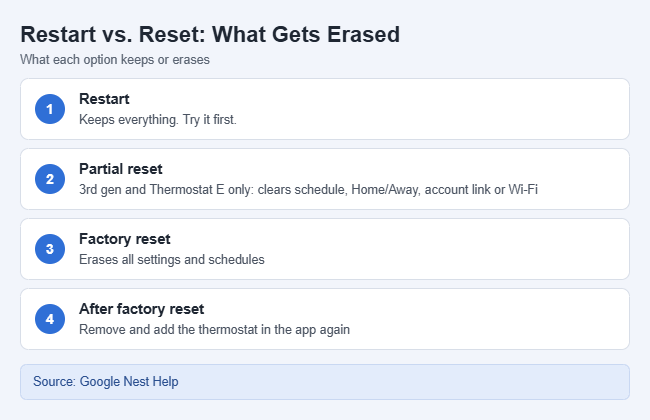
The Nest Thermostat and the Nest Learning Thermostat (4th gen) only offer Restart and Factory reset on the device. To clear just the Wi-Fi on those models, change the network from the Google Home app instead, as shown in the troubleshooting section.
Before You Reset
A factory reset can’t be undone, so take two minutes to prepare.
- Write down your wiring. Google recommends noting the wire setup shown under Settings > Equipment, plus details such as your heating type and Safety Temperature. If the reset asks equipment questions again, you will have the answers.
- Note your schedule and presets. Take a photo of the schedule in the app. You can rebuild them afterward by editing temperature presets on a Nest thermostat.
- Have your Wi-Fi password ready. The thermostat will ask for it during setup.
- Stay near the thermostat. You must be at the thermostat to add it to the app; it can’t be added remotely.
None of these steps require touching the wires. Don’t disconnect or rewire your heating and cooling wires unless you’re qualified. If you need to take the display off its base, turn off power to the system at the breaker first.
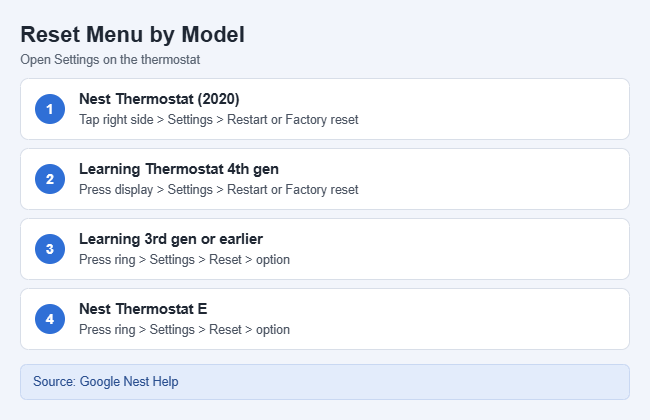
How to Restart or Factory Reset a Nest Thermostat (2020)
The Nest Thermostat has a touch-sensitive strip on its right side instead of a ring.
- Tap the right side of the thermostat. The menu opens on the screen.
- Slide your finger along the right side to highlight Settings, then tap to open it.
- Scroll to Restart or Factory reset and tap it.
- Confirm your choice by selecting Yes. The screen goes dark for a few moments.
- Wait for the thermostat to come back. After a restart, it shows your current temperature. After a factory reset, it starts the setup screens.
How to Restart or Factory Reset a Nest Learning Thermostat (4th Gen)
- Press the display. The menu opens.
- Turn the ring to highlight Settings, then press the thermostat toward the wall to select it.
- Turn the ring to Restart or Factory reset, then press to select it.
- Confirm when the thermostat asks. It restarts or resets within a few moments.
- Check the screen. A restarted thermostat shows its normal temperature display; a reset one shows setup.
How to Reset a Nest Learning Thermostat (3rd Gen or Earlier) or Nest Thermostat E
These models have a ring you press and turn, plus more reset choices.
- Press the ring to open the Quick View menu.
- Turn the ring to Settings and press to select it.
- Turn the ring to Reset and press. A list of reset options appears.
- Choose the option you need and confirm it.
Here is what each option does, per Google’s Restart or reset a Nest thermostat page:
| Option | What it erases | Good for |
|---|---|---|
| Restart | Nothing | Frozen screen, offline, glitches |
| Schedule | All scheduled temperatures, including learned ones | Starting a schedule from scratch |
| Home/Away | What the thermostat learned about when you’re home | After moving it or remodeling |
| Account connection | The link to your account (not on every model) | Handing it to someone else |
| Network | Saved Wi-Fi details (not on every model) | New router or Wi-Fi password |
| All Settings | Everything (factory reset) | Selling, moving, starting over |
After a Schedule reset, you can build a new schedule or let the thermostat learn again. On a Nest Thermostat E with Auto-Schedule off, you can choose an empty schedule or a basic one. After a Home/Away reset, the thermostat relearns your pattern over a few days.
If you have a Nest Learning Thermostat (1st or 2nd gen), Google ended app support on October 25, 2025. It still runs on the device, but it can’t be added to either app after a reset.
What Happens to the Google Home App After a Reset
A Restart or a Schedule, Home/Away or Network reset leaves the thermostat in your home in the app. After a Network reset, it shows offline until you connect it to Wi-Fi again under Settings > Network on the thermostat.
A factory reset makes the thermostat forget your account, so its old app entry goes offline. Remove that entry, then add the thermostat back:
- Open the Google Home app and find the thermostat under Devices (or Home > All devices).
- Touch and hold the thermostat, then tap Settings (the gear icon).
- Tap Remove device, then Remove to confirm.
- Tap Add, then Device, and follow the prompts. Scan the QR code when asked, or tap Use setup code if the scan fails.
- Wait for Connected, then answer the setup questions about language, your heating and cooling system, Wi-Fi, your address and the room.
Those add steps come from Google’s Nest Thermostat setup guide and apply to the Nest Thermostat and 4th gen. A 3rd gen or Thermostat E is set up through the Nest app instead: tap Add product and scan the QR code shown under Settings > Nest app > QR code on the thermostat. Once your Nest Account has been moved to a Google Account, these older models can also be controlled from the Google Home app.
Once it’s back, you can set your temperatures again from your phone. Controlling a Nest thermostat from your iPhone covers the app, widget and Siri options.
What to Do Before Selling or Moving Out
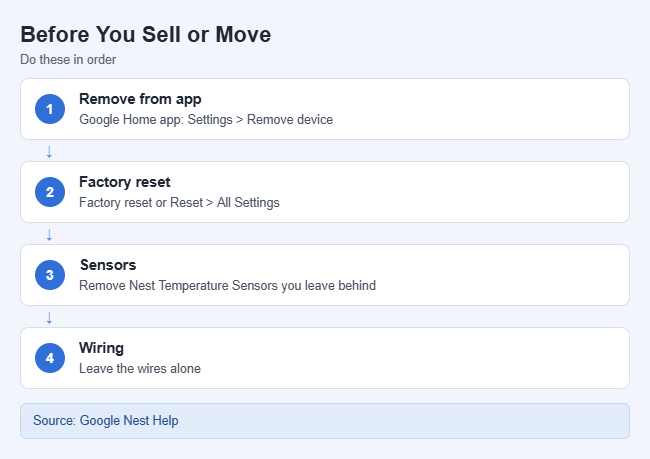
Do these in order so the next owner can set it up and your account stays private.
- Remove the thermostat from your home in the Google Home app (steps 1 to 3 above) or, for an older model, from the Nest app.
- On the thermostat, run Factory reset (Nest Thermostat or 4th gen) or Reset > All Settings (3rd gen or earlier, Thermostat E).
- Remove any Nest Temperature Sensors you’re leaving behind. Sensors linked to your account stay linked after a thermostat reset.
- Leave the wiring as it is and the thermostat on the wall unless you plan to take it.
Troubleshooting a Nest Thermostat Reset
The screen is frozen and the menu won’t open. Do a manual restart. On a Nest Learning Thermostat (any generation) or a Nest Thermostat E, press the whole thermostat in until the screen turns off, about 10 seconds, then press and release the ring to turn it back on. On a Nest Thermostat, turn off power at the breaker, pull the display off its base, take out both AAA batteries, put them back, and press the display onto the base until it clicks. A manual restart can lose unsaved changes.
The thermostat shows offline after a reset. Check its battery first, because a thermostat with a low battery won’t connect to Wi-Fi. On the Nest Thermostat, look under Settings > Battery and replace the AAA batteries if it says Very low. Then restart your router: unplug the modem and router, wait 30 seconds, plug the router back in, then the modem.
You changed routers or your Wi-Fi password. On a Nest Thermostat or 4th gen, open the thermostat in the Google Home app, tap Settings > Device information > Wi-Fi, and enter the new network. On older models, use Settings > Reset > Network on the thermostat, then join the new network.
The Wi-Fi signal is weak. Check Settings > Network on the thermostat. Move the router closer and turn off other 2.4 GHz devices that may interfere. If your router splits its bands, you can change your Wi-Fi to 2.4 GHz on your router, and it’s worth checking whether you need to update your router firmware.
The app won’t find the thermostat during setup. Put your phone on the same home Wi-Fi and update the Google Home app. If your iPhone is the problem, try these fixes for Wi-Fi not working on iPhone when other devices work.
To confirm everything worked, open the Google Home app, check that the thermostat shows a current temperature instead of Offline, and change the setpoint once to make sure the thermostat responds.
Frequently Asked Questions
Does restarting a Nest thermostat erase my settings?
No. A restart keeps your schedule, presets and Wi-Fi. Only a factory reset, or one of the partial reset options on older models, erases information.
Can I reset a Nest thermostat from the Google Home app?
Google’s reset steps all run on the thermostat itself. In the app, you can remove the thermostat from your home and change its Wi-Fi network on the Nest Thermostat and 4th gen.
Why is there no Factory reset option on my thermostat?
Older models name it differently. On a Nest Learning Thermostat (3rd gen or earlier) or a Nest Thermostat E, choose Settings > Reset > All Settings.
Do I need to remove the thermostat from my account before a factory reset?
For older models, remove it from your account first. For any model you’re selling or leaving behind, removing it first is the cleanest order.

Matthew Burleigh is the founder, head writer, and editor of Solve Your Tech, which he launched in 2012. He has written technology tutorials since 2008 and worked in IT since 2003, including small-business support, IT management, and consulting. He holds Bachelor’s and Master’s degrees in Computer Science from Arizona State University.
Matthew writes practical guides for Windows, iPhone and iPad, Microsoft Office, Outlook, Google apps, and Android. Solve Your Tech’s guides are checked step by step against the device or app maker’s own documentation and tested on his own devices whenever he has the hardware or software, with clear steps, sources, and update dates.
Read more about Matthew and how Solve Your Tech writes and updates its guides, or report a correction.