To reset network settings on iPhone, open Settings, tap General, tap Transfer or Reset iPhone, tap Reset, then tap Reset Network Settings. Enter your passcode and confirm. Your photos, apps, and other data stay put, but saved Wi-Fi networks and passwords, cellular settings, and VPN and APN settings are removed.
Steps and details come from Apple’s Reset iPhone settings to their defaults guide and its Wi-Fi troubleshooting page.
What You Need
- An iPhone running iOS 15 or later, including iOS 26 and iOS 27. Older versions use a shorter path, covered below.
- Your iPhone passcode.
- Your Wi-Fi password, plus any VPN details you typed in yourself.
What a Network Reset Removes
Warning: A network reset can’t be undone. Apple calls it a last resort because it removes every network setting, including your home, work, and school networks.
- Saved Wi-Fi networks and their passwords.
- Cellular settings, including APN settings.
- VPN settings you added yourself (not ones installed by a configuration profile or device management).
- Manually trusted certificates, which go back to untrusted.
- Your device name, which changes back to “iPhone.”
- Cellular data roaming may be turned off.
Apple’s list doesn’t mention Bluetooth pairings. If an accessory doesn’t reconnect afterward, pair it again.
Write These Down Before You Reset
You’ll have to type your Wi-Fi password again after the reset, so look it up first. This works in iOS 16 and later.
- Open Settings and tap Wi-Fi.
- Tap the Info button next to your network.
- Tap the Password field.
- Use your passcode, Face ID, or Touch ID to see the password.
- Write it down or copy it somewhere safe.

For other saved networks, tap Edit on the Wi-Fi screen. In iOS 18 and later, you can also open the Passwords app and tap Wi-Fi. Apple covers both in Find your saved Wi-Fi passwords.
Also note these if they apply to you:
- VPN server, account name, and password for any VPN you set up by hand.
- Custom APN settings from your carrier.
- Your iPhone’s name, if you changed it.
Try These Fixes First
These are quicker and remove nothing, or only one network.
- Turn on Airplane Mode for at least 15 seconds, then turn it off.
- Restart your iPhone.
- Restart your router and modem.
- Forget the failing Wi-Fi network, then join it again.
- Install any iOS update in Settings > General > Software Update.

To forget a network, go to Settings > Wi-Fi, tap the Info button next to it, and tap Forget This Network. Our guide to fixing a wrong Wi-Fi password on iPhone walks through it. For a longer checklist, see how to fix Wi-Fi that won’t work on iPhone.
How to Reset Network Settings
- Open the Settings app.
- Tap General.
- Scroll down and tap Transfer or Reset iPhone.
- Tap Reset. A menu of reset options slides up.
- Tap Reset Network Settings.
- Enter your passcode and confirm.
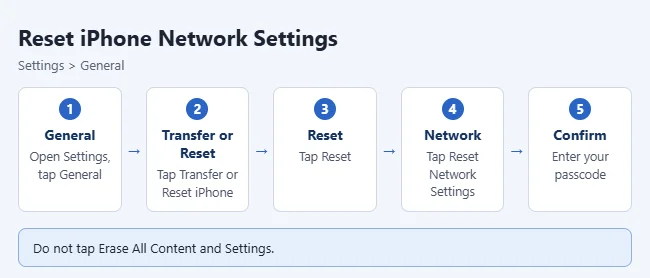
Be careful not to tap Erase All Content and Settings. That option wipes your entire iPhone.
Wi-Fi turns off and back on, which disconnects you from any network. Your iPhone may also restart. On an iPad, the menu is named Transfer or Reset iPad.
Reset Network Settings on iOS 14 or Earlier
Older versions don’t have the Transfer or Reset iPhone menu.
- Open Settings.
- Tap General.
- Scroll down and tap Reset.
- Tap Reset Network Settings.
- Enter your passcode and confirm.
How to Confirm It Worked
Open Settings > Wi-Fi. You won’t be connected, and networks you used before ask for a password again. In Settings > General > About, the name reads “iPhone.”
There’s no undo button. You get your settings back by entering them again.
What to Do After the Reset
- Rejoin your Wi-Fi network and enter its password.
- Rename your iPhone in Settings > General > About > Name if you want. Here’s how to change your iPhone name.
- Pair Bluetooth accessories again if they don’t reconnect.
- Set up any VPN you added by hand.
- Turn roaming back on in Settings > Cellular if you need it.
When to Try a Network Reset
It’s a good fix when Wi-Fi keeps dropping, one network won’t connect, or calls and cellular data act up after an update. It won’t fix a router problem, a carrier outage, or an account issue.
Troubleshooting
- You can’t find Transfer or Reset iPhone. Scroll to the bottom of Settings > General. On iOS 14 or earlier, the option is named Reset.
- A VPN or Wi-Fi network is still there. It was installed by a configuration profile or device management, usually from work or school. The reset leaves those alone. Ask your administrator about them.
- Cellular still doesn’t work. Connect to Wi-Fi and open Settings > General > About. If a carrier settings update is available, you’ll see an option to install it. Then contact your carrier. Apple lists more steps in If you see SOS, No Service, or Searching, and we cover them in how to get an iPhone out of SOS mode.
- Wi-Fi still won’t connect. Try another network. If no network works, contact Apple. If only one fails, the router or internet provider is the likely cause.
Frequently Asked Questions
Will resetting network settings delete anything else?
No. Apple’s description lists only network settings as removed, and says even the broader Reset All Settings deletes no data or media. Photos, apps, messages, and contacts stay on your iPhone.
Does it remove my eSIM?
No. Deleting eSIMs is a separate option on the same Reset screen, named Delete All eSIMs. Don’t tap it unless you mean to remove your cellular plan.
Does it delete Bluetooth pairings?
Apple’s description of the reset doesn’t list Bluetooth devices. If one stops connecting, pair it again in Settings > Bluetooth.
What’s the difference between Reset All Settings and Reset Network Settings?
Reset All Settings also resets the keyboard dictionary, Home Screen layout, location and privacy settings, and Apple Pay cards. Network reset only affects network settings. See what each iPhone reset option does.
Should I back up first?
You don’t have to, because no content is erased. Apple suggests backing up before any reset if you want to save your settings.
Next Step
Rejoin your Wi-Fi network and test the thing that wasn’t working. If you also have an Android phone, see how to reset network settings on Android.

Matthew Burleigh is the founder, head writer, and editor of Solve Your Tech, which he launched in 2012. He has written technology tutorials since 2008 and worked in IT since 2003, including small-business support, IT management, and consulting. He holds Bachelor’s and Master’s degrees in Computer Science from Arizona State University.
Matthew writes practical guides for Windows, iPhone and iPad, Microsoft Office, Outlook, Google apps, and Android. Solve Your Tech’s guides are tested on current devices or checked against official product documentation, with clear steps, sources, and update dates.
Read more about Matthew and how Solve Your Tech writes and updates its guides, or report a correction.