To share a Wi-Fi password from your iPhone, have your friend tap the Wi-Fi network name on their iPhone, iPad, or Mac. Then tap Share Password when it pops up on your unlocked iPhone, and tap Done. They connect without you having to read the password out. This guide also covers sharing by QR code and copying the password for an Android phone or a Windows PC.
Steps come from Apple’s How to share your Wi-Fi password from your iPhone or iPad support article.
Which Method Should You Use?
| The other person has | Best method | What they need |
|---|---|---|
| iPhone, iPad, or Mac, and you are in each other’s contacts | Share Password pop-up | Wi-Fi and Bluetooth on, device close to yours |
| Android phone, or an Apple device that is not in your contacts | QR code from the Passwords app | A camera that can scan a QR code |
| Windows PC, smart TV, game console, or anything else | View or copy the password, then type it in | Nothing special |
Before You Start
Apple lists these requirements for the Share Password pop-up. All of them apply to both devices.
- Both devices should have the latest iOS, iPadOS, or macOS.
- Turn on Wi-Fi and Bluetooth on both devices.
- Each person must be signed in to their own Apple Account.
- Each person needs the other’s Apple Account email or phone number saved in Contacts.
- Turn off Personal Hotspot on both devices.
- Keep the devices close together. Apple describes this as within Bluetooth and Wi-Fi range.
Your iPhone also has to be unlocked and already connected to the network you want to share.
The other two methods have their own version limits. Viewing a saved Wi-Fi password in Settings needs iOS 16 or later. The Passwords app, which makes the QR code, needs iOS 18 or later.
- Make sure your iPhone is unlocked and connected to the Wi-Fi network.
- Ask the other person to open Wi-Fi settings and tap the same network name. Their device shows the password screen. They don’t type anything.
- On your iPhone, tap Share Password when prompted. Your iPhone sends the password to their device.
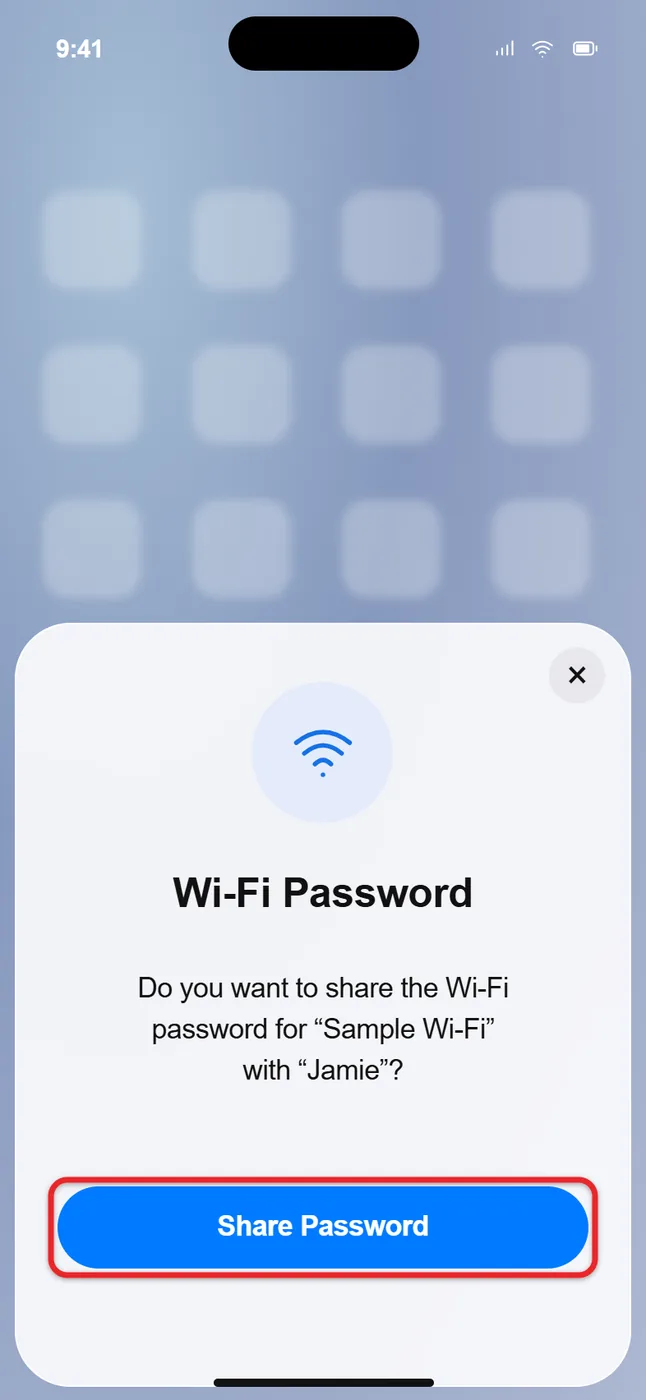
- Tap Done.
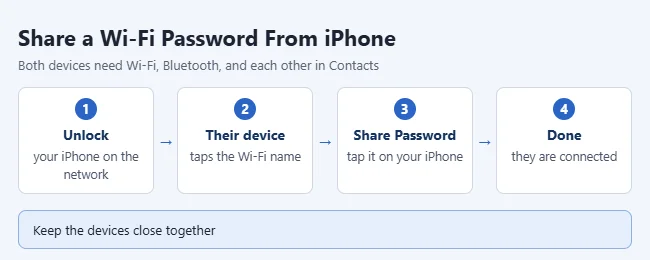
The same pop-up works when the other person is on an iPad or a Mac. On a Mac, they open Wi-Fi settings and choose the network.
How to Confirm It Worked
After you tap Share Password, your iPhone shows a Done button. On the other device, the password screen closes by itself. In Settings > Wi-Fi, a checkmark appears next to the network name, and the Wi-Fi icon shows at the top of the screen.
If their device joins the network but pages won’t load, the password is not the problem. Work through the steps for how to fix Wi-Fi not working on iPhone.
A QR code works for Android phones and for people who are not in your contacts. Apple covers it in the iPhone User Guide under Find and share your Wi-Fi password on iPhone. You need iOS 18 or later, because the code comes from the Passwords app.
- Open the Passwords app on your iPhone. Unlock it with Face ID, Touch ID, or your passcode.
- Tap Wi-Fi. You see a list of the networks your iPhone has joined.
- Tap the network you want to share.
- Tap Show Network QR Code. A QR code appears on the screen.
- Have the other person point their phone camera at the code and tap the prompt to join the network.
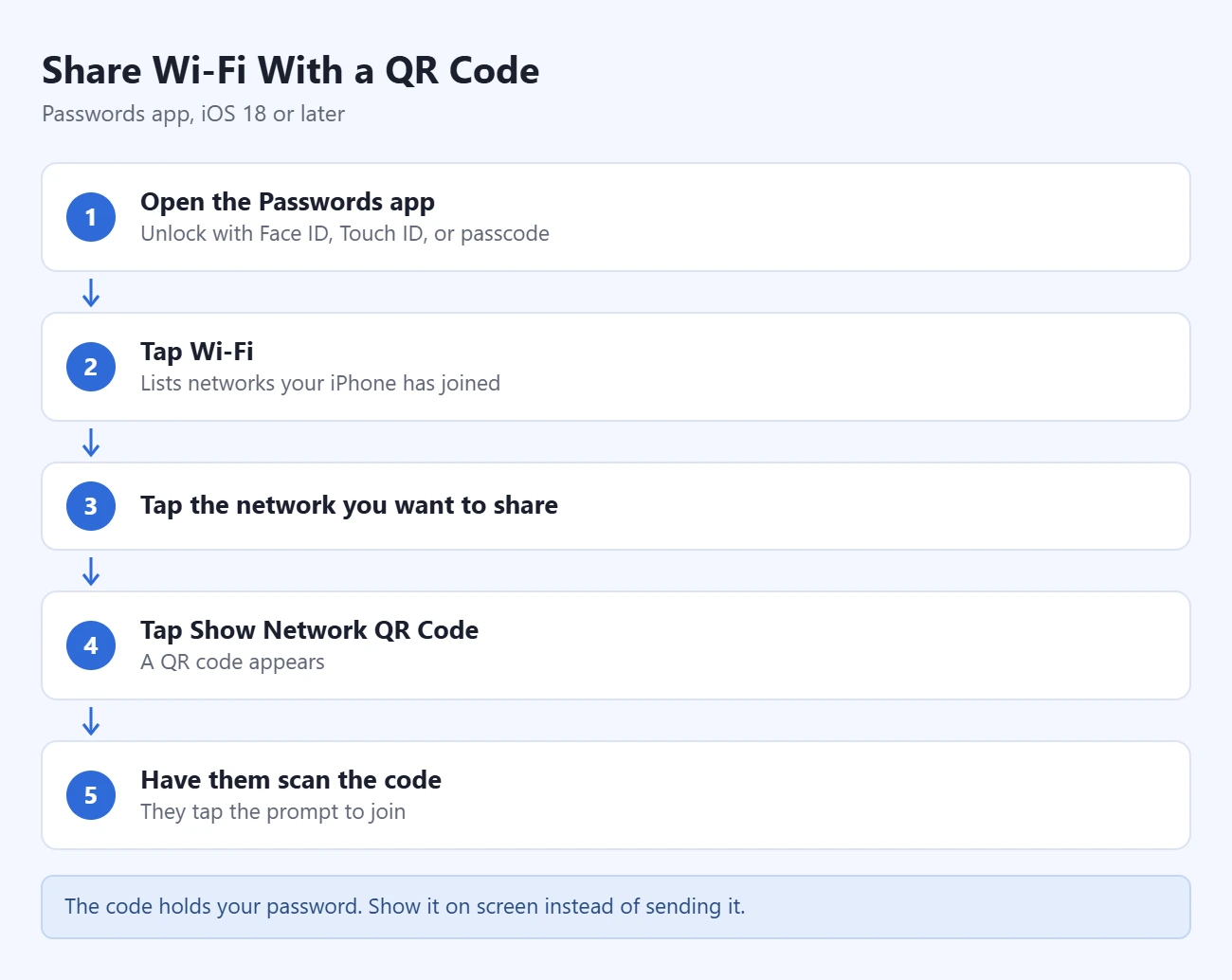
A Wi-Fi QR code holds the network name and the password. Anyone who gets a photo or a screenshot of it can join your network, so show it on your screen instead of sending it around.
Most recent Android phones can scan a Wi-Fi QR code with the camera or from the Wi-Fi settings screen. The exact place varies by phone maker and Android version.
View or Copy the Password for an Android or Windows User
A Windows PC, a smart TV, or a game console can’t use the pop-up, and most can’t scan a QR code. For those, look up the password and type it in. Apple’s steps are in Find your saved Wi-Fi passwords on iPhone or iPad. This needs iOS 16 or later.
For the Network You Are Connected To
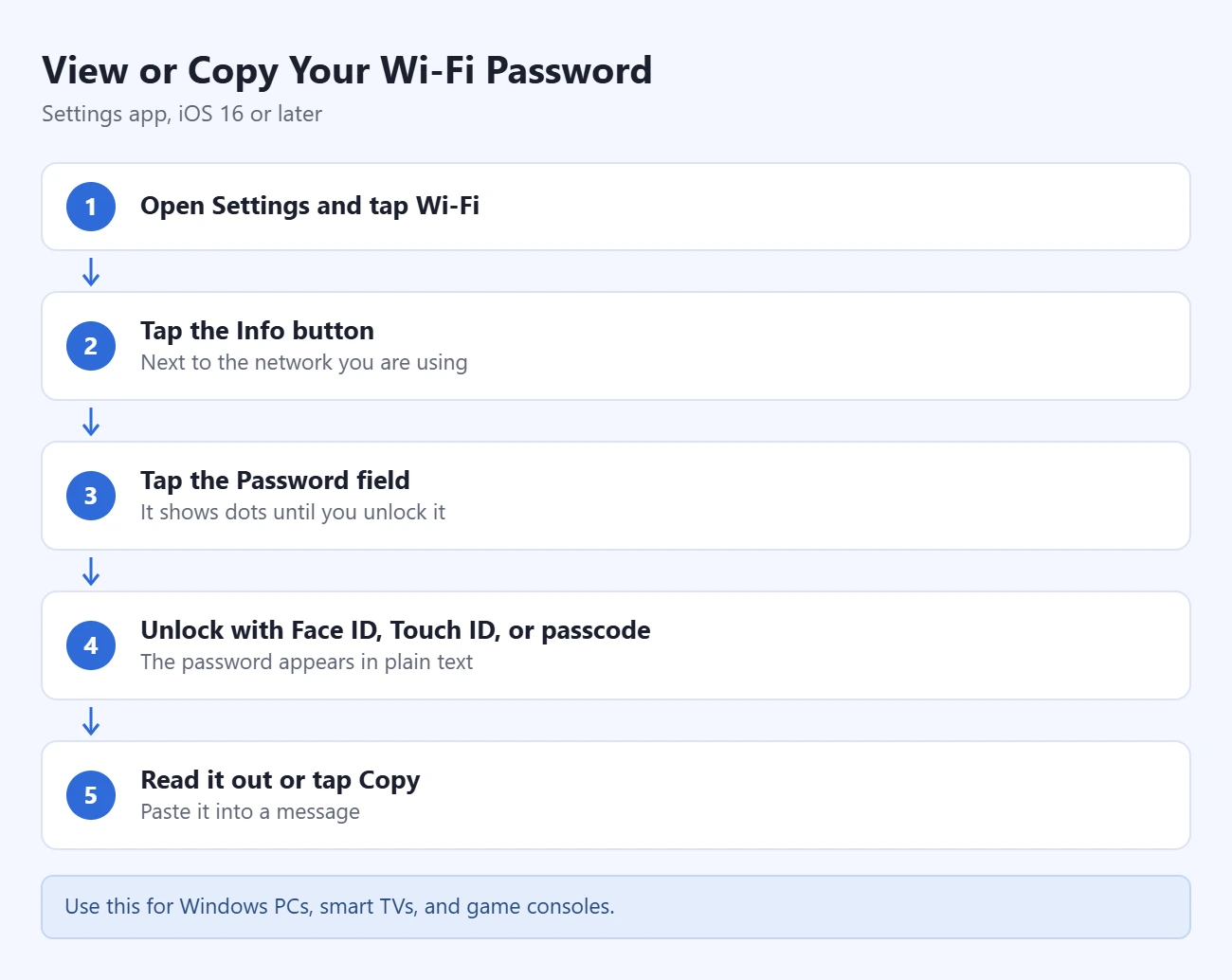
- Open Settings and tap Wi-Fi.
- Find the network you are using and tap the Info button next to it. It is the letter i in a circle.
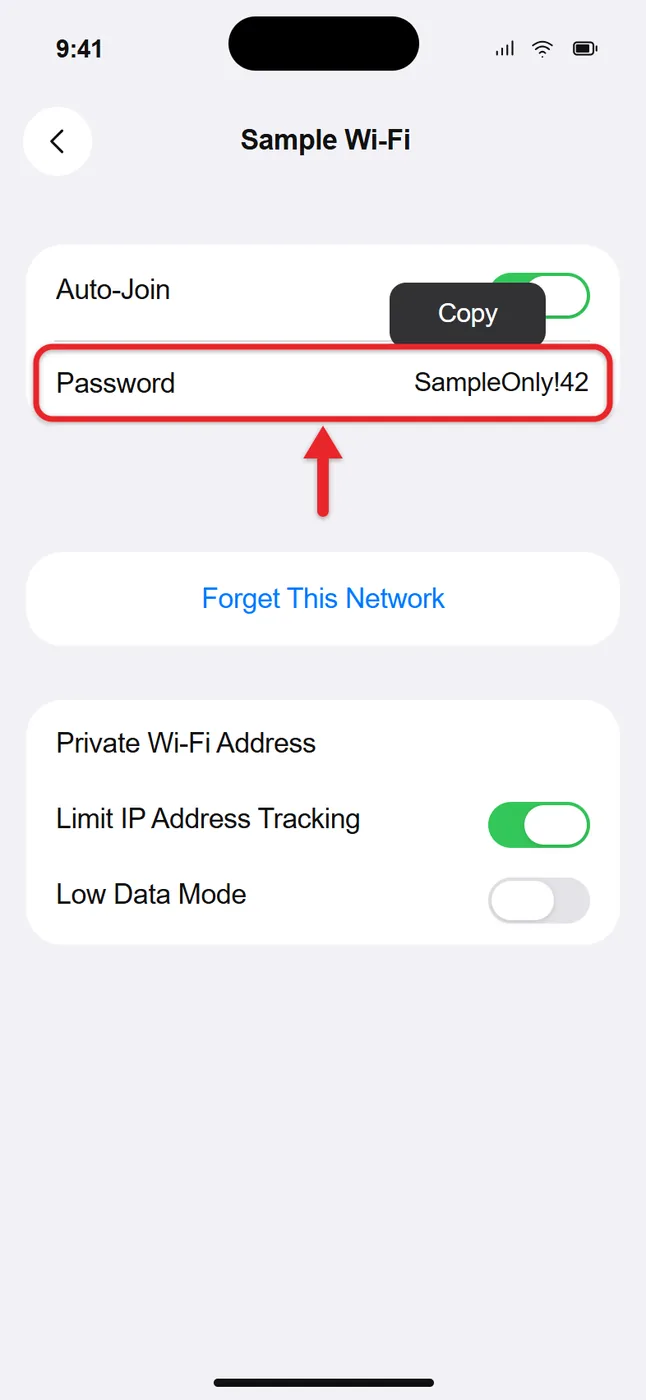
- Tap the Password field. It shows dots until you unlock it.
- Unlock with Face ID, Touch ID, or your passcode. The password appears in plain text.
- Read it out, or tap Copy when it appears and paste the password into a message.
For a Network You Joined Before
- Open Settings and tap Wi-Fi.
- Tap Edit in the upper-right corner.
- Unlock with Face ID, Touch ID, or your passcode. A list of networks your iPhone has joined appears.
- Tap the Info button next to a network that has a lock icon.
- Tap the Password field to show the password.
On iOS 18 or later, you can also open the Passwords app, tap Wi-Fi, tap the network, and tap the Password field. The full walkthrough is in our guide on how to view saved passwords on iPhone. If you use a tablet, the steps to find saved passwords on an iPad are almost the same.
If you copied the password, it stays on your clipboard until you copy something else. Copy any other piece of text afterward if you don’t want to paste it somewhere by accident. Our guide to the clipboard on iPhone explains how that works.
A Mac can share the password the same way. These steps are from Apple’s Passwords User Guide for Mac, which covers macOS Sequoia 15 and later.
- Make sure your Mac is unlocked and connected to the Wi-Fi network.
- Have the other person go to Wi-Fi settings on their iPhone, iPad, or Mac and choose the network.
- When a message on your Mac asks if you want to share your Wi-Fi password, click Share Password.
The Mac has the same limits as the iPhone. The devices must be within Bluetooth and Wi-Fi range, not using Personal Hotspot, and added to each other’s contacts. The Passwords app on a Mac also has a Show Network QR Code button for each Wi-Fi network.
The pop-up only shows when every requirement is met on both devices. One missing item is enough to stop it, and your iPhone does not tell you which one. Check these in order.
- Contacts. Check that you are in each other’s contacts with the right email or phone number. It has to be the one tied to each person’s Apple Account. A contact card with only a name, or with a different email, does not meet Apple’s requirement.
- Bluetooth and Wi-Fi. Open Settings on both devices and confirm both switches are on.
- Personal Hotspot. Go to Settings > Personal Hotspot on both devices and turn off Allow Others to Join.
- Distance and lock state. Move the devices closer and make sure both are unlocked. If your iPhone locks while you wait, unlock it and have them tap the network again.
- Your connection. Your iPhone must be connected to the network you are sharing. If it is on cellular data or a different network, there is nothing to share.
- The other device’s screen. The other person must be on the password screen for that network. Have them go back to the Wi-Fi list and tap the network name again.
- Apple Account. Each person must be signed in. Check the name at the top of Settings on each device.
- Software. Install any waiting update in Settings > General > Software Update on both devices.
- Restart. Restart both devices and try again. This is the fix Apple gives when the sharing animation never shows.
- Fall back. As a last resort, type the password in manually. On your iPhone, you can view saved Wi-Fi passwords in Settings > Wi-Fi, or show a QR code from the Passwords app.
If the other person’s iPhone keeps rejecting a password they typed, it may have an old password saved. See how to fix a wrong Wi-Fi password on iPhone.
Can You Undo Sharing a Wi-Fi Password?
No. There is no button that takes a shared password back. Once the other device joins, it saves the password like any other network it has joined. Treat every method in this guide as giving the person your password.
To cut off access later, change the Wi-Fi password in your router’s settings. That disconnects every device, including yours, so you have to join again with the new password on each one. If your router has a guest network, share that one with visitors instead. The setup varies by router, so check the router maker’s support site.
Frequently Asked Questions
Can I share my Wi-Fi password with an Android phone?
Not with the Share Password pop-up. It only works between Apple devices. For Android, open the Passwords app, tap Wi-Fi, tap the network, and tap Show Network QR Code so they can scan it. You can also read the password from Settings > Wi-Fi and give it to them directly.
Do I have to tell them the password?
No. Your iPhone sends it to their device when you tap Share Password, so you don’t have to read it out or type it.
Does this work from an iPad?
Yes. Apple’s steps cover sharing from an iPhone or an iPad. A Mac can share the password too.
Why do we have to be in each other’s contacts?
It is one of Apple’s requirements. Your iPhone only offers to share with someone whose Apple Account email or phone number is saved in your Contacts, and yours has to be saved in theirs. People who are not in your contacts are not offered the password.
Can I share a Wi-Fi password with a Windows PC?
Only by giving them the password. View it in Settings > Wi-Fi on your iPhone, then type it on the PC or send it in a message.
Can I share a password for a network I’m not connected to right now?
Not with the pop-up. Your iPhone has to be connected to that network. You can still look up the saved password in Settings > Wi-Fi > Edit, or show its QR code from the Passwords app.
Why can’t I see the Passwords app?
The Passwords app arrived in iOS 18. On an older version, use Settings > Wi-Fi to view the password instead. That works on iOS 16 and later.
Is it safe to share a Wi-Fi password this way?
With the pop-up, nobody reads the password out or types it, which makes it the most private choice. Still, the other device keeps the password after it joins, so only share with people you trust on your network.
Next, try the pop-up with a family member’s device so you know it works before guests arrive. If it doesn’t show, check that each of you has the other’s Apple Account email or phone number in Contacts, then go down the troubleshooting list above.

Matthew Burleigh is the founder, head writer, and editor of Solve Your Tech, which he launched in 2012. He has written technology tutorials since 2008 and worked in IT since 2003, including small-business support, IT management, and consulting. He holds Bachelor’s and Master’s degrees in Computer Science from Arizona State University.
Matthew writes practical guides for Windows, iPhone and iPad, Microsoft Office, Outlook, Google apps, and Android. Solve Your Tech’s guides are checked step by step against the device or app maker’s own documentation and tested on his own devices whenever he has the hardware or software, with clear steps, sources, and update dates.
Read more about Matthew and how Solve Your Tech writes and updates its guides, or report a correction.