To control a Nest thermostat from your iPhone, install the free Google Home app, open it, tap Favorites or Devices, then Climate, and select your thermostat. Drag the dot around the ring or tap + or – to change the temperature, and use the buttons below the ring for the mode, holds, schedules, and the fan.
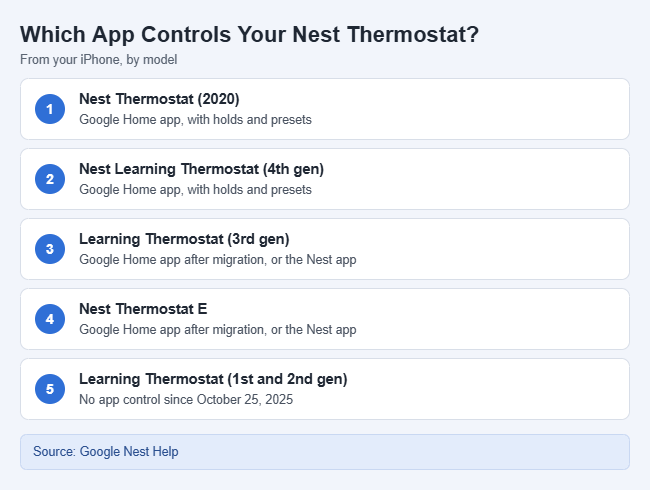
This applies to the Nest Thermostat (2020), the Nest Learning Thermostat (4th gen), and, after a quick account migration, the Nest Learning Thermostat (3rd gen) and Nest Thermostat E, which also still work in the Nest app. The Nest Learning Thermostat (1st and 2nd gen) can no longer be controlled from any app.
Which App Works With Your Nest Thermostat
Google’s guide to controlling your Nest thermostat with the app splits the models into two groups:
| Thermostat | iPhone app | Holds and presets |
|---|---|---|
| Nest Thermostat (2020) | Google Home app only | Yes |
| Nest Learning Thermostat (4th gen) | Google Home app only | Yes |
| Nest Learning Thermostat (3rd gen) | Google Home app or Nest app | No |
| Nest Thermostat E | Google Home app or Nest app | No |
| Nest Learning Thermostat (1st and 2nd gen) | None | No |
The 3rd gen and the Thermostat E show up in the Google Home app only after you migrate your old Nest Account to a Google Account. Until then, keep using the Nest app.
Google ended support for the 1st and 2nd gen Learning Thermostats on October 25, 2025. They no longer work in either app, but the thermostat itself still runs its schedule and lets you change modes.
Before You Start
- Install the app. Get Google Home from the App Store (or the Nest app for an unmigrated 3rd gen or E), and update it if your labels differ.
- Add the thermostat first. You must be at the thermostat to add it in the Google Home app. After that, you can control it from anywhere.
- Use the right account. Sign in with the Google Account that the home belongs to, or one that has been invited to it.
- Check the connection. If the app says the thermostat is offline, fix its Wi-Fi first, because changes can’t reach it.
How to Change the Temperature in the Google Home App
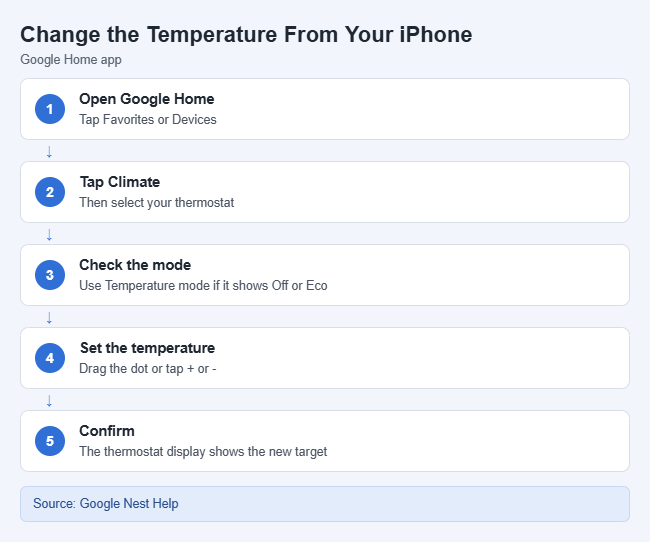
- Open the Google Home app on your iPhone.
- Tap Favorites or Devices, then Climate. Your thermostats appear as tiles.
- Tap your thermostat. A ring opens with the target temperature in the middle.
- Check the mode under the ring. If it says Off or Eco, tap Temperature mode and choose Heat, Cool, or Heat • Cool.
- Drag the dot around the ring, or tap + or – to move one degree at a time. The new target appears in the middle of the ring.
- Check the thermostat on the wall. Its display should show the same target temperature you picked in the app.
A change made this way lasts only until the next temperature in your schedule. Use a hold, covered below, if you want it to stick.
Change the mode
Tap Temperature mode and pick one. Systems with heating and cooling show Heat, Cool, Heat • Cool, and Off; a heat-only system shows fewer choices.
Use a preset or Eco
On the Nest Thermostat (2020) and the 4th gen, tap Temperature preset and choose Comfort, Eco, Sleep, or a custom preset. To change what those presets are set to, you can edit temperature presets on a Nest thermostat. The 3rd gen and Thermostat E have no presets; they use Eco Temperatures, which you change under Settings > Eco Temperatures.
Hold a temperature
Holds work only on the Nest Thermostat (2020) and the 4th gen, according to Google’s hold temperature instructions.
- Make sure the thermostat is in Heat, Cool, or Heat • Cool.
- Tap Hold temperature.
- Choose Current temp or a preset.
- Choose an end time. Most holds can last up to 24 hours, but an Eco hold can use None, which keeps Eco on until you end it.
- Tap Start. The schedule is paused until the hold ends.
To change a hold, tap Hold temperature > End hold, then start a new one.
Edit the schedule or run the fan
Tap Schedules to see and change the week. Scheduling in the Google Home app now covers the 3rd gen and Thermostat E too. To run the fan by itself, tap Fan > Set fan timer, pick a length, and tap Start. The Fan button only appears if your system can run the fan separately from heating or cooling.
How to Use the Nest App on an Older Thermostat
If your 3rd gen or Thermostat E is still on a Nest Account, use the Nest app.
- Open the Nest app and tap your thermostat on the home screen.
- Tap Mode if you need to switch to Heat, Cool, or Heat • Cool.
- Drag your finger along the ring, then tap the up or down arrow to fine-tune. The display on the wall changes to match.
- Tap Schedule to edit the learned schedule, or Fan to run the fan for a set time.
Eco Temperatures are under the Settings icon.
Add a Google Home Widget to Your iPhone
Google’s Favorites widget page says the widget needs iOS 17 or later and the latest Google Home app, so it works on current iPhones running iOS 26 or iOS 27.
- Add the Google Home widget the same way you add any widget. Adding a widget to the iPhone Home Screen walks through the widget gallery. Pick small, medium, or large.
- Tap Add favorites on the new widget, select your thermostat, and tap Save.
- To choose different devices later, touch and hold the widget, tap Edit Widget, then Widget controls, and pick Favorites or Custom.
Tapping the thermostat tile opens its controls in the Google Home app rather than changing the temperature, and the widget’s status refreshes about every 30 minutes.
Control It From Apple Home With Matter
Matter is a smart home standard that lets one device work in more than one app. Google’s store pages list the Nest Thermostat (2020) and the Nest Learning Thermostat (4th gen) as working with Matter. The 3rd gen and Thermostat E aren’t listed.
- In the Google Home app, tap Home, then All devices.
- Touch and hold your thermostat’s tile, then tap Settings.
- Tap Linked Matter apps & services, then Link apps & services.
- Choose Use pairing code and copy the code it shows.
- Open Apple’s Home app, tap the Add button, then Add Accessory.
- Tap More options, select the thermostat, and follow the prompts, entering the pairing code when asked. The thermostat then appears in Apple Home.
Google’s Matter sharing page gives these steps for Matter devices in general rather than for Nest models. Apple’s Matter accessories page covers the Apple side and recommends a home hub, such as an Apple TV or HomePod. Google doesn’t document Siri or Shortcuts control through the Google Home app.
Control It When You’re Away From Home
You don’t need to be on your home Wi-Fi. Once the thermostat is in your Google Home or Nest app, it works over cellular data or any other Wi-Fi network, as long as the thermostat is online at home.
On the Nest Thermostat (2020) and the 4th gen, Home/Away Assist can switch to Eco temperatures when your Away routine starts and return to your schedule when your Home routine starts. Add your home address in the app so it can tell when you leave.
Let Family Members Control the Thermostat
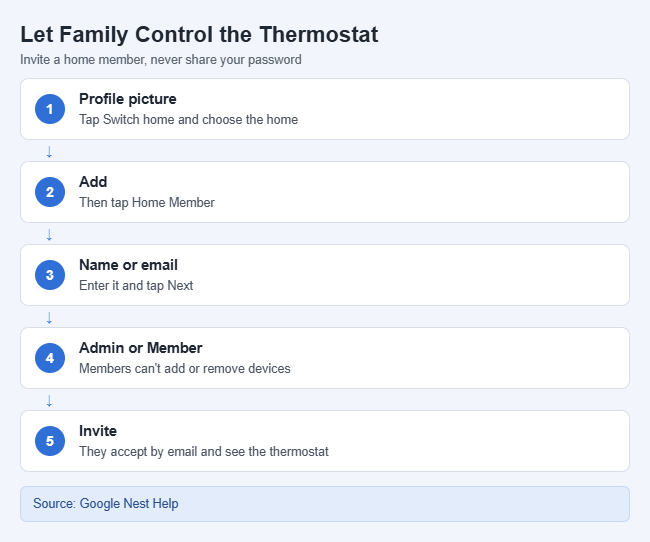
Don’t share your Google Account password. Invite each person instead, using the steps on Google’s people and permissions page.
- In the Google Home app, tap your profile picture, then Switch home, and choose the home.
- Tap Add, then Home Member.
- Enter the person’s name or email address and tap Next.
- Choose Admin or Member, then tap Invite. A Member can control devices but can’t add or remove them, and you choose whether they see settings and activity.
After they accept the emailed invite, the thermostat appears in their own Google Home app. Unmigrated Nest app homes share access from the Nest app.
How to Confirm It Worked
The thermostat display and the app’s ring should show the same target temperature and mode. If you’re away, close and reopen the app to check that your change stuck.
Troubleshooting
- The thermostat isn’t in the app. Make sure you’re looking at the right home with Switch home. A 3rd gen or E on a Nest Account appears only in the Nest app until you migrate.
- The thermostat shows as offline. Check that your router is working and that other devices can get online. If only your iPhone has trouble, try these fixes for iPhone Wi-Fi problems. Some smart home gear joins only the 2.4 GHz band on your router, so check which network the thermostat uses.
- The temperature won’t change. The thermostat is in Off or Eco, or a hold is running. Switch the mode or end the hold.
- There’s no Hold or Presets button. Your model is a 3rd gen or Thermostat E, which don’t have them.
- Nothing helps. Try a restart, then reset the Nest thermostat. A factory reset erases your settings and schedule.
Frequently Asked Questions
Can I control my Nest thermostat with Siri?
Not through the Google Home app; Google doesn’t document Siri or Shortcuts support for it. If your model supports Matter and you add it to Apple Home, you control it from the Apple Home app instead.
Is the Nest app going away?
Google still documents the Nest app for the 3rd gen and Thermostat E. The Nest Thermostat (2020) and 4th gen were never in it; they use only the Google Home app.
Can two iPhones control the same thermostat?
Yes. Invite the second person as a home member, and each person controls it from their own app.
Why did my old Nest thermostat disappear from the app?
If it’s a 1st or 2nd gen Learning Thermostat, Google removed it from both apps on October 25, 2025. Use the controls on the thermostat itself.

Matthew Burleigh is the founder, head writer, and editor of Solve Your Tech, which he launched in 2012. He has written technology tutorials since 2008 and worked in IT since 2003, including small-business support, IT management, and consulting. He holds Bachelor’s and Master’s degrees in Computer Science from Arizona State University.
Matthew writes practical guides for Windows, iPhone and iPad, Microsoft Office, Outlook, Google apps, and Android. Solve Your Tech’s guides are checked step by step against the device or app maker’s own documentation and tested on his own devices whenever he has the hardware or software, with clear steps, sources, and update dates.
Read more about Matthew and how Solve Your Tech writes and updates its guides, or report a correction.