Windows 11 doesn’t have a built-in way to show your CPU temperature. Task Manager can show GPU temperature for some graphics cards, but not the processor. To see CPU temperature, use your PC maker’s app, a free monitoring app such as HWMonitor or Core Temp, or the UEFI/BIOS setup screen.
The UEFI steps follow Microsoft’s Windows 11 and Secure Boot support page, which explains how to reach your firmware settings from Windows. The app options come from each developer’s official site.
Which Method Should You Use?
| Method | Live reading in Windows? | Extra software? |
|---|---|---|
| PC maker’s app | Yes, on supported models | Usually preinstalled |
| HWMonitor or Core Temp | Yes | Yes (free) |
| UEFI/BIOS | No, only before Windows starts | No |
| Task Manager | No CPU temperature (GPU only on some cards) | No |
Option 1: Use Your PC Maker’s App
Many PC and motherboard makers include a system app, like Lenovo Vantage, HP support tools, Dell tools, MSI Center, or ASUS Armoury Crate, that can show temperatures and fan speeds. Look for a section named Hardware, System Health, Monitor, or similar. Not every model shows CPU temperature, so if yours doesn’t, move on to Option 2.
Option 2: Use a Free Monitoring App
- Download HWMonitor or Core Temp from the developer’s official website.
- Install and open it.
- Look for your processor’s temperature readings, such as Package or individual Core temperatures.
- Note both the current value and the maximum value the app has recorded.
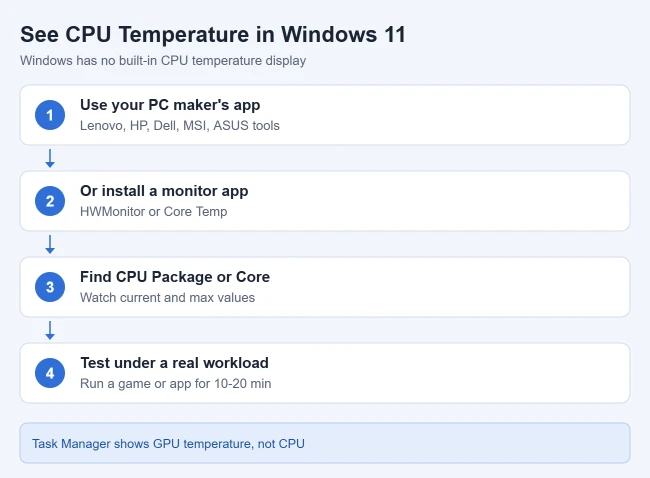
Result: You’ll see your CPU temperature update in real time while Windows is running.
Only download these tools from their official sites, since copies on download sites sometimes bundle unwanted software. Core Temp focuses on the processor, while HWMonitor also shows other sensors like fans and drives.
Check temperature under a real workload
A reading right after startup doesn’t tell you much. Open the monitoring app first, then run the game or program that usually makes your fans loud for 10 to 20 minutes, and check the maximum value. That shows how hot your CPU actually gets when you use it.
Option 3: Check in UEFI/BIOS
This works without installing anything. Microsoft’s steps to open firmware settings from Windows 11 are:
- Save your work and close open apps.
- Go to Settings > System > Recovery.
- Next to Advanced startup, select Restart now.
- Select Troubleshoot > Advanced options > UEFI Firmware Settings, then Restart.
- Look for a page named Hardware Monitor, PC Health, H/W Monitor, or similar.
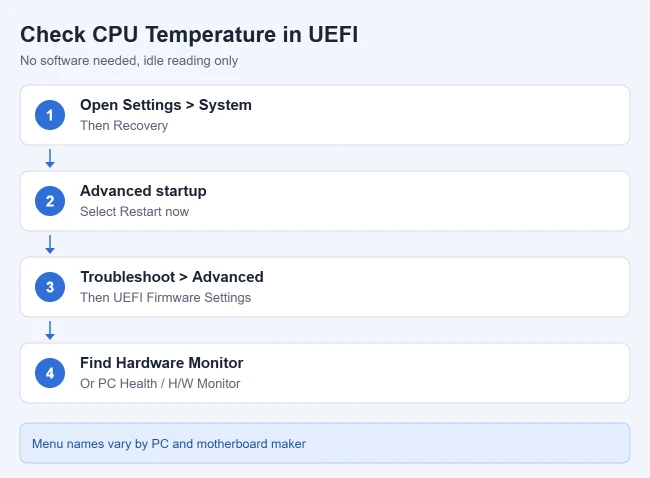
Result: You see the CPU temperature reported by your motherboard. This is an idle reading, since Windows and your apps aren’t running, so it won’t show how hot the CPU gets under load. Exit without changing other settings unless you know what they do.
Check CPU and GPU Sensors on a Windows Laptop
For CPU and GPU readings together, use your laptop maker’s supported monitor or HWMonitor from the official developer link in Option 2. Choose the version matching the PC’s architecture, open it and expand the identified processor and graphics-adapter entries. Under Temperatures, record the current reading and maximum for the intended sensor while using a normal workload. CPUID’s HWMonitor page confirms CPU and GPU monitoring. A CPU Package/Core value, a GPU temperature and a GPU Hot Spot value are different measurements; keep their labels with the numbers.
Some laptops do not expose every sensor. A missing GPU entry does not establish a zero temperature or failed GPU; consult the maker’s monitoring instructions. Core Temp focuses on the CPU, and Task Manager’s supported GPU reading is not a CPU reading. Compare each component with its exact manufacturer/model limit, plus the workload and cooling design, rather than treating 85°C as a universal safe cutoff. If the laptop repeatedly shuts down or throttles, stop the problematic workload and follow the maker’s service guidance. Keep vents clear as described below. Do not run an extreme stress test or change firmware, voltage or fan settings just to obtain a reading.
Check a Supported GPU’s Temperature in Task Manager
Press Ctrl + Shift + Esc, expand More details on Windows 10 if needed, open Performance and select the intended GPU. Check its model and look for a temperature reading in degrees Celsius. On Windows 11, Performance is a page in the left navigation; Windows 10 uses a tab. Microsoft introduced this for supported dedicated GPUs with a WDDM 2.4-or-newer driver, rather than promising it for every graphics adapter. A missing temperature is not proof of overheating. Use the supported manufacturer or monitoring-app procedure above when absent, and compare the same labeled sensor under similar workload. The GPU reading is not the CPU temperature; Task Manager does not supply a universal CPU-temperature display.
Why Task Manager Doesn’t Show CPU Temperature
Open Task Manager with Ctrl + Shift + Esc and select Performance > CPU. You’ll see usage, speed, processes, threads, and uptime, but no temperature. Some systems show a temperature on the GPU page for supported dedicated graphics cards. That reading is for the graphics card, not the processor.
What CPU Temperature Is Normal?
There’s no single normal temperature for every processor. It depends on the CPU model, cooler, laptop or desktop design, room temperature, and what you’re doing. As a rough guide, idle temperatures are often in the 30s to 50s °C, and temperatures under heavy load run noticeably higher, especially in thin laptops.
For an exact limit, look up your processor model on Intel’s or AMD’s product page and find its maximum operating temperature (often listed as Tjunction or Tjmax). You can find your processor model in Task Manager under Performance > CPU, or in Settings > System > About. Modern processors slow themselves down as they near their limit, and the PC may shut down if they get too hot. If your PC turns off under load, see how to stop your computer from turning off by itself.
How to Lower a High CPU Temperature
- Check what’s using the CPU. In Task Manager, sort the Processes list by CPU to see if an app is keeping the processor busy.
- Improve airflow. Keep vents clear, and use a laptop on a hard, flat surface instead of a bed or couch.
- Clean out dust. Turn the PC off and unplug it first, and follow your PC maker’s instructions.
- Make sure fans are working. Your PC maker’s app may let you change fan modes. See how to turn on the laptop fan in Windows 11.
- Undo overclocking. If you’ve changed CPU speed or voltage settings, return them to default.
Frequently Asked Questions
Does Windows 11 have a CPU temperature monitor?
No. Windows 11 doesn’t include a screen that shows live CPU temperature. Use your PC maker’s app, a monitoring app, or UEFI.
Does Task Manager show CPU temperature?
No. Task Manager can show GPU temperature for some graphics cards, but not the CPU temperature.
Is it safe to install a temperature monitoring app?
Yes, if you download it from the developer’s official website. Avoid third-party download sites that may bundle extra software.

Matthew Burleigh is the founder, head writer, and editor of Solve Your Tech, which he launched in 2012. He has written technology tutorials since 2008 and worked in IT since 2003, including small-business support, IT management, and consulting. He holds Bachelor’s and Master’s degrees in Computer Science from Arizona State University.
Matthew writes practical guides for Windows, iPhone and iPad, Microsoft Office, Outlook, Google apps, and Android. Solve Your Tech’s guides are tested on current devices or checked against official product documentation, with clear steps, sources, and update dates.
Read more about Matthew and how Solve Your Tech writes and updates its guides, or report a correction.