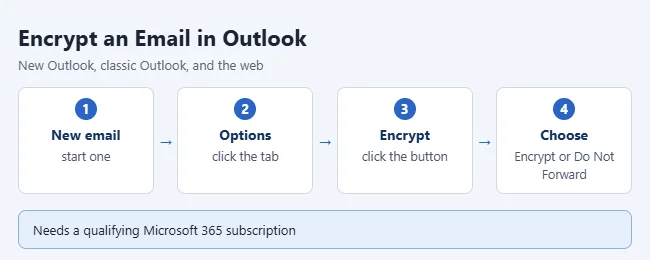
To encrypt an email in Outlook, start a new message, select the Options tab, select Encrypt, and choose Encrypt or Do Not Forward. Then write and send the email as usual. This button uses Microsoft Purview Message Encryption, which needs a Microsoft 365 Personal or Family subscription or a qualifying work or school plan. Outlook also supports a second method called S/MIME, which needs a digital certificate instead. This guide covers both in new Outlook, classic Outlook for Windows, Outlook on the web, Outlook.com, and Outlook for Mac.
The steps come from Microsoft’s Send S/MIME or Microsoft Purview encrypted emails in Outlook and Send encrypted messages with a Microsoft 365 personal or family subscription support articles.
The Two Kinds of Outlook Encryption
Outlook has two separate encryption systems. They have different requirements, so check which one fits you before you start.
| Feature | Microsoft Purview Message Encryption | S/MIME |
|---|---|---|
| Where you find it | The Encrypt button on the Options tab | S/MIME options in the message or in Outlook settings |
| What you need | A subscription that includes it | A digital certificate (digital ID) installed for your account |
| What the recipient needs | Nothing special. Outlook users read it normally. Others open it in a browser. | A mail app that supports S/MIME, and you need their certificate first |
| Choices | Encrypt, Do Not Forward | Encrypt, digitally sign, or both |
| Best for | Home users and most businesses | Organizations that already issue certificates |
Microsoft says not to combine them. Don’t apply Purview encryption to a message that is already signed or encrypted with S/MIME.
What You Need
- Personal account: A Microsoft 365 Personal or Family subscription. A free Outlook.com account doesn’t include the Encrypt button.
- Work or school account: A plan that includes Microsoft Purview Message Encryption. Microsoft lists Office 365 and Microsoft 365 Enterprise E3 and E5, Microsoft 365 Business Premium, Office 365 A1, A3, and A5, and Office 365 Government G3 and G5.
- Other work plans: Microsoft 365 Business Basic, Business Standard, Office 365 E1, Office 365 F3, and Exchange Online Plan 1 or 2 need the Azure Information Protection Plan 1 add-on. Your IT administrator handles that.
- For S/MIME only: A digital certificate from a certificate authority or from your organization, plus the recipient’s certificate. Microsoft’s S/MIME setup instructions are written for work or school accounts.
Don’t have a Microsoft account yet? See how to create an Outlook email account first.
How to Encrypt an Email in New Outlook
These steps apply to new Outlook for Windows with a Microsoft 365 account that includes message encryption.
- Start a new email in Outlook.
- Select the Options tab at the top of the message.
- Select Encrypt. A short menu opens.
- Choose Encrypt or Do Not Forward.
- Finish your email and select Send.
Changed your mind before sending? Select Encrypt again and choose No permission set. You can’t remove encryption from a message after it is sent.
Encrypt vs. Do Not Forward
- Encrypt: The message stays encrypted. Recipients can read it, reply to it, and forward it. Work accounts in classic Outlook may show this choice as Encrypt-Only.
- Do Not Forward: The message stays encrypted and can’t be forwarded or copied. Microsoft’s business documentation adds that it can’t be printed. Attached Word, Excel, and PowerPoint files stay encrypted even after they are downloaded. Other attachments, like PDFs and images, can be downloaded without encryption.
- No permission set: The default. Outlook uses TLS to protect the connection, but the message may not stay encrypted once it reaches the recipient’s email provider.
Older Office files in the .doc, .xls, and .ppt formats aren’t protected the same way. Save them in the current .docx, .xlsx, or .pptx format first. The whole message, including attachments, can be up to 25 MB. If you are sending a compressed folder, see how to send a ZIP file in Outlook.
How to Encrypt an Email in Classic Outlook for Windows
These steps apply to classic Outlook in Microsoft 365, Outlook 2024, and Outlook 2021. Classic Outlook has the File tab in the top-left corner.
- Start a new email.
- Select the Options tab in the message window.
- Select Encrypt.
- Choose Encrypt (or Encrypt-Only) or Do Not Forward.
- Write your message and select Send.
If a certificate is installed, the same menu can also list an S/MIME choice. To use S/MIME for every message you send, go to File > Options > Trust Center > Trust Center Settings > Email Security and check Encrypt contents and attachments for outgoing messages. The exact choices vary with your Outlook version and account type.
Keep classic Outlook updated. Microsoft fixed a bug in February 2026 that stopped some classic Outlook users from opening Encrypt-Only messages.
How to Encrypt an Email in Outlook on the Web and Outlook.com
These steps apply to Outlook.com with a Microsoft 365 Personal or Family subscription, and to Outlook on the web with a qualifying work or school account.
- Sign in to Outlook in your browser.
- Start a new message.
- Select the Options tab above the message.
- Select Encrypt.
- Choose Encrypt or Do Not Forward.
- Write your message and select Send.
The web version is a good fallback. If the desktop app doesn’t show the Encrypt button for your personal subscription, try the same account at Outlook.com.
How to Encrypt an Email in Outlook for Mac
Microsoft’s Mac instructions cover S/MIME. You need a certificate in the keychain on your Mac, and a copy of each recipient’s certificate saved with their contact in Outlook.
- Open the Outlook menu and select Accounts.
- Select the account you want to send from, then select Security.
- Under Certificate, choose your certificate. Only certificates that are valid for signing or encryption appear.
- Select OK and close the Accounts window.
- In a new message, select See more items, then S/MIME > Encrypt with S/MIME.
- Finish your message and send it.
If you don’t see S/MIME, select Customizable Toolbar and add it. Some Microsoft 365 accounts also show an Encrypt button on the Options tab of a new message in Outlook for Mac. That depends on your account and app version. If it isn’t there, send the message from Outlook on the web instead.
How to Encrypt an Email With S/MIME in New Outlook
Use this method only if you have a certificate. New Outlook doesn’t import certificates for you, so install yours first. To send to someone outside your organization, their certificate must be installed on your computer too.
- Start a new email.
- Select Options > More Options.
- Check Encrypt this message (S/MIME).
- Select OK.
- Select Send. If Outlook warns that a recipient can’t decrypt the message, you can send anyway, remove that recipient, or try again.
 More Options; check Encrypt this message (S/MIME); select OK; select Send” class=”wp-image-163200″ style=”width:650px;height:auto”/>
The same window has Digitally sign this message (S/MIME). A signature proves the message came from you and wasn’t changed. If you request a read or delivery receipt here, you must also check the digital signature box.
To encrypt every message, go to Settings > Mail > S/MIME and check Encrypt contents and attachment for all messages I send. This applies to new messages, replies, and forwards. Uncheck it to go back to normal.
What the Recipient Sees
This applies to messages sent with the Encrypt button.
- Outlook.com and Microsoft 365 users: They read and reply like any other email in new Outlook, Outlook on the web, the Outlook mobile app, and classic Outlook 2019 or newer. A banner at the top of the message lists any restrictions.
- Gmail users: They get an email with a link. They select Read your message, then Sign in with Google, and allow access. The message opens in a new browser tab, not in the Gmail window.
- Yahoo and other providers: They select Read the message and ask for a single-use code. Microsoft emails the code. It expires after 15 minutes.
They can reply from that browser page. Recipients don’t need a Microsoft 365 subscription to read your message.
S/MIME is different. The recipient’s mail app must support S/MIME and have the matching private key. The message opens automatically when it does. If it doesn’t, they can’t read it.
How to Confirm the Email Is Encrypted
- Before you send, look for a notice above the message body that says the message is encrypted. The exact wording varies by version.
- After you send, open the message in Sent Items. Encrypted mail shows a lock icon or a restriction banner.
- For a full test, send an encrypted message to a second address you own and open it there.
Encryption can’t pull a message back. If you sent something to the wrong person at work, see how to recall an email in Outlook.
Why the Encrypt Button Is Missing or Grayed Out
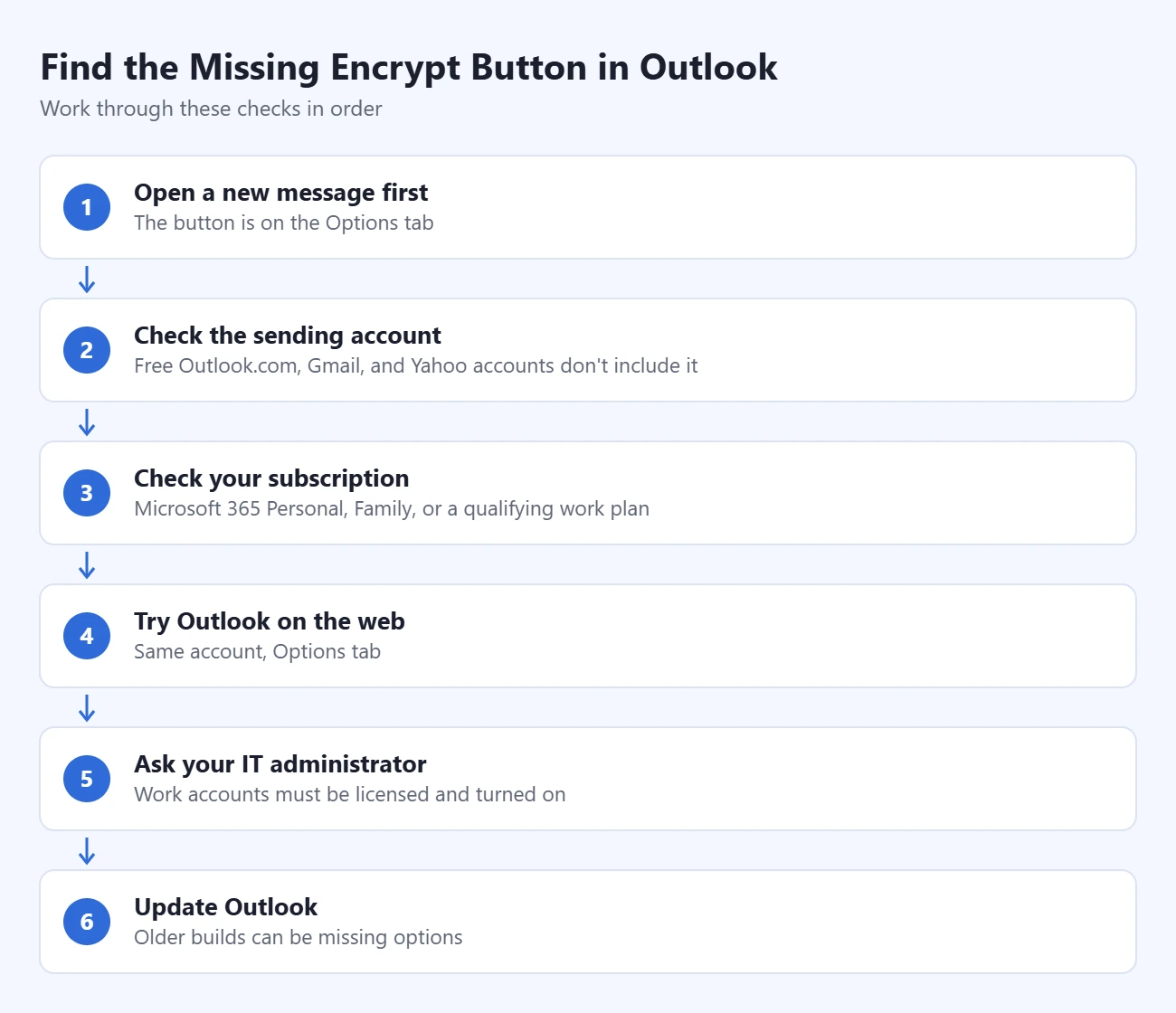
Work through these checks in order.
- Open a new message first. The button is on the Options tab of the message, not in the main Outlook window.
- Check the sending account. Encryption belongs to the mailbox. A free Outlook.com account, or a Gmail or Yahoo account added to Outlook, doesn’t include it.
- Check your subscription. Personal accounts need Microsoft 365 Personal or Family. Work accounts need one of the plans listed above.
- Try Outlook on the web. Sign in with the same account in a browser and look on the Options tab there.
- Ask your IT administrator. At work, encryption must be licensed and turned on for your organization.
- Update Outlook. Older builds can be missing options or have known bugs.
If S/MIME is the problem, the cause is almost always a certificate. Either yours isn’t installed, or you don’t have the recipient’s public key. Inside a company, Outlook usually finds it in the address list. For outside contacts, ask them to send you a digitally signed email first.
Frequently Asked Questions
Is Outlook encryption free?
No. For personal accounts, it comes with a Microsoft 365 Personal or Family subscription. Work accounts depend on the plan your organization pays for. Free Outlook.com accounts still use TLS to protect mail in transit, but they don’t get the Encrypt button.
What is the difference between Encrypt and S/MIME?
The Encrypt button uses Microsoft Purview Message Encryption. It needs a subscription and nothing from the recipient. S/MIME uses certificates. Both you and the recipient need one, and both mail apps must support S/MIME.
Can someone without Outlook read my encrypted email?
Yes. Gmail users can sign in with Google. Everyone else can use a single-use code that Microsoft emails to them. The message opens in a web browser.
Can I encrypt an email on my phone?
Recipients can read encrypted mail in the Outlook app for iPhone and Android. Sending options on mobile depend on your account type, so the desktop or web version is the most reliable way to encrypt.
Are attachments encrypted too?
Yes, while they are part of the message. With Do Not Forward, current Word, Excel, and PowerPoint files stay protected after download. PDFs and images don’t, unless your organization has turned on PDF encryption. For extra protection, you can also add a password to a Word document before you email it.
Can I unsend or remove encryption after sending?
You can’t remove encryption from a sent message. Some work accounts can revoke a protected message from Outlook on the web. Ask your IT administrator if that is available.
Now send yourself a test message with Encrypt turned on so you know what recipients will see. Want your emails to look more professional too? See how to add a signature in Outlook.

Matthew Burleigh is the founder, head writer, and editor of Solve Your Tech, which he launched in 2012. He has written technology tutorials since 2008 and worked in IT since 2003, including small-business support, IT management, and consulting. He holds Bachelor’s and Master’s degrees in Computer Science from Arizona State University.
Matthew writes practical guides for Windows, iPhone and iPad, Microsoft Office, Outlook, Google apps, and Android. Solve Your Tech’s guides are checked step by step against the device or app maker’s own documentation and tested on his own devices whenever he has the hardware or software, with clear steps, sources, and update dates.
Read more about Matthew and how Solve Your Tech writes and updates its guides, or report a correction.