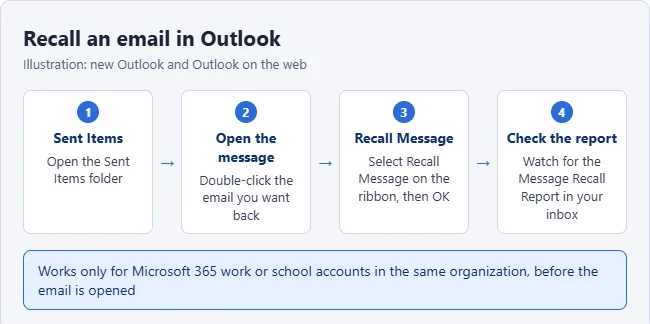
To recall an email in Outlook, open Sent Items, open the message, and select Recall Message. Confirm, then watch your inbox for the Message Recall Report. For Microsoft 365 cloud recall, you and the recipient need work or school mailboxes in the same organization. Already-read messages can also be recalled if your organization’s settings allow it; success is not guaranteed.
Recall doesn’t work with Outlook.com, Hotmail, or Gmail addresses, or for people outside your company. For those, the best protection is Undo Send, which holds each email for a few seconds so you can cancel it.
How to Recall an Email in New Outlook and Outlook on the Web
These steps come from Microsoft’s recall guide.
- Open the Sent Items folder.
- Double-click the email you want to recall so it opens in its own window.
- Select Recall Message on the ribbon. You may need to select the three dots to find it.
- Select OK to confirm.
- Check your inbox for a Message Recall Report.
Open the report’s View Message Recall Report link to see the result for each recipient. Succeeded means the message was recalled from that mailbox; Pending means processing is still underway; Failed means it was not recalled. Microsoft may retry a pending request for up to 24 hours. Check each recipient rather than assuming one success applies to everyone.
How to Recall an Email in Classic Outlook for Windows
- Open Sent Items and double-click the message.
- On the Message tab, open More Move Actions in the Move group and choose Recall This Message. With the Simplified Ribbon, use More commands (…) > Actions > Recall This Message.
- Choose Delete unread copies of this message, or Delete unread copies and replace with a new message if you want to send a corrected version.
- Select OK. If you chose to replace it, edit the new copy and select Send.
When Outlook Recall Works and When It Doesn’t
- Works: both mailboxes are eligible accounts in the same organization and the organization permits recall.
- Doesn’t work: personal Outlook.com or Hotmail accounts, or messages sent to external recipients such as Gmail, Yahoo, or another company.
- No recall button: you are likely signed in with a personal account, or your organization turned the feature off.
Recall from Outlook on iPhone or Android
Microsoft also supports recall in its mobile Outlook apps for eligible organizational accounts. Its mobile recall instructions use this path:
- Open your Sent folder.
- Open the message.
- Tap the three-dot More options menu.
- Tap Recall, then follow any confirmation prompt.
Look for the result email afterward. If Recall is missing, check the account you sent from and ask your IT team whether recall is available for your mailbox.
What to Do If Recall Fails
Send a short correction that identifies which message it replaces and supplies the missing information or attachment. Deleting your own Sent Items copy does not remove the recipient’s copy. If confidential information went to the wrong person, contact your organization’s IT or security team promptly instead of relying on recall alone.
Use Undo Send So You Don’t Need Recall
Undo Send gives you a short cancellation window before a message leaves. Enable it before you need it; it cannot retrieve an email that has already been delivered. Available delay choices vary by Outlook version:
- Select Settings (the gear icon).
- Go to Mail > Compose (called Compose and reply in some versions).
- Under Undo send, choose one of the delay options shown in your version.
- Select Save.
After you click Send, an Undo option appears for that many seconds. You can also schedule an email in Outlook to give yourself more time to review it.
Frequently Asked Questions
Can I recall an email after it has been read?
Sometimes. Microsoft’s cloud-based recall documentation says that Exchange Online can recall read messages when the administrator permits it. Older recall behavior and some dialogs still refer to unread messages. Check your recall report for the actual outcome. Even a successful recall cannot undo what someone has already read or copied.
How do I recall an email in Gmail?
Gmail uses Undo Send instead of recall. See how to recall an email in Gmail.
What if Outlook won’t open at all?
Try the fixes in what to do when Outlook won’t open.

Matthew Burleigh has been writing tech tutorials since 2008. His writing has appeared on dozens of different websites and been read hundreds of millions of times.
After receiving his Bachelor’s and Master’s degrees in Computer Science he spent several years working in IT management for small businesses. However, he now works full time writing content online and creating websites.
His main writing topics include iPhones, Microsoft Office, Google Apps, Android, and Photoshop, but he has also written about many other tech topics as well.