To turn on BitLocker in Windows 11 Pro, Enterprise or Education, type BitLocker in Start, open Manage BitLocker, select Turn on BitLocker next to your C: drive, back up your recovery key, and follow the prompts. Windows 11 Home doesn’t include BitLocker, so use Settings > Privacy & security > Device encryption instead, if your PC supports it.
This guide covers both options, how to back up your recovery key, and what to do if encryption isn’t available. It follows Microsoft’s articles on BitLocker Drive Encryption, device encryption, backing up your recovery key and its BitLocker overview.
BitLocker or Device Encryption: Which One Do You Have?
| Feature | Windows 11 edition | Where to find it |
|---|---|---|
| BitLocker Drive Encryption | Pro, Enterprise, Education | Start > Manage BitLocker |
| Device encryption | Home and other editions, on supported hardware | Settings > Privacy & security > Device encryption |
Both use BitLocker technology to scramble the data on your drive so no one can read it without signing in to Windows or entering the recovery key. Device encryption is simpler. It covers the operating system drive and fixed internal drives, but not USB drives, and it has no extra options.
Your PC may already be encrypted. Microsoft turns on device encryption automatically on qualifying PCs when you set up Windows with a Microsoft account or a work or school account. It doesn’t turn on automatically with a local account. If you plan to switch to a local account in Windows 11, back up your recovery key first.
Turn On BitLocker (Pro, Enterprise and Education)
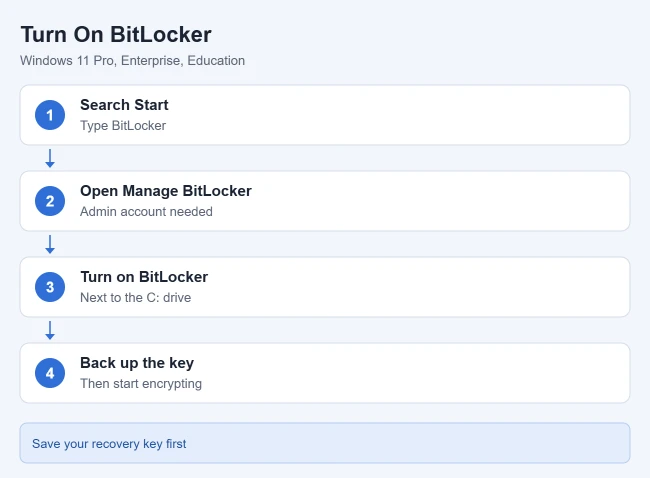
- Sign in to Windows with an administrator account.
- Select Start, type BitLocker, and select Manage BitLocker from the results. The BitLocker Drive Encryption window lists every connected drive.
- Select Turn on BitLocker next to Operating system drive (C:).
- Choose an unlock option if Windows asks, then back up your recovery key (see the options below).
- Follow the remaining prompts. The drive starts encrypting, and you can keep using your PC while it does.
Result: The C: drive shows BitLocker on in the Manage BitLocker window once encryption finishes.
To encrypt a second internal drive or a USB flash drive, select Turn on BitLocker next to it in the same window.
Does BitLocker need a TPM?
BitLocker gives the most protection with a Trusted Platform Module (TPM), a security chip that checks your PC hasn’t been tampered with before Windows starts. Without a TPM, BitLocker can still encrypt the operating system drive, but you’d need a startup key on a USB drive or a password, and you lose the startup integrity check. Most Windows 11 PCs have a TPM because Windows 11 requires one.
Turn On Device Encryption (Windows 11 Home)
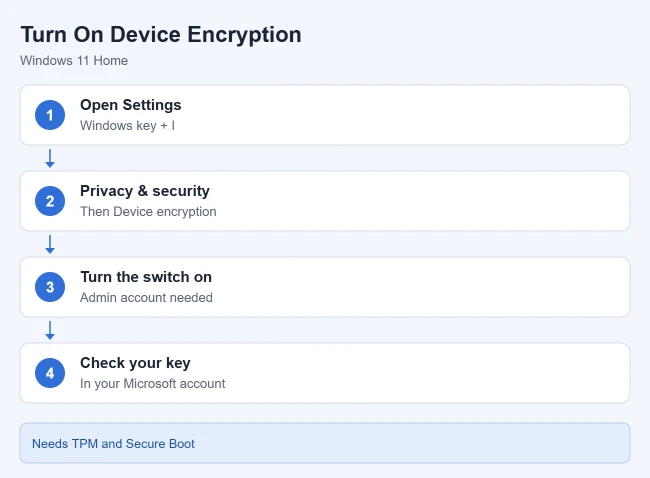
- Sign in with an administrator account.
- Press Windows key + I to open Settings.
- Select Privacy & security, then Device encryption.
- Turn Device encryption on.
Result: Windows encrypts your drives in the background. If you’re signed in with a Microsoft account, your recovery key is saved to that account.
If you turn device encryption off, Windows won’t turn it back on by itself. You’ll need to switch it on again in Settings.
Back Up Your Recovery Key
Windows may ask for your recovery key after a hardware or firmware change, or if it detects a possible attack. Without the key, you can lose access to your files. Microsoft Support can’t retrieve, provide or recreate a lost key, so save it in at least one place you can reach from another device.
- Save to your Microsoft account. The key goes into the recovery keys library, which you can view at account.microsoft.com/devices/recoverykey. Work or school PCs may save it to the organization’s account instead.
- Save to a USB flash drive. The key takes only a few KB. Don’t store the flash drive with your computer, since a thief could use it to unlock the drive.
- Save to a file. You can’t save it to the drive you’re encrypting. Microsoft suggests keeping a copy in OneDrive Personal Vault.
- Print the recovery key. Keep the printout somewhere safe and away from the computer.
If Device Encryption Isn’t Available
Device encryption needs all of the following:
- A TPM, enabled in the BIOS/UEFI
- Secure Boot, enabled in the BIOS/UEFI
- The Windows Recovery Environment (WinRE) set up
- No specialized peripherals connected during startup
To see exactly what’s missing, type System Information in Start, right-click it, and select Run as administrator. In System Summary, look at Device Encryption Support (or Automatic Device Encryption Support), which lists the reason. If Secure Boot is the problem, see how to enable Secure Boot in Windows 11.
Frequently Asked Questions
Can I use BitLocker on Windows 11 Home?
No. BitLocker Drive Encryption is only in Pro, Enterprise and Education. Home has device encryption instead, on supported PCs.
Can I encrypt a USB drive?
Yes, on Pro and higher. Open Manage BitLocker and select Turn on BitLocker next to the drive. Device encryption on Home doesn’t cover USB drives.
Will encryption slow down my PC?
Encryption runs in the background, and you can keep working. Windows may pause automatic encryption while you’re using the PC or running on battery.
How do I turn it off?
See how to turn off BitLocker in Windows 11.

Matthew Burleigh is the founder, head writer, and editor of Solve Your Tech, which he launched in 2012. He has written technology tutorials since 2008 and worked in IT since 2003, including small-business support, IT management, and consulting. He holds Bachelor’s and Master’s degrees in Computer Science from Arizona State University.
Matthew writes practical guides for Windows, iPhone and iPad, Microsoft Office, Outlook, Google apps, and Android. Solve Your Tech’s guides are tested on current devices or checked against official product documentation, with clear steps, sources, and update dates.
Read more about Matthew and how Solve Your Tech writes and updates its guides, or report a correction.