To use Quick Share on Android, open the photo, file, or link you want to send, tap Share, and then tap Quick Share. Pick the nearby device from the list and wait for the other person to tap Accept. Both devices need Bluetooth turned on and should be within about 1 foot of each other. These steps apply to phones and tablets running Android 6.0 or later, with separate notes for Samsung Galaxy phones, Windows PCs, Chromebooks, and iPhones.
The steps in this guide come from Google’s Android Help page, Use Quick Share on your Android device. Menu names can differ a little by phone maker and Android version.
What You Need
- An Android phone or tablet running Android 6.0 or later. Quick Share is built in, so there is nothing to install.
- Bluetooth turned on for both devices. Turn on Wi-Fi as well, because it is needed for QR code sharing and for sharing with a computer.
- Location turned on if either device runs Android 12 or earlier.
- Both devices close together. Google recommends within 1 foot (30 cm).
- The receiving device’s screen on and unlocked, unless you are sending to one of your own devices.
Quick Share used to be called Nearby Share. If your phone still shows the old name, the feature works the same way.
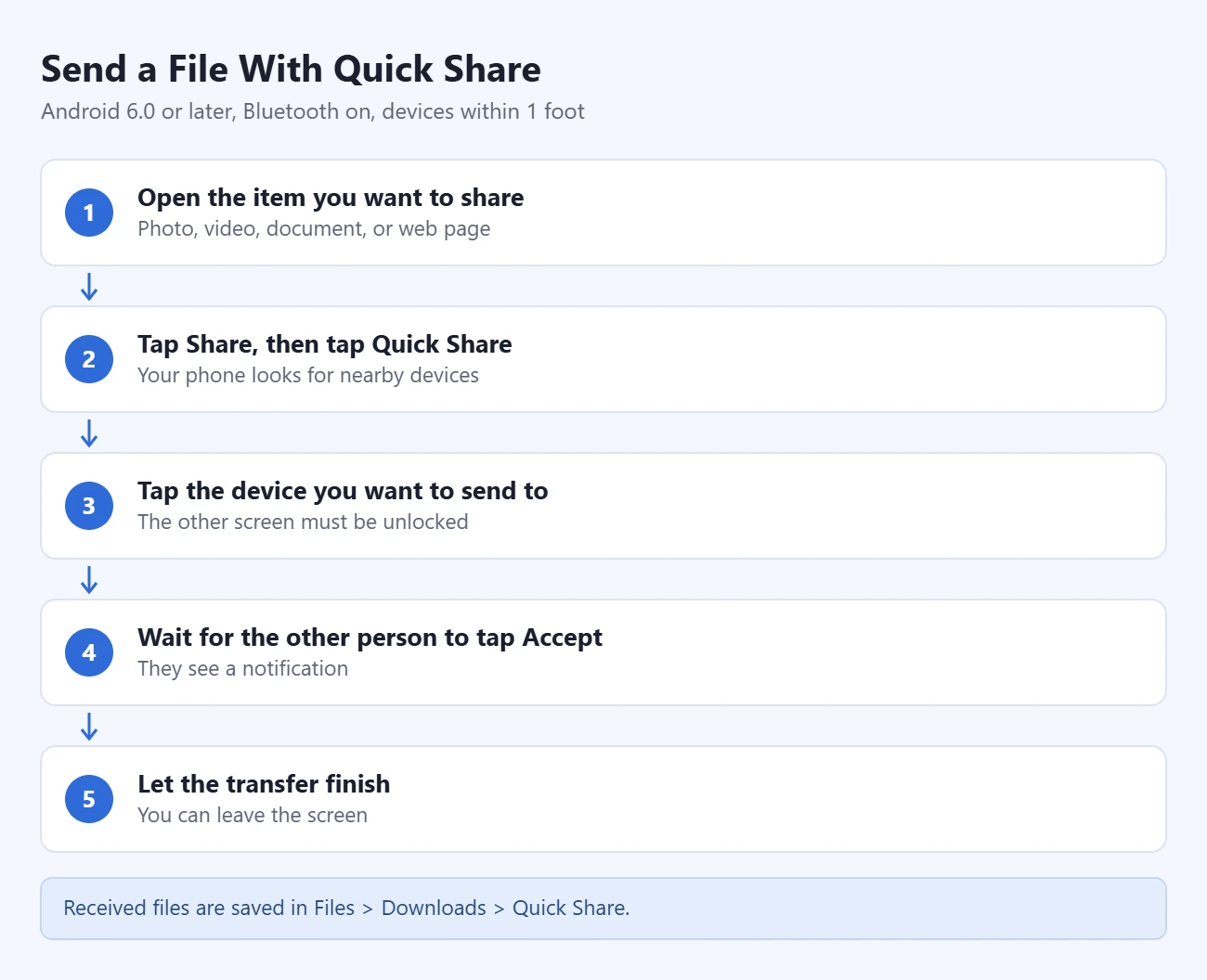
- Open the item you want to share. This can be a photo, a video, a document, or a web page.
- Tap Share, then tap Quick Share. The Quick Share page opens and your phone starts looking for nearby devices.
- Tap the device you want to send to. If you do not see it, ask the other person to unlock their screen and check their visibility setting, which is covered in the next section.
- Wait for the other person to tap Accept. They see a notification with your device name and what you are sending.
- Let the transfer finish. You can leave the screen and the transfer continues in the background.
You can select more than one device to send to several people. On some phones the transfers run at the same time. On others they are queued and sent one after another.
You can also start from the Quick Share page instead of from a file. Open Settings, search for Quick Share, tap Send, and select the content there. If you need help getting to that app first, see how to find the Settings app on your phone.
Your visibility setting decides which nearby people can see your device and send you something. If a sender cannot find you, this is usually the reason.
- Open the Settings app and search for Quick Share.
- Tap Who can share with you.
- Select Your devices, Contacts, or Everyone for 10 minutes.
| Option | Who can see your device |
|---|---|
| Your devices | Only devices signed in to your Google Account. This works even when your screen is off. |
| Contacts | Nearby people in your contacts, while your screen is on and unlocked. |
| Everyone for 10 minutes | Anyone nearby. The setting switches back by itself after 10 minutes to protect your privacy. |
Use Everyone for 10 minutes when the sender is not in your contacts. You do not need to remember to turn it off.
How to Receive a File
- Turn on Bluetooth and unlock your screen.
- Make sure Quick Share is in Receive mode. To check, open Settings, search for Quick Share, and tap Receive.
- Wait for the notification that shows who is sending and what they are sending.
- Tap Accept to take the file, or Decline to refuse it.
When you share between your own devices that use the same Google Account, the receiving device accepts the transfer automatically.
To confirm it worked, open the Files app on the receiving device and go to Downloads > Quick Share. Received files are saved in that folder.
A QR code is handy when the other device does not show up in the list, or when you do not want to change anyone’s visibility setting.
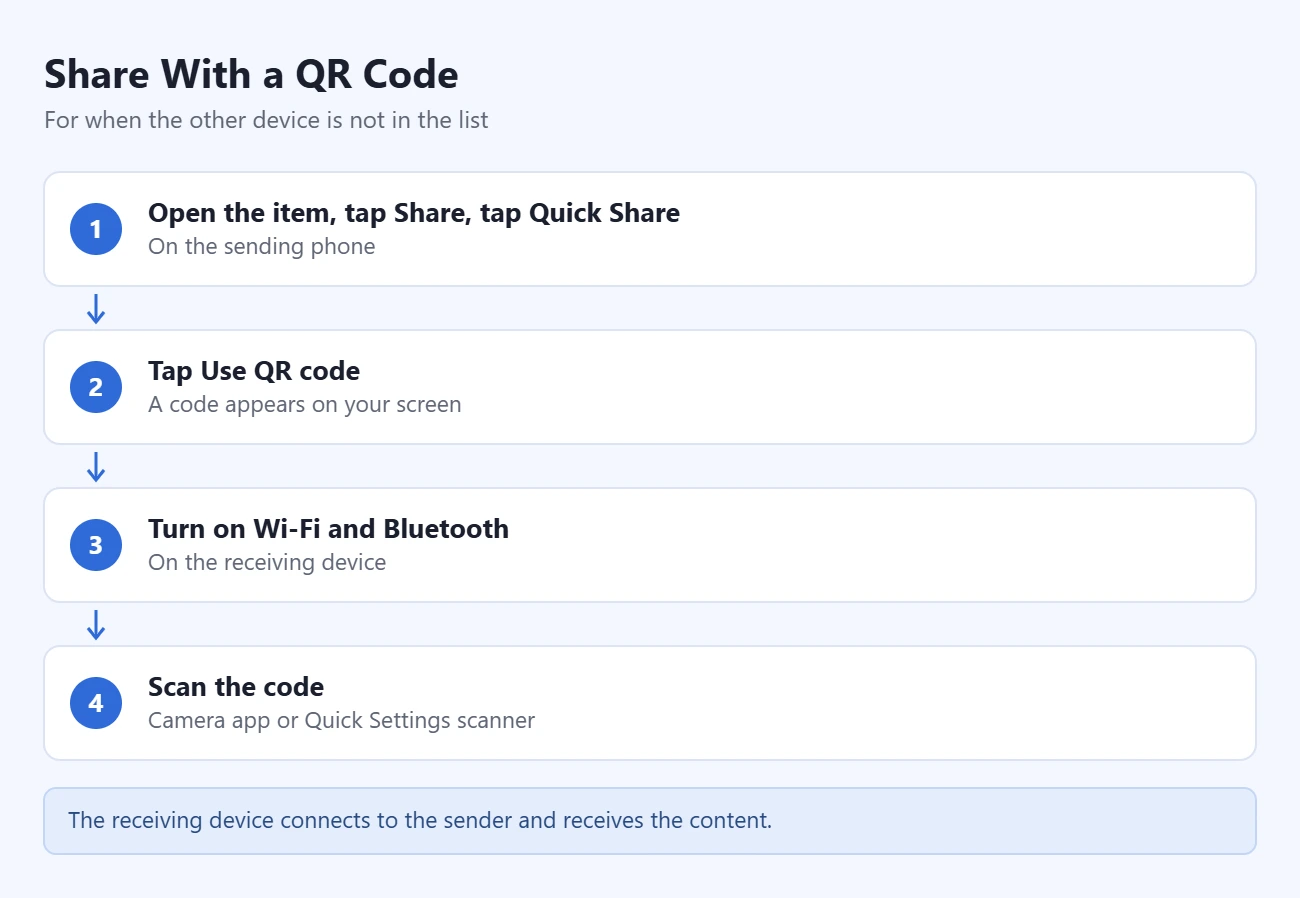
- On the sending phone, open the item, tap Share, and tap Quick Share.
- Tap Use QR code. A code appears on your screen.
- On the receiving device, turn on Wi-Fi and Bluetooth.
- Scan the code with the camera app or the QR scanner in Quick Settings. The device connects to the sender and receives the content.
If the camera does not react to the code, follow our guide on how to scan a QR code on Android.
A Quick Settings tile gives you a faster way to open Quick Share and change your visibility.
- Swipe down from the top of the screen to open Quick Settings.
- Scroll to find the Quick Share tile and tap it.
- If the tile is not there, tap Edit and select Quick Share to add it.
Galaxy phones with Android 10 and One UI 2.1 or later use Samsung’s version of the Quick Share screen, so some labels differ. Samsung documents these steps on its page Send and receive files with Quick Share on your Galaxy phone.
- Swipe down from the top of the screen with two fingers to open the Quick settings panel, then tap the Quick Share icon.
- To set your visibility, go to Settings > Connected devices > Quick Share > Who can share with you. The choices are No one, Your devices, Contacts, and Everyone (Only for 10 minutes).
- To send, tap the Send tab, tap Select file, choose your files, and tap Done.
- Tap the recipient’s device name. Sent appears under the name when the transfer is complete.
Samsung notes that you cannot use Quick Share while the phone is connected to a mobile hotspot, Wi-Fi Direct, or Smart View. Turn those off first.
To share with a Windows computer, install Google’s Quick Share for Windows app. The PC needs a 64-bit version of Windows 10 or later. ARM-based computers need Windows 11 or later. Google’s page Share files between Android and Windows with Quick Share has the full requirements.
- On the PC, download Quick Share from Google’s Quick Share for Windows page and install it. On a Samsung PC, get it from the Microsoft Store instead.
- Open the app and sign in with your Google Account.
- Set the device name under Visible to others as, then choose who can share with you under Receiving.
- Turn on Bluetooth on both devices, connect the phone and the PC to the same Wi-Fi or Ethernet network, and keep the devices within 16 feet (5 meters) of each other.
- On your phone, tap Share, tap Quick Share, and pick the PC. On the PC, select Accept.
Files that arrive on the PC are saved in a folder called Quick Share inside Downloads. To send from the PC to your phone, drag files into the Quick Share window, or right-click a file and choose Send with Quick Share. This is also a simple way to copy photos to a computer when you back up your Android phone.
Chromebooks have Quick Share built in. On the Chromebook, select the time at the bottom right, select Settings, select Connected devices, and then select Set up next to Quick Share. Choose a device name and a visibility setting. After that, the Chromebook appears in your phone’s Quick Share list like any other device. Google covers the Chromebook side in Share files with nearby devices.
Google says Quick Share can send files to Apple devices through AirDrop from a Pixel 8a or later, and from certain Samsung, Oppo, OnePlus, Vivo, Xiaomi, Honor, Transsion, and Motorola devices. Google does not list every model, so check whether Apple devices appear in your own Quick Share list.
- Ask the iPhone, iPad, or Mac user to open their AirDrop settings and select Everyone for 10 minutes.
- On your Android phone, open the content, tap Share, and tap Quick Share.
- Select the Apple device from the list of nearby devices.
- Wait for the other person to accept the AirDrop notification.
On a supported Galaxy phone, first turn on Share with Apple devices in Settings > Connected devices > Quick Share, and set Who can share with you to the Everyone 10-minute option.
If your phone does not support AirDrop sharing, tap Use QR code instead and have the Apple user scan it. This method uploads the files, so both devices need internet access. The files stay available to download for 24 hours. Google limits this to 10 GB every 24 hours and 1,000 files in a single share.
Troubleshooting: The Other Device Does Not Appear
Work through these checks in order. They are the fixes Google lists for Quick Share problems.
- Check Bluetooth. Make sure it is turned on for both devices.
- Move the devices closer. Keep them within 1 foot (30 cm) of each other.
- Turn Airplane mode on, then off. This restarts the wireless connections.
- Wait for other transfers to end. Make sure neither device is sharing with someone else.
- Turn on Location. This is needed on Android 12 or earlier.
- Restart the device. Then try the share again.
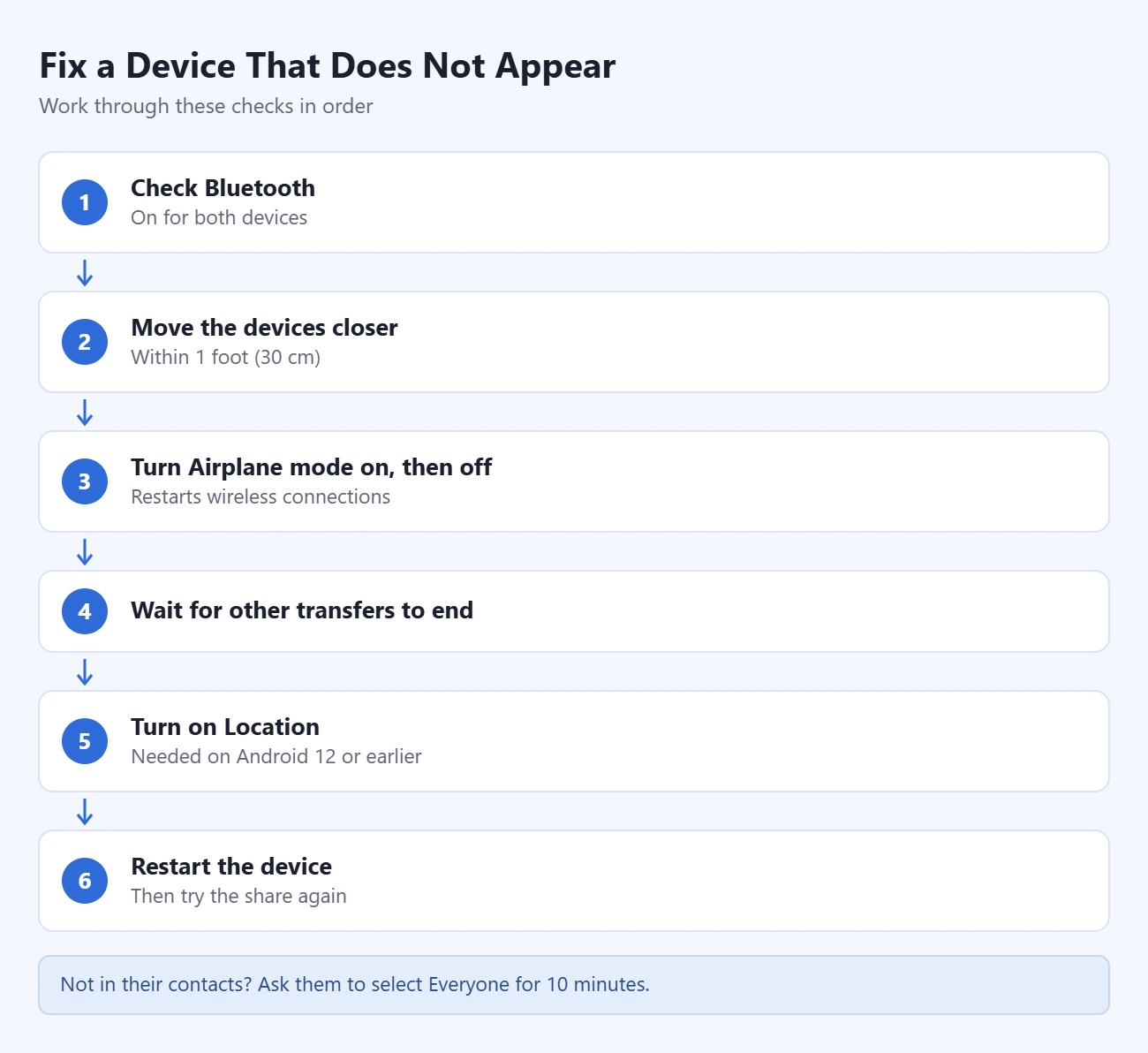
Also check the receiver’s side. Their screen must be unlocked, and their Who can share with you setting must include you. If you are not in their contacts, ask them to select Everyone for 10 minutes.
If Bluetooth or Wi-Fi keeps misbehaving in other apps too, you can reset network settings on Android. That removes saved Wi-Fi networks and paired Bluetooth devices, so treat it as a last step.
Frequently Asked Questions
Is Quick Share the same as Nearby Share?
Yes. Nearby Share was renamed Quick Share. The steps and settings are the same under the new name.
Does Quick Share need an internet connection?
Not for sharing between nearby Android devices. Quick Share finds the other device with Bluetooth and sends the file directly from one device to the other. The QR code method for Apple devices is the exception, because it uploads the files and needs internet access on both devices.
Where do Quick Share files go?
On Android, open the Files app and go to Downloads > Quick Share. On a Windows PC, look in the Quick Share folder inside Downloads.
Is there a file size limit?
Google does not list a fixed size limit for sharing between nearby Android devices. The limits of 10 GB per 24 hours and 1,000 files per share apply only to QR code sharing with Apple devices.
Can someone send me files without my permission?
No. You have to tap Accept before a file from another person is saved. Only transfers between your own devices on the same Google Account are accepted automatically. You also control who can see your device with the Who can share with you setting.
Can I share copied text with Quick Share?
On select devices with Android 13 and above, you can share content from your clipboard with Quick Share. On other phones, share the text from the app’s Share menu instead.
Next Step
Set Who can share with you to Contacts for everyday use, and add the Quick Share tile to Quick Settings so you can switch to Everyone for 10 minutes when you need it. Then send yourself a test photo between two of your own devices to see where it lands.

Matthew Burleigh is the founder, head writer, and editor of Solve Your Tech, which he launched in 2012. He has written technology tutorials since 2008 and worked in IT since 2003, including small-business support, IT management, and consulting. He holds Bachelor’s and Master’s degrees in Computer Science from Arizona State University.
Matthew writes practical guides for Windows, iPhone and iPad, Microsoft Office, Outlook, Google apps, and Android. Solve Your Tech’s guides are checked step by step against the device or app maker’s own documentation and tested on his own devices whenever he has the hardware or software, with clear steps, sources, and update dates.
Read more about Matthew and how Solve Your Tech writes and updates its guides, or report a correction.