To use Live Voicemail on an iPhone, open Settings, tap Apps, tap Phone, tap Live Voicemail, and turn it on. When a call goes to voicemail, your iPhone shows a transcript of the message on the screen while the caller is still talking. You can read along and answer the call before they hang up. These steps apply to iOS 27, iOS 26 and iOS 18, with the slightly different iOS 17 path listed further down.
The steps and limits in this guide are based on Apple’s iPhone User Guide page Set up Voicemail on iPhone and Apple’s own announcements about the feature. Exact button labels can change a little between iOS versions, so use the names on your screen if they differ.
What Live Voicemail Does
Normally a missed call goes to voicemail and you find out what the caller wanted later. With Live Voicemail, your iPhone shows the words on screen as the caller says them. If the message turns out to be important, you can answer in the middle of it. If it is not, you do nothing and the message is saved like any other voicemail.
Apple says the transcription is done on the iPhone itself and stays private. The caller hears a voicemail greeting and leaves a message as usual.
What You Need
- iOS 17 or later. Live Voicemail arrived with iOS 17. Check your version in Settings > General > About.
- A supported language and region. When the feature launched, Apple documented it as English only, in the United States and Canada. Apple now keeps the current list on its iOS feature availability page, under Phone: Live Voicemail. Check that list for your language and country instead of relying on an older one.
- Working voicemail on your line. If voicemail has never been set up, open the Phone app, go to Voicemail, and follow the setup prompts first. Your carrier controls whether voicemail is included in your plan.
- A call that actually reaches your iPhone. The transcript is created on the phone, so the phone has to be on and receiving the call.
How to Turn On and Use Live Voicemail (iOS 18, iOS 26 and iOS 27)
- Open Settings. Tap the gray gear icon on your Home Screen.
- Tap Apps, then tap Phone. Apps is at the bottom of the main Settings list. Phone is in the alphabetical list of apps.
- Tap Live Voicemail and turn it on. The switch turns green. It may already be on.
- Let a call go to voicemail. Wait for the call to ring out, or tap Voicemail on the incoming call screen if that button is shown.
- Read the transcript as the caller speaks. The text appears on the call screen a few seconds after the caller starts talking.
- Answer the call to pick up, or do nothing. Answering connects you to the caller right away. If you do nothing, the caller finishes and the message is saved in the Phone app.
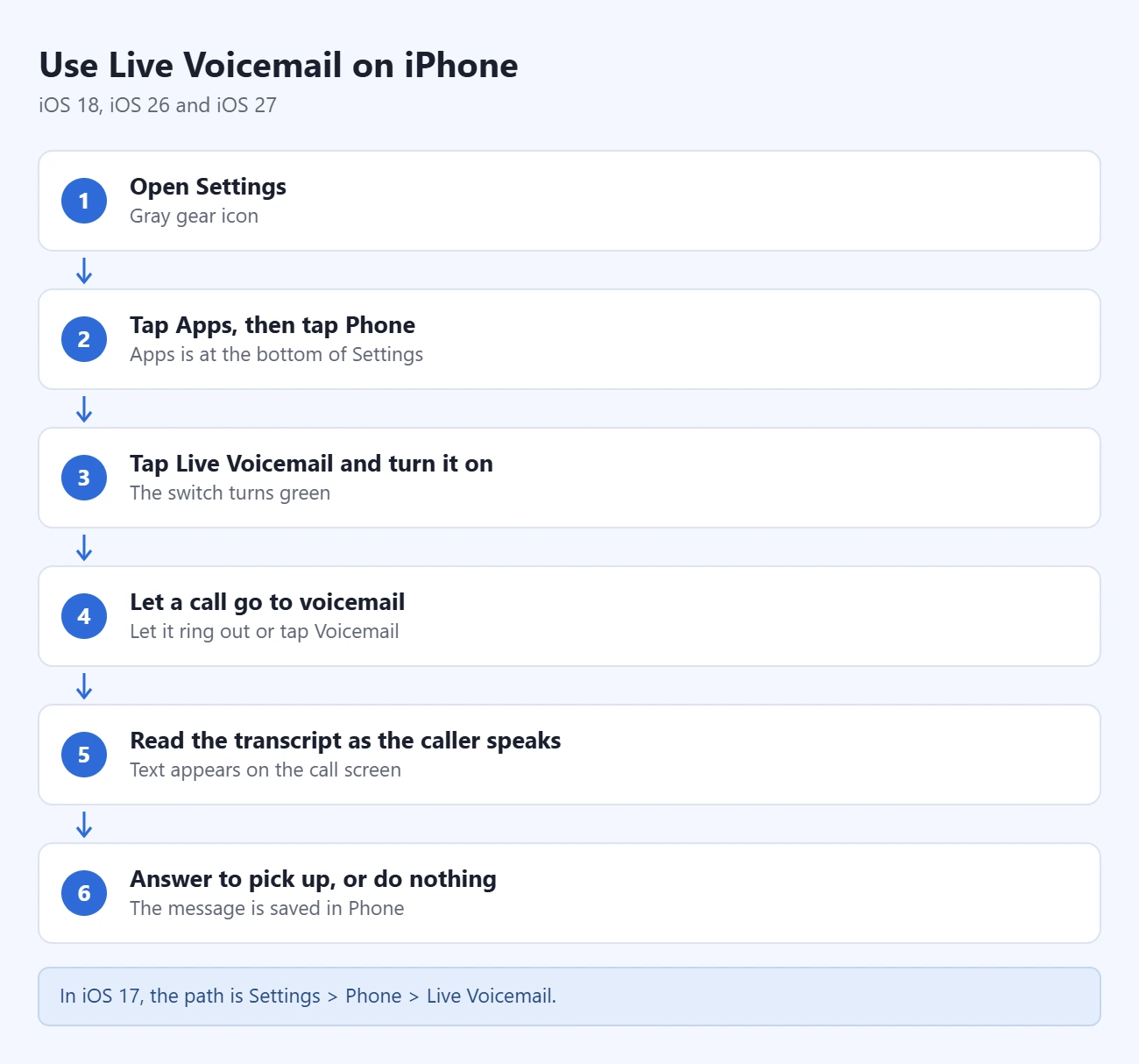
Apple notes that the caller can’t hear you, and you can’t hear them, unless you answer. To end the incoming voicemail without answering or blocking the caller, tap Stop. If your iPhone is turned off or out of range of your carrier’s network, the call goes to your carrier’s voicemail instead, if you have it. Apple also says calling and data rates may apply.
How to Turn On Live Voicemail in iOS 17
iOS 17 does not have the Apps section in Settings, so the path is one tap shorter.
- Open Settings.
- Scroll down and tap Phone.
- Tap Live Voicemail.
- Turn on Live Voicemail.
Everything else works the same way. Calls that go to voicemail show a transcript, and you can answer while the caller is still speaking.
How to Confirm It Is Working
The easiest test is to call your iPhone from another phone. Do not answer. When the call goes to voicemail, start talking after the greeting. Your words should appear on the iPhone screen within a few seconds. Answer the call to check that picking up works, then hang up.
If the call rings and then goes to voicemail with no text on the screen, go to the troubleshooting section below.
Where to Find the Message and Transcript Later
A Live Voicemail message is saved with your other voicemails in the Phone app. Where you look depends on the Phone layout you use.
- Unified layout (iOS 26 and later): open Phone and tap Calls. Voicemails appear in the same list as your recent calls. Tap the Filter button at the top to narrow the list.
- Classic layout, and iOS 18 or iOS 17: open Phone and tap the Voicemail tab.
Tap a message to play it and read the transcript. A transcript is only a guide. Names, numbers and addresses are often written wrong, so play the audio before you act on anything important. If you want to keep a message, see our guide on how to save or share a voicemail on iPhone.
How to Turn Off Live Voicemail
Turning the feature off does not delete any saved messages. Calls still go to voicemail. You just stop seeing the transcript during the call.
- Open Settings.
- Tap Apps, then tap Phone. In iOS 17, tap Phone in the main Settings list.
- Tap Live Voicemail.
- Turn off Live Voicemail.
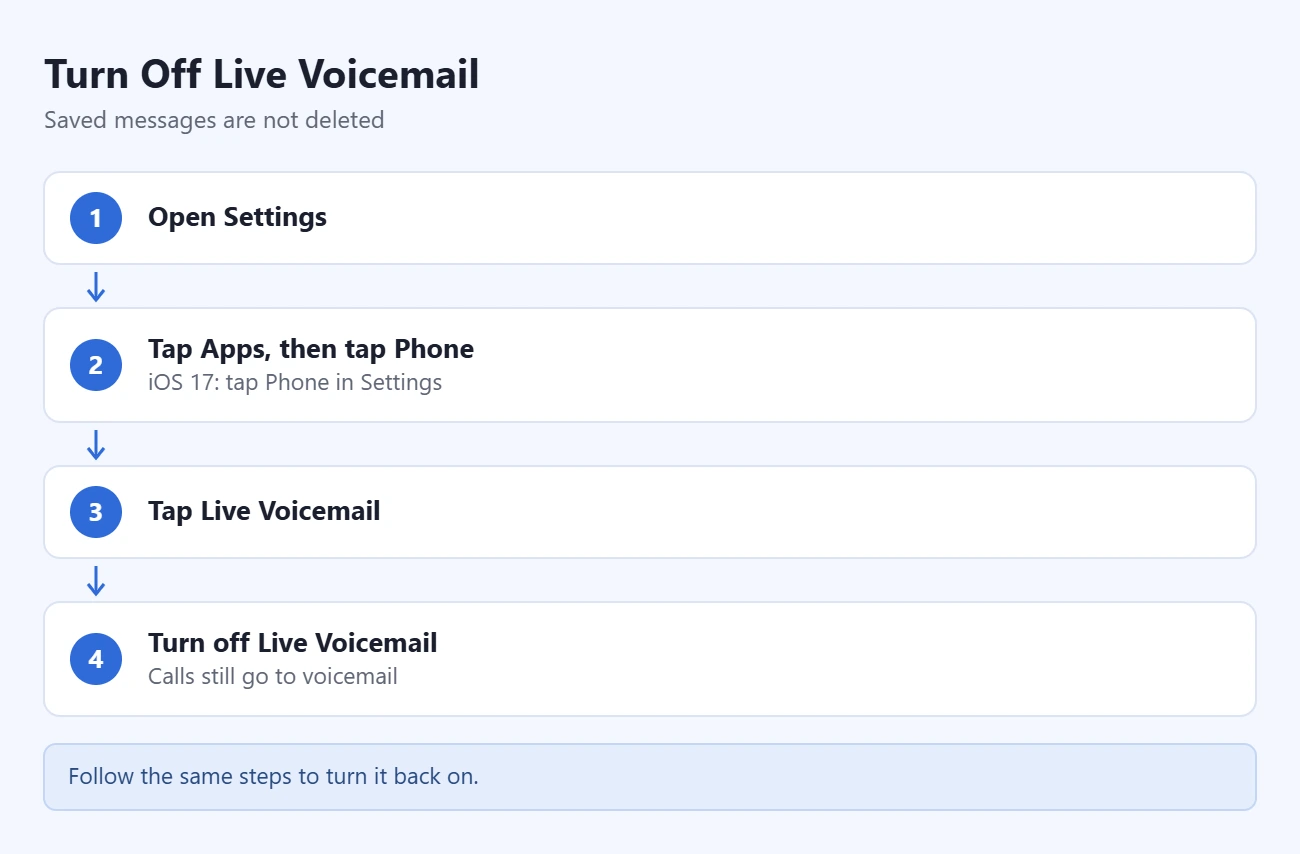
To undo this, follow the same steps and turn the switch back on.
Live Voicemail With Unknown Callers, Call Screening and Spam
Several Phone settings decide whether a call rings, gets screened or goes to voicemail. They are in Settings > Apps > Phone in iOS 26 and iOS 27. Apple describes them on its page Manage unknown callers on iPhone.
| Setting | What it does | What it means for voicemail |
|---|---|---|
| Screen Unknown Callers: Never | Calls from unsaved numbers ring normally. | A call you do not answer goes to voicemail as usual. |
| Screen Unknown Callers: Ask Reason for Calling | The caller is asked why they are calling before your iPhone rings. | This is call screening, a separate feature. It happens before the call rings, not after. |
| Screen Unknown Callers: Silence | Calls from unsaved numbers are silenced. | The call is sent to voicemail without ringing. |
| Spam, under Call Filtering | Calls your carrier identifies as spam are silenced and kept in a Spam list. | Apple says calls identified as spam by carriers do not appear as Live Voicemail. They are declined instead. |
Two more details from Apple are worth knowing. Calls are not screened while you are roaming, whatever the setting says. And if you call emergency services, call screening turns itself off for 24 hours.
Apple also notes that on older software, Live Voicemail has to be turned on before call screening can be used. If a screening option is missing on an older iPhone, turn on Live Voicemail first and look again.
If you only want to stop unsaved numbers from ringing, our guide on how to silence unknown callers on iPhone covers that setting in full. For carrier-level filtering, see how to turn off spam calls on iPhone.
Troubleshooting: Live Voicemail Is Missing or Not Working
Work through these checks in order. Most problems come from the first three.
- Check the iOS version. Go to Settings > General > Software Update. The Live Voicemail setting does not exist before iOS 17.
- Check the language and region. Go to Settings > General > Language & Region. If your iPhone language or region is not on Apple’s availability list, the Live Voicemail row may not appear in Phone settings.
- Check that the switch is on. Go to Settings > Apps > Phone > Live Voicemail. Turn it off, wait a few seconds, and turn it on again.
- Check that voicemail works at all. Call your own number from another phone and leave a message. If no message arrives, contact your carrier. Voicemail service and Visual Voicemail support are set by the carrier and plan.
- Check your signal and Airplane Mode. If the iPhone is off, in Airplane Mode or has no service, the call never reaches the phone, so there is nothing to transcribe. The caller is handled by your carrier’s voicemail instead.
- Restart the iPhone and test again. A restart clears temporary Phone app problems. Then repeat the test call.
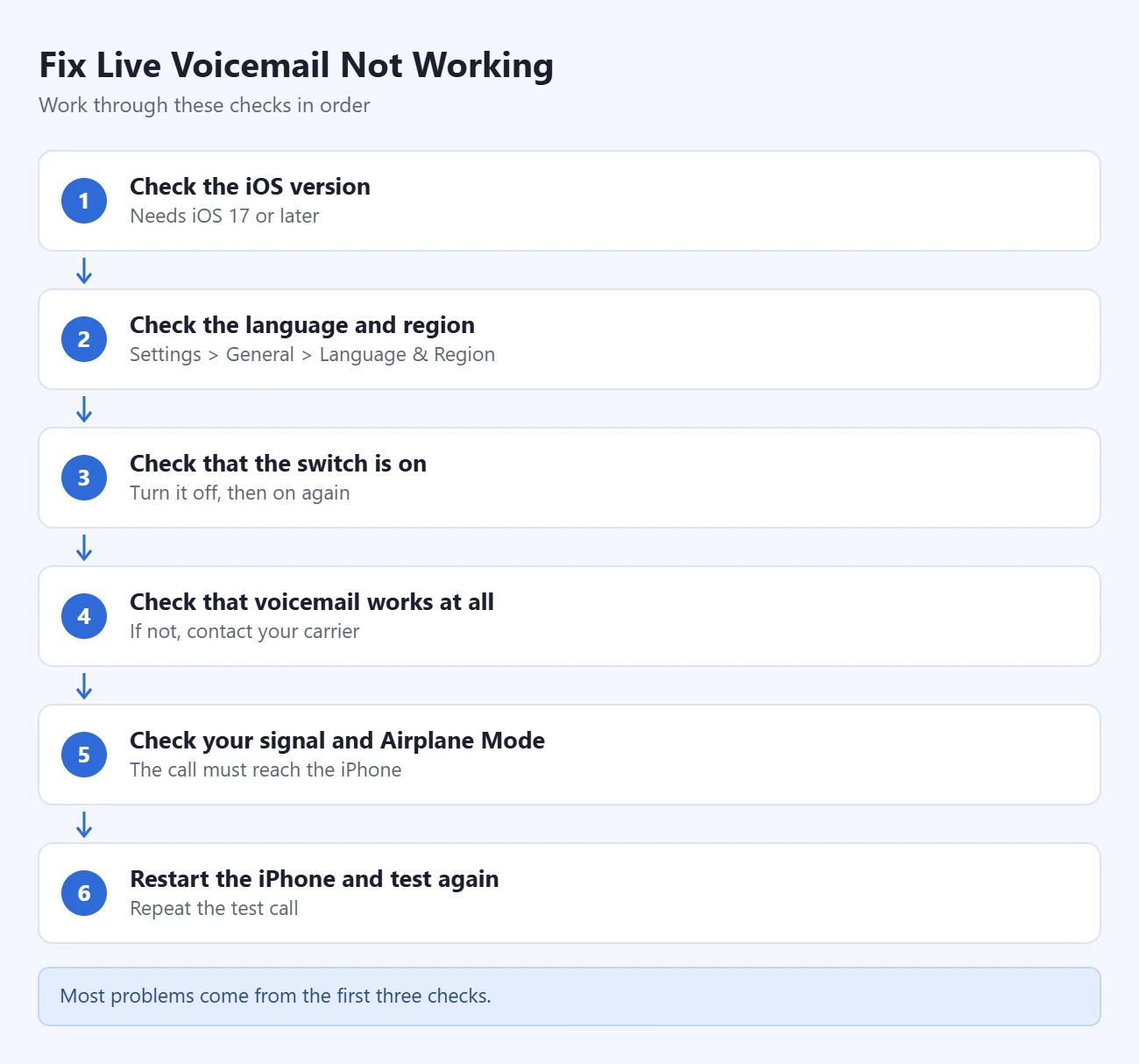
A few other situations cause confusion:
- The switch is gray and will not move. If the iPhone is managed by a job or school, a restriction may lock this setting. Ask that organization.
- The transcript is empty or full of mistakes. Background noise, a bad connection or a language the feature does not support will all hurt accuracy. Play the audio instead.
- A Focus is on. Do Not Disturb and other Focus modes silence calls and notifications, so you may not notice the transcript while it is happening. The saved message is still in the Phone app afterward.
- Calls skip ringing entirely. That is a different problem. Our guide on why an iPhone goes straight to voicemail walks through the settings that cause it.
Frequently Asked Questions
Does the caller know I am reading their voicemail live?
Apple does not describe any notice to the caller. From their side it is an ordinary voicemail. They only find out you were there if you answer and start talking.
Can I answer a call after it has gone to Live Voicemail?
Yes, as long as the caller is still leaving the message. Answer the call from the Live Voicemail screen. Once the caller hangs up, you need to call them back.
Is Live Voicemail the same as Visual Voicemail?
No. Visual Voicemail is the list of saved messages in the Phone app that you can play in any order. Live Voicemail shows the text of a message while it is being recorded and lets you pick up.
Is Live Voicemail the same as call screening?
No. Call screening, the Ask Reason for Calling option, asks an unknown caller why they are calling before your iPhone rings. Live Voicemail starts after a call has gone to voicemail, and it works for saved contacts and unknown numbers alike, except calls your carrier identifies as spam.
Does Live Voicemail cost anything?
Apple does not charge for it. It is part of iOS. Your carrier’s normal rules for calls and voicemail still apply.
Why don’t spam calls show a Live Voicemail transcript?
Apple says calls that carriers identify as spam are declined right away and do not appear as Live Voicemail. Spam calls your carrier does not catch can still come through.
Why is there no Live Voicemail option in my Phone settings?
The usual causes are an iPhone on iOS 16 or earlier, or a language or region that Apple does not list for the feature. Update the iPhone, then compare your Language & Region settings with Apple’s availability page.
Next Step
Turn on Live Voicemail, then call your iPhone from another phone to see the transcript for yourself. Once you know it works, decide how you want unknown numbers handled in Settings > Apps > Phone so that the calls you care about ring and the rest go quietly to voicemail.

Matthew Burleigh is the founder, head writer, and editor of Solve Your Tech, which he launched in 2012. He has written technology tutorials since 2008 and worked in IT since 2003, including small-business support, IT management, and consulting. He holds Bachelor’s and Master’s degrees in Computer Science from Arizona State University.
Matthew writes practical guides for Windows, iPhone and iPad, Microsoft Office, Outlook, Google apps, and Android. Solve Your Tech’s guides are tested on current devices or checked against official product documentation, with clear steps, sources, and update dates.
Read more about Matthew and how Solve Your Tech writes and updates its guides, or report a correction.