To clear the cache in Chrome, click the three-dot More menu at the top right, choose Delete browsing data, pick a time range, check Cached images and files, and click Delete data. Uncheck everything else if you only want the cache gone. These steps apply to the current version of Chrome on Windows, Mac, Linux, Android, iPhone, and iPad as of October 2026.
The steps come from Google’s Clear cache & cookies help page and its Chrome Help page on deleting browsing data.
Before You Start: Cache vs. Cookies vs. History
The Delete browsing data window lists several kinds of data. Each box does something different, and only some of them sign you out. Decide which ones you need before you delete anything. Deleted data cannot be restored.
| Item | What it is | What happens when you delete it |
|---|---|---|
| Cached images and files | Parts of pages that Chrome keeps so they open faster on your next visit | You stay signed in. Some sites can seem slower at first because images and other content load again. |
| Cookies and site data | Files created by the sites you visit that save browsing information | You are signed out of most sites, and saved site preferences can be deleted. |
| Browsing history | The web addresses you have visited | Visited pages are removed from History, from the shortcuts on the New Tab page, and from address bar predictions. You stay signed in. |
If a page looks broken or out of date, start with the cache only. Add cookies only if the problem is still there, and expect to sign in to your sites again afterward.
One more thing to know: if you are signed in to Chrome, deleting data that is saved to your Google Account, such as history or autofill info, also removes it from your other devices and from the account.
How to Clear the Cache in Chrome on a Computer
- Open Chrome.
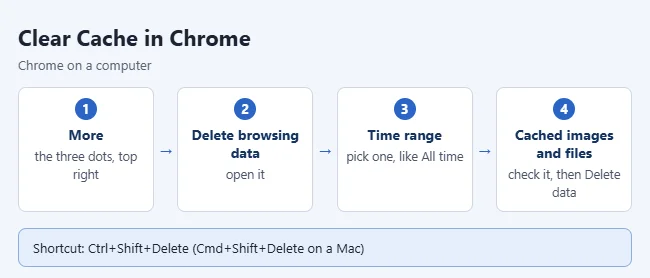
- Click the More button (three dots) at the top right of the window. A menu opens.
- Click Delete browsing data. A small window opens with a time range and a list of checkboxes.
- Choose a time range, like Last hour or All time. Pick All time if you don’t know when the problem started.
- Check Cached images and files.
- Uncheck anything you want to keep, such as Browsing history and Cookies and other site data. The cookies box may be labeled Cookies and site data.
- Click Delete data. The window closes and the cache is cleared.
Use the Keyboard Shortcut or the Address Bar
You can skip the menu and open the same Delete browsing data window in two other ways.
- Windows or Linux: Press Ctrl + Shift + Delete.
- Mac: Press Command + Shift + Delete.
- Address bar: Type Delete browsing data in the address bar and select the action button that appears below it.
The shortcut only opens the window. Nothing is deleted until you choose your options and click Delete data.
How to Clear the Cache in Chrome on Android
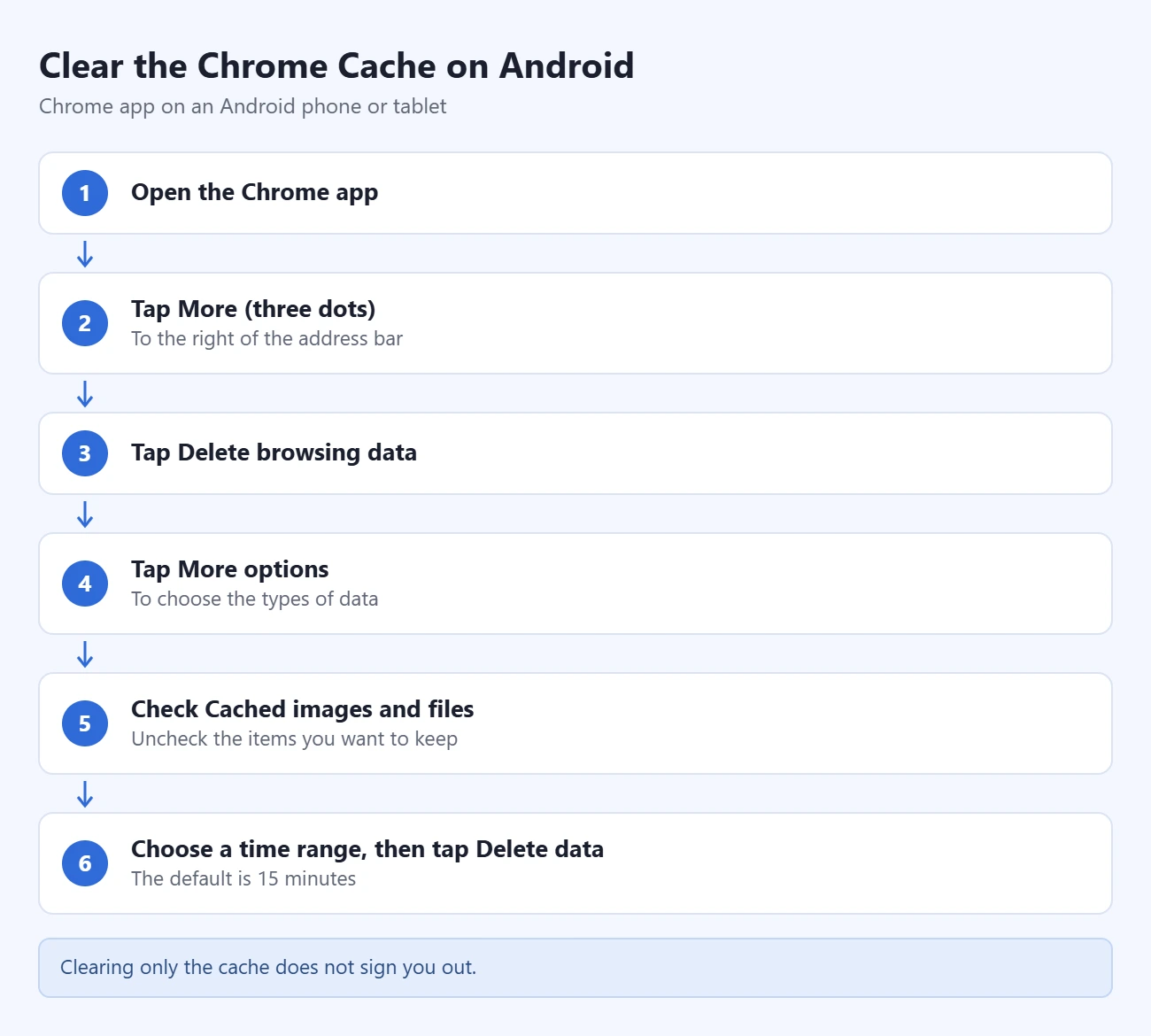
- Open the Chrome app.
- Tap More (three dots) to the right of the address bar.
- Tap Delete browsing data.
- Tap More options to choose the types of data.
- Check Cached images and files and uncheck the items you want to keep.
- Choose a time range. The default is 15 minutes, so change it to clear older files.
- Tap Delete data.
If you skip More options and tap Delete data right away, Chrome deletes more than the cache for the time shown. If you delete cookies on Android while you are signed in to Chrome, you are not signed out of your Google Account, but other sites will ask you to sign in again.
The Android list also includes Tabs and Saved passwords. Leave both unchecked unless you mean to close every tab or remove your passwords. This only clears Chrome’s own data. To clear the temporary files of other apps, see how to clear cache on Android.
How to Clear the Cache in Chrome on iPhone or iPad
- Open the Chrome app.
- Tap More (three dots).
- Tap Delete Browsing Data.
- Tap the time range and choose how far back to go. The default is 15 minutes.
- Tap Browsing Data, select Cached Images and Files, and deselect the items you want to keep.
- Tap Confirm.
- Tap Delete Browsing Data.
You can also reach the same screen from More > History > Delete Browsing Data. Google warns that clearing cache and cookies on an iPhone or iPad might sign you out of your Google Account, so make sure your recovery phone number and email are up to date first.
These steps only affect Chrome. Safari keeps its own data, which is covered in our guide to clearing cookies and cache on an iPad.
How to Clear the Cache for One Site
Chrome has no checkbox that clears the cache for a single site. You have two options instead.
Reload the page without the cache
Open the page and press Shift + F5 or Ctrl + Shift + R on Windows or Linux, or Command + Shift + R on a Mac. Chrome reloads the current page and ignores its cached content. Nothing else is deleted and you stay signed in everywhere.
Delete the data one site has stored
Warning: this removes that site’s cookies and stored data, so you are signed out of that site. Other sites are not affected.
- Open Chrome on your computer and click More > Settings.
- Click Privacy and security, then Third-party cookies.
- Click See all site data and permissions.
- Type the website’s name in the search box at the top right.
- Click Delete to the right of the site.
- Click Delete again to confirm.
 Settings; click Privacy and security, then Third-party cookies; click See all site data and permissions; search for the website; click Delete; click Delete again to confirm” class=”wp-image-163211″ style=”width:650px;height:auto”/>
On Android, open the site in Chrome, tap Page info at the left of the address bar, tap Cookies and site data, and then tap Delete next to the stored data. Google documents these one-site steps in Delete, allow and manage cookies in Chrome.
How to Confirm It Worked
Chrome does not show a success message. Go back to the page that had the problem and reload it. A first load that is a little slower than usual is normal, because Chrome is downloading the images and files again. If you kept the cookies box unchecked, you should still be signed in to your sites.
There is no undo. The cache rebuilds by itself as you browse, so you don’t have to do anything to get it back. Cookies do not come back. You have to sign in to each site again.
Troubleshooting
- You don’t see Delete browsing data in the menu. Use the keyboard shortcut or type Delete browsing data in the address bar. If the wording in your menu is different, update Chrome: click More > Help > About Google Chrome, then Relaunch if that button appears.
- The page is still broken. Open Delete browsing data again and check the time range. On a phone or tablet it starts at 15 minutes, which leaves older files in place. Choose All time and try again.
- Still broken after All time. Repeat the steps with the cookies box checked too. You will have to sign in to your sites again.
- You were signed out of everything. The cookies box was checked. This cannot be reversed, so sign in again and leave that box unchecked next time.
- Data disappeared from another device. You were signed in to Chrome, so history or autofill info saved to your Google Account was removed everywhere.
- An option is missing or you can’t change it. The list is not the same on every device, and Chrome on a work or school device can be managed by an administrator. Ask your IT contact if a setting is locked.
If clearing the cache and cookies doesn’t help, the cause may be a setting or an extension. You can reset Chrome to its default settings as a next step. If a site says cookies are blocked, see how to enable cookies in Chrome.
Frequently Asked Questions
Will clearing the cache delete my passwords?
No. Cached images and files are separate from saved passwords. On a computer, Google says saved passwords are deleted in Google Password Manager, not with the cache. On Android, Saved passwords is its own checkbox, so leave it unchecked.
Will clearing the cache sign me out of websites?
No. Deleting cookies is what signs you out. If you check only Cached images and files, you stay signed in.
Does clearing the cache delete my browsing history or bookmarks?
No. Browsing history is a separate checkbox, and bookmarks are not part of Delete browsing data. See how to view and delete Chrome history if you want to remove the pages you visited.
How often should I clear my Chrome cache?
Only when something goes wrong, like a page that won’t load, looks outdated, or is formatted wrong, or when you need to free up some storage. Clearing it all the time just makes sites load slower.
What is the shortcut to clear the cache in Chrome?
Press Ctrl + Shift + Delete on Windows or Linux, or Command + Shift + Delete on a Mac. That opens the Delete browsing data window, where you check Cached images and files and click Delete data.
Does deleting browsing data clear my Google search history?
No. Searches and other activity on Google services are saved to your Google Account and are deleted there, not in Chrome’s Delete browsing data window.
How do I clear the cache in Microsoft Edge?
The steps are similar. See our guide to clearing the cache in Microsoft Edge.
Next Step
Clear only the cache first and reload the page. If the problem is still there, run the steps again with cookies checked, then sign back in to the site.

Matthew Burleigh is the founder, head writer, and editor of Solve Your Tech, which he launched in 2012. He has written technology tutorials since 2008 and worked in IT since 2003, including small-business support, IT management, and consulting. He holds Bachelor’s and Master’s degrees in Computer Science from Arizona State University.
Matthew writes practical guides for Windows, iPhone and iPad, Microsoft Office, Outlook, Google apps, and Android. Solve Your Tech’s guides are checked step by step against the device or app maker’s own documentation and tested on his own devices whenever he has the hardware or software, with clear steps, sources, and update dates.
Read more about Matthew and how Solve Your Tech writes and updates its guides, or report a correction.