To clear an app’s cache on Android, open Settings, tap Apps, choose the app, tap Storage (or Storage & cache), and tap Clear cache. This removes temporary files without signing you out or deleting your data. To clear Chrome’s cache, open Chrome, tap the three dots, then Delete browsing data > More options and select only Cached images and files.
Newer versions of Android don’t have a single button that clears the cache for every app at once, so you clear it app by app. Menu names vary a little by phone, but the path is the same on Pixel, Samsung, and most other Android phones.
How to Clear an App’s Cache on Android
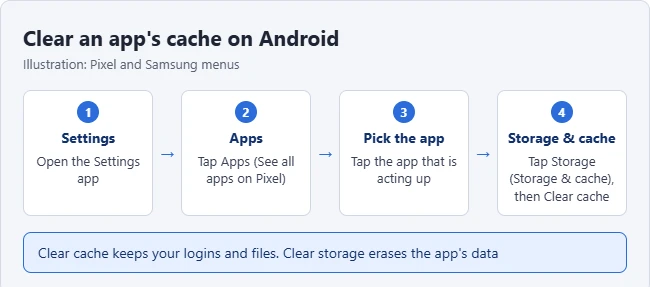
- Open the Settings app.
- Tap Apps. On a Pixel, tap See all apps.
- Tap the app you want to clean up.
- Tap Storage & cache (on Samsung, tap Storage).
- Tap Clear cache.
The cache size drops to zero or close to it. Open the app again, and it rebuilds the files it needs. These are the same steps Android’s own guide uses.
Clear Cache vs. Clear Storage
- Clear cache deletes temporary files like thumbnails and saved web pages. Your logins, settings, and downloads stay.
- Clear storage (or Clear data) resets the app as if you just installed it. You will need to sign in again, and offline files inside the app are deleted.
Start with Clear cache. Before considering Clear storage, restart the phone and check for an app update. If you do reset an app, first make sure important in-app files are backed up or synced and that you can sign in again. Clearing storage can permanently remove unsynced app data.
How to Clear the Cache in Chrome on Android
- Open Chrome.
- Tap the three-dot More menu beside the address bar.
- Tap Delete browsing data (on some versions, tap History, then Delete browsing data).
- Tap More options to choose exactly which data to remove. If you already see the data checkboxes, continue to the next step.
- Choose a time range, such as All time.
- Select Cached images and files. Deselect every other data type you want to keep, including Browsing history, Tabs, and Cookies and site data, if shown.
- Tap Delete data.
Reload the affected website after clearing the cache. Its first load may take longer as Chrome downloads fresh files. Google’s browsing-data guide explains what each checkbox removes. Do not use the quick Delete data action without reviewing the selections if you only want to clear cache.
Free Up More Space on Samsung Phones
On a Samsung phone, Device care also offers storage and performance tools. Menu names can vary by model and software version; some phones call it Battery and device care. To clear one specific app’s cache, use the app’s Storage > Clear cache button described above.
- Open Settings.
- Tap Device care (or Battery and device care).
- Tap Storage to review which file categories use the most space.
Review files before removing them. The separate Memory tool stops background apps to free RAM; it is different from deleting stored files. See Samsung’s storage instructions for the options on Galaxy devices.
When Clearing the Cache Helps
- An app keeps crashing, freezing, or showing old content.
- A website looks broken in Chrome.
- Your phone is low on storage and one app has a large cache.
Clearing the cache won’t fix every problem, and the files come back as you use the app. If your phone is still slow, try a restart. Here’s how to turn off and restart an Android phone.
Frequently Asked Questions
Is it safe to clear the cache on Android?
Yes. Clearing the cache only removes temporary files. It doesn’t delete your photos, messages, or accounts.
How often should I clear the cache?
Only when an app misbehaves or you need space. Clearing it all the time can make apps load slower, because they need to rebuild temporary files.
Does clearing the cache delete my search history?
No. Search history is stored separately. See how to delete search history on Android. To remove deleted files for good, you can also empty the trash on Android.

Matthew Burleigh has been writing tech tutorials since 2008. His writing has appeared on dozens of different websites and been read hundreds of millions of times.
After receiving his Bachelor’s and Master’s degrees in Computer Science he spent several years working in IT management for small businesses. However, he now works full time writing content online and creating websites.
His main writing topics include iPhones, Microsoft Office, Google Apps, Android, and Photoshop, but he has also written about many other tech topics as well.