To block a number on Android, open the Phone app, tap More > Call history, tap a call from that number, and tap Block / report spam. On a Samsung Galaxy phone, open the Phone app, tap the Recents tab, select the number, tap Menu, and tap Block. This guide covers the Phone by Google app (Pixel and many other phones) and Samsung Galaxy phones, plus texts, unknown callers, spam filters, and unblocking.
The steps come from Google’s Block or unblock a phone number help page and Samsung’s Block a phone number or contact on your Galaxy phone support page, as published in October 2026.
What You Need
- Know which Phone app you have. Pixel, Motorola, and many other phones use Phone by Google. Samsung Galaxy phones use Samsung’s own Phone app. The menus are different, so use the section that matches your phone.
- Android version. Google says blocking in its Phone app needs Android 6.0 or later. Samsung’s instructions apply to Galaxy phones running Android 9.0 or later. Google says some of the Google Messages steps only work on Android 7.0 and up.
- An updated app. Button names change between app versions. If a label here does not match your screen, update the Phone app in the Play Store or Galaxy Store and look for the closest match.
- The number. It is easiest to block a number that is already in your call history, your contacts, or a text conversation.
Blocking is saved on your phone, not on your carrier account. Samsung notes that feature availability can vary by carrier, software version, and phone model.
How to Block a Number in the Google Phone App
Use these steps on a Pixel or any phone that uses Phone by Google.
- Open the Phone app.
- Tap More (three dots), then tap Call history. Your recent calls appear in a list.
- Tap a call from the number you want to block. A row of options opens under the call.
- Tap Block / report spam.
- Confirm the block. If you are asked whether to report the call as spam, choose what fits. You can block a number without reporting it.
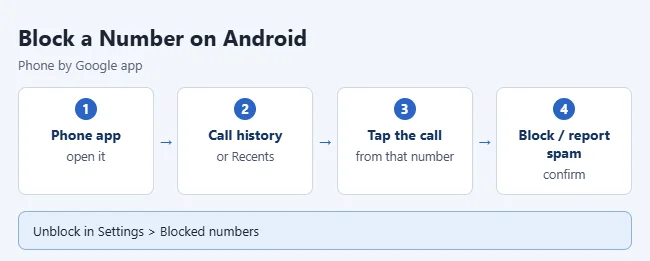
From now on, your phone declines calls from that number automatically. Google says that if visual voicemail is on, blocked callers can’t leave voicemails.
On some versions of the app, your recent calls are on a Home or Recents tab instead. You can tap the call there, or touch and hold it, and then tap Block or Report spam.
How to Block Unknown or Private Callers in the Google Phone App
- Open the Phone app.
- Tap More, then tap Settings.
- Tap Blocked numbers.
- Turn on Unknown.
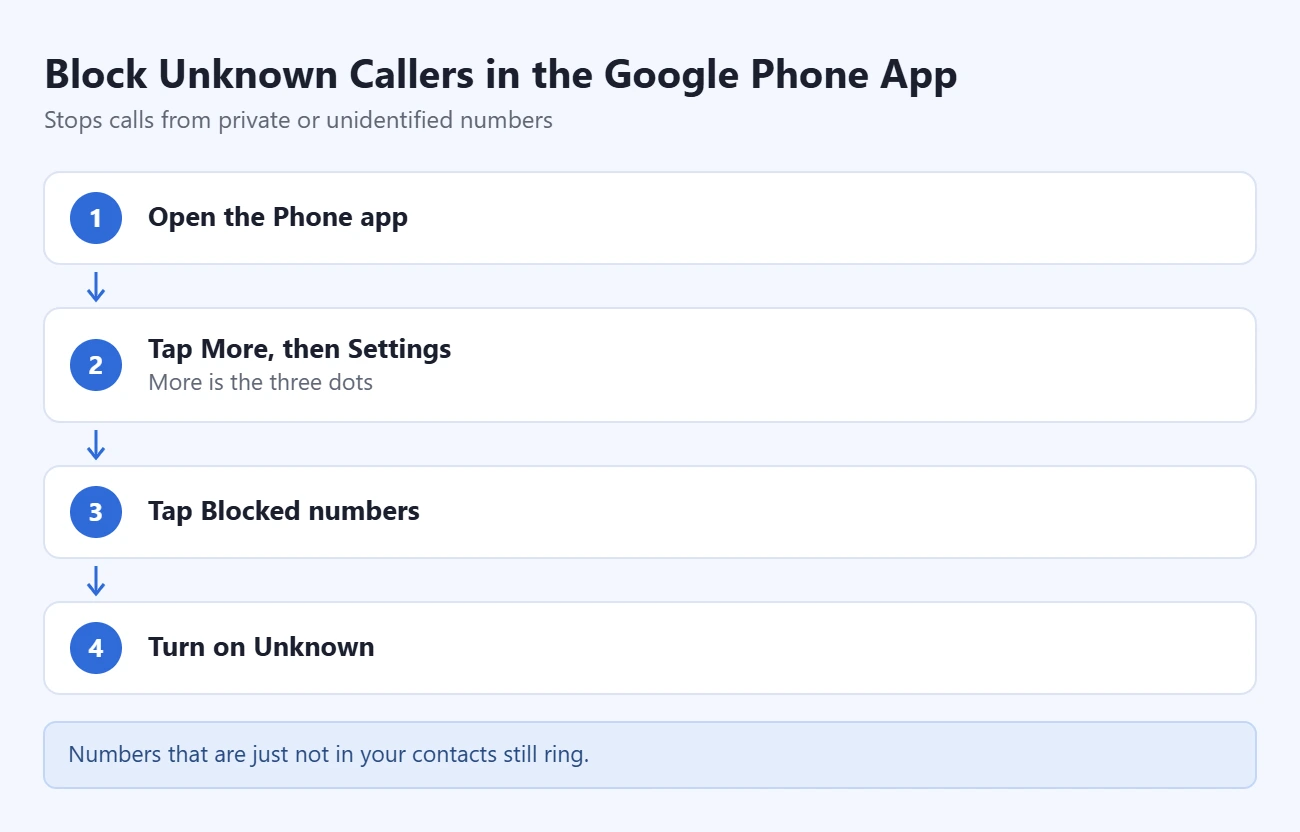
This blocks calls from private or unidentified numbers, meaning callers who hide their caller ID. It does not block calls from ordinary numbers that are simply not saved in your contacts. Those calls still ring.
If you have an older Pixel, the same switch is covered in more detail in our guide on how to block private numbers on a Google Pixel 4a.
How to Block a Number on a Samsung Galaxy Phone
Samsung gives you three ways to block a caller. Pick the one that matches where the number is.
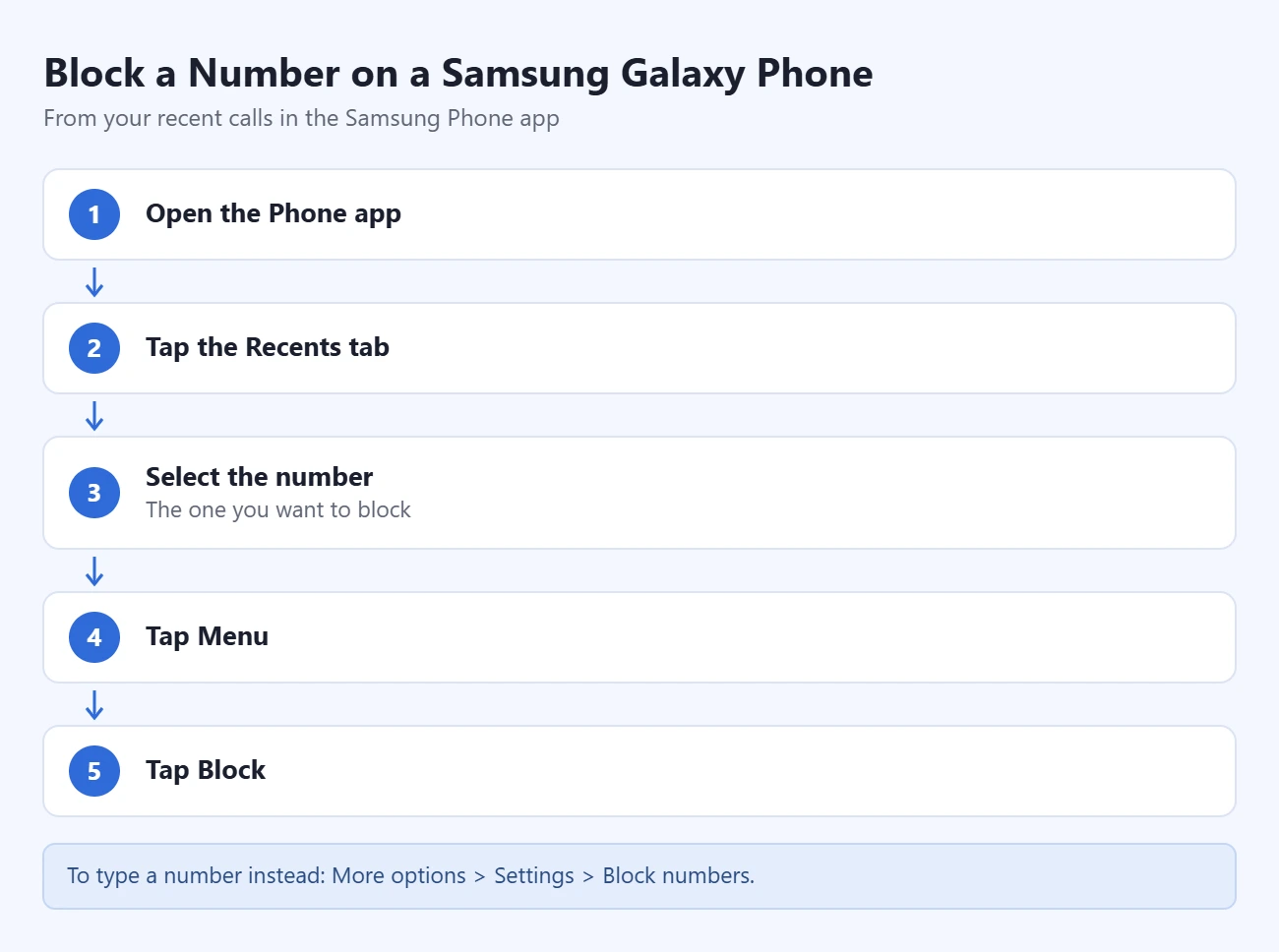
From your recent calls
- Open the Samsung Phone app.
- Tap the Recents tab.
- Select the number you want to block.
- Tap Menu.
- Tap Block.
By typing the number
- Open the Phone app.
- Tap More options (three vertical dots), then tap Settings.
- Tap Block numbers.
- Enter the phone number, then tap Add (the plus sign). On this screen you can also tap Recents or Contacts to pick a number instead of typing it.
From a saved contact
- Open the Contacts app.
- Tap the contact you want to block.
- Tap More, then tap Block contact.
- Tap Block to confirm.
Samsung says a blocked contact stays in your Contacts list but can’t reach you.
How to Block Unknown or Private Callers on a Samsung Galaxy Phone
- Open the Phone app.
- Tap More options, then tap Settings.
- Tap Block numbers.
- Turn on the switch next to Block calls from unknown numbers.
Think before you turn this on. A doctor’s office, a delivery driver, or a workplace switchboard may call with a hidden number, and those calls will be blocked too.
How to Block Texts in Google Messages
- Open Google Messages.
- On the Home screen, touch and hold the conversation you want to block.
- Tap Block.
- Tap OK. If you also want to report the sender, select Report spam before you tap OK.
You can also do this from inside the conversation. Tap More options > Details > Block & report spam, then tap OK.
Reporting is optional. When you report spam, Google says the sender’s number and recent messages from that sender are sent to Google, and a report may also go to your carrier. The sender can’t see that you reported them.
The blocked conversation moves out of your main list and into Spam & blocked.
How to Block Texts in Samsung Messages
- Open the Samsung Messages app.
- Touch and hold the conversation you want to block.
- Tap More.
- Tap Block, then confirm.
To see or edit the list later, open Samsung Messages, tap More options > Settings > Block numbers and spam. You can add a number there too.
Many newer Galaxy phones use Google Messages as the default texting app. If the icon on your phone is Google Messages, use the previous section instead.
Turn On Spam Protection
Blocking numbers one at a time does not stop spammers who keep changing numbers. The built-in spam filters catch more of them.
Google Phone app
- Open the Phone app.
- Tap More options > Settings > Caller ID and spam.
- Make sure See caller ID & spam is on. It is on by default.
- Turn on Filter spam calls.
With the filter on, suspected spam calls do not ring. Google says you won’t get missed call or voicemail notifications for them, but the filtered calls still appear in your call history. To work, the feature may need to send information about your calls to Google. Details are on Google’s caller ID and spam protection page.
Samsung Phone app
- Open the Phone app and tap More options > Settings.
- Tap Caller ID and spam protection, then turn on the switch at the top.
- Review the terms and tap Agree.
- Turn on Block spam and scam calls.
- Choose Block all spam and scam calls or Only block high-risk scam calls.
Samsung calls this feature Smart Call. It may not be available on every carrier or model. See Samsung’s Smart Call page for details.
Google Messages
- Open Google Messages and tap your profile picture or initials at the top right.
- Tap Messages settings > Protection & Safety > Spam protection.
- Turn on Enable spam protection.
What the Blocked Caller Experiences
Android does not tell someone that you blocked them. No message or alert is sent.
| What they try | What happens |
|---|---|
| Calling you (Google Phone app) | Your phone declines the call automatically. It does not ring on your end. |
| Leaving a voicemail (Google Phone app) | Blocked if visual voicemail is on. Otherwise it depends on your carrier. |
| Calling you (Samsung) | The call does not reach you. Samsung says to contact your carrier if you want to stop voicemails from specific callers. |
| Texting you (Google Messages) | The conversation is kept in Spam & blocked instead of your main list. |
What the caller hears depends on the carrier and on your voicemail setup. It may be a short ring followed by voicemail, or the call may simply end. Those same signs also happen when a phone is off or in Do Not Disturb, so a caller cannot be sure they were blocked.
If voicemails from a blocked number still arrive, the fix is on the carrier side. Our guide on how to check voicemail on Android shows how to turn on visual voicemail where your carrier supports it.
How to Confirm a Number Is Blocked
- Google Phone app: tap More > Settings > Blocked numbers. The number should be in the list.
- Samsung Phone app: tap More options > Settings > Block numbers.
- Google Messages: tap your profile photo or icon, then More options > Spam & blocked.
- Samsung Messages: tap More options > Settings > Block numbers and spam.
How to Unblock a Number
Google warns that calls you got from a number while it was blocked won’t show in your call history, even after you unblock it.
Google Phone app
- Open the Phone app and tap More > Settings > Blocked numbers.
- Next to the number, tap Clear (the X).
- Tap Unblock.
Samsung Galaxy
- Open the Phone app and tap More options > Settings > Block numbers.
- Remove the number from the list by tapping the minus icon next to it.
For a saved contact, open the Contacts app, select the contact, tap More, and tap Unblock contact.
Google Messages
- Open Google Messages and tap your profile photo or icon.
- Tap More options > Spam & blocked.
- Select the contact from the list.
- Tap Unblock.
Google says unblocking removes the spam report and moves the conversation back to the Home screen. For more cases, including calls that stay blocked after you remove the number, see how to unblock a number on Android.
Troubleshooting
The menu names don’t match
You probably have a different Phone app or an older version. Check the app’s name in your app drawer. Update it, then look for Blocked numbers (Google) or Block numbers (Samsung) in the app’s settings. Other brands, such as OnePlus and Motorola, usually follow the Google layout.
There is no Block option for a call
On the Google Phone app, open More > Call history and tap the call itself, not the contact photo. On Samsung, tap the call in Recents first so the extra buttons appear. If you still can’t find it, add the number by hand under Block numbers on Samsung. In the Google Phone app, look for Add a number under Blocked numbers. That option depends on your app version.
The Samsung unknown-caller switch or Smart Call isn’t working
Samsung’s fix is to clear the Phone app’s data. Warning: this resets the Phone app’s settings, so check your blocked list afterward and add numbers again if needed.
- Open Settings and tap Apps.
- Search for and select the Phone app.
- Tap Storage, tap Clear data, then tap Delete.
- Open the Phone app, tap More options > Settings > Block numbers, and turn the switch back on.
If Caller ID and spam protection is missing completely, your carrier or model may not support Smart Call.
The same caller keeps getting through
- Spam callers often switch numbers. Each new number is a new block, so turn on the spam filters above.
- Check that the number in your blocked list matches the one that called, including the area code.
- Blocking in the Phone app stops calls, and on many phones standard texts too. It does not block that person in WhatsApp, Messenger, or other apps. Block them inside each app.
- If the calls are harassing or threatening, contact your carrier. Carriers can block numbers on their side as well.
You blocked someone by mistake
Unblock the number using the steps above. Check your blocked list now and then so a real contact does not stay blocked.
Frequently Asked Questions
Does the blocked person know they’re blocked?
Android doesn’t notify them. Their calls are declined automatically and their texts stay out of your main inbox. They may guess after several calls fail, but nothing confirms it.
Can I block a number that isn’t in my call history?
Yes. On a Samsung Galaxy phone, go to Phone > More options > Settings > Block numbers, type the number, and tap Add. In the Google Phone app, go to More > Settings > Blocked numbers and tap Add a number if your version shows it.
Does blocking a number also block its texts?
On many phones a number blocked in the Phone app is also blocked for texts, but this depends on the phone and the texting app. To be sure, block the conversation in your Messages app as well.
Can a blocked number still leave a voicemail?
Sometimes. Google says blocked callers can’t leave voicemails when visual voicemail is on. Without it, voicemail is handled by your carrier, and Samsung directs you to your carrier to stop voicemails from specific callers.
Will my blocked numbers move to a new phone?
Don’t count on it. The list is stored on the phone, so check it after you switch phones and add any missing numbers again.
Can I call or text a number I blocked?
Blocking is aimed at incoming calls and texts. If you want a normal two-way conversation again, unblock the number first so you can receive the reply.
How do I block private or hidden numbers?
In the Google Phone app, turn on Unknown under Settings > Blocked numbers. On Samsung, turn on Block calls from unknown numbers under Settings > Block numbers. If you want to do the opposite and call someone without showing your own number, see how to hide your number when calling on Android.
Next Step
Block the number in your Phone app first, then block the same sender in your Messages app. After that, turn on the spam filter for calls and texts so you have fewer numbers to block by hand.

Matthew Burleigh is the founder, head writer, and editor of Solve Your Tech, which he launched in 2012. He has written technology tutorials since 2008 and worked in IT since 2003, including small-business support, IT management, and consulting. He holds Bachelor’s and Master’s degrees in Computer Science from Arizona State University.
Matthew writes practical guides for Windows, iPhone and iPad, Microsoft Office, Outlook, Google apps, and Android. Solve Your Tech’s guides are checked step by step against the device or app maker’s own documentation and tested on his own devices whenever he has the hardware or software, with clear steps, sources, and update dates.
Read more about Matthew and how Solve Your Tech writes and updates its guides, or report a correction.