To make a sticker on iPhone, open a photo in the Photos app, touch and hold the person, pet, or object until it glows, let go, and tap Add Sticker. Then tap Add Effect if you want a style like Outline, Comic, or Puffy. Your new sticker is saved to the sticker drawer, which you can open from Messages, the keyboard, and Markup. These steps apply to an iPhone XS, iPhone XR, or later running iOS 17 or later. Newer iPhones can use the current iOS release, while the iPhone XS and XR stop at an older version that still has this feature.
Steps come from Apple’s Make stickers from your photos on iPhone guide and its Create and share photo cutouts on your iPhone article.
What You Need
- iOS 17 or later. The Add Sticker option arrived with iOS 17. On iOS 16 you can lift a subject out of a photo, but you only get options like Copy and Share. Check your version in Settings > General > About.
- An iPhone XS, iPhone XR, or later. Apple lists these as the models that can lift a subject from a photo. Older phones do not show the option.
- A photo with a clear subject. A person, pet, or object that stands apart from the background works best.
- A Live Photo, if you want the sticker to move. A regular photo makes a still sticker.
How to Make a Sticker From a Photo
- Open the Photos app and tap a photo so it fills the screen.
- Touch and hold the subject of the photo. A shiny white outline may run around it.
- Lift your finger. A small menu appears above the subject with options such as Copy, Add Sticker, and Share.
- Tap Add Sticker. The sticker drawer opens with your new sticker in it.
- Tap Add Effect and pick a style, then close the sticker drawer. In iOS 17, tap Done instead. Skip this step if you want the sticker plain.
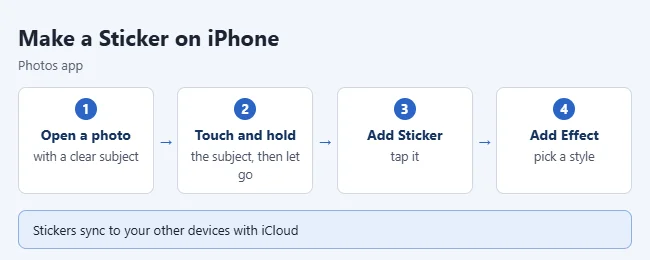
Photos with one clear subject and a plain background work best. You do not get to trace the edges yourself. The iPhone decides what counts as the subject, so if it grabs the wrong thing, try a different photo.
How to Make a Moving Sticker From a Live Photo
A Live Photo records a moment of motion around the shot. Turn one into a sticker and that motion plays on a loop. In current iOS versions the steps are the same as for a still photo. In iOS 17, the gesture is a little different.
- Open the Photos app and tap a Live Photo so it fills the screen.
- Touch and hold the subject, then let go. In iOS 17, slide the subject up until you see a duplicate of it, then let go.
- Tap Add Sticker.
- Tap Add Effect if you want a style on it. In current iOS versions, this is also where you turn the Live Photo animation on or off.

The sticker keeps the movement but not the sound. Audio from the Live Photo is not included. If your sticker does not move, the photo was probably not a Live Photo, the animation is turned off under Add Effect, or, in iOS 17, you let go before the duplicate appeared. Live Photos are also what powers other effects, like the one in this guide to taking a long exposure photo on iPhone.
Sticker Effects You Can Add
Effects change how the sticker looks without changing the photo it came from. Apple’s guide names these examples:
- Outline puts a white border around the subject, like a printed sticker.
- Comic redraws the subject in a comic book style.
- Puffy gives the sticker a raised, padded look.
You may see more choices depending on your iOS version. You do not have to pick an effect when you make the sticker. To change it later, open the sticker drawer, touch and hold the sticker, and tap Add Effect.
Where Your Stickers Are Stored
Stickers are not saved as pictures in your photo library. They live in the sticker drawer, which Apple says you can reach from the iPhone onscreen keyboard and from Markup tools. The original photo stays in Photos, unchanged.
Stickers also sync with iCloud. Apple notes they are available on your other devices signed in to the same Apple Account, so a sticker you make on your iPhone can show up on your iPad or Mac.
How to Use Your Stickers in Messages
- Open a conversation in Messages.
- Tap the plus (+) button, then tap Stickers.
- Tap a sticker to add it to your message, then send it. Or drag it onto a message bubble to stick it there.
For more on what you can attach to a text, see the complete guide to text messaging on iPhone. For regular emoji, see how to put emojis in a text message.
How to Use Stickers in Other Apps and on Photos
Because the sticker drawer is part of the keyboard, stickers work in more places than Messages.
- From the keyboard: In an app that accepts stickers, such as Notes or Mail, tap the emoji key on the keyboard and look for your stickers there. The exact layout varies by iOS version. Some apps only accept a sticker as a plain image, and some do not accept them at all.
- On a photo: Open the photo in Photos, tap Edit, tap the Markup button, tap the Add button, then tap Add Sticker. Pick a sticker, drag it into place, and tap Done.
Markup is also the way to place a cutout on top of a different picture. Apple notes that a copied subject cannot be pasted straight onto another photo. This guide to putting one picture on top of another on iPhone walks through that.
How to Reorder Your Stickers
- Open the sticker drawer. In Messages, tap the plus (+) button, then tap Stickers.
- Touch and hold any sticker, then tap Rearrange.
- Drag the stickers into the order you want.
- Tap Done.
Menu labels in the sticker drawer can differ slightly between iOS versions. If you do not see Rearrange, touch and hold a sticker and try dragging it.
How to Delete a Sticker
Warning: Deleting a sticker cannot be undone. Because stickers sync through iCloud, the sticker is also removed from your other devices signed in to the same Apple Account. The original photo is not deleted, so you can always make the sticker again.
- Open a photo in Photos and tap the Edit button.
- Tap the Markup button, then the Add button, then Add Sticker.
- Touch and hold the sticker you want gone, then tap Remove.
You can do the same thing from the sticker drawer in Messages. Touch and hold the sticker and choose the delete option in the menu. Stickers you already sent stay in those conversations.
Why “Add Sticker” May Not Appear
If you touch and hold a photo and do not get the Add Sticker option, work through these causes in order.
- Check your iOS version. You need iOS 17 or later. Go to Settings > General > Software Update and install any update.
- Check your iPhone model. You need an iPhone XS, iPhone XR, or later.
- Hold, then let go. The menu only appears after you lift your finger. If you start dragging, you pick the subject up instead.
- Try a clearer photo. If nothing glows, the iPhone did not find a subject. Use a photo with better light and less clutter.
- Open the photo in Photos. If the picture is in another app, save it to your library first and make the sticker there.
- Restart your iPhone. Then try again with a photo that worked before.

A few related things can look like the same problem:
- You see Copy and Share but no Add Sticker. That is the iOS 16 menu. Update to iOS 17 or later.
- The whole photo opens a preview or starts playing. You are holding the background or a Live Photo instead of the subject. Touch and hold directly on the person, pet, or object.
Frequently Asked Questions
Which iPhones can make stickers from photos?
You need an iPhone XS, iPhone XR, or a later model, and it must run iOS 17 or later. Older iPhones cannot lift a subject out of a photo, so the Add Sticker option never appears on them.
Why can’t I lift the subject from my photo?
The subject needs clear edges. Try a photo with better lighting or less clutter behind the subject. If no photo works, check that your iPhone is an XS, XR, or later and that iOS is up to date.
Does making a sticker change or delete my photo?
No. The sticker is a separate copy of the subject that lives in the sticker drawer. Your photo stays in the Photos app exactly as it was, and deleting the sticker later does not touch the photo.
Do Live Photo stickers have sound?
No. A sticker made from a Live Photo keeps the motion and loops it, but the audio from the Live Photo is not included.
Can I send stickers to Android phones?
Stickers work best between Apple devices. When you text an Android phone, the sticker may arrive as a plain image, and one that you stuck onto a message bubble may not show up the same way.
How do I change a sticker’s effect later?
Open the sticker drawer, touch and hold the sticker, and tap Add Effect to pick a different style.
Will my stickers show up on my iPad or Mac?
Yes, if those devices are signed in to the same Apple Account with iCloud. Apple says stickers sync across your devices. That also means deleting a sticker on one device removes it from the others.
Next Step
Make one still sticker and one from a Live Photo so you can see the difference, then try each effect. If you like sending animated replies, you can also learn how to send GIFs on iPhone.

Matthew Burleigh is the founder, head writer, and editor of Solve Your Tech, which he launched in 2012. He has written technology tutorials since 2008 and worked in IT since 2003, including small-business support, IT management, and consulting. He holds Bachelor’s and Master’s degrees in Computer Science from Arizona State University.
Matthew writes practical guides for Windows, iPhone and iPad, Microsoft Office, Outlook, Google apps, and Android. Solve Your Tech’s guides are checked step by step against the device or app maker’s own documentation and tested on his own devices whenever he has the hardware or software, with clear steps, sources, and update dates.
Read more about Matthew and how Solve Your Tech writes and updates its guides, or report a correction.