This post contains affiliate links. As an Amazon Associate, solveyourtech.com earns from qualifying purchases, at no extra cost to you.
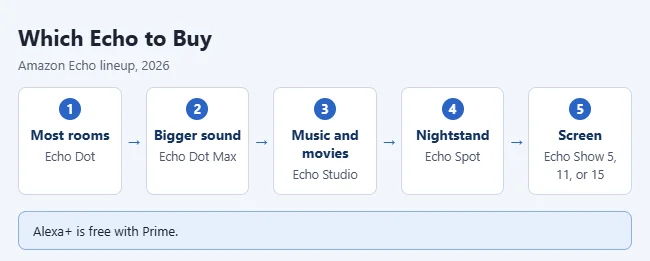
Before you buy an Amazon Echo, know that it needs Wi-Fi and the Alexa app on your phone to set up, and that Alexa+, Amazon’s newer AI version of Alexa, is free with Prime but costs extra on an Echo without it. For most rooms, the Echo Dot is the easy pick.
This covers the Echo speakers and Echo Show displays sold in the US. Your other choices are whether you want a screen, how good the sound needs to be, and whether you’ll control smart home devices. Alexa+ details come from Amazon’s Alexa+ page.
1. You need Wi-Fi and the Alexa app
An Echo can’t do much offline. You set it up with the Alexa app on your phone, and it needs a steady Wi-Fi connection to answer questions and play music. Follow the steps for connecting Alexa to Wi-Fi. You can also add groceries by voice and view your Alexa shopping list on an iPhone when you go to the store.
A few practical points before you order:
- It has no battery. Every Echo speaker and Echo Show runs on its wall adapter, so plan for an outlet where it will sit.
- You need an Amazon account. The Echo is registered to the account you sign in with in the Alexa app. Everyone in the house shares that account’s music, shopping list, and smart home devices unless you set up separate profiles.
- The app runs on iPhone and Android. A phone or tablet is the practical way to set it up, because the old Alexa app for Windows is no longer available to download.
- Hotel and dorm Wi-Fi can be a problem. Networks that make you sign in on a web page may not work, so check before buying one for a dorm room.
2. Alexa+ is free with Prime
Amazon says Prime members get full access to Alexa+ for free. It lets you talk more naturally and ask for several things at once. Newer Echo devices are listed as “Designed for Alexa+.”
Here is how it works if you don’t have Prime, according to Amazon’s February 2026 announcement:
| Your account | What you get on an Echo |
|---|---|
| Amazon Prime | Alexa+ at no extra cost for the household |
| No Prime, Alexa+ plan | Alexa+ for $19.99 a month |
| No Prime, no plan | The original Alexa, which stays free |
Without Prime you can also use a free, text-only Alexa+ chat on Alexa.com and in the Alexa app, with limits based on use. That free tier does not cover voice requests on an Echo. Alexa+ became free on eligible US Fire TV devices in August 2026, but that change does not include Echo speakers or displays.
If you are a Prime member and your Echo still uses the original Alexa, say “Alexa, upgrade to Alexa+.” Not sure about your membership? Here’s how to check if you have Amazon Prime.
Older Echo devices stay on the original Alexa
Amazon has said that some early models, including the first-generation Echo, Echo Dot, Echo Plus, and Echo Spot, the Amazon Tap, and the first two Echo Show models, will not get Alexa+. They keep working with the original Alexa. If you are buying a used or hand-me-down Echo for Alexa+, check the model and generation on the listing before you pay.
3. Decide if you want a screen
Speakers like the Echo Dot are voice-only. Echo Show models add a touchscreen for recipes, video calls, camera feeds, and photo slideshows. You can also use an iPhone photo as your Echo Show background. The Echo Spot sits in between: a small display built for a nightstand alarm clock. An Echo can also announce a Ring doorbell press. Learn more in changing the Ring doorbell sound.
A screen is worth it if you will actually look at it. Good reasons are following a recipe step by step, seeing who is at a Ring or Blink camera, video calling family, or showing a calendar in the kitchen. If you mostly ask for timers, weather, and music, a speaker does the same job for less and takes less counter space.
Besides the Show 5, Show 11, and Show 15 in the table below, Amazon sells an Echo Show 8, a middle size that was refreshed in 2025 alongside the Show 11. Both 2025 models have a 13 MP camera. The Echo Spot has no camera at all, which some people prefer in a bedroom.
4. Pick the sound you need
The basic Echo Dot is fine for voice answers, podcasts and background music in a bedroom or kitchen, but it sounds thin at high volume. If music matters, step up: the Echo Dot Max has nearly 3x the bass of the 2022 Echo Dot, and the Echo Studio adds spatial audio and Dolby Atmos for music and movies. You can also pair two matching Echo speakers as a stereo pair in the Alexa app.
Other sound details that catch buyers out:
- Stereo pairs need two of the same model. An Echo Dot can’t pair with an Echo Studio as left and right speakers. Mixed models can still play the same song in every room with a Multi-Room Music group.
- Some models have no audio-out jack. Newer speakers such as the Echo Dot Max can’t plug into a stereo with a cable. Use Bluetooth if you want to send their audio to another speaker.
- Music services work without Amazon Music Unlimited. Amazon Music, Apple Music, and Spotify all link in the Alexa app. Each service’s own plan decides what you can play, such as whether you can ask for a specific song.
- The Echo Studio got smaller. The 2025 Echo Studio is about 40% smaller than the original, so it fits a bookshelf better than the first model did.
5. Some Echos double as smart home hubs and Wi-Fi extenders
The Echo Dot Max, Echo Studio, and Echo Show 11 have a built-in smart home hub, so you may not need a separate hub for lights and locks. The 2025 Echo Show 8 has the same hub. The Echo Dot, Dot Max, and Studio also have eero Built-in. They can extend an existing eero mesh network by up to 1,000 square feet.
What “smart home hub” means here: these models include Zigbee and Thread radios and support Matter. Those are the three common ways smart bulbs, sensors, plugs, and locks talk to a controller.
| Standard | What it is | Needs a hub Echo? |
|---|---|---|
| Wi-Fi | Devices that join your home Wi-Fi directly | No, any Echo works |
| Matter over Wi-Fi | A shared standard that works across Alexa, Google Home, and Apple Home | No, any current Echo works |
| Matter over Thread | Low-power Matter devices, often sensors and locks | Yes, it needs a Thread border router |
| Zigbee | An older low-power standard used by many bulbs and sensors | Yes, it needs a Zigbee hub |
Before you buy a smart lock or sensor, look on its box for Zigbee, Thread, or Matter. If it says Thread or Zigbee, pick a hub model. The regular Echo Dot and Echo Pop handle Wi-Fi devices and Matter over Wi-Fi, but they don’t have the Zigbee hub or Thread router.
Once your lights and plugs are added, give each one a clear name; here’s how to rename a device in the Alexa app.
6. You control your privacy settings
Every Echo has a microphone-off button. You can also review and delete your voice recordings in the Alexa app. The app also lets you view your Alexa voice history and turn off Amazon Sidewalk. Echo Show models with a camera also have a built-in shutter you can slide closed.
One trade-off to know: Amazon removed the option to process voice requests on some Echo devices instead of in the cloud, so your requests are sent to Amazon. If that bothers you, set recordings to delete automatically in the Alexa app’s privacy settings.
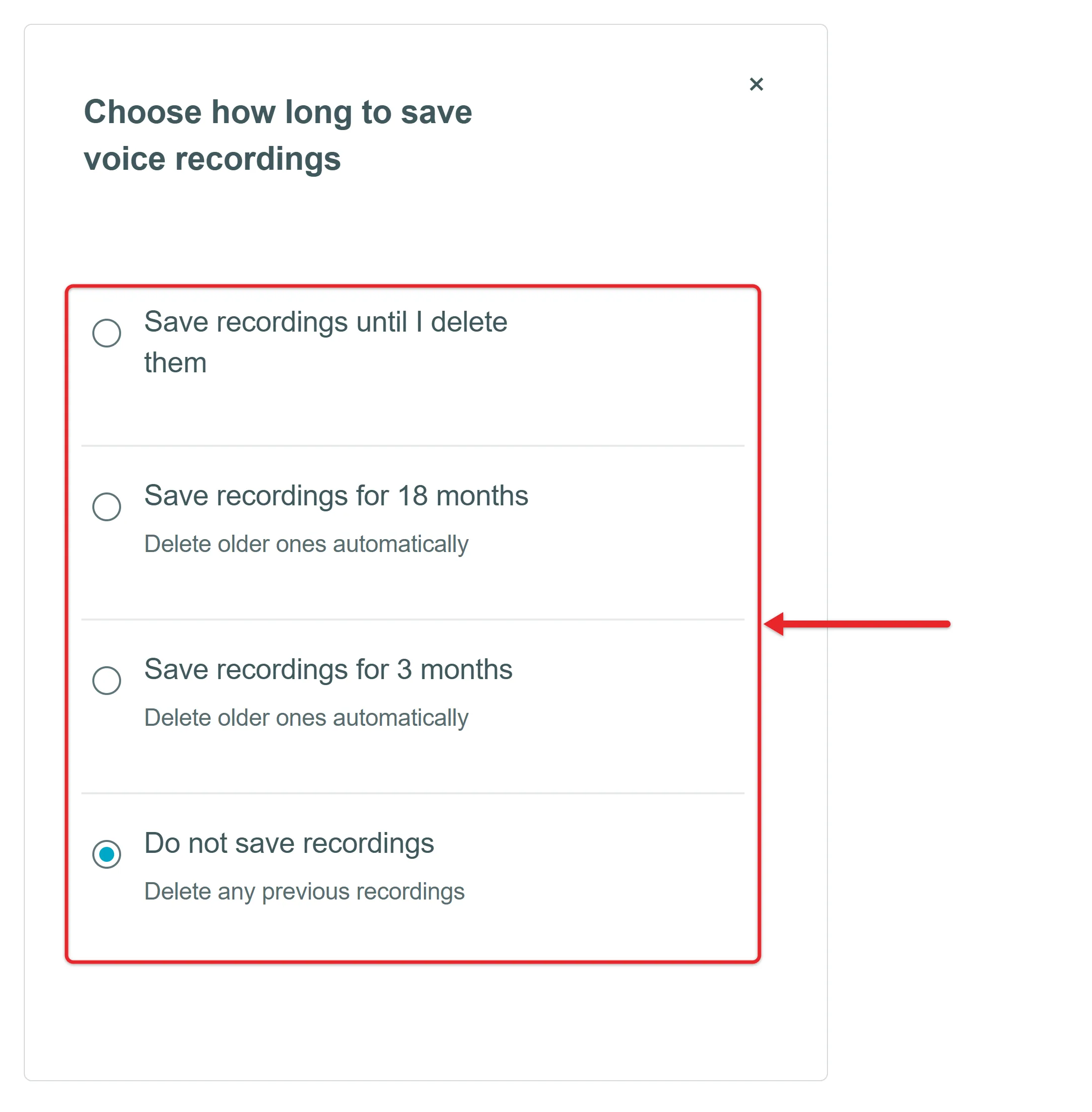
That on-device option, called Do Not Send Voice Recordings, was only ever offered on the Echo Dot (4th Gen), Echo Show 10, and Echo Show 15, and Amazon ended it on March 28, 2025. Those devices were switched to Don’t save recordings, so requests are processed in the cloud and then deleted. On any Echo, open More > Alexa Privacy > Manage Your Alexa Data in the Alexa app to choose whether recordings are kept until you delete them, for 18 months, for 3 months, or not at all.
You can also change the wake word if “Alexa” is a name in your home. Newer Echo models offer Amazon, Computer, Echo, and Ziggy in the device’s settings in the Alexa app.
Buying for a child? Amazon sells kids editions, like the Echo Pop Kids, with age-appropriate content and parental controls in the Alexa app.
Which Echo should you buy?
| Echo | Screen | Best for |
|---|---|---|
| Echo Dot | No | Most rooms; the easy starter pick |
| Echo Dot Max | No | Bigger sound and a built-in smart home hub |
| Echo Studio | No | Music and movies with Dolby Atmos |
| Echo Spot | Small clock display | Nightstands |
| Echo Show 5 | 5.5″ | Kitchens and bedside, with a camera |
| Echo Show 11 | 11″ Full HD | Recipes, video calls, and smart home control |
| Echo Show 15 | 15.6″ Full HD | A wall-mounted family hub with Fire TV |
Prices change often and Amazon runs frequent sales on Echo devices, so check the current price on each product page. As a rough order, the Echo Dot is the least expensive of these, the Echo Spot and Echo Show 5 sit just above it, and the Echo Studio and the larger Echo Show models cost the most.
Who Should Skip Each Echo
Here’s when a different model makes more sense.
- Echo Dot: skip it if music is your main use. It sounds thin at high volume.
- Echo Dot Max: skip it if you mostly want timers, weather, and quick answers. The regular Echo Dot handles those for less.
- Echo Studio: skip it for a small bedroom or a nightstand. It’s large, and the Dot Max fills most small rooms.
- Echo Spot: skip it if you want video calls or recipes. It has a small screen and no camera.
- Echo Show 5: skip it for following recipes or watching video. The 5.5-inch screen is small for that.
- Echo Show 11: skip it if you don’t need a screen. A speaker costs less and takes less space.
- Echo Show 15: skip it if you don’t have a wall or counter spot for a 15.6-inch screen.
How to set up a new Echo
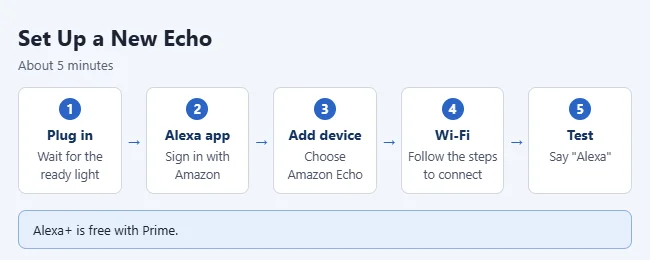
- Plug in the Echo and wait for the light ring to turn orange or the screen to show setup. Alexa usually greets you within about a minute.
- Open the Alexa app on your phone and sign in with your Amazon account.
- Tap Devices, tap the + button, tap Add Device, then pick Amazon Echo and your model.
- Follow the steps to connect the Echo to your Wi-Fi.
- Say “Alexa” to test it, and add any smart home devices.
- Open More > Alexa Privacy and pick how long voice recordings are kept, so that choice is made from day one.
If setup doesn’t finish
- The light stays orange: the Echo is still waiting for Wi-Fi. Move it closer to the router, check the password, and run the Wi-Fi step again in the app.
- The app can’t find the Echo: turn on Bluetooth on your phone, keep the phone near the Echo, and unplug the Echo for 30 seconds before trying again.
- A used Echo won’t register: it may still be linked to the previous owner’s account. Ask them to remove it from their Amazon account, or reset the Echo to factory settings and set it up again.
Amazon Echo Buying Questions
Do I need Prime to use an Echo?
No. An Echo works with a free Amazon account. Prime adds Alexa+ at no extra cost.
Can an Echo play Spotify or Apple Music?
Yes. Amazon Music, Apple Music, and Spotify all work, and you can also stream from your phone over Bluetooth. Bluetooth is also how to share an Echo with a guest now that Alexa Guest Connect is gone.
How do I play music on several Echos at once?
Group them in the Alexa app. That’s how you play the same song on multiple Echos.
Is an Echo always listening?
It listens on the device for the wake word. Audio is sent to the cloud after the Echo hears the wake word or you press the action button. Press the microphone-off button when you want it to stop listening entirely; the light turns red.
Can I use an Echo as a Bluetooth speaker for my phone?
Yes. Say “Alexa, pair Bluetooth,” then pick the Echo in your phone’s Bluetooth settings. Audio from your phone then plays through the Echo while it stays in range.

Matthew Burleigh is the founder, head writer, and editor of Solve Your Tech, which he launched in 2012. He has written technology tutorials since 2008 and worked in IT since 2003, including small-business support, IT management, and consulting. He holds Bachelor’s and Master’s degrees in Computer Science from Arizona State University.
Matthew writes practical guides for Windows, iPhone and iPad, Microsoft Office, Outlook, Google apps, and Android. Solve Your Tech’s guides are checked step by step against the device or app maker’s own documentation and tested on his own devices whenever he has the hardware or software, with clear steps, sources, and update dates.
Read more about Matthew and how Solve Your Tech writes and updates its guides, or report a correction.